Configure Safari to automatically enable Reader view whenever you visit a specific website on your iPhone, iPad, Mac, or Apple Vision Pro, so you can read the article without ads and other distractions.
Reader view in Safari strips all navigation menus, ads, and other distractions from a webpage and presents it in a clean, easy-to-read page with just the text and in-page photos.
If you always prefer using a specific website in Reader mode, you can have Safari open it in Reader mode automatically every time you visit it. It will save you a few taps, and you can jump right into reading the article without distractions.
Note: Not all websites support Reader view. Secondly, some pages of a website, such as the home page, archive page, tag page, and so on, may not support Reader view, but the individual article of that website may.
iPhone or iPad
- Open Safari on your iOS device and visit a website.
- Tap the website settings icon, as shown in the screenshot below.
- Tap the three dots icon.
- Scroll down and turn on Use Reader Automatically.
- Tap the X icon to return to the website, which should now be in Reader Mode.

Moving forward, whenever you launch a webpage from this website, Reader mode will start up automatically for your convenience. If you want to disable this feature, just follow the above steps again and disable the toggle.
To turn on Reader mode for all websites, go to iOS Settings > Apps > Safari > Reader and turn on the switch for Other Websites.
Mac
1) Launch Safari and visit a web page.
2) Click the website settings icon and select Website Settings.

3) Check the box for ‘Use Reader when available.’

If your Mac is on an older version of macOS, follow these steps instead:
- Click the Reader view button in the URL bar. If you don’t see it, click the three dots icon in the URL bar and choose Reader View.
- Right-click over the tiny Reader view icon in the Safari URL bar and choose Use Reader Automatically on ‘website name.’
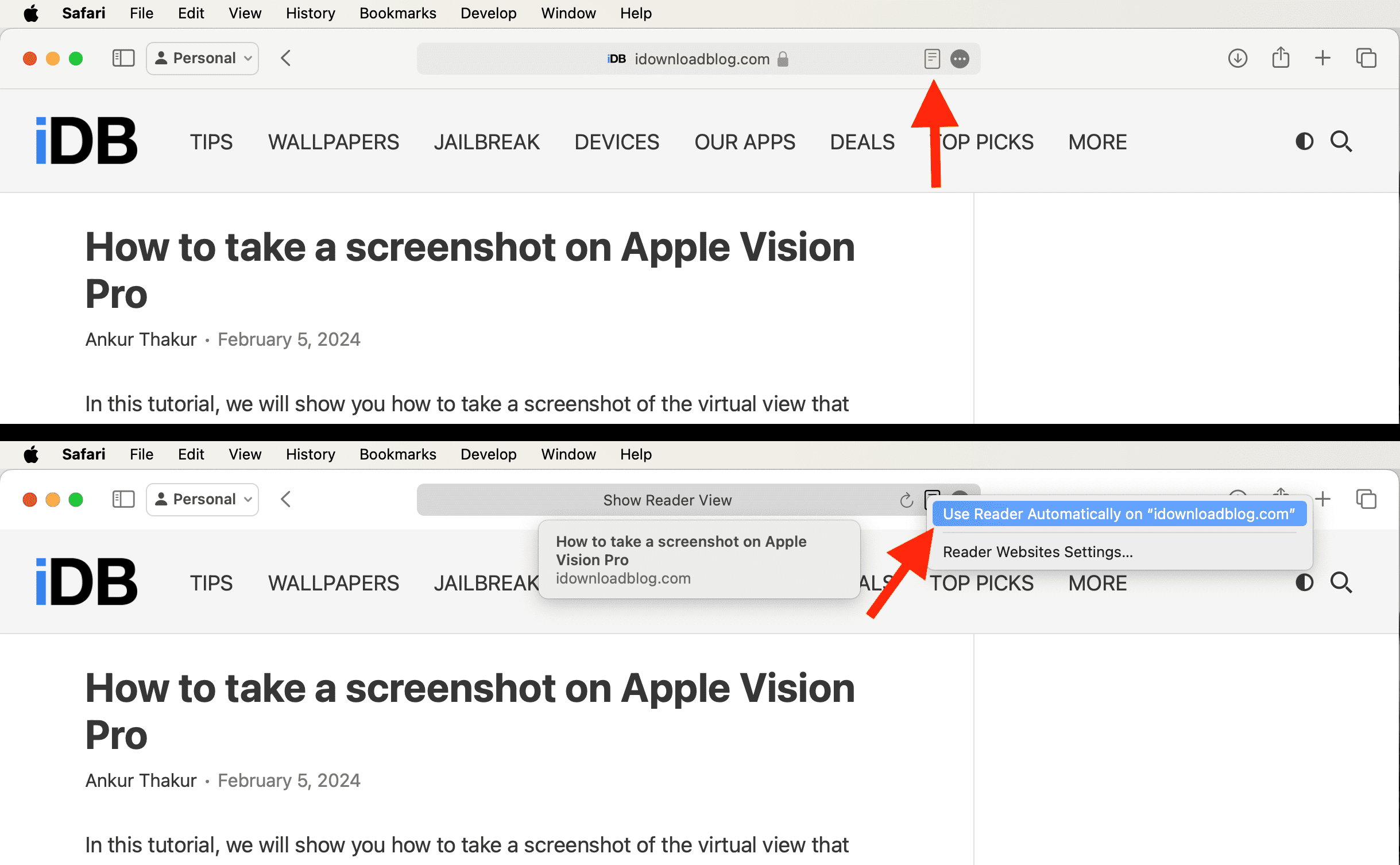
Safari on Mac will now begin loading every web page associated with the website you’ve configured this option for in Reader mode.
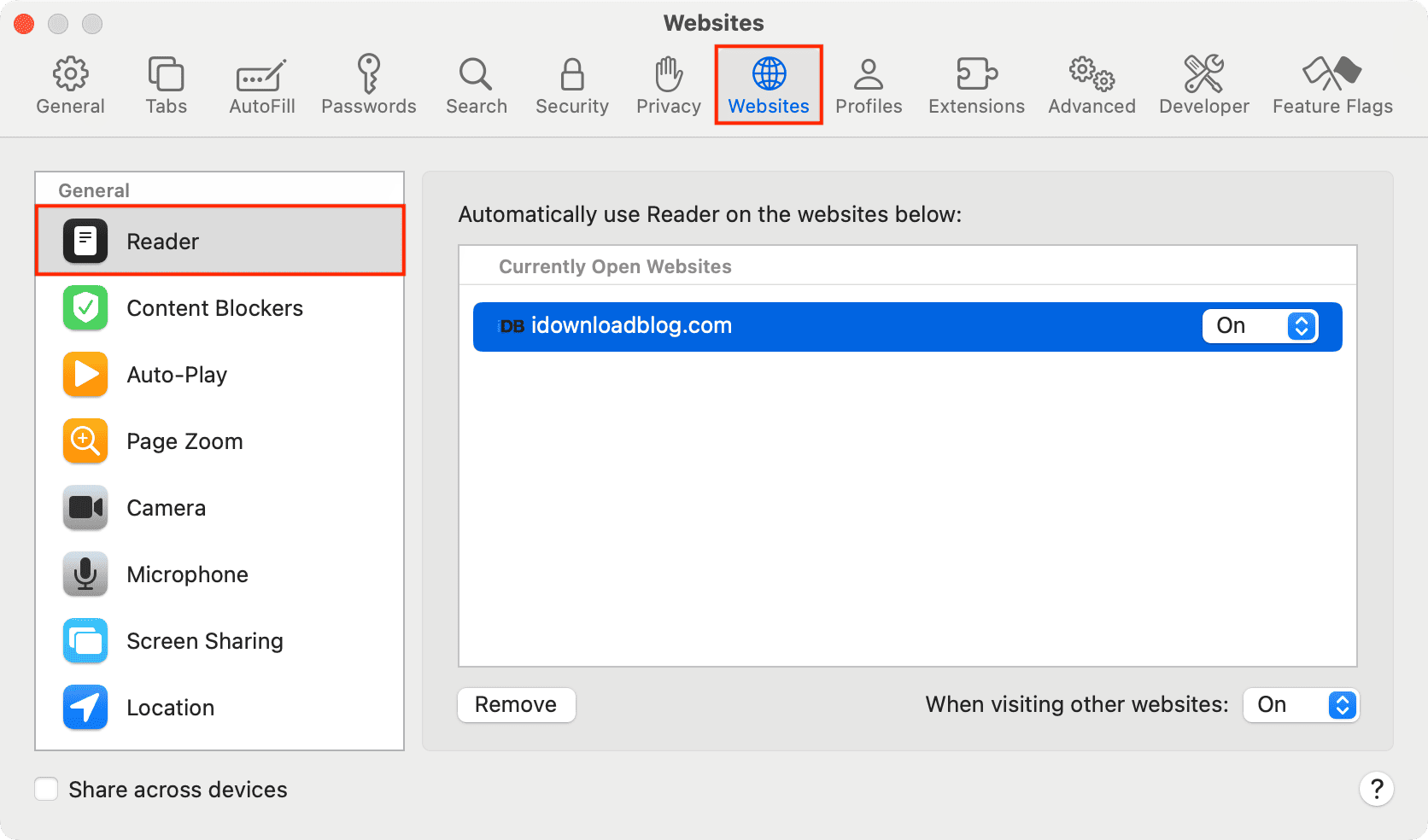
You can disable this feature by repeating the above steps. Alternatively, you can click Safari > Settings from the top menu bar and go to the Websites tab. Now, select Reader from the left sidebar and turn it on or off for a website that appears here. From this screen, you can set “When visiting other websites” to On to have Reader mode work automatically on all supported web pages.
Apple Vision Pro
- Open Safari and visit a website.
- Tap the AA icon that’s on the right side of the Safari search field.
- Now, select Website Settings.
- Finally, switch on the option called Use Reader Automatically.
If you want to load all compatible web pages in Reader mode, go to the Vision Pro Settings app > Apps > Safari > Reader.
Check out next: How to use Reader Mode in Google Chrome on Mac and PC