Learn how to toggle Dark Mode on your iPhone or iPad to reduce eye strain in low-light environments and during the night.
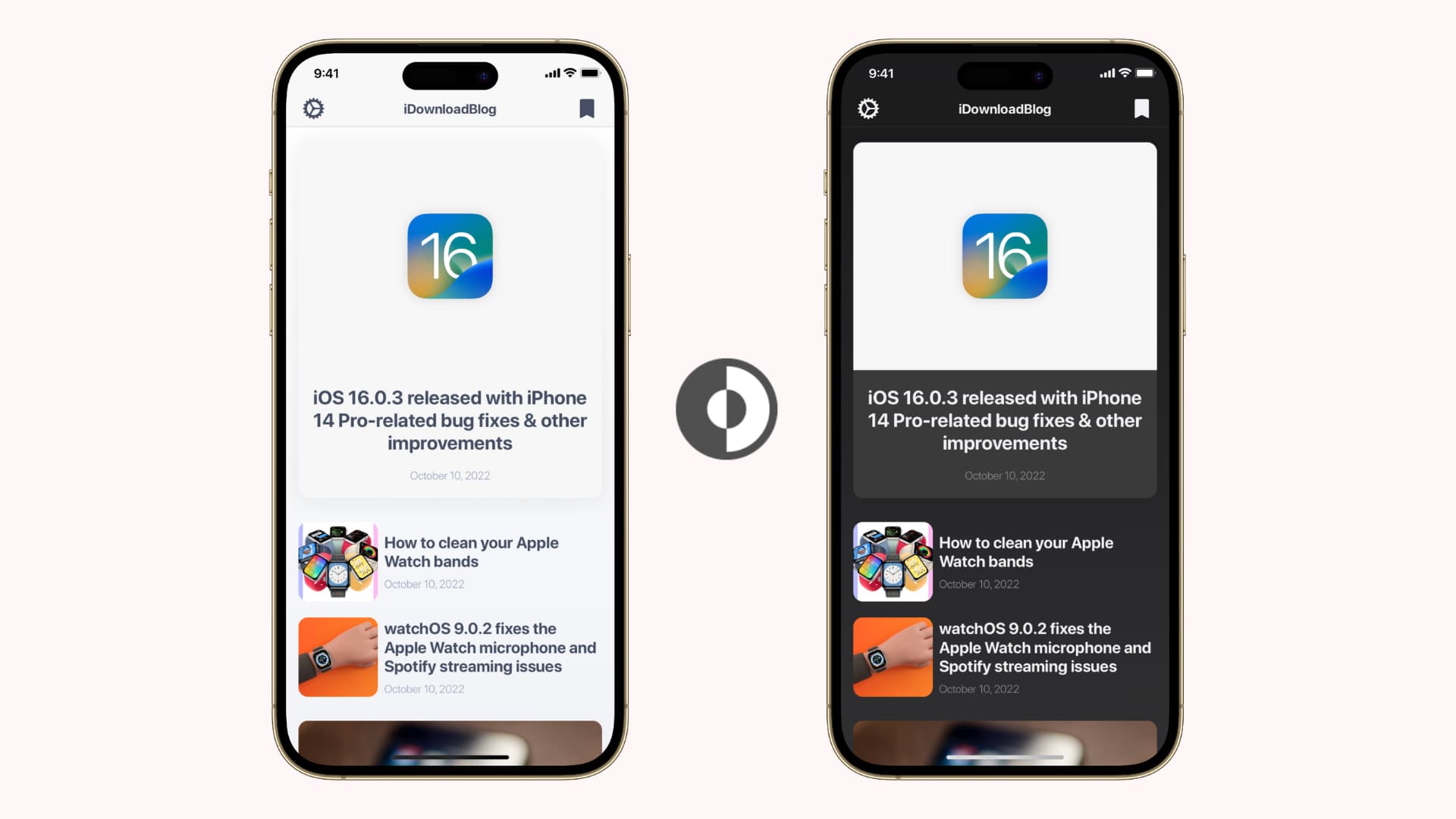
Dark Mode is a system-wide user interface theme bringing a darker color palette for onscreen menus, switches, buttons, and more.
It creates a contrast between your content in the foreground and the surrounding interface, which visually recedes into the background.
In addition to being easy on your eyes at night, a darker interface helps conserve battery on iPhones with OLED displays.
Activate Dark Mode on an iPhone or iPad
- Asking Siri: Invoke Siri and ask it to turn on Dark Mode.
- From Settings: Go to iOS 27 Settings > Appearance, then select the Dark option in the Appearance section to turn on Dark Mode on this device. In iOS 26 and earlier, go to Settings > Display & Brightness instead.

- From Control Center: Swipe down from the top-right corner to open Control Center. Then, touch and hold the brightness slider and select the hidden Dark Mode option. You can also customize Control Center to add a dedicated Dark Mode toggle.

- Using Action Button: Go to the Settings app on iPhone 15 Pro or later models and tap Action Button. Swipe to the Controls section, tap Choose a Control, and select Dark Mode. You can now press and hold the Action button to activate or deactivate Dark Mode.

- Lock Screen shortcut: You can replace the camera and flashlight buttons on the Lock Screen with something else like the Dark Mode control.

Use Dark Mode Focus filter
When customizing DND or other Focus modes on your iPhone, you can add a Dark Mode Focus filter so it automatically turns on when that particular Focus is active.

Schedule Dark Mode on an iPhone
iOS can automatically enable or disable Dark Mode based on sunrise and sunset times or a custom schedule. Go to Settings > Appearance (formerly Display & Brightness) and turn on the Automatic switch. Next, tap Options and choose Sunset to Sunrise or Custom Schedule.

Does Dark Mode work with third-party apps?
Apple provides an API that allows third-party developers to implement Dark Mode in their apps while honoring the system-wide Dark Mode setting. As a result, activating Dark Mode also applies a darker appearance to third-party apps that support it, such as WhatsApp and Instagram.
Do websites in Safari support Dark Mode?
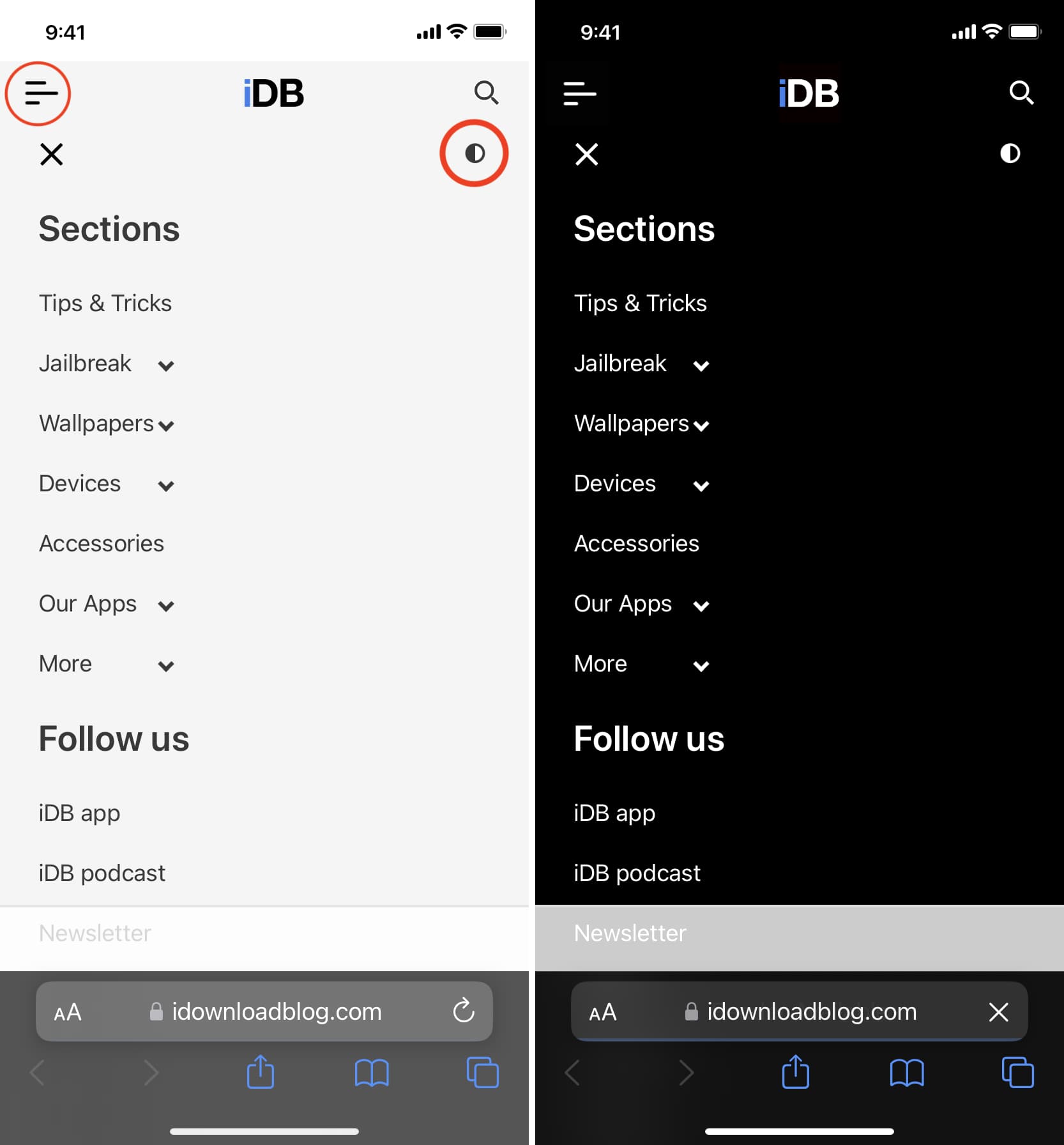
Yes, but that depends on whether the developer has implemented Dark Mode support for their site. Some websites may use plugins that automatically change the color palette to match a visitor’s global dark mode settings.
Does Dark Mode save your iPhone’s battery?
Dark Mode saves battery on OLED iPhones because individual OLED pixels emit their own light. For true black, pixels emit no light at all, saving battery.
The same isn’t true for LCD technology that requires backlighting, which consumes battery power, even for pure black pixels. All iPhones from the iPhone X (2017) onward have OLED screens, except the second- and third-generation iPhone SE (2020 and 2022), iPhone 11 (2019), iPhone XR (2018), and older models, which use LCD screens.
More on Dark Mode: