Learn how to reset the layout of all the apps and widgets on your iPhone or iPad Home Screen to factory defaults in just a few seconds.
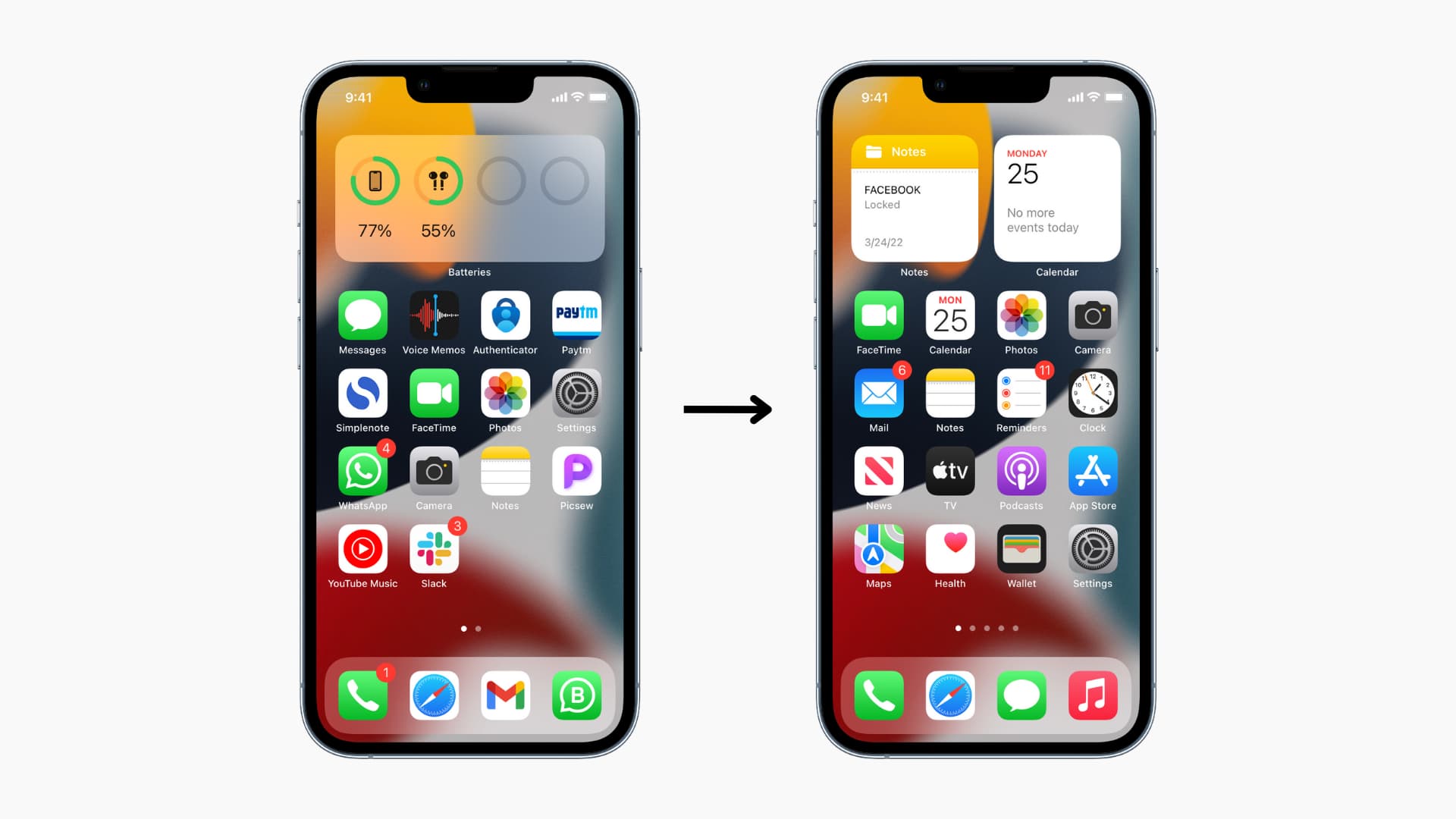
If you’re bored with the Home Screen layout you’ve created and want to start over, we won’t judge you.
And you won’t have to reset all settings, erase your iPhone, or manually move the icons to their original positions just to get that default look.
Important: Resetting the Home Screen will remove all the widgets and folders you have added.
Reset the Home Screen layout on iPhone
- Open the Settings app on your iPhone or iPad.
- Tap General.
- Scroll to the bottom and tap Transfer or Reset iPhone.
- Tap Reset.
- Select Reset Home Screen Layout and confirm.

Boom, the app icons on all your Home Screens are now back to the default layout.
Resetting the Home Screen layout to factory defaults also removes the widgets and folders you previously added. For instance, I had a Batteries widget on my Home Screen, and it was gone after I reset it. But don’t worry, you can add your widgets again.
More for your Home Screen: