Find out how to remove a paired Bluetooth device from your iPhone, iPad, or Mac and learn what to do if you can’t remove them easily.
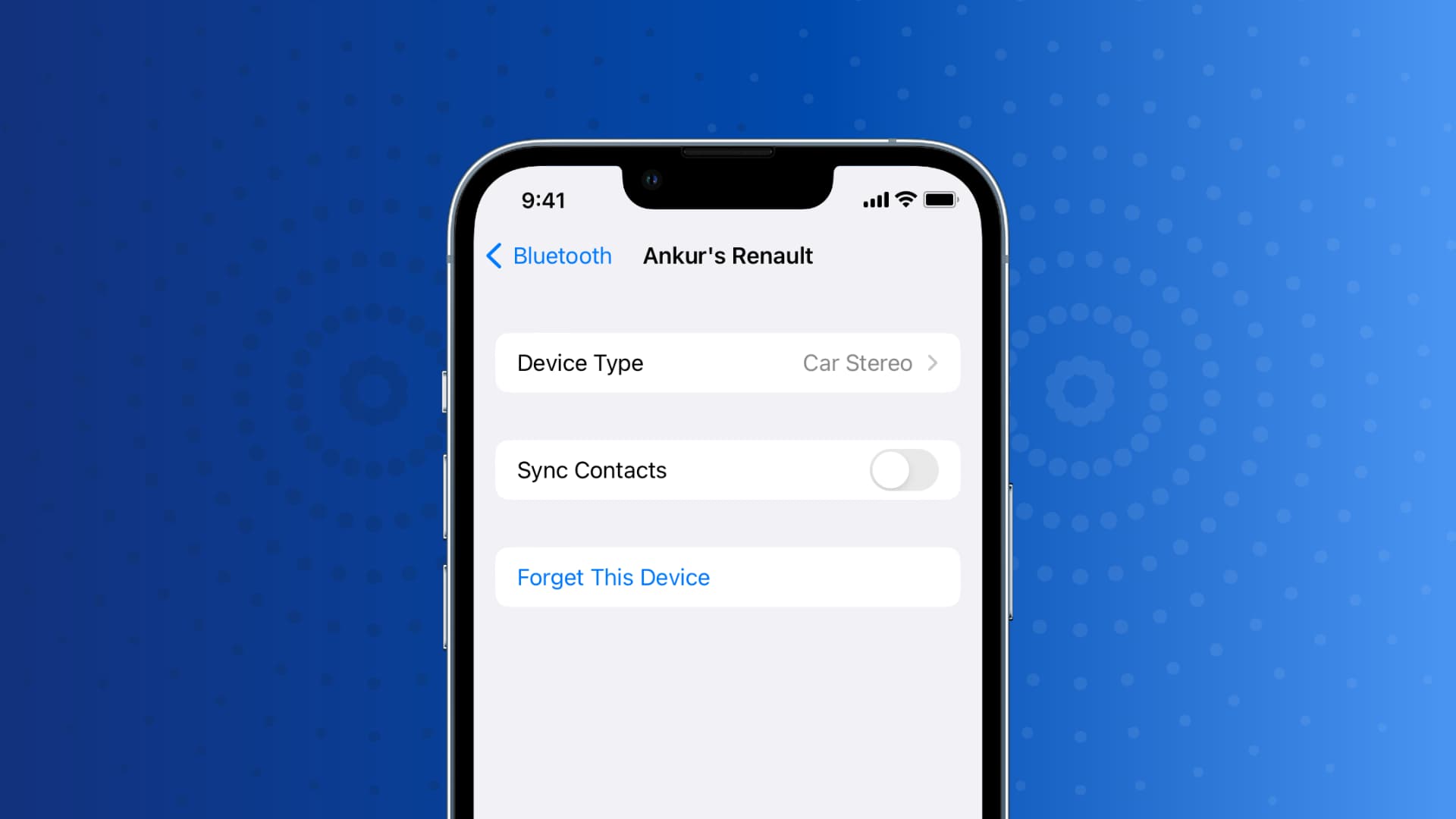
I had this strange problem on my iPhone where I couldn’t forget a Bluetooth device that had been paired before. The option was there, but it just wouldn’t work, leading to some frustrating moments of cursing at my iPhone. It turned out the issue was due to my iPhone being jailbroken, and a tweak I’d installed was causing the problem. Once I realized that, it didn’t take long to fix.
While you likely already know how to delete Bluetooth devices from your iPhone, iPad, or Mac, I will show you how to do it and also share how I fixed my issue so that if it ever happens to you, you’ll know exactly what to do.
Delete a paired Bluetooth device
Follow these steps to remove a Bluetooth device from your Apple device settings. Doing so can help fix Bluetooth connection problems, make the Bluetooth accessory pairable with other smartphones and computers, or help you clean up your Bluetooth screen by removing old, unneeded devices.
- Open iOS Settings or macOS System Settings and select Bluetooth.
- Hit the little info icon ⓘ next to the Bluetooth device you want to remove.
- Tap the Forget This Device button, then tap Forget Device to confirm.
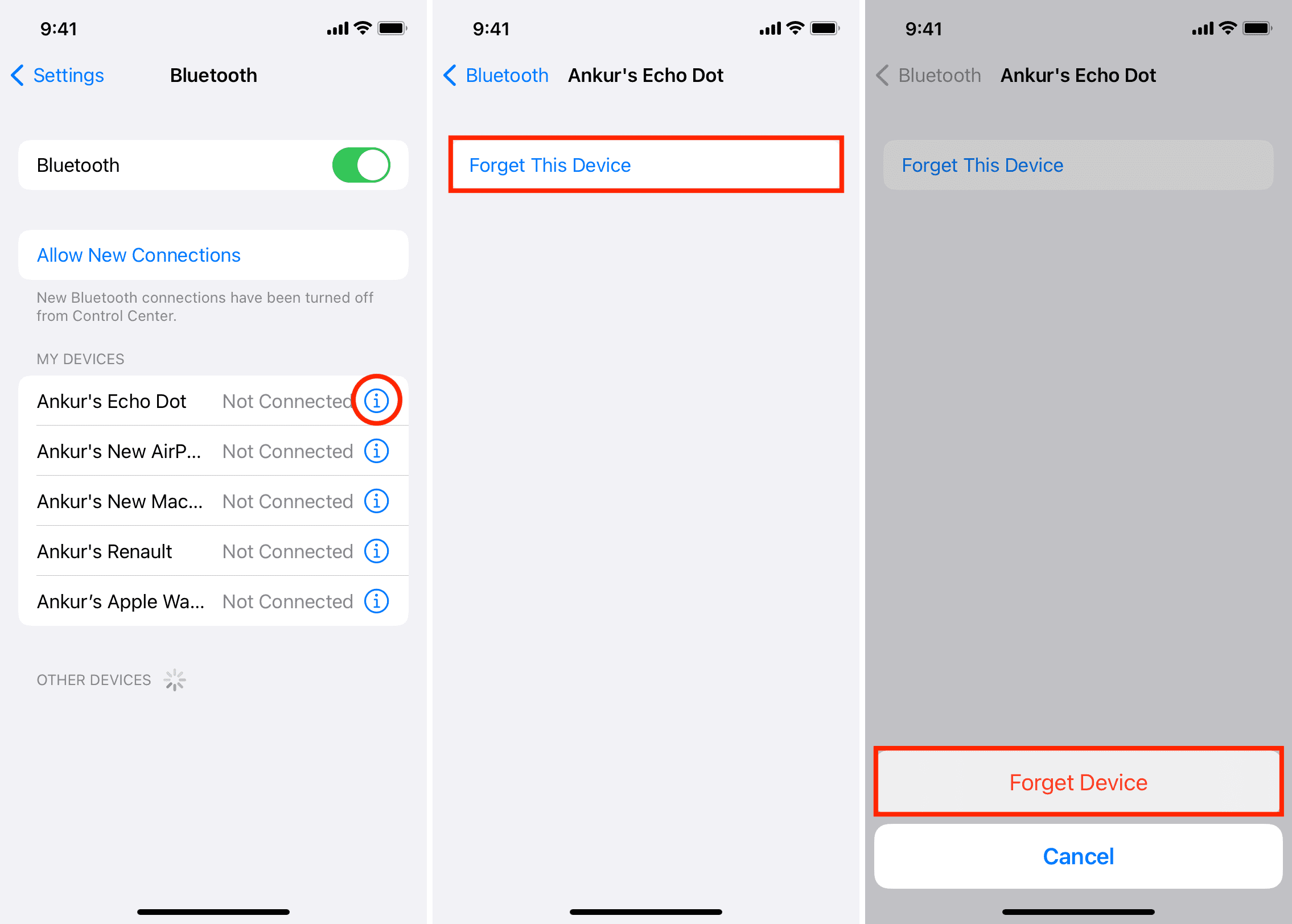
The device should now be successfully removed from your list of connected devices. You can’t connect to it again unless you re-pair it with your iPhone, iPad, or Mac. For some devices, like AirPods, pairing it to one Apple device makes it available on other devices using the same Apple Account.
If you can’t remove a Bluetooth device
Did the above steps fail, leaving you unable to remove the Bluetooth device from your iPhone, iPad, or Mac? Try these tips if you can’t forget a Bluetooth device:
- Restart your phone or computer, then retry the steps above.
- Restart the Bluetooth device, connect it to your iPhone, iPad, or Mac, and then try removing it.
- You can also unpair your phone or computer from the Bluetooth settings of that Bluetooth device. For example, I can go to the Bluetooth section on my car’s dashboard and remove my paired iPhone from there. Similarly, if you reset your AirPods or other wireless headphones, it automatically deletes all the devices it was previously connected to.
- If the problem continues, reset your iPhone or iPad network settings. After this, you should be able to forget paired Bluetooth devices. If that doesn’t help, reset all your iPhone or iPad settings instead. On Mac, try resetting the Bluetooth module.
How to force remove paired Bluetooth devices
This trick works only if your iPhone is jailbroken. If it’s not jailbroken, the instructions above should resolve the issue for you.
If your iPhone is jailbroken and won’t let you forget connected Bluetooth devices, follow these tips:
- Turn off your iPhone.
- Next, turn on your iPhone.
- As soon as you see the Apple logo, press and hold the Volume Up button. Keep holding until you see your iPhone Lock Screen. This will force your iPhone to start in Safe Mode, where all jailbreak extensions are disabled.
- Follow the instructions above to remove paired Bluetooth devices.
- Reboot your iPhone.
That’s it! Hopefully, one of these tips will help you fix your Bluetooth-related problems.
Other Bluetooth tips: