Video

Tumblr for iOS update turns your photo bursts and videos into animated GIFs

Yahoo-owned blogging service Tumblr is pushing an update to its iPhone, iPod touch and iPad application in the App Store today, and it brings with it a headline new feature: a tool which helps turn your photo bursts and videos into animated GIFs that can be easily shared on the service, as first reported by The Verge.

This removes much of the friction that comes with having to do the conversion yourself. The update is being rolled out as we speak so you might not see it just yet.

Appendix: launch apps from folders using 3D Touch

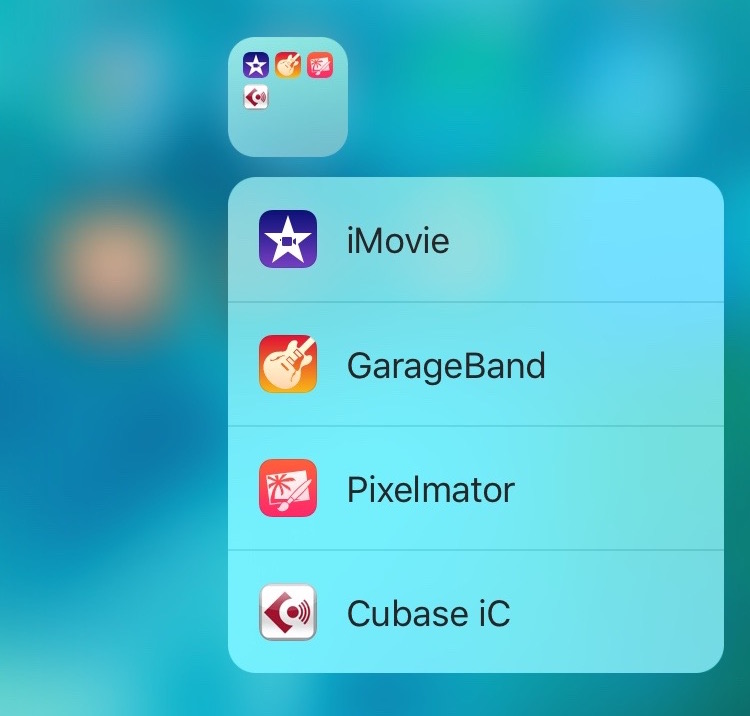
Appendix is a new jailbreak tweak that breathes new life into Home screen folders on iOS. It allows you to launch apps directly from folders using the iPhone 6s' 3D Touch gesture.

Instead of having to open a folder to select an app that you wish to launch, users with Appendix installed, a free jailbreak tweak now available on Cydia, can open apps with a single gesture. It's not the perfect solution for directly launching apps found in folders, but it's pretty interesting nonetheless.

4GB of RAM in the iPad Pro makes for a better Safari experience [Video]

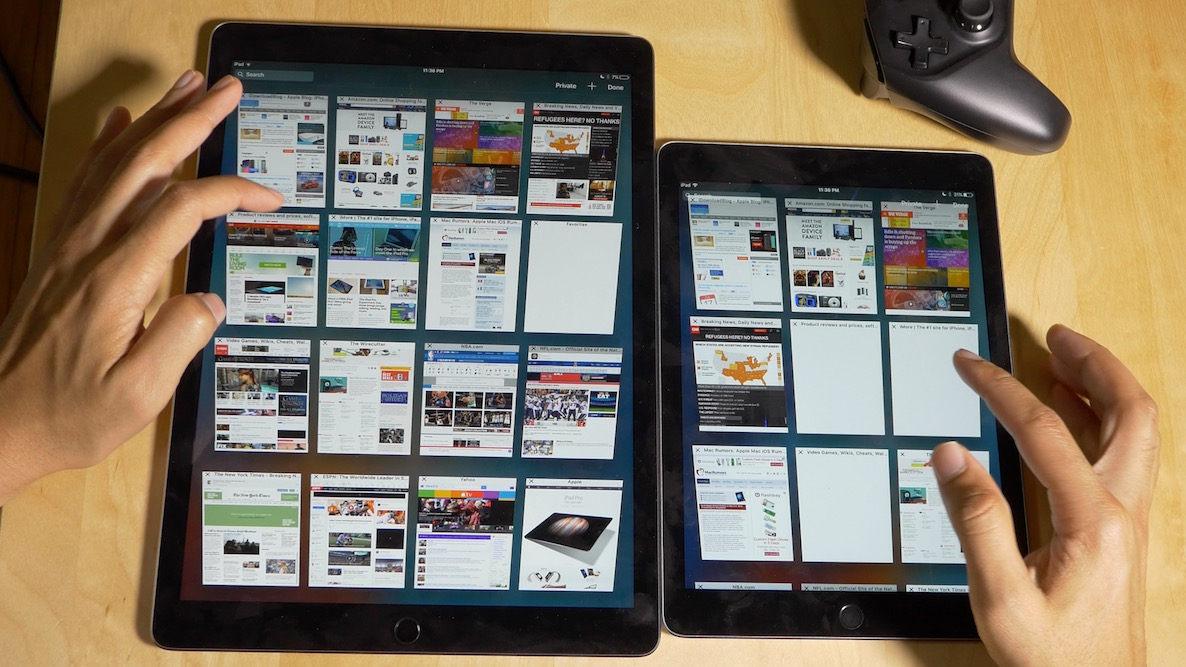
The iPhone 6s made a big difference when browsing the web with Safari when compared to previous iPhones. This can primarily be attributed to the addition of an extra gigabyte of RAM in Apple's latest flagship phone, which brought its total amount up to 2GB.

The iPad Pro takes the amount of RAM found in iOS devices a step further. It features a whopping 4GB of RAM—double the amount found in the iPad Air 2 and iPhone 6s. This means that the iPad Pro contains more RAM than any other iOS device since the platform's inception.

The result? Unsurprisingly, when compared to the next most powerful iPad, the iPad Air 2, the iPad Pro performs much better when it comes to keeping web pages loaded in memory. Hence, browsing the web tends to be a smoother and more cohesive experience on the iPad Pro when compared to lesser equipped iPads. Watch our video walkthrough and see for yourself.

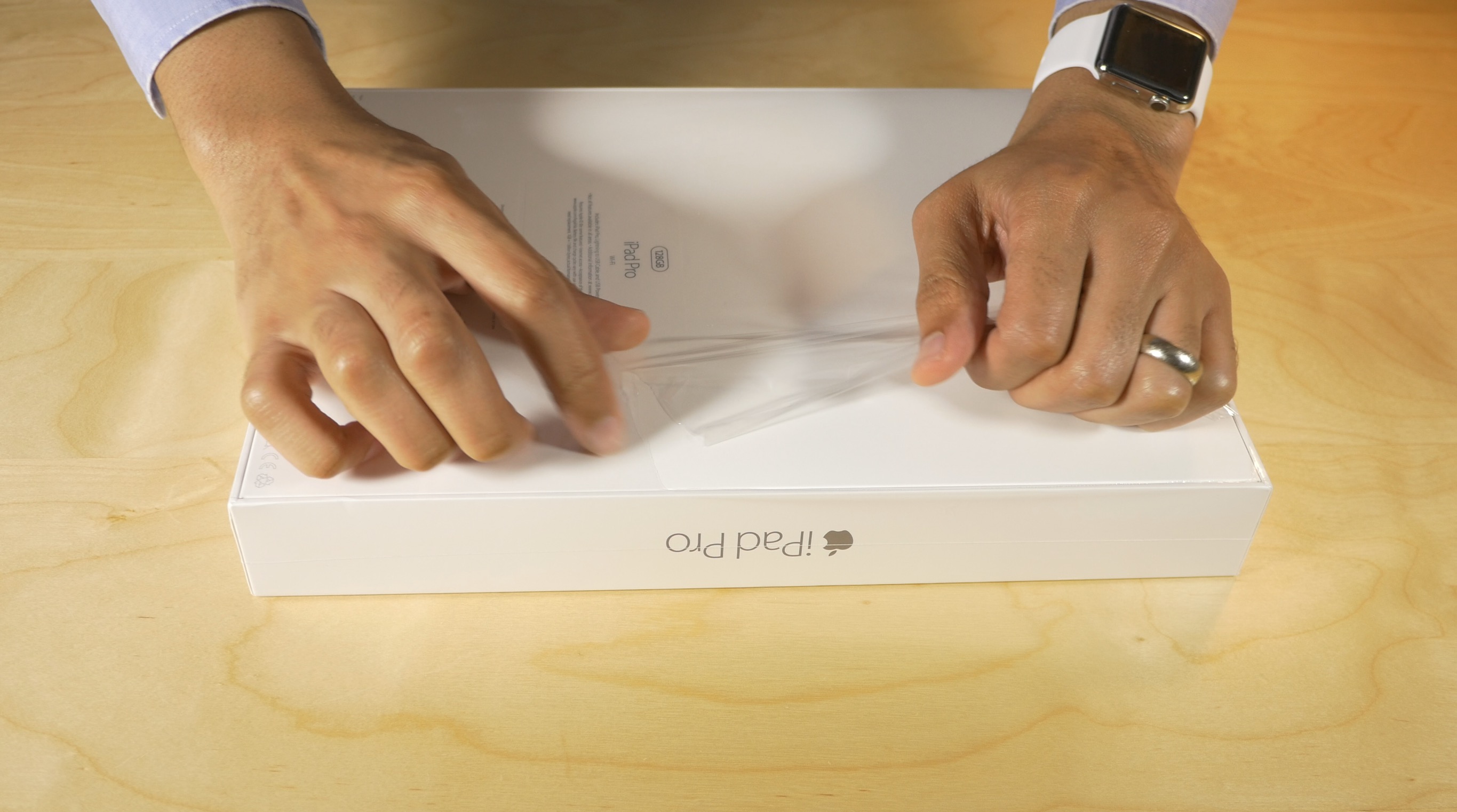
iPad Pro review: not just for professionals

I never thought I’d want an iPad Pro. Out of all of the products that Apple was rumored to launch this year, the iPad Pro was at the absolute bottom of my totem pole.

That began to change somewhat after Apple’s most recent keynote, and it completely changed once I was able to actually go hands-on with the super-sized tablet at my local Apple store.

The iPad Pro isn’t for everyone, but it’s less of a specialty device than many might have expected...

Review: Vevo’s revamped iOS app is a lot cleaner and more fun to use than Apple’s Music

In case you missed it, Vevo has completely redesigned its lagging iPhone and iPad application in the App Store. I watch music videos from Vevo artists on YouTube on my desktop. On mobile, not so much and I blame Vevo's hopelessly outdated design, inconsistencies and complicated features for that.

Bumped to version 5.0, the new Vevo experience starts with a black-and-white logo and a matching app icon.

The headline change here is an all-new interface—it gets out of your way, unlike Apple's own Music app, and sports a tremendously useful mini-player. It's almost too weird to say that Vevo's new iOS app is a lot easier and way more fun to use than Apple's stock Music app has ever been, but it's true.

Periscope gains skipping ahead in replays, Trending section, 3D Touch shortcuts and more

Twitter-owned live-broadcasting app, Periscope, was updated in the App Store last evening with half a dozen new features and refinements aimed at improving the usefulness of video replays whilst improving content discovery with new tools such as an-all new Trending section to help you find content from popular broadcasters.

Pericope also has a tvOS app for the new Apple TV and recently refreshed the iPhone version with muting, Handoff support, instant replays, finding location-enabled broadcasts, verified badges, Follower Only mode, Global section and more.

Apple TV review: it’s all about the potential

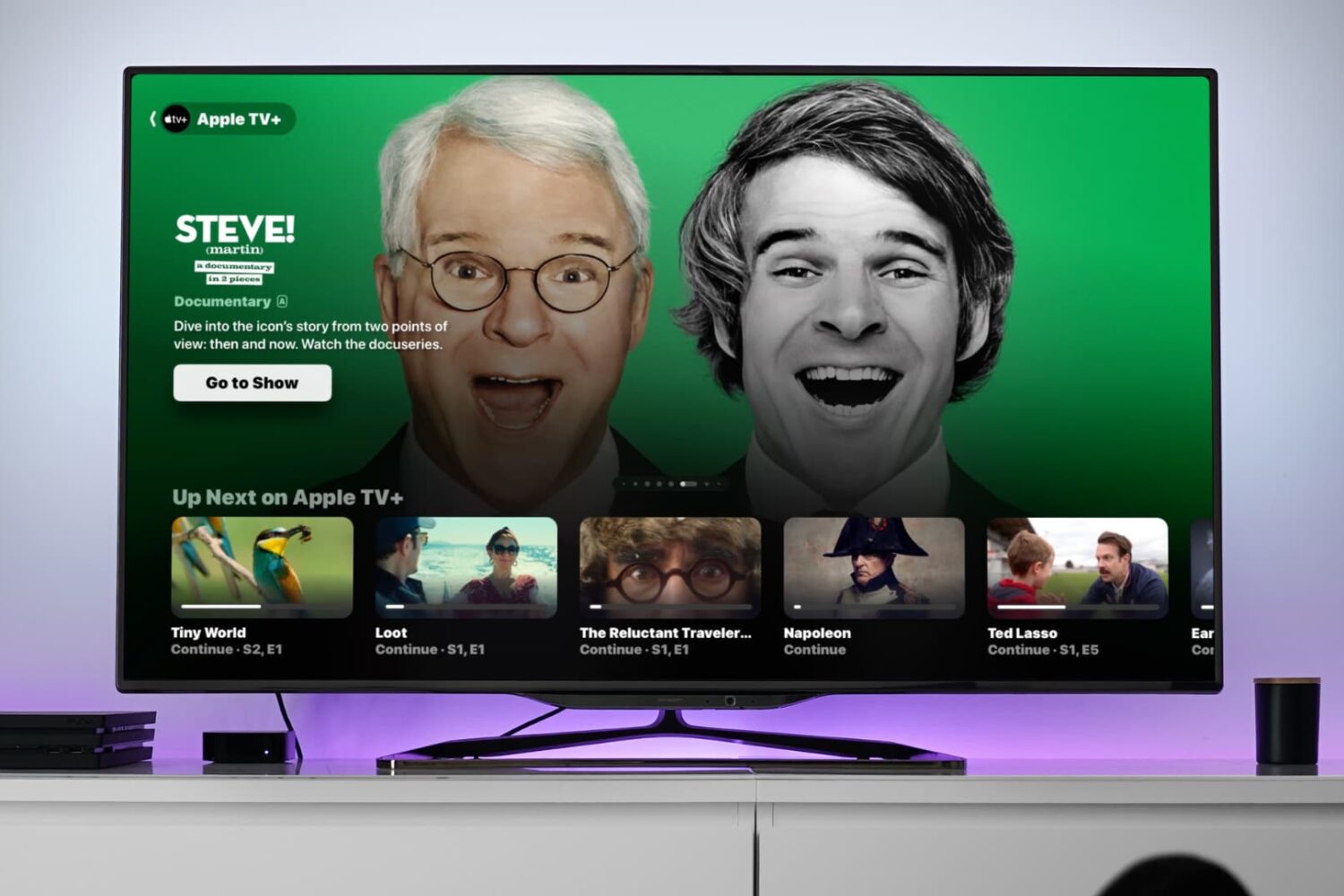
Potential. That's a word that you're going to hear tossed around a lot when it comes to the newly released Apple TV. It has the potential to be a great streaming device. It has the potential to be a wonderful music playing machine. It has the potential to be an awesome gaming console. It has the potential to really become your living room's nucleus for entertainment.

Is it doing any one of those things in a mind-blowing fashion currently? Not exactly. Fortunately, the Apple TV has plenty of room for growth, because it's powered by a more significant operating system called tvOS, and Apple has opened the platform up so that developers can create apps. Just like an iPhone 4s at its beginning, which shipped with iOS 5, looks nothing like an iPhone 4s running iOS 9, the Apple TV experience is bound to evolve, grow, and improve.

If you purchase an Apple TV now, you're buying into that potential. Already, the Apple TV can do more than the 3rd-generation version that it supplants. The older hardware couldn't download apps, and wasn't capable of playing games natively on device.  With the new Apple TV, you have all of that, along with much-improved hardware, a better remote that doesn't require line of sight, and limited Siri access.

At this early stage in the game, you shouldn't expect a perfect experience, but even out of the gate, it's obvious that the new Apple TV is a much better device than prior versions. Right now, it's just good, but with the proper direction, it has the potential to be the best set top box that we've seen thus far.

How to install a web browser on Apple TV

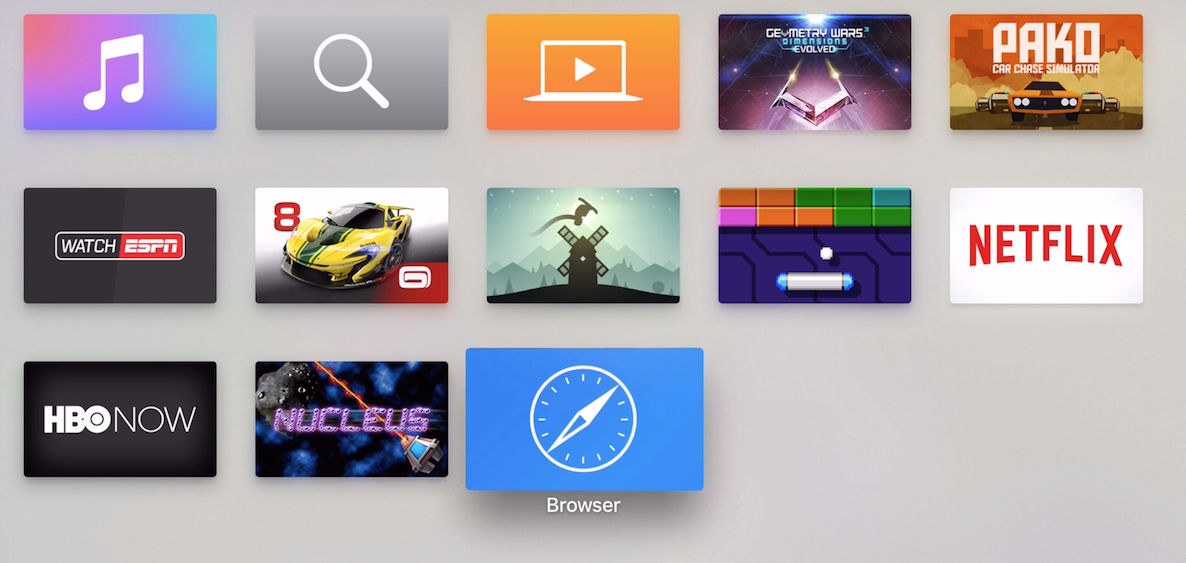
Sideloading the tvOSBrowser that we reported on earlier is easy, it just takes a bit of massaging to make it all work. You'll need to be familiar with our standard sideloading tutorial for sideloading apps, but there's one additional step that you'll have to take before it all comes together. In this tutorial, we'll show you all that's involved in a hands-on step-by-step video.

How to auto-close browser tabs when tapping the back-to-app button [jailbreak]

BrowserBreadcrumbCleanup is an awkwardly named, but very useful jailbreak tweak that helps you keep your open Safari tabs to a minimum when using back-to-app breadcrumb links.

Normally, when you tap the back-to-app breadcrumb link in the status bar, you're shipped back to the original app, but the Safari tab stays opened. With BrowserBreadcrumbCleanup installed, Safari tabs are automatically closed when venturing back to the original app. Watch our video walkthrough for an explanation.

How to play classic Nintendo and Sega games on Apple TV

I've been playing Super Mario World on my Apple TV, and I absolutely love it. I'm able to do this by loading an emulator called Provenance on my Apple TV. You won't find Provenance in the App Store, but Apple has given us the ability to sideload apps ourselves, and Provenance is one such app that can be sideloaded.

In this tutorial, I'll show you how to sideload Provenance, and how to start playing old Nintendo and Sega Classics on your Apple TV, including the NES, SNES, GBA, Genesis, Game Gear, and more. If you like classic games, then you simply don't want to miss this.

Tether: a unique new jailbreak tweak for creating quick Alarms, Reminders, or Calendar events

Tether is a new $0.99 jailbreak tweak from Philip Tennen and Evan Luther, and it's pretty awesome. I like this tweak, not so much for what it does, although that's handy as well, but I like it for its originality.

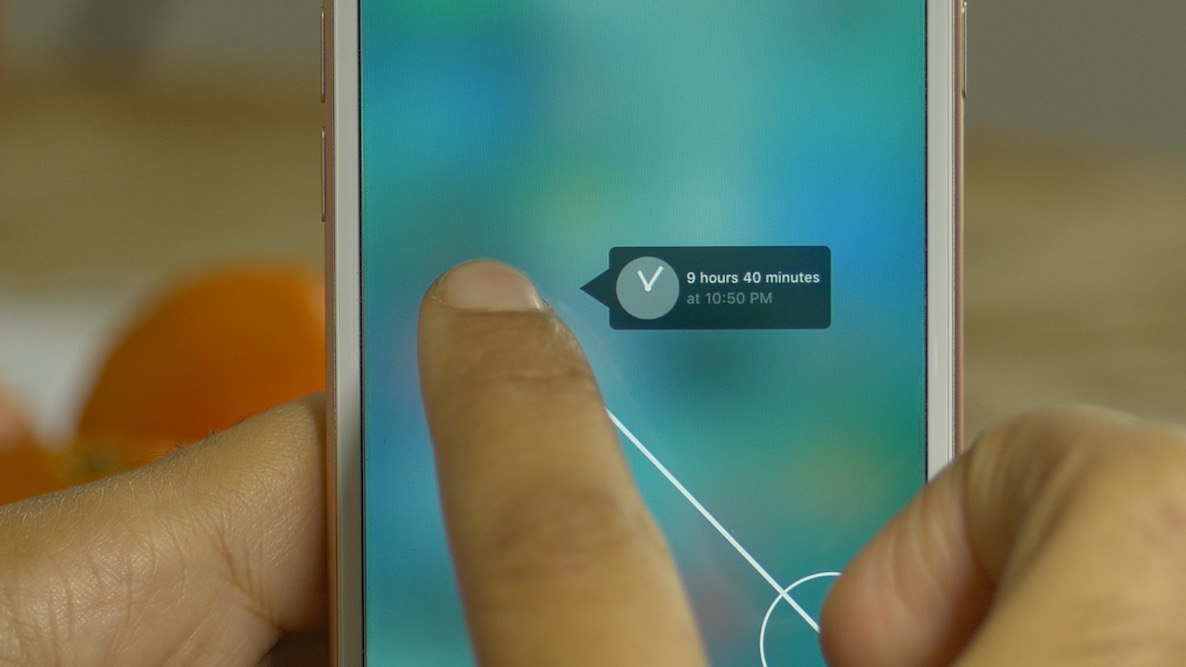
By using a 3D Touch gesture on the Home screen, you can invoke the Tether interface. Tether's interface consists of a clock-like glyph with a line extending from it. As you drag your finger away from the point of origin, you'll see a small time readout spell out a future time. The further your finger is away from the origination point, the further in time your tether will be.

When you release your finger, you have the option to set up an Alarm, Reminder, or Calendar event at the specific time that you selected. If it all sounds  little confusing, it's because it's much easier to explain by watching it in action. With that in mind, have a look at our hands-on video walkthrough for all of the details.