Learn how to change the accent and highlight colors of your Mac's user interface to customize and personalize its aesthetics to your liking.
How to change the User Interface accent and highlight colors on your Mac

Learn how to master your Apple devices with our comprehensive tutorials. From iPhone and iPad to Mac, Apple Watch, AirPods, and more, our expert guides will help you unlock the full potential of your Apple products. Discover new features, tips, and tricks each day to enhance your user experience.
Learn how to change the accent and highlight colors of your Mac's user interface to customize and personalize its aesthetics to your liking.
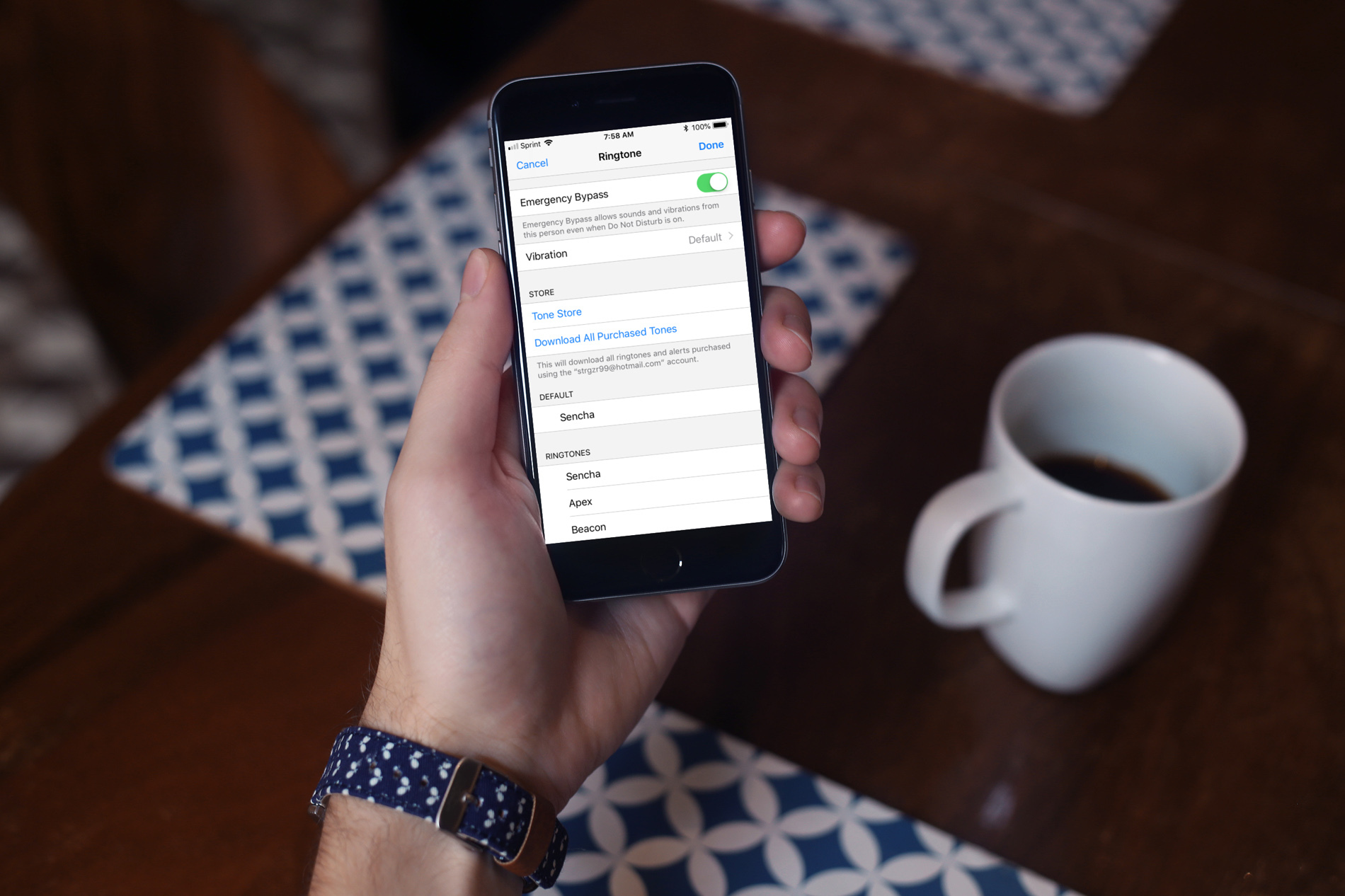
The Do Not Disturb feature on your device is a handy tool for those times when you need to unplug. But, if an emergency pops up, you still want calls or texts from certain contacts to get through.
One way to do this is to add those contacts to your Favorites or create a new group for them. However, there is another way to allow those important phone calls and messages to come through by using the Emergency Bypass setting.
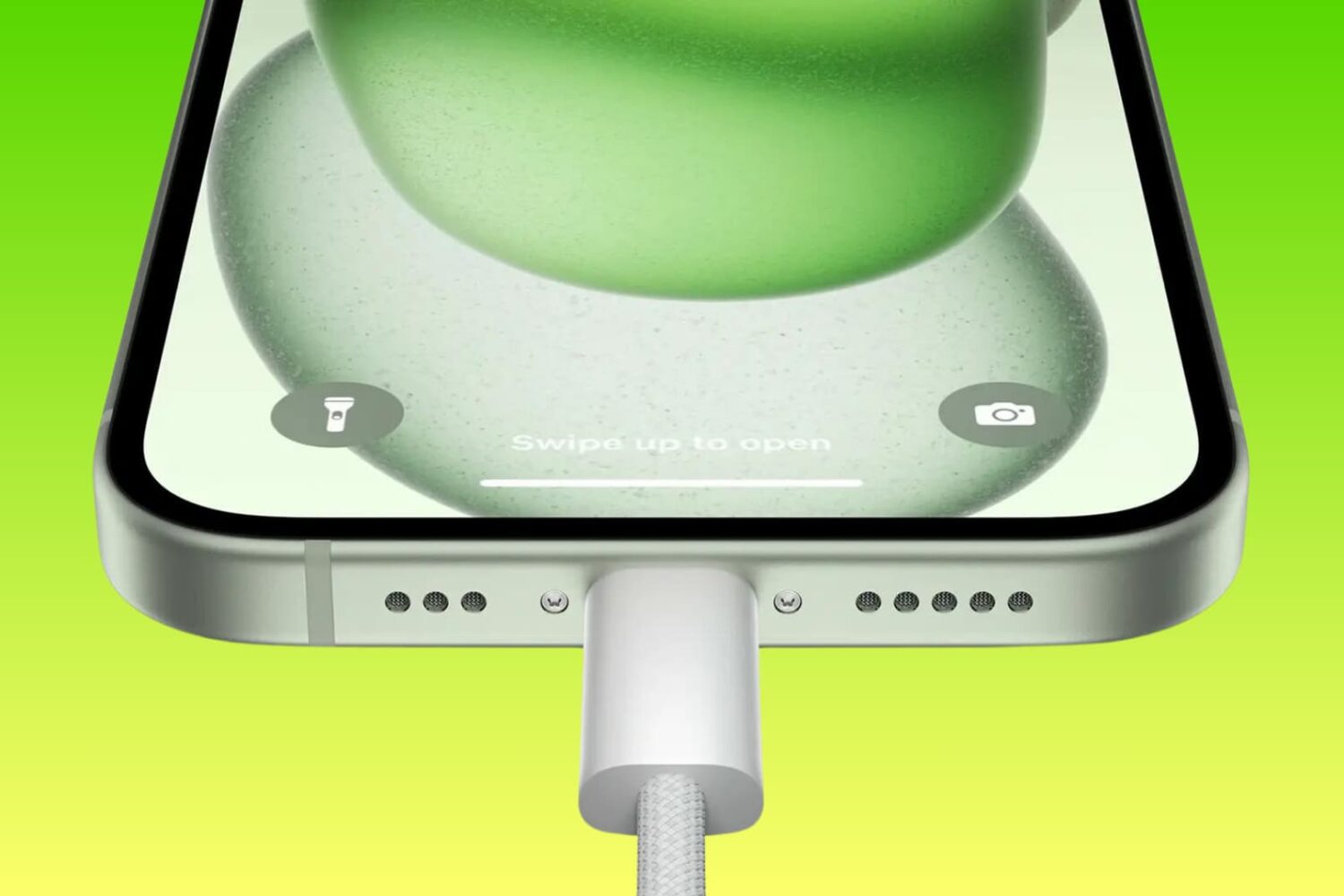
Find out how to block or allow USB data access on your locked iPhone and iPad when it’s connected to a Mac, Windows PC, or other accessories. You can restrict access to protect your device from forced unlocking or allow access if you face difficulties connecting it to other accessories.
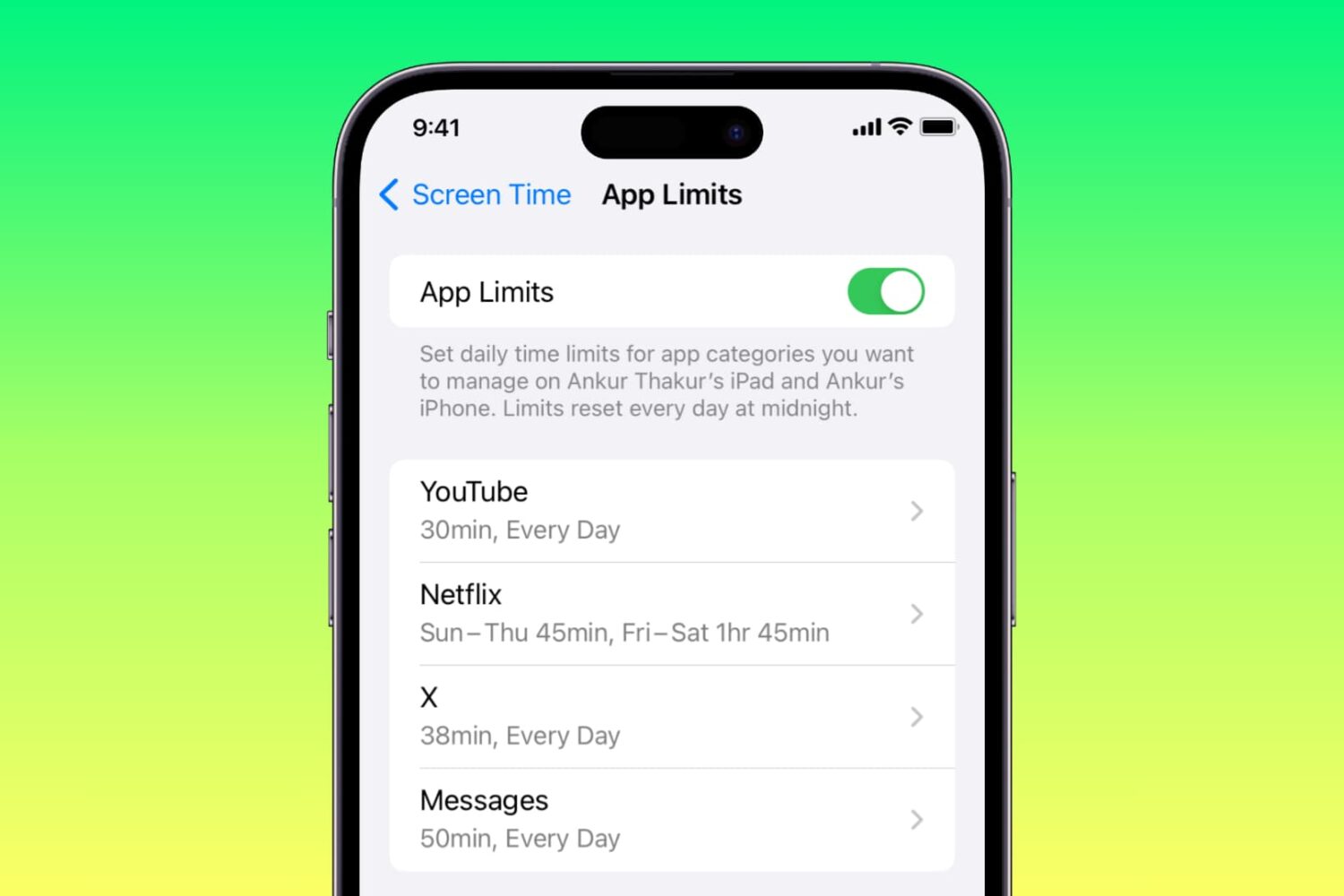
Do you or your child spend a lot of time in Messages, Instagram, X, Facebook, Snapchat, Netflix, YouTube, TikTok, Candy Crush, or other non-productive apps?
Learn how to combat this situation by setting a daily time limit for these apps on your or your kid’s iPhone and iPad.
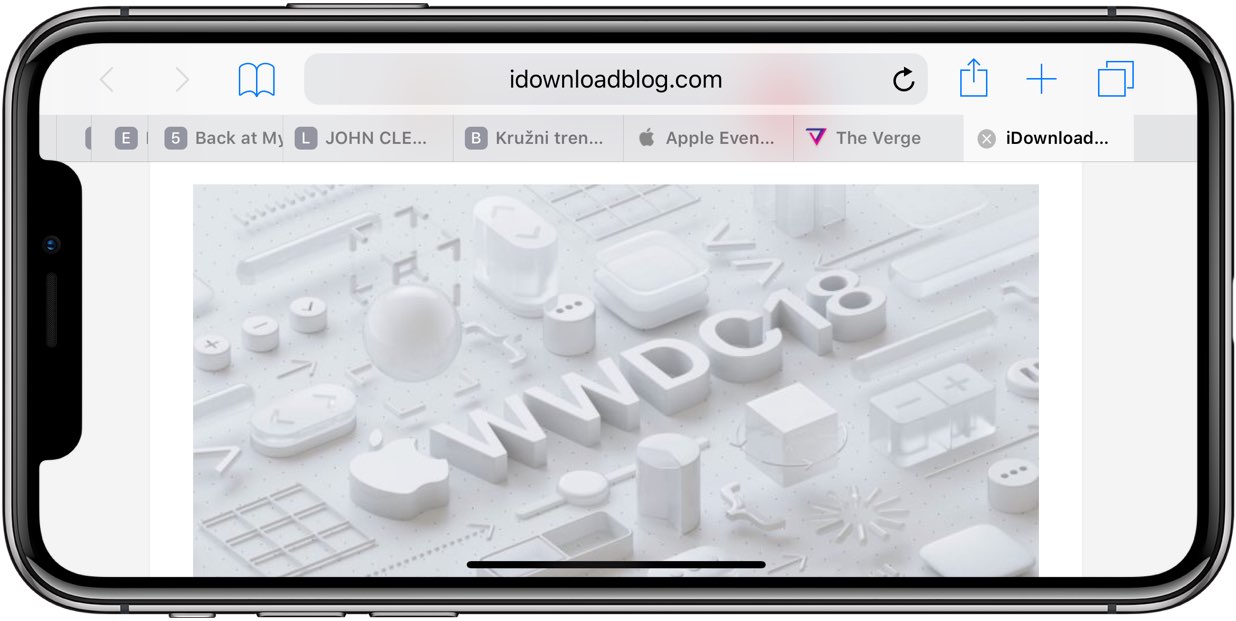
Apple's Safari browser that ships with macOS Mojave revives support for favicons. And thanks to iOS 12, favicons in open tabs are available on iPhone and iPad for the first time ever.
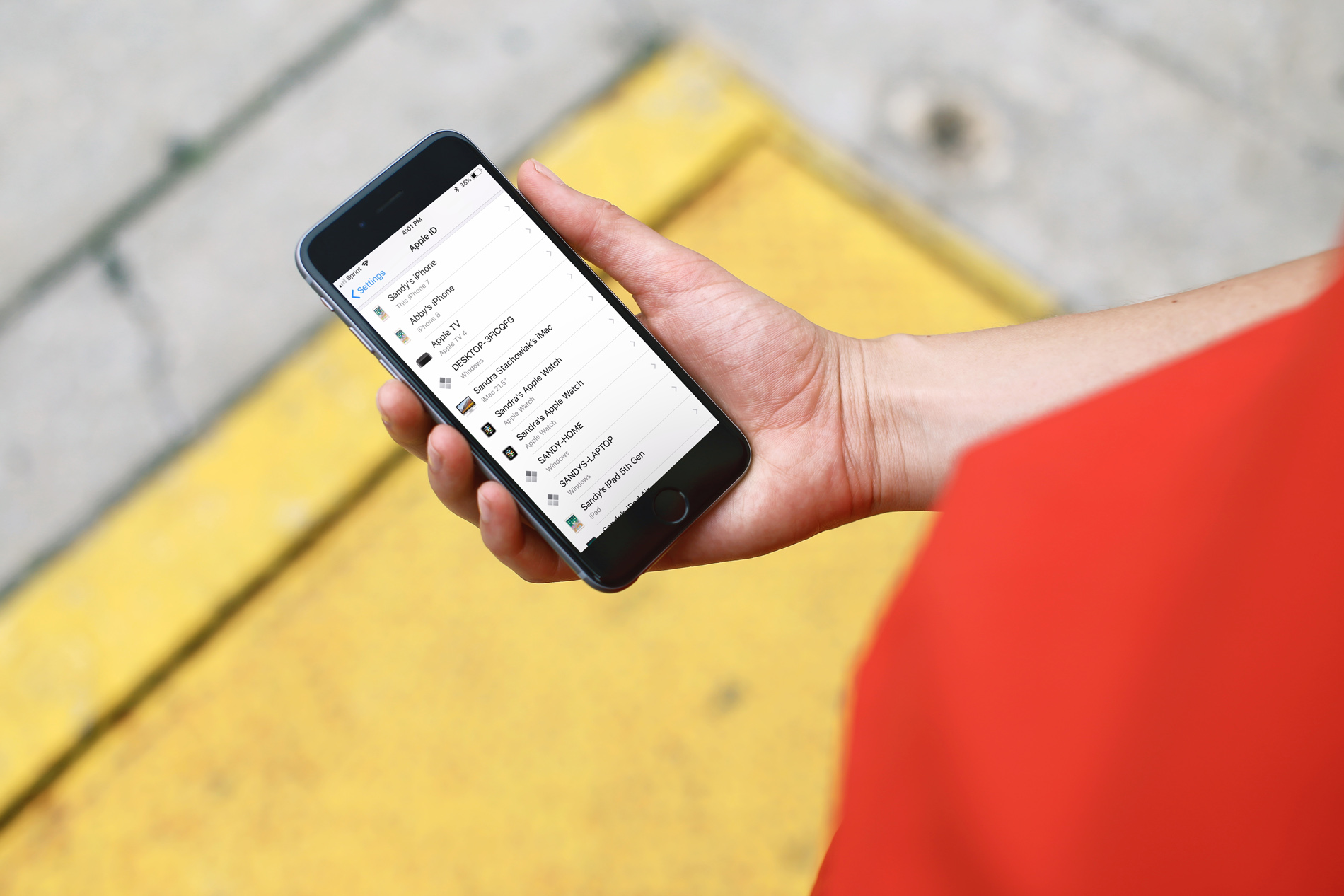
Learn how to quickly get your model, OS version, serial number, IMEI, and warranty details of your other Apple devices via iCloud on your iPhone.

Your Apple Watch can remind you to start the correct workout or end the session if you forget. The wearable utilizes the built-in accelerometer and heart rate sensors to identify motion and increased heart rate, both tell-tale signs that you might be working out.
For many workout types, Apple Watch senses when you’re moving and can optionally alert you to start the Workout app. Aside from giving you credit for the exercise you’ve already done, it'll also remind you to end your workout should you get distracted when cooling down.
Follow along for the steps to turn off workout reminders on your Apple Watch.

You can easily activate Dark Mode on your Mac desktop and laptop to make the screen easier on your eyes, especially at night.
Here are three quick ways to turn on Dark Mode on your Mac running macOS Mojave or later.
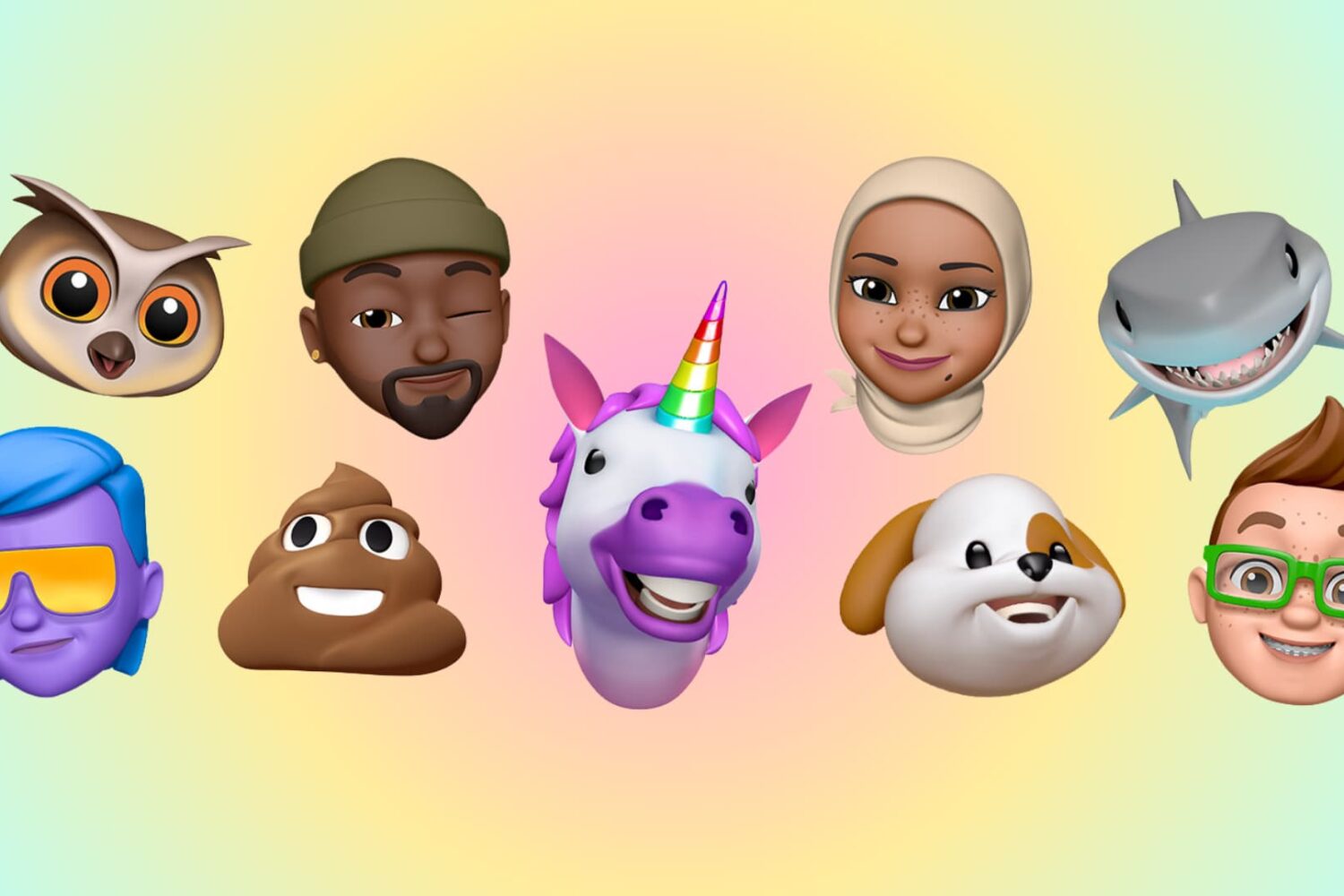
In this tutorial, we will show you how to create, use, and edit Memoji and Animoji on your iPhone or iPad to spice up your conversations.
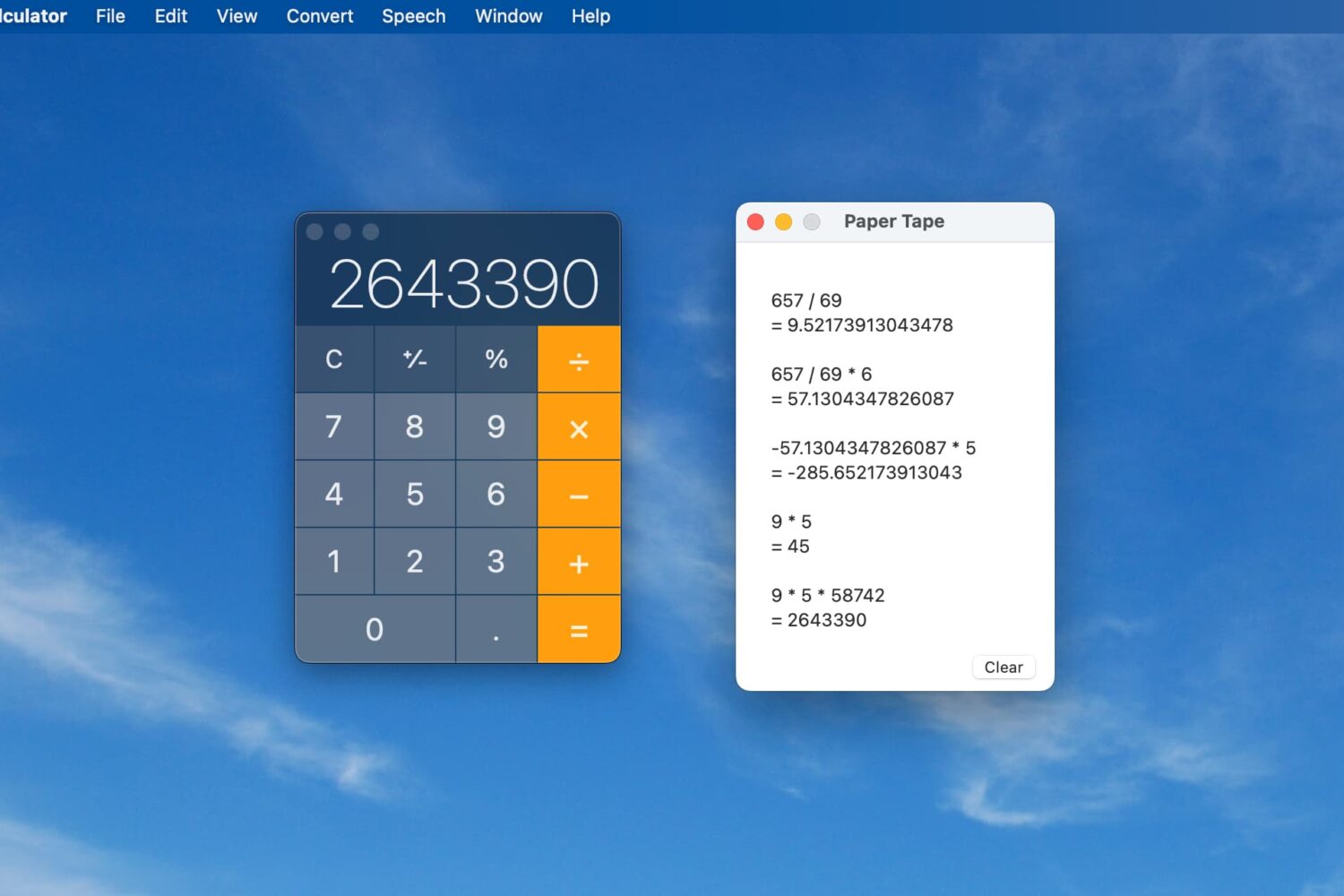
While having a Calculator app on your Mac makes it easy to perform quick calculations, it’s not always efficient. You may need to have that paper tape to see each equation listed out. Luckily, the Mac Calculator app gives you a way to view, save, and print that paper tape.
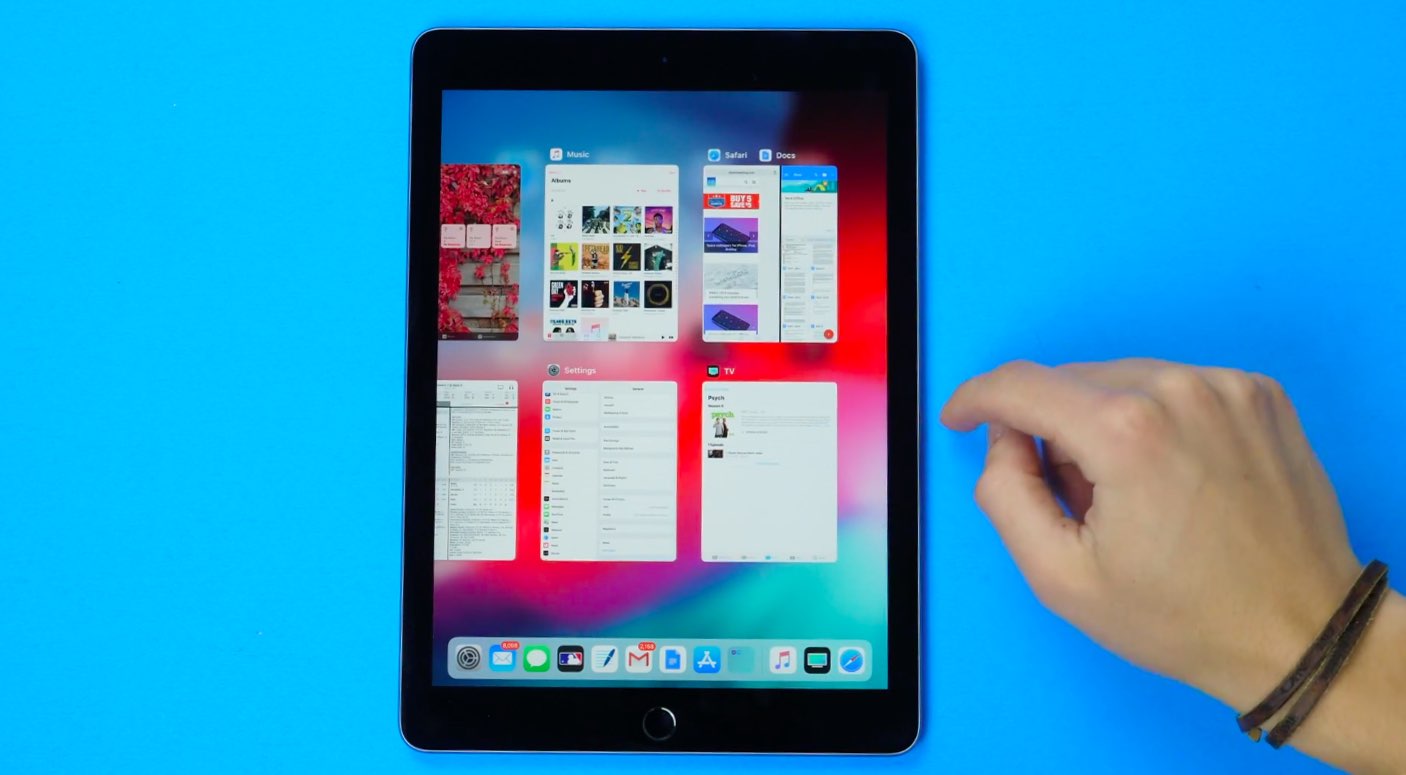
For the sake of consistency, iOS supports iPhone X-style multitasking gestures on iPad. With them, you can interact with multiple apps on the Apple tablet by using new gestures in iOS 12 designed to replace the key functions of the incredibly versatile Home button.
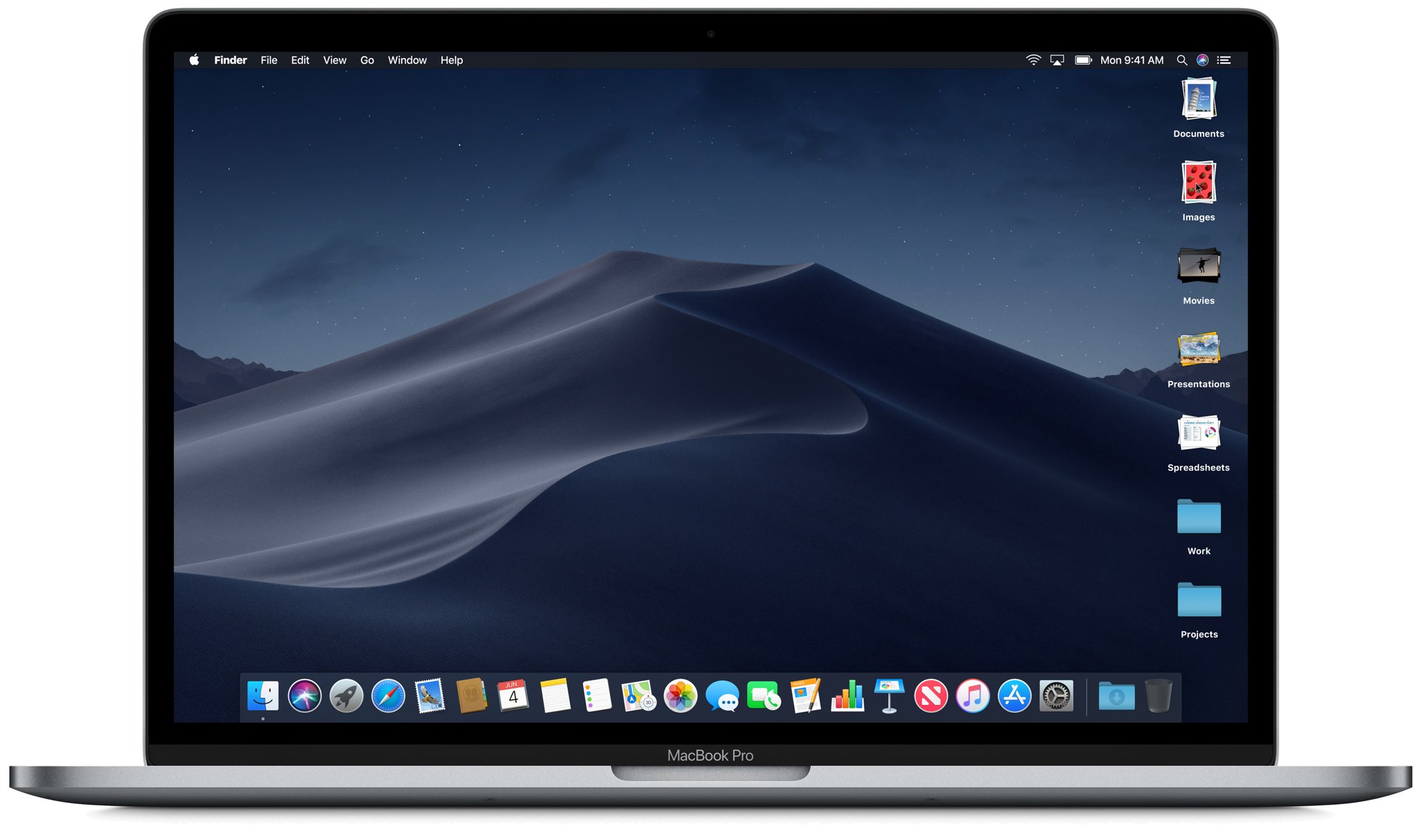
Use the Stacks feature to declutter and streamline your Mac desktop, simplifying your file organization and boosting productivity.