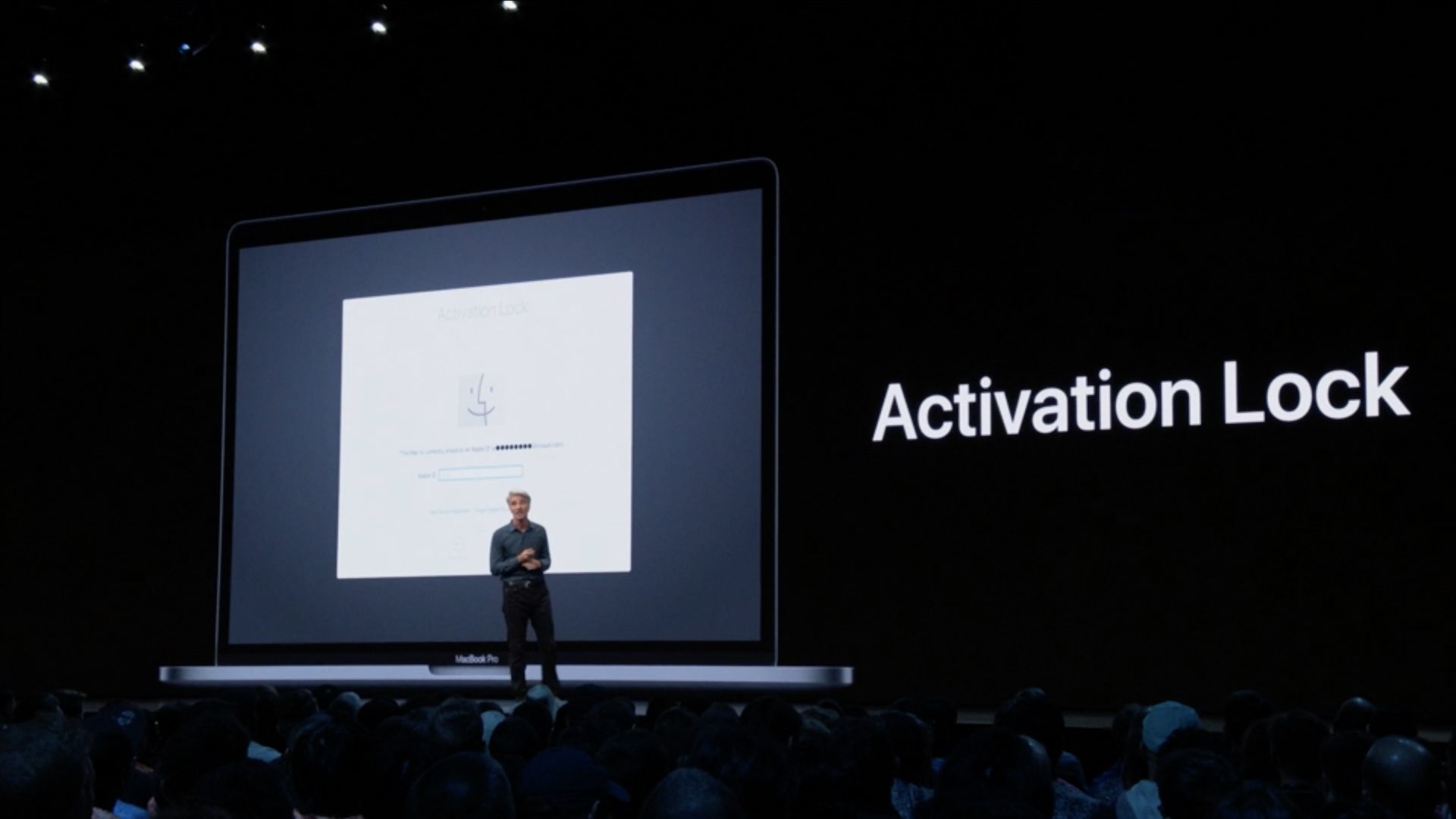
Learn how to make sure the Activation Lock feature is enabled on your Mac, disable it if necessary, and find out if your computer is compatible with this security protocol.
How to check and use Activation Lock on your Mac
Learn how to master your Apple devices with our comprehensive tutorials. From iPhone and iPad to Mac, Apple Watch, AirPods, and more, our expert guides will help you unlock the full potential of your Apple products. Discover new features, tips, and tricks each day to enhance your user experience.
Learn how to make sure the Activation Lock feature is enabled on your Mac, disable it if necessary, and find out if your computer is compatible with this security protocol.
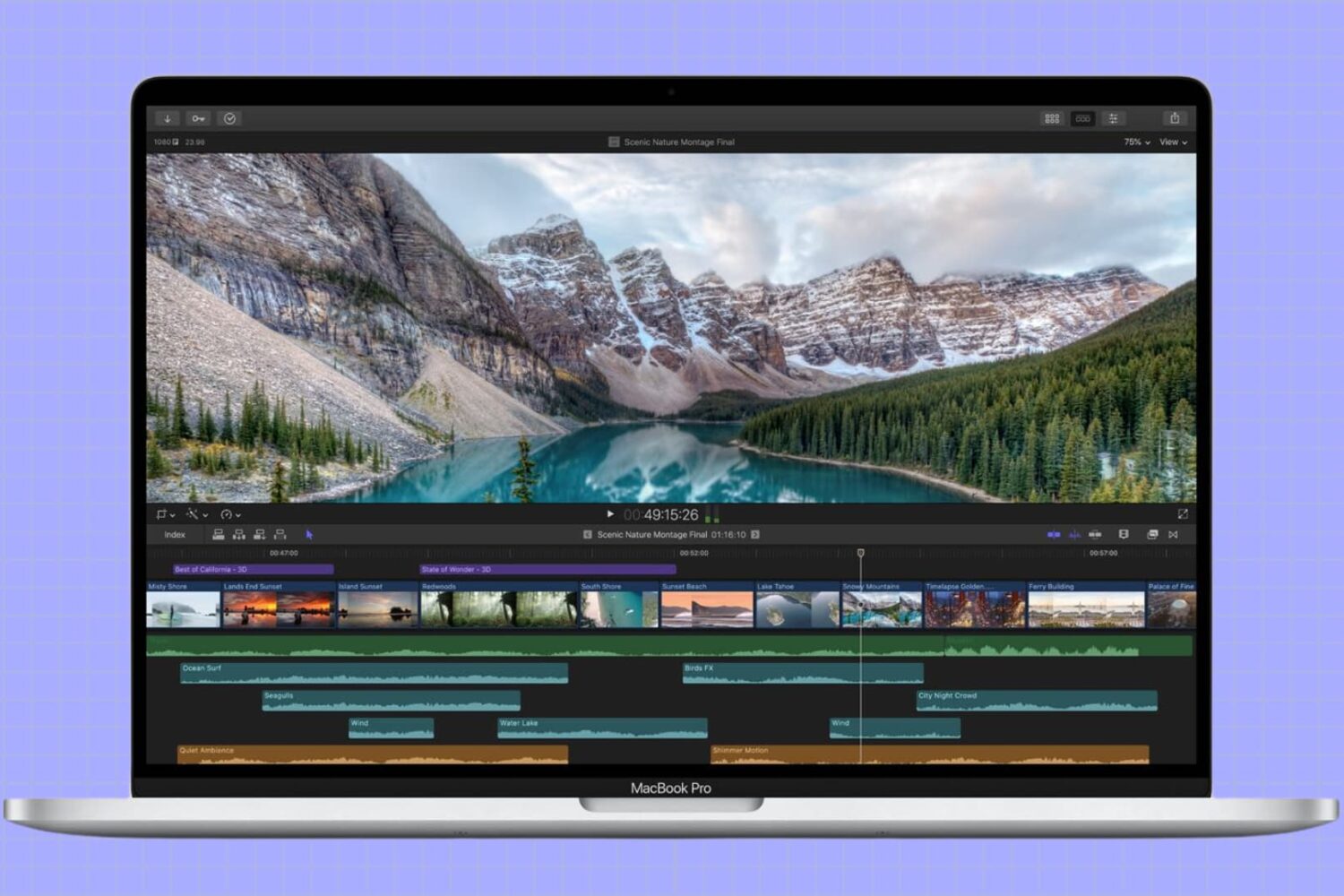
In this tutorial, we’ll show you how to adjust the refresh rate of your MacBook screen or external display for smoother visuals and reduced eye strain.
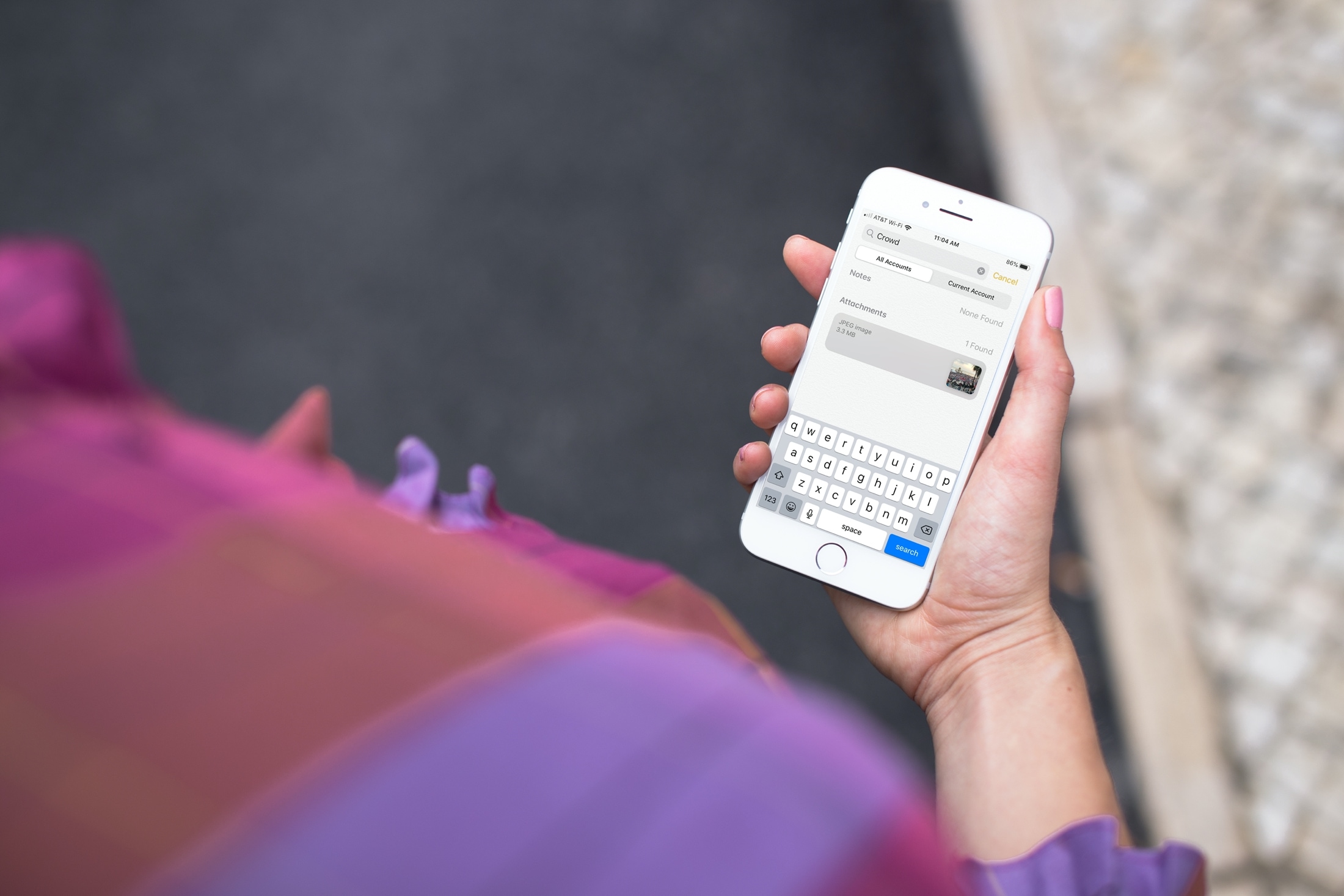
Learn how to search for images and scans in the Notes app on iPhone and iPad to quickly find a photo or a document you’ve attached to a note.
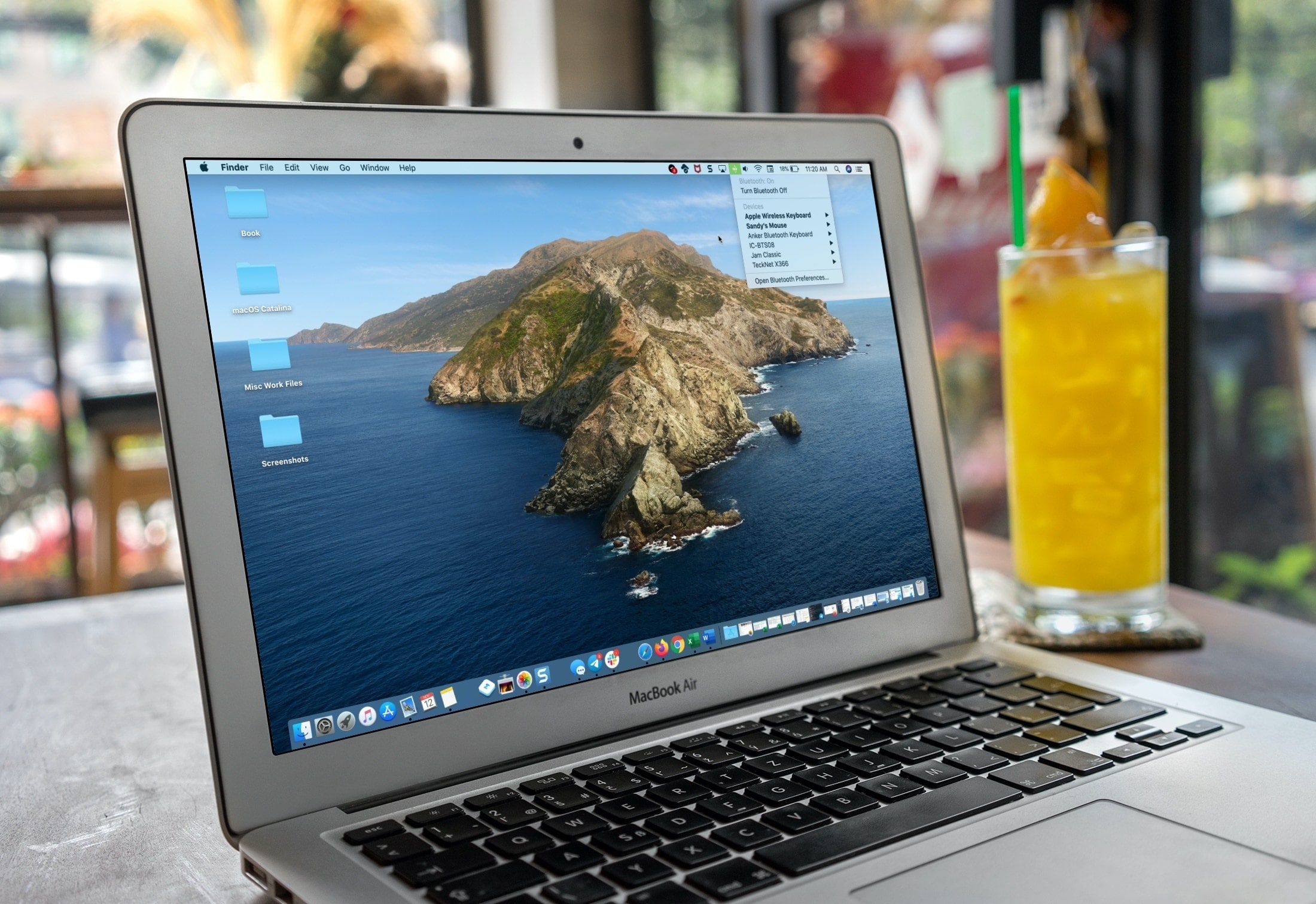
If you’re a new Mac user, we want to help make your macOS experience as productive and efficient as it can be. From understanding the various icons, to customizing its layout, here are the basics of the menu bar that you need to know, along with some tips to help you use it more effectively.

Find out which songs you played recently on Apple Music on iPhone, iPad, or Mac, to listen to them again or delete them from your history.
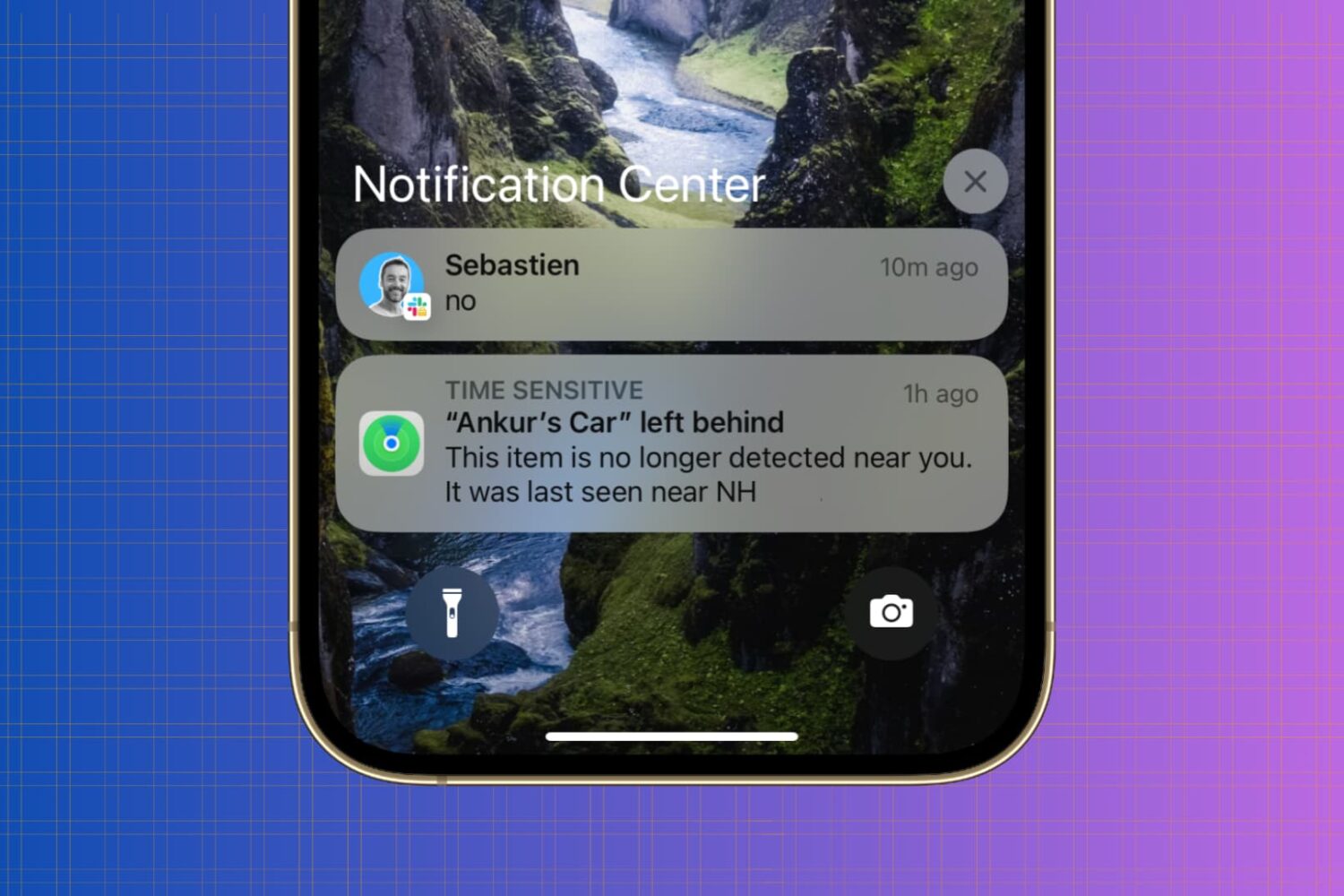
Whether you’re looking to silence unnecessary alerts during meetings, prioritize important messages, or simply declutter your Lock Screen, maintaining a healthy balance between staying informed and avoiding notification overload is essential.
In this article, we’ll go over your iPhone notification settings and provide a comprehensive guide on how to adjust them to best suit your needs.
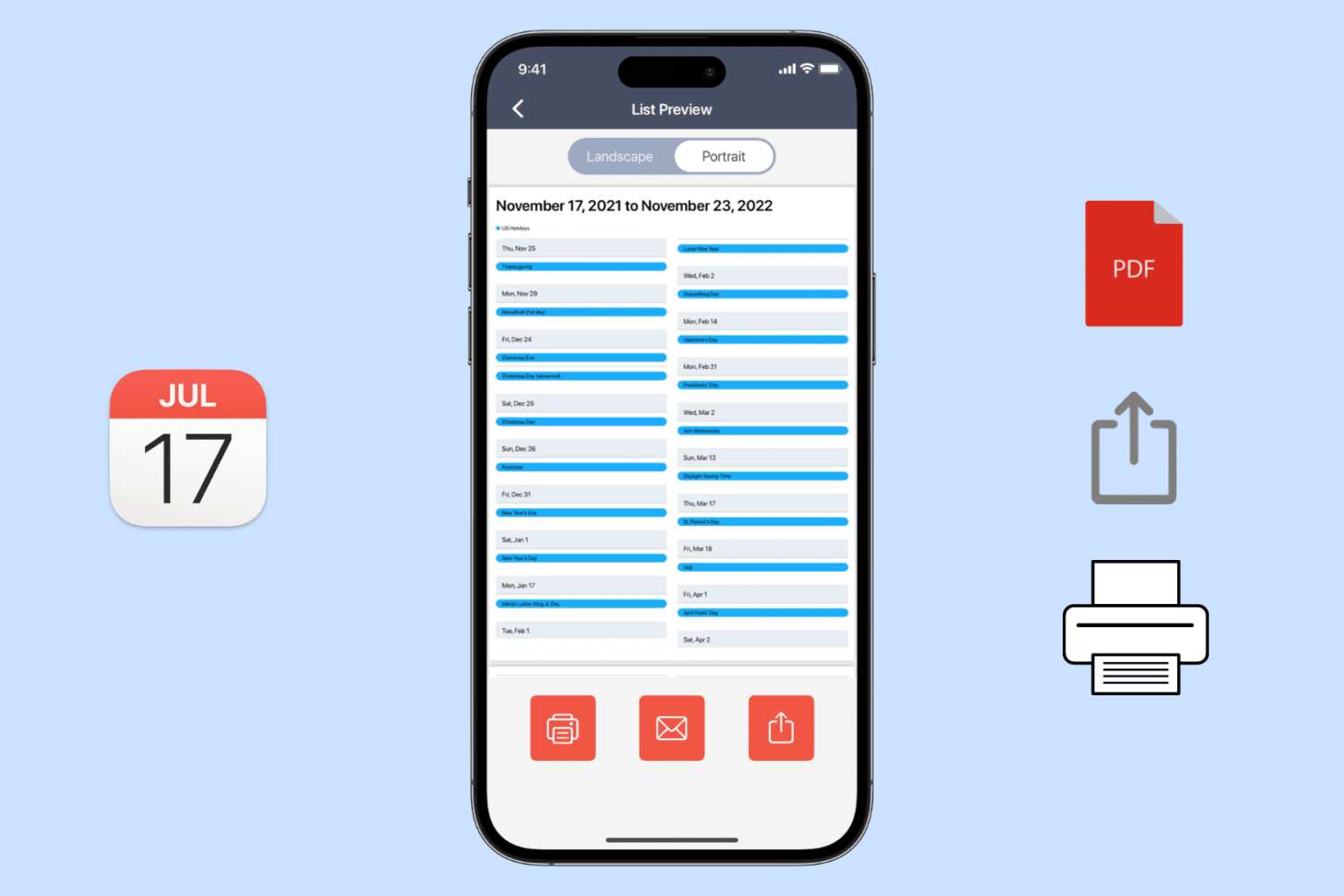
Learn how to export, save, and share your calendar events as a PDF on your iPhone, iPad, or Mac, or print them to get a physical copy.
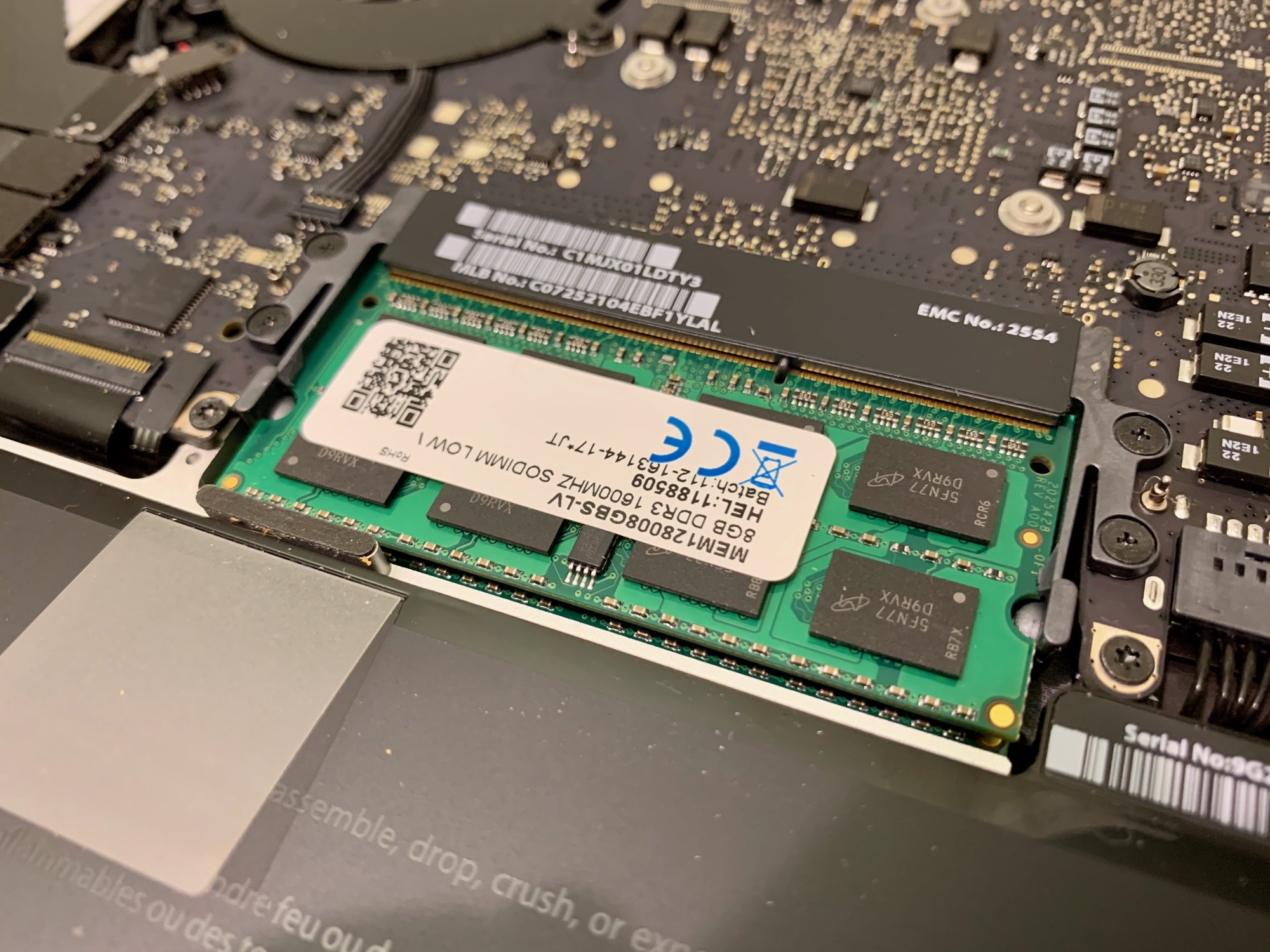
Rather than budget for a new computer, sometimes you can put together a deal that will keep you going with what you already have - or what you can get your hands on cheap - that turns out to be a better value. That's what I discovered recently with a 13-inch MacBook Pro (Mid 2012) that I got my hands on. Here's what I did.
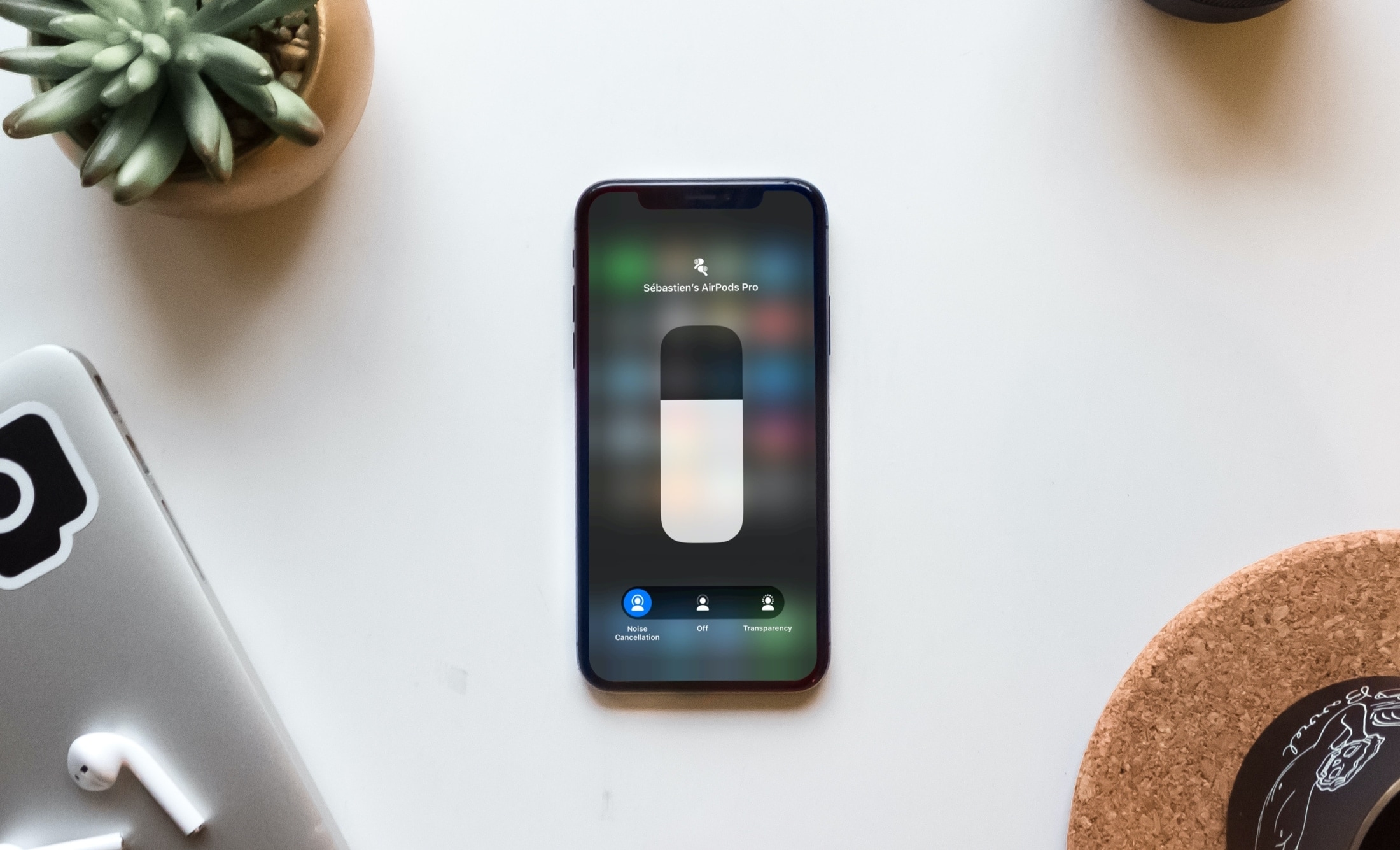
Learn how to switch between Noise Cancellation and Transparency modes on your AirPods to enhance both focus and awareness in different settings.
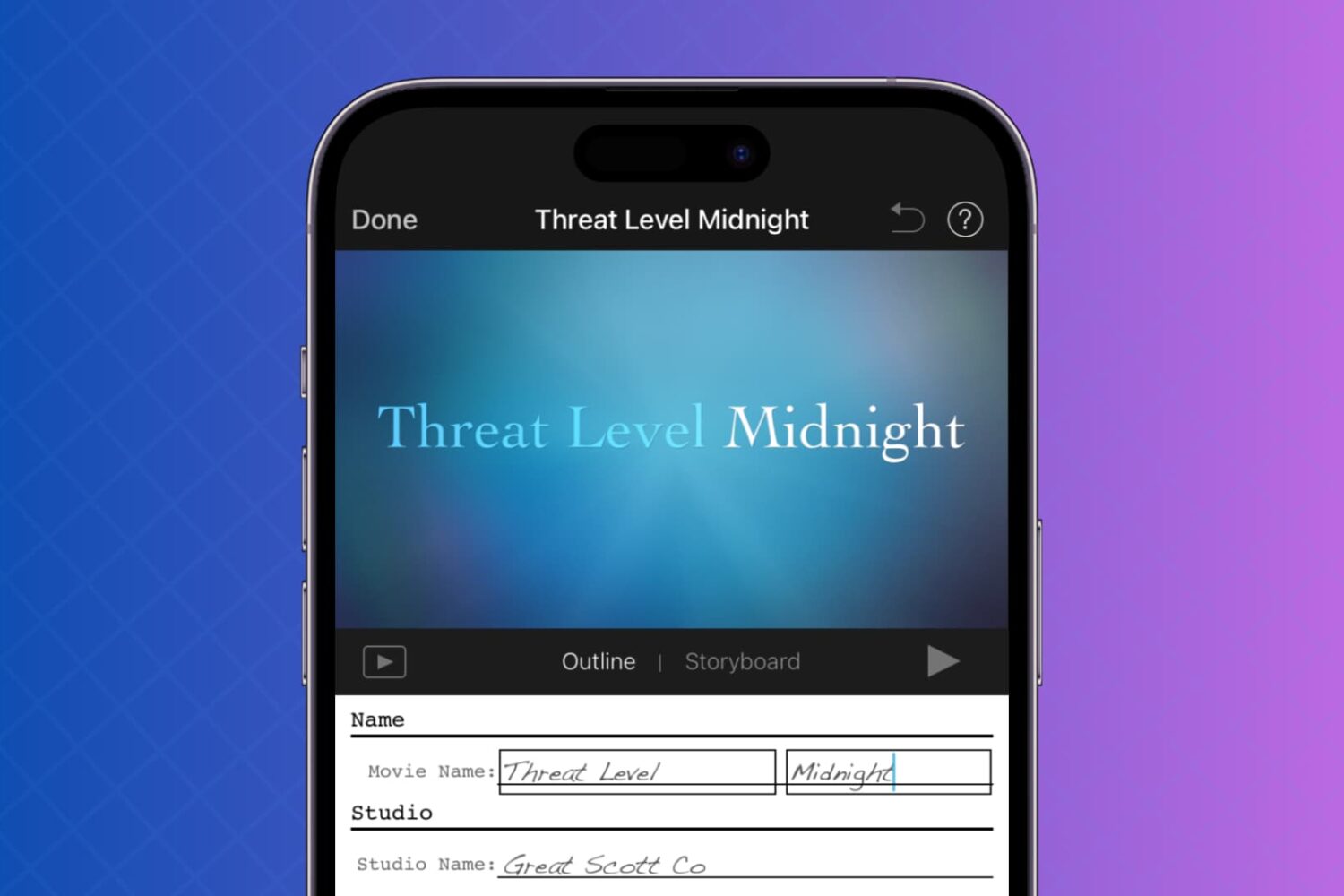
This tutorial will show you how to use your photos and videos to make trailers in iMovie on Mac, iPad, and iPhone.
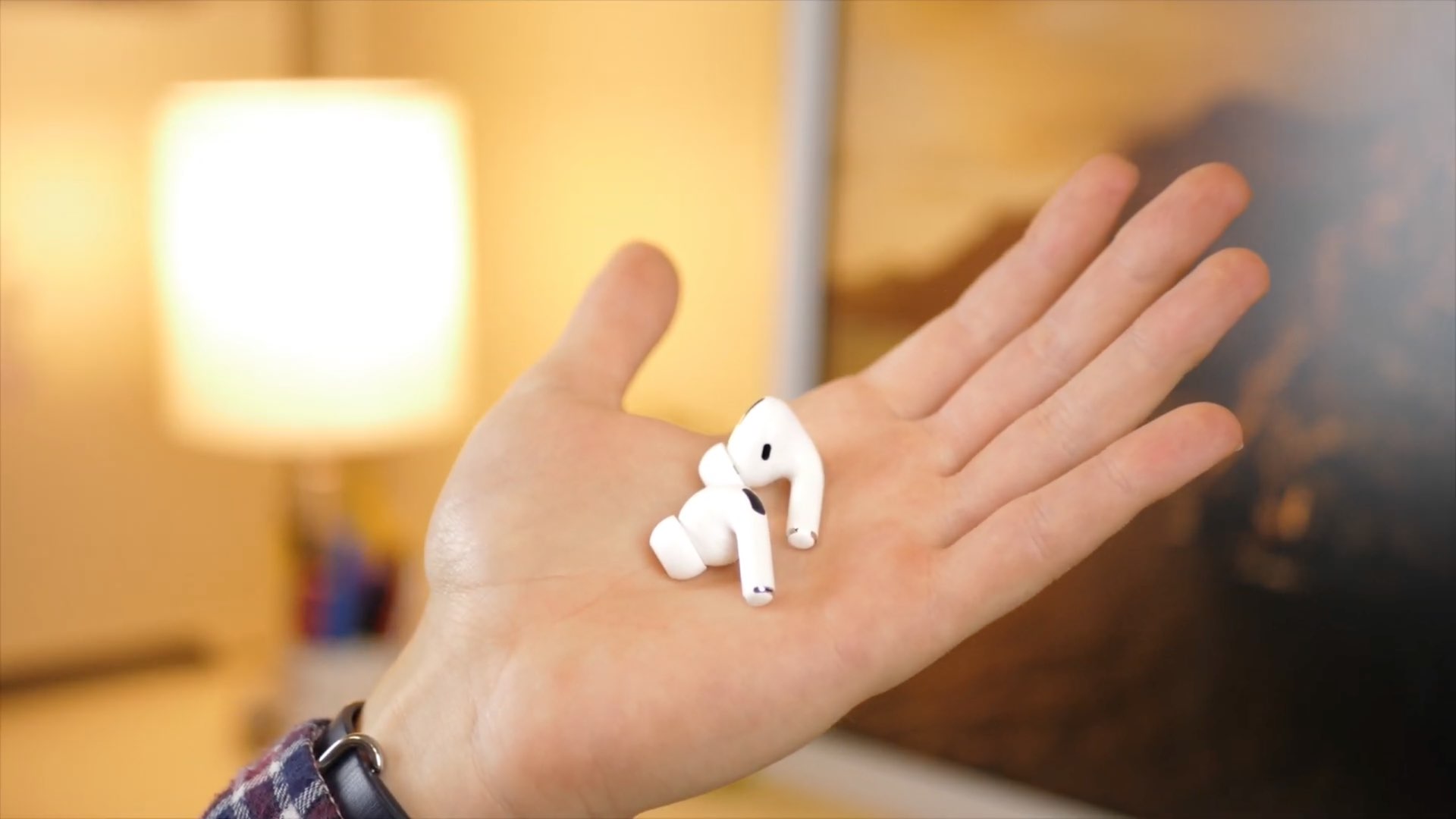
Learn how to perform an Acoustic Seal test (formerly called Ear Tip Fit Test) to choose the right silicone tip size for your AirPods Pro and ensure the best possible sound and improved noise cancellation.

Just like your other devices, you need to clean your AirPods and AirPods Pro every now and then. From the ear tips to the case, cleaning up the gunk that accumulates over time will keep them sparkling and working like new.