Whether you simply have too many messages or one in particular that you want to remove, here’s how to delete text messages on your iPhone or iPad.
How to delete messages and conversations on iPhone or iPad

Learn how to master your Apple devices with our comprehensive tutorials. From iPhone and iPad to Mac, Apple Watch, AirPods, and more, our expert guides will help you unlock the full potential of your Apple products. Discover new features, tips, and tricks each day to enhance your user experience.
Whether you simply have too many messages or one in particular that you want to remove, here’s how to delete text messages on your iPhone or iPad.

Learn how to use the built-in storage management features on your Mac to find all the large files and delete them to free up space if needed.

Learn how to view all phone numbers and email addresses you’ve blocked on your iPhone so you can unblock them if needed.
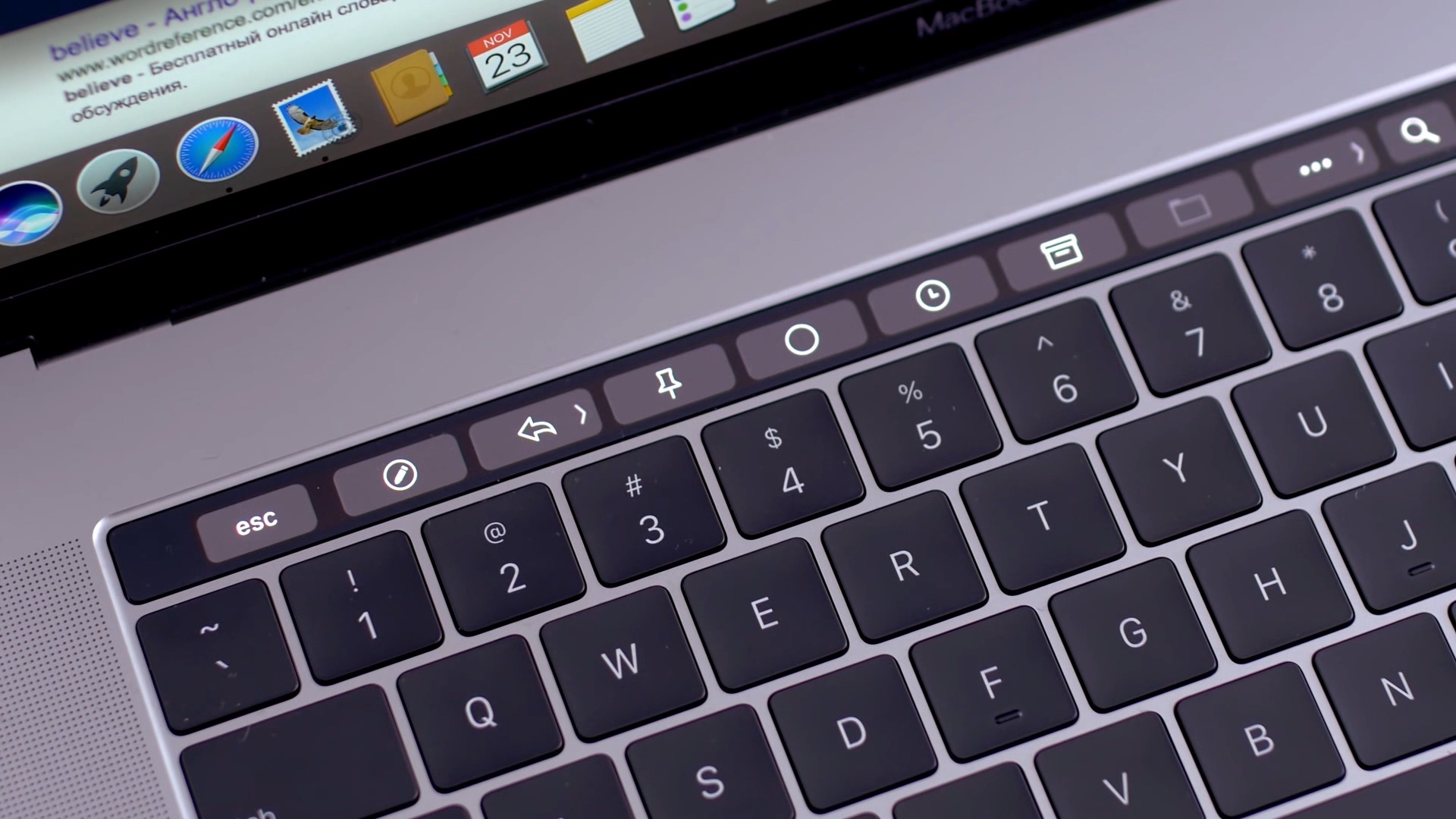
The software that makes your Mac's Touch Bar work can also crash, become unresponsive, or misbehave to prevent you from using your favorite Touch Bar shortcuts. Should that ever happen, you can easily fix a frozen Touch Bar on your MacBook Pro, and we will show you how.

Learn how to use the Smart Annotations feature in the Pages app on your iPhone or iPad to easily mark up your documents. The annotations you make will stay in the document along with the main text.

The Zebra package manager for jailbroken handsets is officially out of beta as of today, and if you have any intention of installing it on your device(s), then you might be pleased to learn that it’s a fairly straightforward process with no strings attached.
In this tutorial, we’ll show you the steps necessary to install the all-new Zebra package manager on any jailbroken device running iOS 9 through 13.

Discover some handy tips for using Safari Search on your Mac and find answers more efficiently with just a few clicks.

Learn how to add web pages to Safari Reading List on iPhone, iPad, or Mac and read them later, even when you don’t have an internet connection.

Learn how to export your document from Pages, Numbers, and Keynote apps as password-protected PDFs on your iPhone, iPad, and Mac to prevent unauthorized use.
Want a cool way to share your presentation on your website or social media? Here’s how to export your Keynote presentation as an animated GIF from your Mac, iPad, or iPhone.
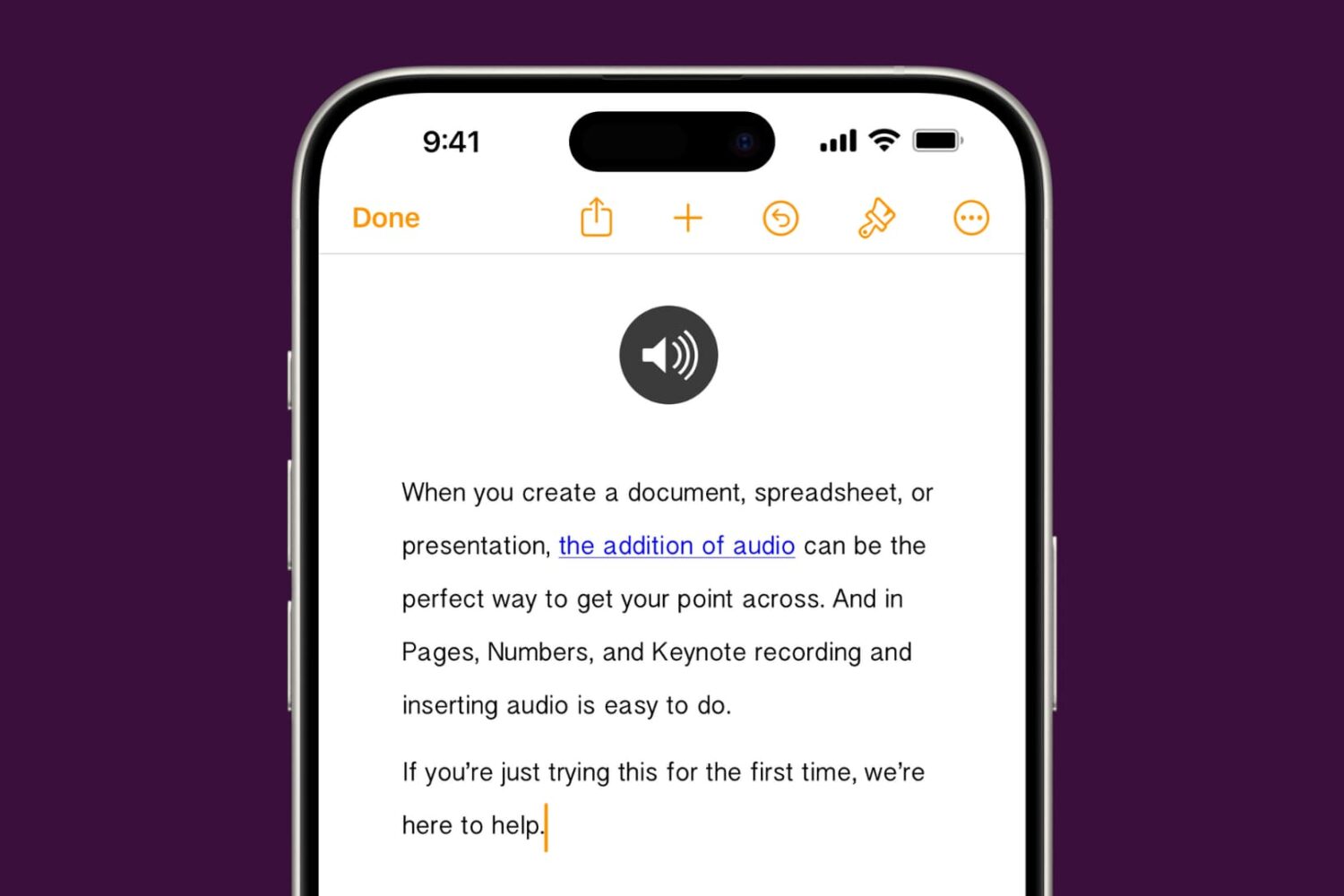
Learn how to add audio to your documents, spreadsheets, and presentations in Apple Pages, Numbers, and Keynote apps on your iPhone, iPad, or Mac to provide a more immersive experience and boost engagement.

In case you haven’t already heard, the Sileo Team’s Sileo package manager is now officially available for iOS 13 for the first time on the bootrom exploit-based checkra1n jailbreak, and it’s the first time Sileo has been made available for a jailbreak not authored by the Electra Team.
If you’re interested in getting Sileo on your checkra1n device immediately, then you’ve come to the right place. This step-by-step tutorial will guide you through the steps to do so.