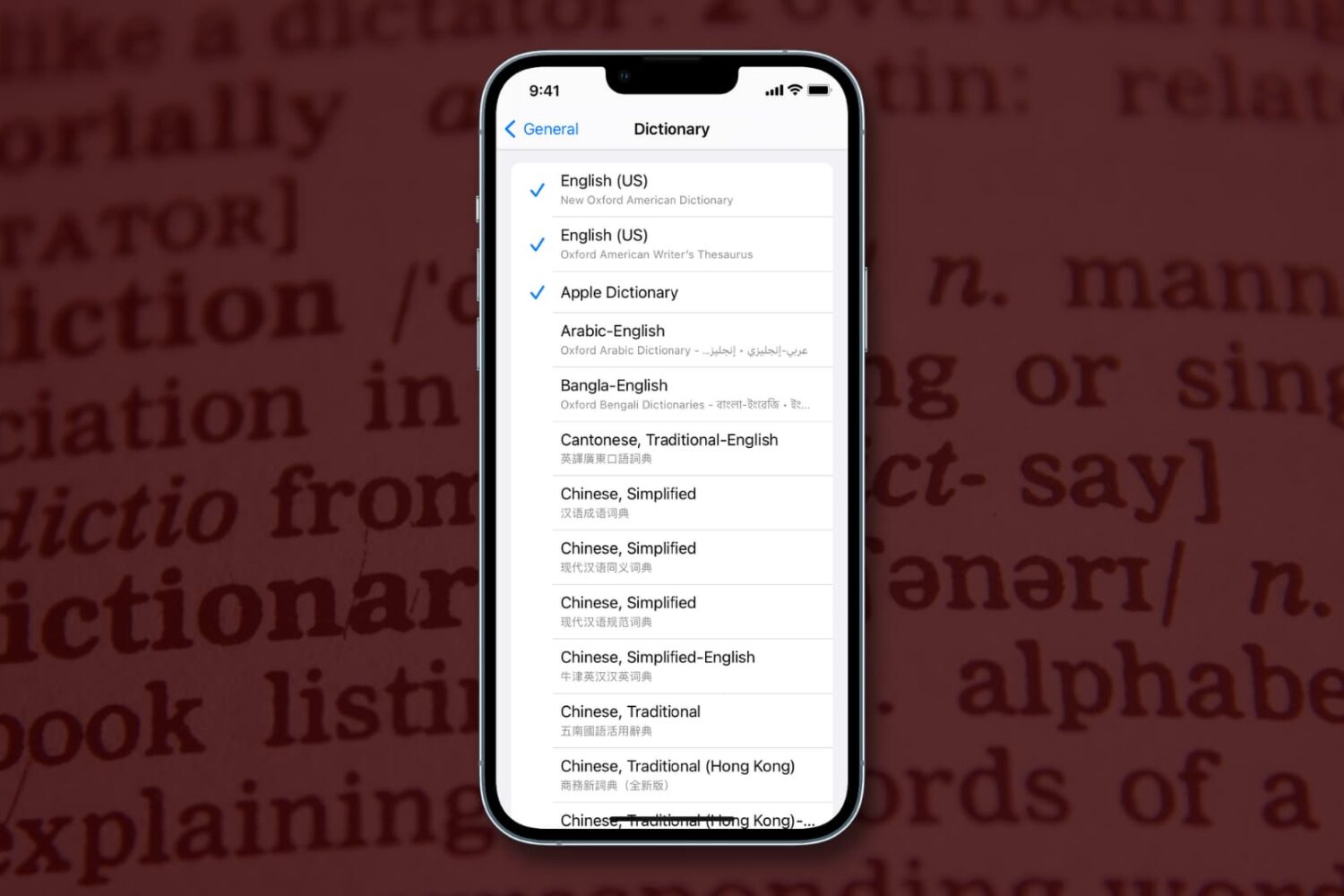
Learn how to download specific language dictionaries, use the Look Up feature, and remove dictionaries you might no longer need on your iPhone or iPad with this guide.
How to manage dictionaries and look up word definitions on iPhone and iPad
Stay up-to-date on the latest iPhone news and learn new tips and tricks with our comprehensive tutorials. From software updates to new features, we’ve got you covered.
Learn how to download specific language dictionaries, use the Look Up feature, and remove dictionaries you might no longer need on your iPhone or iPad with this guide.

Learn how to change or switch between the QWERTY, AZERTY, QWERTZ, and Dvorak keyboard layouts on your iPhone and iPad for an enhanced typing experience.

Now that you've tried Apple Music thanks to Apple's generous three-month free trial, you may have decided that the service just isn't cut for you.
Though impossible to get rid of it completely, you can temporarily hide most of Apple Music's aspects.
Our previous tutorial has taught you how to disconnect from Apple Music's Connect feature and today's how-to lays out the steps to hide Apple Music on your iPhone, iPod touch, iPad and Mac and go back to the old way of enjoying music.
If you choose to hide Apple Music on an iPhone, iPod touch or iPad, the Music app gains a new Connect tab.
Described by Apple as a place where “musicians give their fans a closer look at their work, their inspirations, and their world,”Apple Music Connect permits music lovers to view and follow an artist's stream, like and comment on their posts and more.
Apple Music Connect is basically Ping 2.0. The feature is a tad crude in appearance and feels rough around the edges so little wonder that some folks don't view Connect as valuable enough for it to deserve its own tab.
Wouldn't it be great if you could get rid of the Connect tab? Thankfully, there is.
You'd be forgiven for thinking that the Connect feature couldn't be disabled: Apple has made sure to burry and hide it in an obscure place. In this post, I'm going to explain precisely how you can disconnect from Connect in Apple Music on iPhone, iPod touch, iPad or Mac.
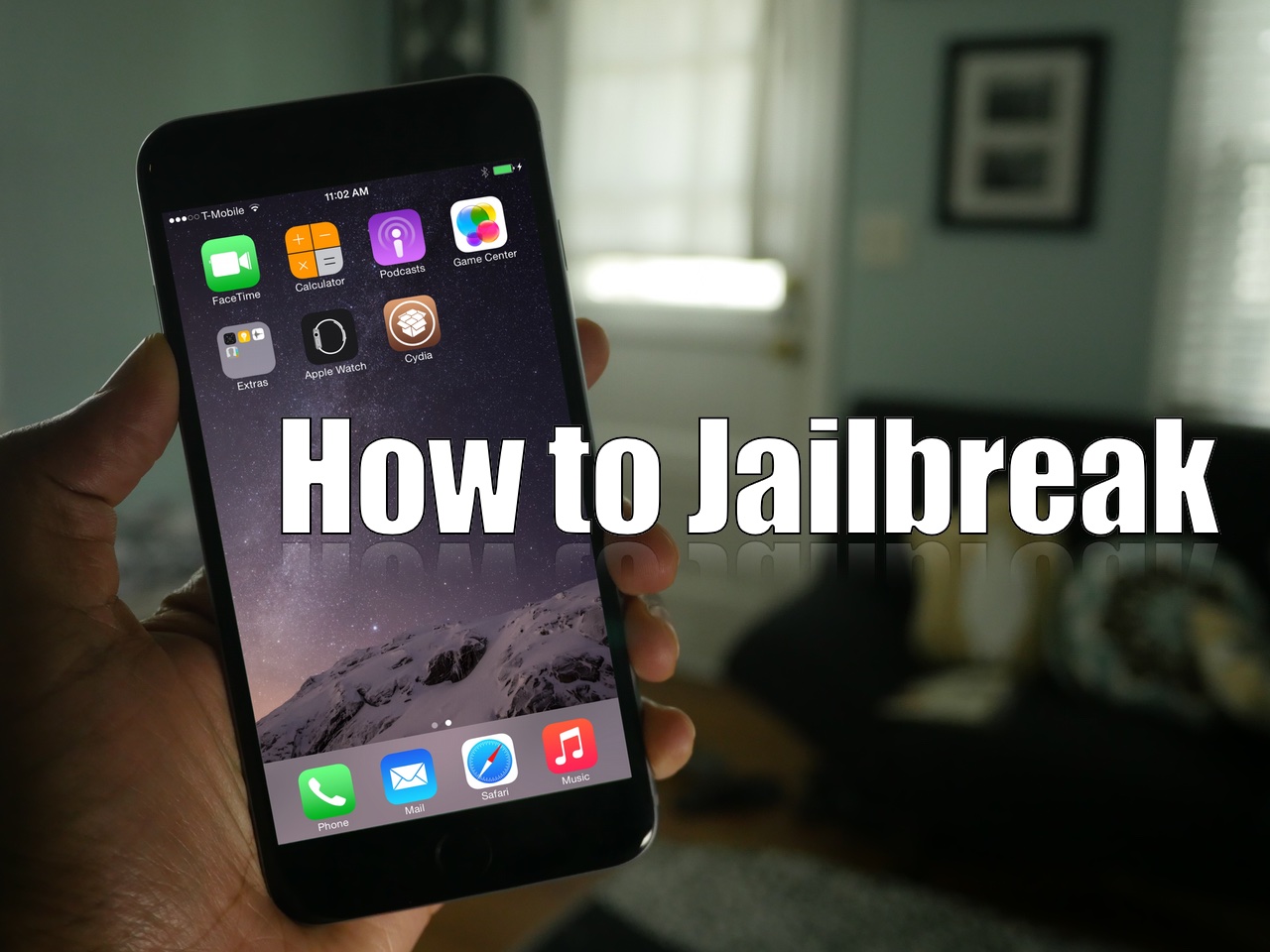
As we mentioned earlier, TaiG has released version 2.1.3 of its jailbreak tool, and it's a significant update as far as fixes go. First and foremost, it works with virtual machines, so you no longer need to modify your virtual machine to use the tool. Secondly, it fixes the 20% hangup. With these things in mind, we thought we'd show you how to jailbreak using this latest TaiG update.
This post is primarily aimed at those who have yet to jailbreak, and are looking for guidance with the latest tool. In the video that follows, we'll show you the proper way to go about jailbreaking your iPhone or iPad, and we'll show you how well the tool runs on a virtual machine.
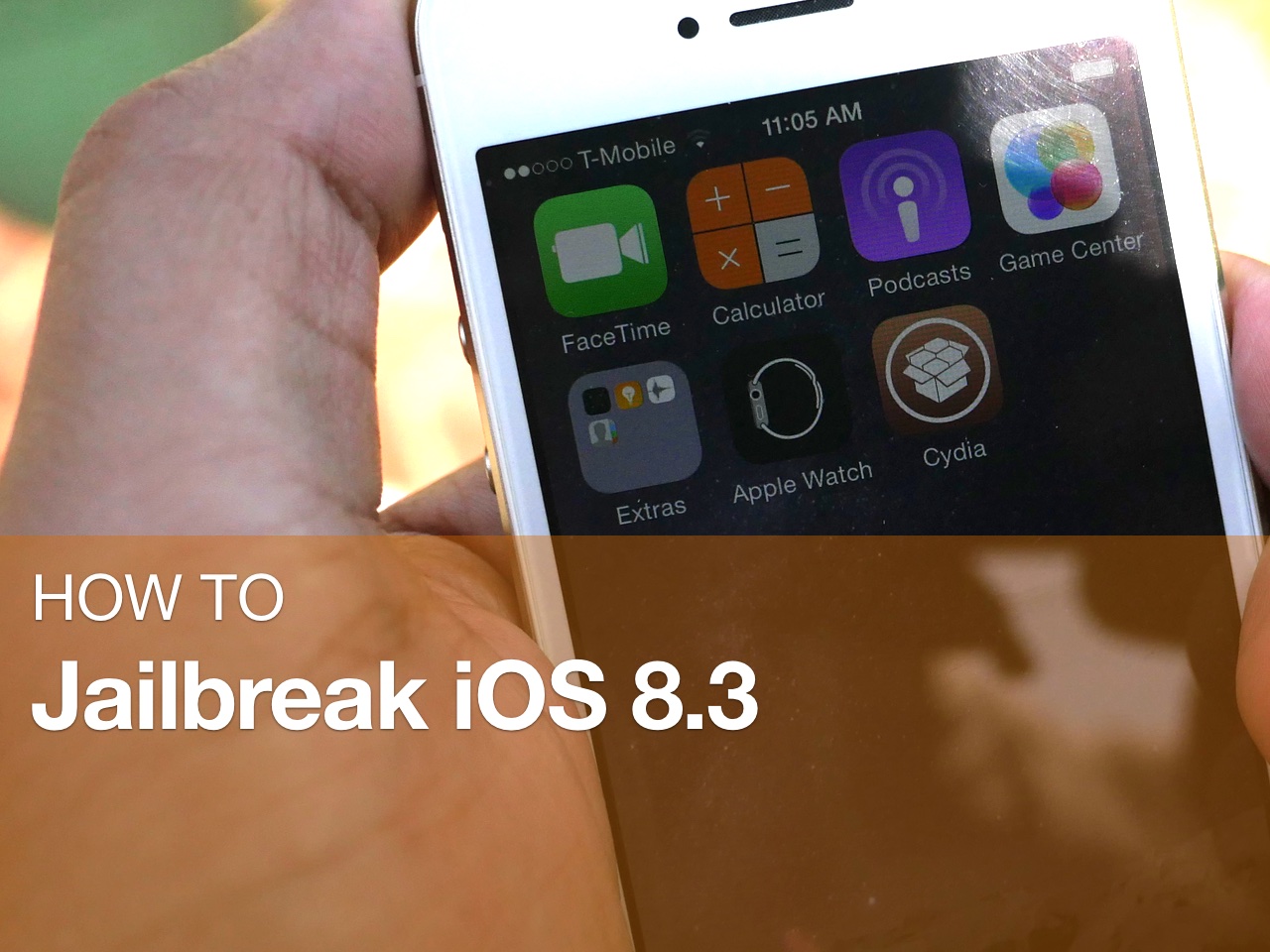
In this tutorial, I will show you how to jailbreak your iPhone or iPad running iOS 8.3 using TaiG 2.0. This jailbreak is super easy to do, and takes minimal effort if the instructions are followed closely.
Watch our full video walkthrough inside, as I take you through the step-by-step jailbreak process for iOS 8.3.
When iPhone first came out in 2007, it was the first device to include Visual Voicemail, a feature that allows users to view their voicemails, scroll through them, and of course listen to them, directly from the device. With Visual Voicemail, no need to dial a number and go through an automated message system to listen to your voicemails.
Since everything is now handled directly on the phone, you can also change your voicemail password directly from your iPhone.
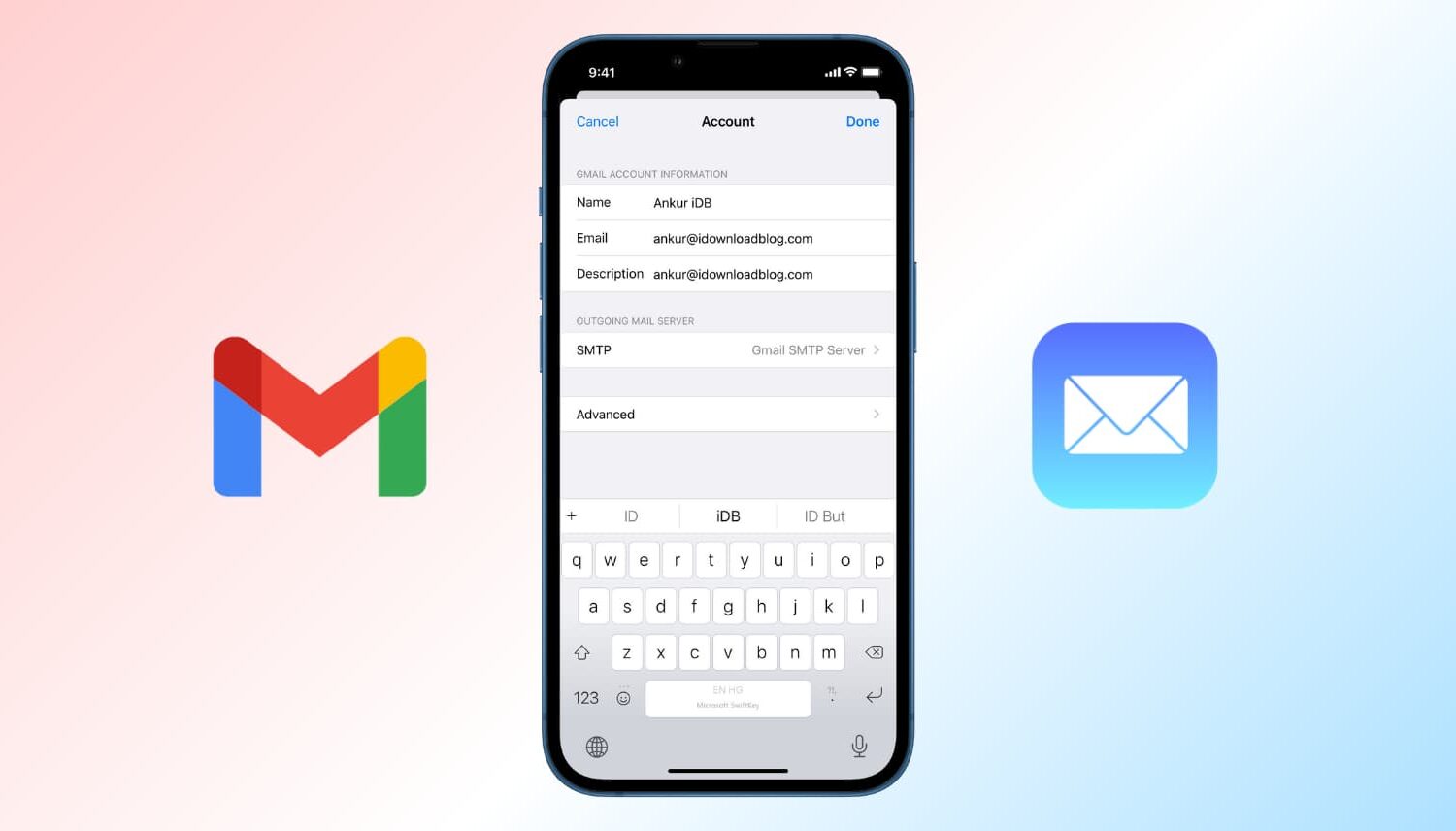
When you send someone an email, it usually shows the name you set while creating the account. Suppose you made a typo while setting up your email, or used your nickname or a fake name, and now every email you send has this name you no longer like.
In this tutorial, we show you how to change the name that's displayed in the email you send to someone from your iPhone, iPad, Mac, and iCloud.

Learn how to receive a notification on your Apple Watch when a specific Instagram account such as a friend publishes a story, reel, image, video, and other items.

Although not quite new, we reported this morning that Apple Watch can't connect to a 5Ghz Wi-Fi network. It's not a bug or anything. It's just a limitation of the current hardware found in Apple Watch. For those users that are not aware of this limitation, it can cause problems when believing that because you are on a known Wi-Fi network, Apple Watch and iPhone should still be able to connect even if they're out of Bluetooth range.
There is just no way to make your Apple Watch connect to a 5Ghz Wi-Fi network, but there are ways to work around that limitation. I've actually been helping people with that specific issue for a few days now, and because I've seen misinformation going around, I thought it would be best to just get things cleared up and explain how you can have both your iPhone and Apple Watch play nice with each other, even if your iPhone is connected to a 5Ghz network.
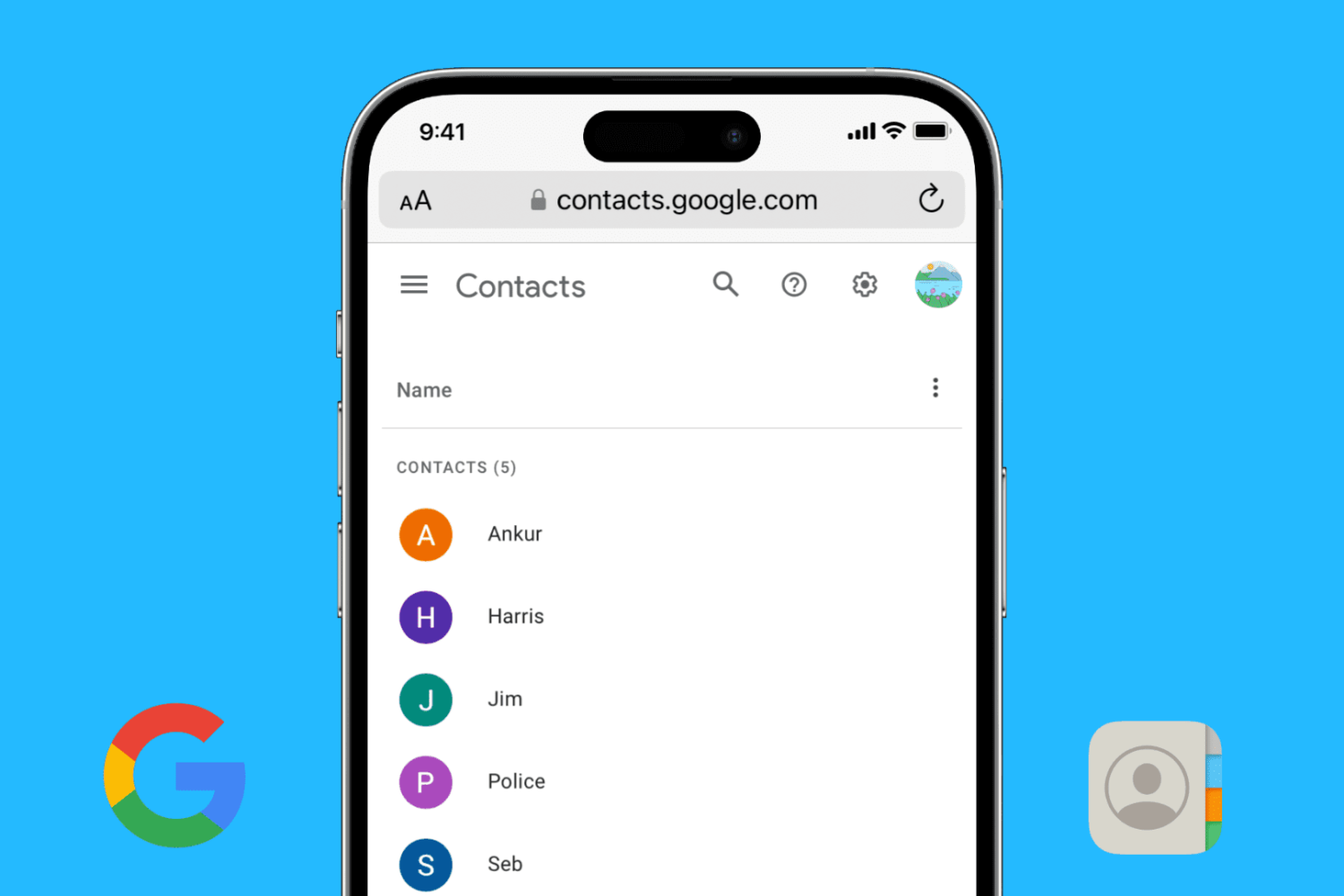
Find out how to add your Google account to your iPhone or iPad and sync your Google contacts with the iOS Phone and Contacts apps.

When your iPhone is buried under sheets, left in another room, or out of sight, the obvious thing to do to locate it is to call your iPhone using another phone. However, this may not be helpful if your iPhone is in silent mode, Do Not Disturb, or has an active Focus mode.
In these situations, or if you don’t have a second phone around, you can use your Apple Watch to play a loud alarm sound on your iPhone or trigger its camera LED to blink.