Find out how to add your Google account to your iPhone or iPad and sync your Google contacts with the iOS Phone and Contacts apps so all your Android contacts also appear there.
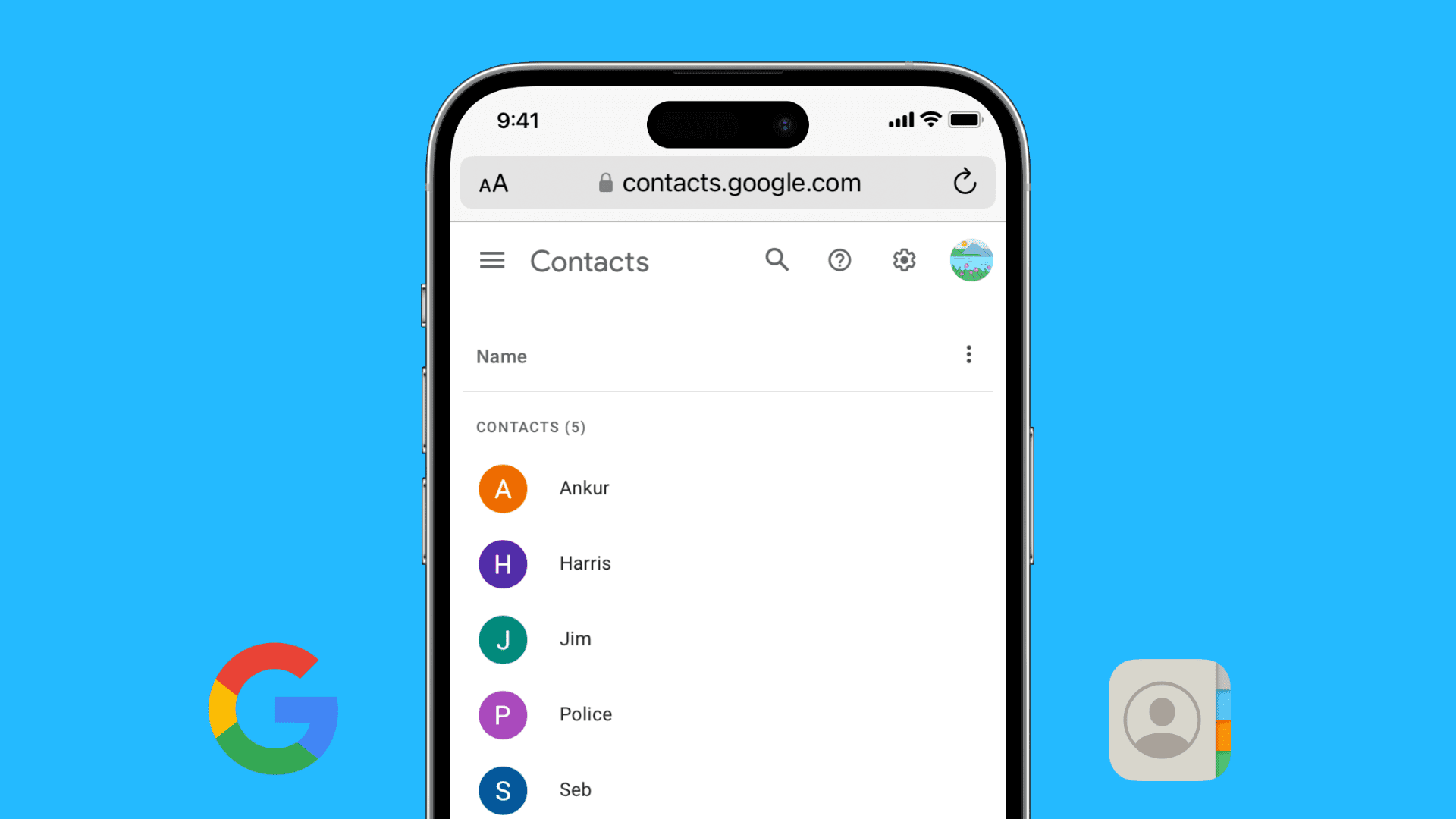
If your contacts are saved to your Google/Gmail account, you have a few easy ways to get them on your iPhone. For starters:
- You can transfer your Google Contacts to iCloud Contacts. This is ideal if you no longer want to sync new contacts to your Google account and want to switch entirely to Apple’s contacts solution.
- Your second option is to use the Move to iOS app to transfer contacts from your Android phone to your iPhone during device setup.
Finally, the method explained below is perfect if you want to keep using your Google account so contacts sync and stay updated across your iOS and Android devices.
Sync Google contacts to iPhone or iPad
1) Open the iOS Settings app.
2) Scroll to the bottom and tap Apps.
3) Select Contacts from the list of installed applications.
4) Tap Contacts Accounts at the top.

5) If you have previously added your Google/Gmail account, tap it and enable the switch for Contacts.

6) If you haven’t or if you want to add yet another Google account, tap “Add Account,” select “Google” from the list of services, and tap “Open Browser.” Then, sign in with your Google or Gmail login credentials and allow iOS to access your Google account.

7) Once you’re signed in to Google on your iOS device, enable the switch next to Contacts if it isn’t already. Optionally, you can turn off Mail, Calendar, and Notes or keep them enabled.
8) Finally, tap Save to successfully add your Google account to your iPhone and import the contacts.

See your Google contacts on iPhone
- Open the Contacts app or the Phone app and go to the Contacts section.
- Stay here for a couple of minutes with your iPhone connected to Wi-Fi or a stable cellular data connection. Soon, all your contacts from your Google account will appear on your iPhone.

Changes you make to your contacts, such as adding new contacts or deleting existing ones, will be synced to your other devices where you use the same Google account.
What to do if Google contacts are not appearing on your iPhone
If the contacts don’t appear in about 5 minutes, force close the Contacts app and reopen it. Also, double-check to make sure your iPhone is connected to the internet. Secondly:
- Tap the arrow button in the top-left corner of the Contacts section.
- Select either All Contacts or All Gmail. This will instruct the Contacts app to show all relevant entries.

In case the above tips don’t help, restart your iPhone and wait for everything to sync.