iPhone

Stay up-to-date on the latest iPhone news and learn new tips and tricks with our comprehensive tutorials. From software updates to new features, we’ve got you covered.

How to enable ‘Show me the best tweets first’ on Twitter

Twitter recently unveiled a new feature that lets you elect to have the service surface new and interesting content at the top of your timeline since your last visit.

Called “Show me the best tweets first,” it's a staggered release so not everyone may have it at the same time although the majority of Twitter's user base should now see this option in their settings.

This post will take you through the steps you need to take in order to enable this feature in Twitter's mobile apps and in the desktop interface, so that you never miss important updates from people you follow.

How to quickly get your answers from a website you’ve searched before in Safari

In addition to finding all occurrences of a word within any webpage, Apple's Safari browser for the iPhone, iPod touch, iPad and Mac includes a nifty little feature called Quick Website Search which lets you get your answers from within a specific website as long as you've used its search box before.

Safari keeps tracks of the webpages as you surf the web so you can later find anything within a previously visited website, right from the Smart Search field.

In this tutorial, you'll learn how to leverage Safari's Quick Website Search feature to search within a website.

How to select Siri voices for VoiceOver, Speak Screen and Speak Selection features

I'm not hearing impaired but that doesn't prevent me from taking advantage of certain VoiceOver features on my iPhone. For instance, I sometimes use Speak Selection to get iOS to read a book to me as I'm surfing the web, or doing something else.

Being a non-native English speaker, I also rely on that feature to have my iPhone read aloud words and phrases whenever I'm unsure about their correct pronunciation, which is a lot of help—especially with the adjustable pitch and speaking rate.

Starting with iOS 8, a number of options for the Siri voices you can use for the VoiceOver, Speak Screen and Speak Selection features became available. This tutorial explains how to choose a voice for Speak Screen and Speak Selection and adjust voices for VoiceOver.

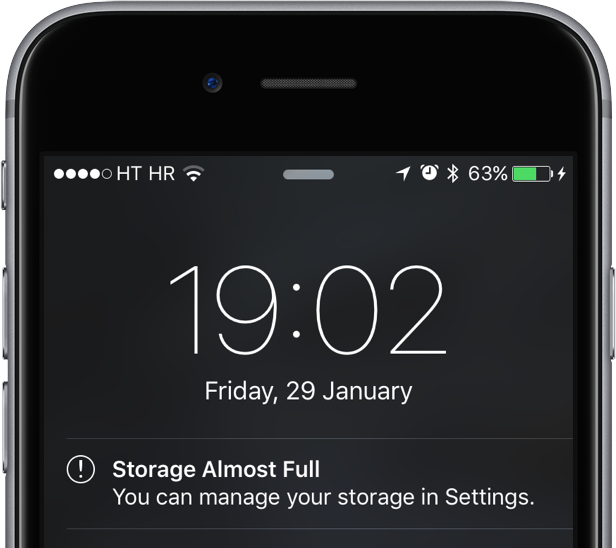
How to decrease ‘Other’ storage on iPhone or iPad

The infamous 'Other' storage section displayed in iTunes after connecting an iPhone, iPod touch or iPad to a computer is definitely one of the pain points for users mainly because it keeps increasing on its own.

'Other' storage is a combination of system settings, caches and various files that iOS stores temporarily to speed up system performance and minimize your dependency on network connectivity.

This all happens automatically and without any intervention on part of the user. That said, software can (and will) break and so these files may not get cleaned out properly. And when that happens, a large amount of storage will be lumped into the 'Other' category. The good news is, your proactiveness in dealing with this issue should pay off.

It's actually fairly easy to recover your usable storage lost to 'Other' space hogs by specifically targeting certain items. In this post, we'll lay out a few different techniques to decrease 'Other' storage on your iPhone or iPad.

How to open ZIP files on iPhone using the Notes app

Although neither Apple's Safari nor Google's Chrome browser can extract files from ZIP archives on iOS, it has been discovered that Apple's Notes app lets users view the contents of ZIP files by taking advantage of iOS's built-in file attachment viewers.

Starting with iOS 9, Notes has received several new features, among them support for adding content to a new or existing note through iOS's multi-purpose Share menu in apps like Safari, Maps, Pages and more.

As it turns out, you can also use iOS's Share menu in conjunction with the “Open In” feature to add a downloaded ZIP file to a note on your iPhone, iPod touch or iPad.

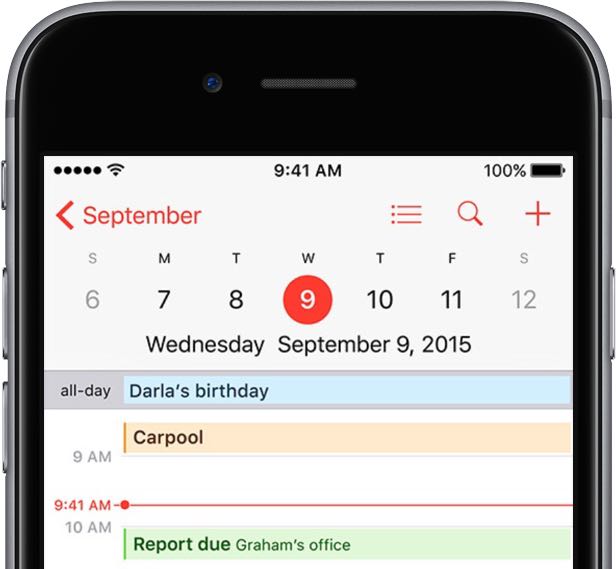
How to share iCloud calendars

Apple's Calendar application for the iPhone, iPod touch, iPad, Mac and iCloud.com makes it simple to share events and to-dos with select people, or let anyone with a link subscribe to a read-only calendar.

For example, you could share a “To Do” calendar with your significant other, create a calendar for your entire family so every member can put errands on it, invite your wife to a shared “Kids” calendar to keep parents in the loop about school activities and more.

Not only do shared calendars increase your productivity in the workplace, they help those who use them become more organized in everyday life. You can assign edit privileges to invitees, adjust how participants access the calendar and more.

Invitees have a myriad of options at their disposal to view shared calendars, including the iCloud Calendar web app, the stock Calendar app on the iPhone, iPad, iPod touch and Mac or Microsoft Outlook on a Windows computer.

In this tutorial, you will learn how to share a calendar privately or publicly on iPhone, iPad, Mac and iCloud.com. You will also learn how to manage calendar sharing by adding or removing participants, changing privileges, adjusting calendar notifications, and more.


3D Touch shortcuts for the Camera app

Whenever an awesome photo opportunity presents itself, I instinctively grab my iPhone, launch the Camera app and press the shutter button.

But boy, way too many times did I find myself in the wrong camera mode. One time, I would realize I was shooting video instead of taking a great picture. Other times I would snap a selfie, whereas I wanted to take a quick photo of my neighbor's dog jumping in the air catching her frisbee.

3D Touch can help avoid such distractions when you're in the middle of your photography moment. With a little help of 3D Touch shortcuts and gestures, iPhone owners will hopefully never miss that important shot again.

3D Touch lets you take a selfie or start shooting video from the Home screen, review the photos you’ve taken without leaving the Camera app, play Live Photos with a press and more. In this tutorial, we'll take you through every 3D Touch-enhanced feature that's available to iPhone photography fans in Apple's built-in Camera app.

How to view, search and edit Safari passwords

If you're tired of always having to log in, Safari will happily save web passwords in your keychain. Even better, the browser can automatically fill in your user names and passwords the next time you visit your favorite websites.

And with the iCloud Keychain feature, your saved passwords can be synchronized across devices in a safe, secure manner. In this tutorial, you're going to learn how to search saved Safari passwords without needing to visit their websites, view your saved logins, as well as add, delete and manage saved passwords. 

How to disable suggested search terms in Safari

Google Suggestions while typing in Safari address bar

Safari Smart Search Field lets you type in either an URL to visit or a search query to send to the default search engine. It's also a place where search suggestions automatically pop up as you type. With this cool feature, you can type just the first few letters of a query and rely on the search engine (Google, Bing, Yahoo, etc.) to help you complete the search term without needing to type out the rest of your query. But, certain users may not be fond of this feature for privacy reasons.

If you're among them, use the step-by-step instructions provided in this tutorial to turn off suggested search terms in Safari for iPhone, iPad, and Mac.