iPhone

Stay up-to-date on the latest iPhone news and learn new tips and tricks with our comprehensive tutorials. From software updates to new features, we’ve got you covered.

How to quickly redial the last number on your iPhone

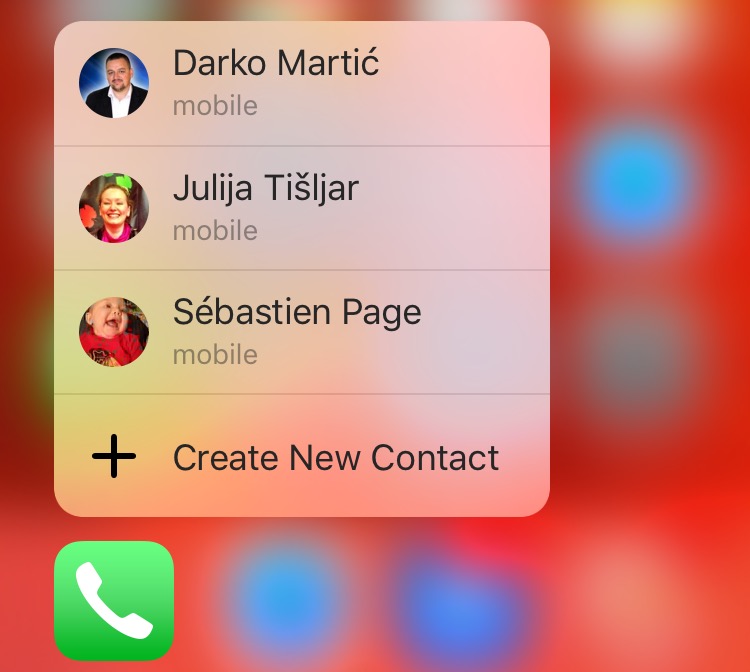
Using a 3D Touch gesture on the Phone app icon gives you shortcuts for calling your favorite contacts right from the Home screen. But aside from 3D Touch, the Phone app has received little innovation in years past.

That being said, a lot of iPhone owners are not completely familiar with the ins and outs of the Phone app beyond making and receiving phone calls. Many of my friends, for instance, routinely go to Phone → Recents to call the last dialed number.

Apple's interface designers have thought of that, too, but unfortunately their solution is not readily apparent in Phone's interface. In this quick tutorial, we'll teach you how to call the last dialed number right from Phone's Keypad section.

How to make the most of 3D Touch in Phone app

Our 3D Touch tutorial series has so far covered various user interface shortcuts and 3D Touch Peek and Pop gestures in several Apple stock apps like Messages, Safari, Mail, iBooks and Apple Maps.

Today, we're going to discuss how pressure-sensing screens enhance the Phone app, one of the most frequently used stock apps on iPhones. Here's how to make the most of 3D touch and the Phone app.

How to use bookmark folders in Safari

In Safari, you can save websites you visit frequently so you can quickly revisit them later without having to remember their URLs. Saved webpages are accessible in Safari's Bookmarks menu on the iPhone, iPod touch, iPad or Mac.

If you save a lot of bookmarks, they will clutter the Bookmarks menu over time so locating that favorite website of yours will begin to feel like finding a needle in the haystack. You can avoid this by creating themed folders for organizing your bookmarks.

This tutorial provides step by step instructions for creating new Safari bookmark folders for iOS and macOS. You will also learn how to rename, reposition and delete these folders and file websites into them, all of which will help you organize your favorite websites to your liking.

How to watch Super Bowl 50 on iPhone, iPad, Apple TV, and other devices

On Sunday evening, millions of people will gather around their TV sets to watch Super Bowl 50. The game features the Denver Broncos taking on the Carolina Panthers, and kickoff is scheduled for 6:30 (ET).

For those of you who aren't going to be around a television Sunday night, but still want to follow along with the action, we've put together a list of ways you'll be able to do so using an iPhone, iPad, Mac and other devices.

How to choose which contacts appear in the Phone app 3D Touch shortcut menu

Are the contacts in the 3D Touch shortcut menu of the Phone app confusing you? Upon pressing Phone's icon lightly, a menu pops up with four seemingly random contacts, making it easy to call them quickly from the Home screen. Believe it or not, there's actually some logic behind listing these quick contacts. Even better, you can change their order as well as set other people to be listed in Phone's shortcut menu.

Be more productive in Mail with these 3D Touch shortcuts

Apple's Mail is a great place to start trying out iOS's time-saving 3D Touch interactions on your iPhone. With 3D Touch, not only can you create a new email and jump to your inboxes right from the Home screen but manage your emails more efficiently with in-app Peek and Pop gestures.

In this tutorial, you will learn about all the ways Mail takes advantage of 3D Touch to make you more productive by letting you preview emails, contacts, web links, as well as embedded dates and times, airline codes, package tracking numbers and more.

Turn off HDR photo duplicates to save storage space

High Dynamic Range (HDR) photography is great for making the most from your iPhone's camera, especially in high-contrast situations.

With this feature, your iPhone takes multiple photos in rapid succession, each at a different exposure, and automatically blends them together. You get an image that has optimized highlights and really brings the shadows out of the noise, with way better detail in the bright and midtown areas.

When you enable HDR photography by tapping the HDR icon in the Camera app, your iPhone will save two copies of the image in your photo library: the “normal” image (without HDR) along with its HDR counterpart.

This can put a strain on your iPhone's storage, especially when taking a lot of HDR photos. If your iPhone's storage is low, or you're the type of person who likes to plan ahead, read this tutorial to learn how to turn off HDR photo duplicates and save significant amounts of storage space on your device.

How to filter mature language for Siri and Dictation

Sometimes when you use the dictation feature on your iPhone, iPod touch or iPad—or just converse with Siri and it misunderstands you—you might be in for a surprise seeing explicit language that you don't really want others to see, especially if you talk to Siri on your new Apple TV and kids are present.

Fortunately, both iOS and tvOS give you all the controls you need to prevent profanities from showing up when you use speech-to-text or Siri. In this post, you'll learn how to disable explicit language for Siri and Dictation on your iPhone, iPod touch or iPad and filter out explicit language for Siri on your Apple TV.

How to find a specific word inside webpages in Safari for iPhone and iPad

Since the release of iOS 7, Safari for the iPhone, iPod touch and iPad has ditched its dedicated search field in favor of a unified URL/search bar at the top, not unlike Google's Chrome. But did you know that this field also lets you easily find all occurrences of a specific word or a phrase within any webpage?

I use this feature on a daily basis to jump to specific pieces of information within long articles without having to read them in their entirety.

In this post, I'll show you how searching inside webpages works in Safari for iOS.

How to stop Background App Refresh for a single app until it’s reopened

Introduced with iOS 7, Background App Refresh lets suspended apps (those that you quit or run in the background) check for new data so that they always present you with up-to-date content.

As useful as Background App Refresh is, it strains your battery due to periodical data fetching, which sometimes occurs even when your device is locked.

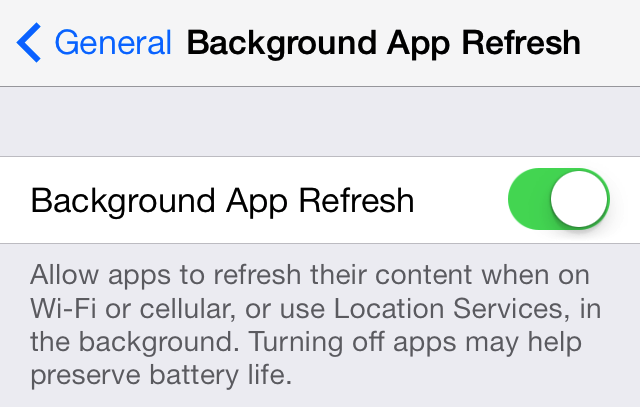
You can enable or disable this feature on a per-app basis in Settings → General → Background App Refresh. You can also save yourself a few taps by quickly disabling Background App Refresh for a single app without launching Settings, and here's how.