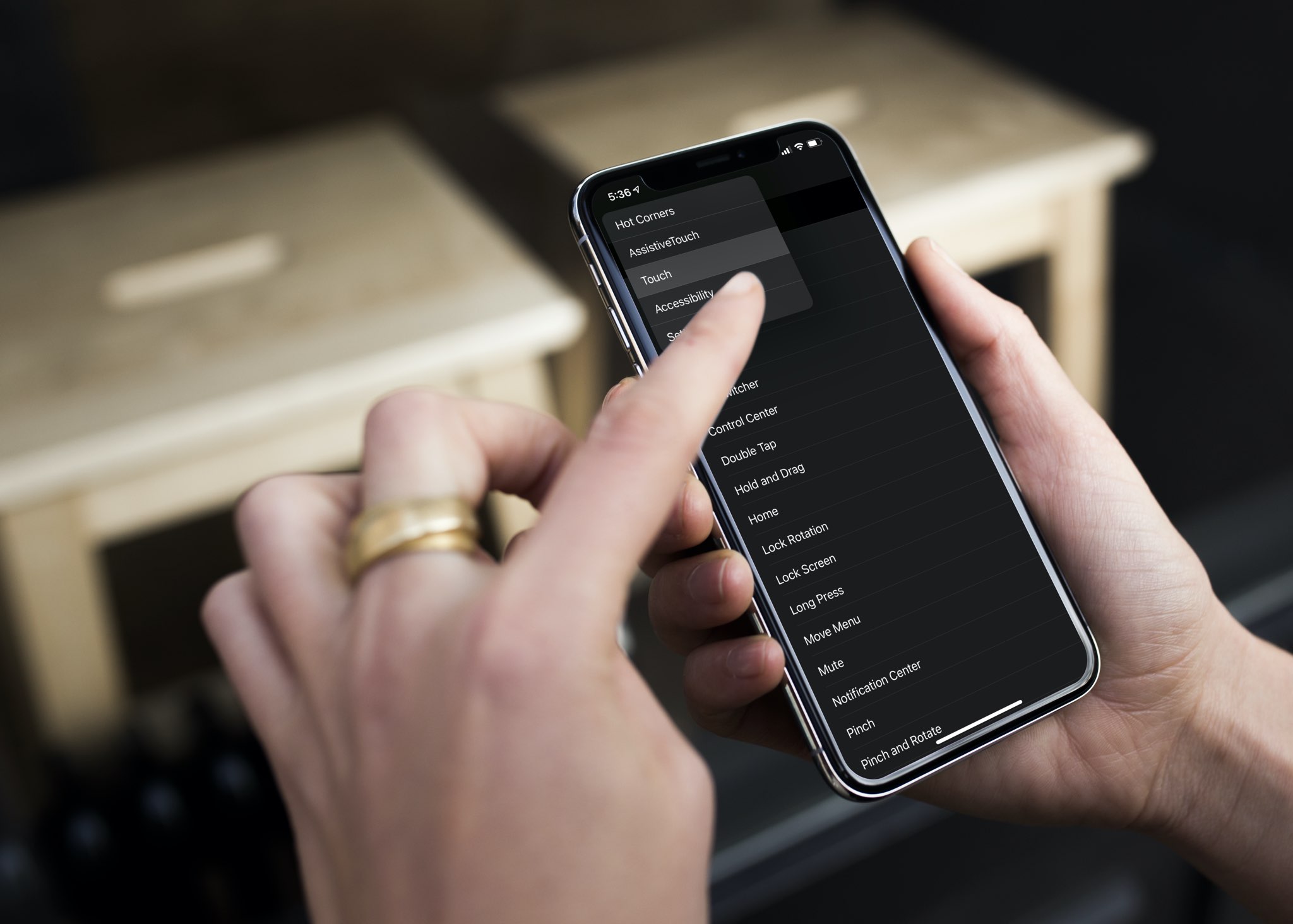
Check out this pro tip to navigate Settings and System Settings on your iPhone, iPad, and Mac faster using the hidden navigation menu.
How to quickly move through Settings on iPhone and Mac
Stay up-to-date on the latest iPhone news and learn new tips and tricks with our comprehensive tutorials. From software updates to new features, we’ve got you covered.
Check out this pro tip to navigate Settings and System Settings on your iPhone, iPad, and Mac faster using the hidden navigation menu.

Learn how to improve your online privacy by sharing only your approximate location with apps that request it.
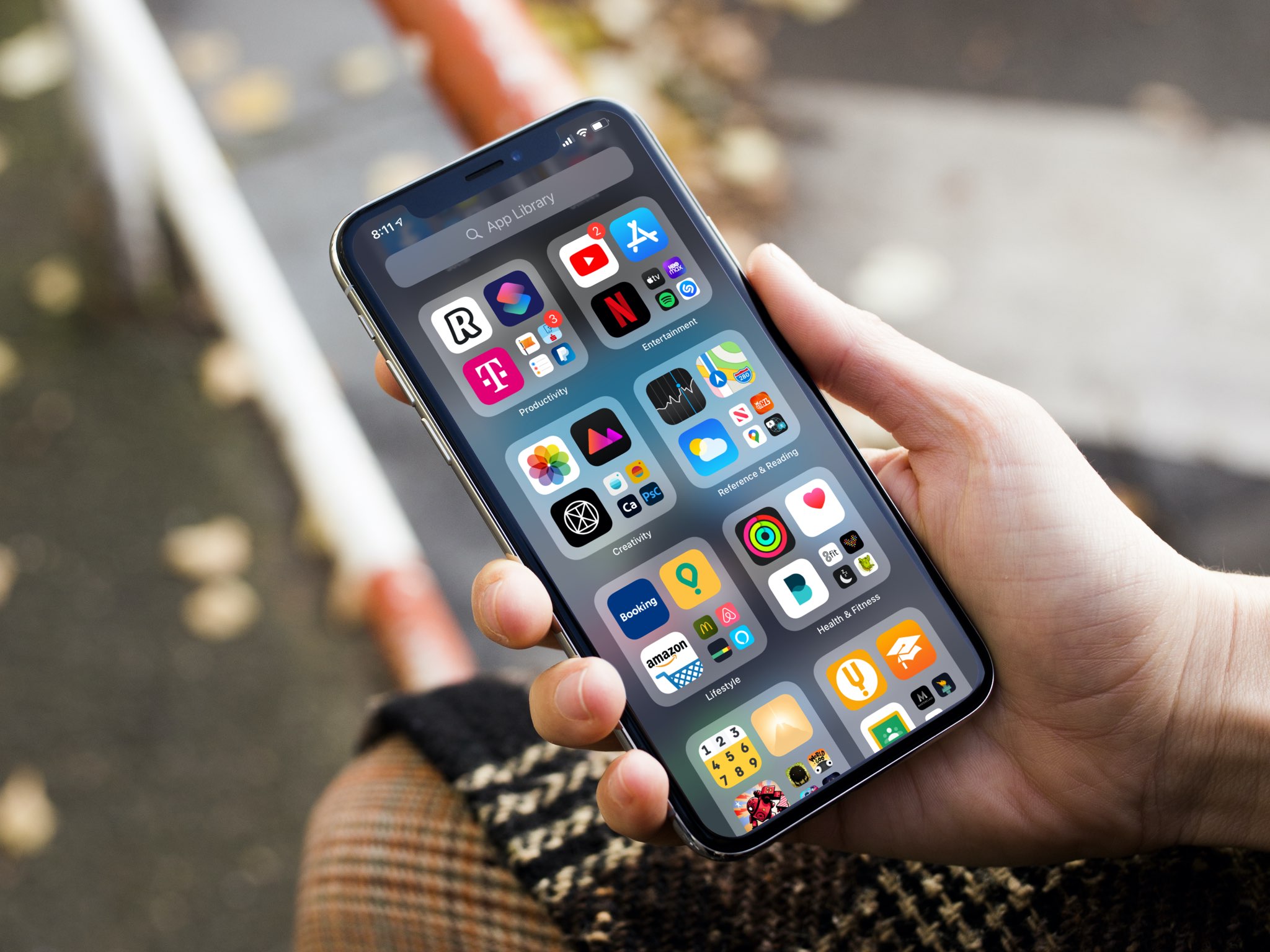
Apple gives you the option to choose for yourself where new iPhone and iPad app downloads will appear. Follow along as we show you how to set whether newly downloaded apps are added to the Home Screen or appear only in the App Library.
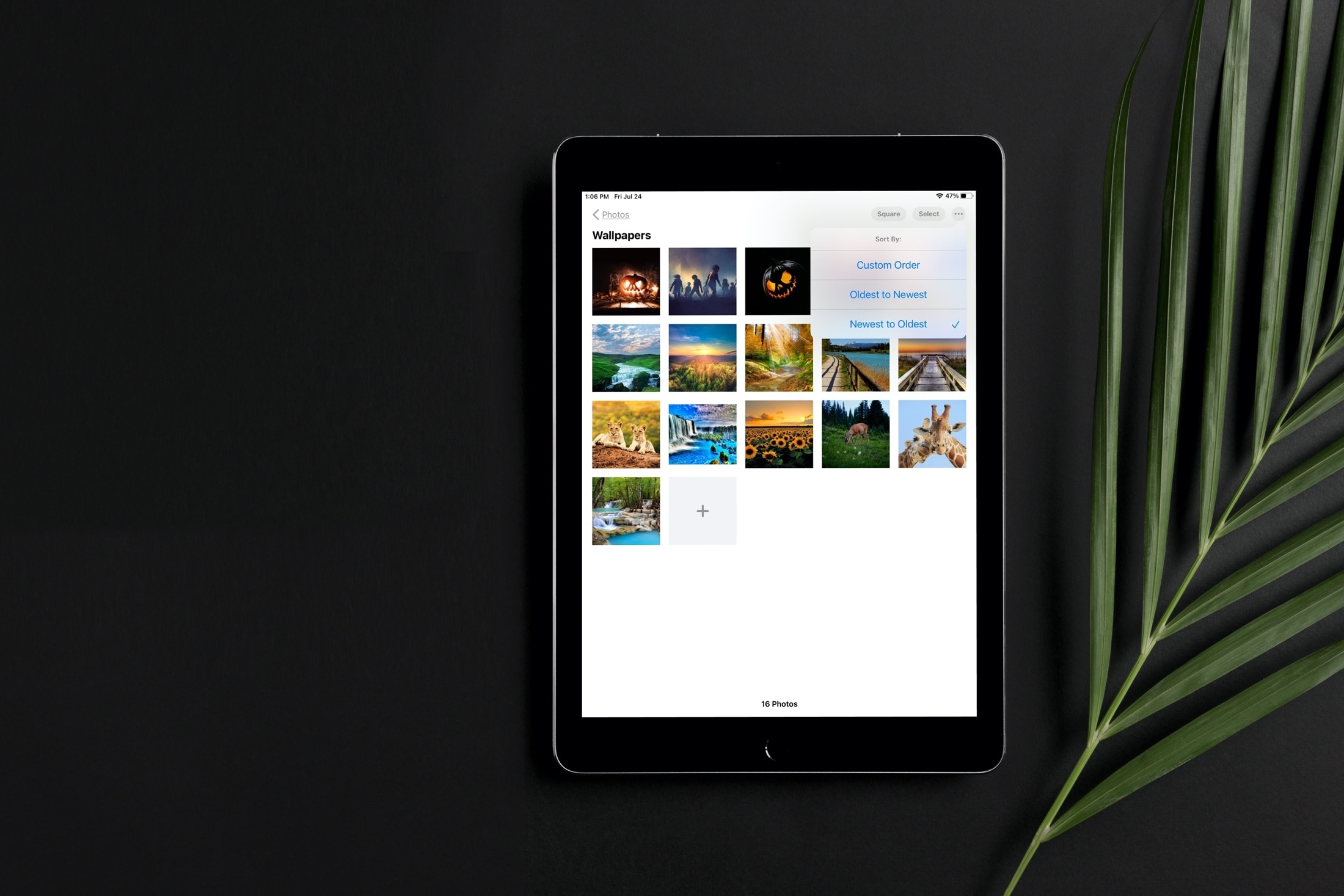
Learn how to sort images and videos in the built-in Photos app on your iPhone or iPad by date or custom order to organize your library.
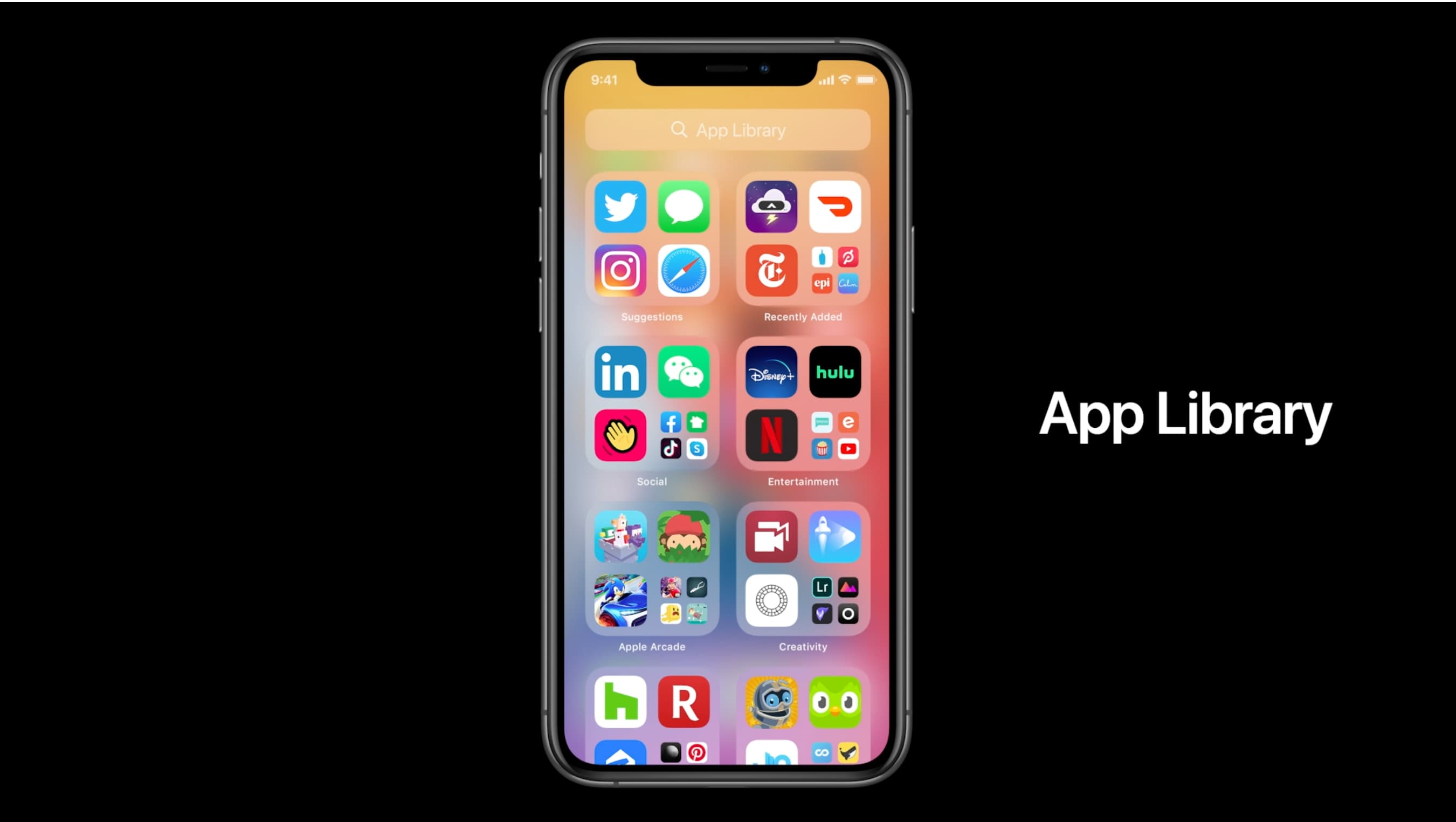
The App Library displays badges on app icons to denote unread notifications, but you can disable them if seeing those red circles is ticking you off. Follow along with our tutorial as we show you how to hide notification badges in the App Library on iPhone and iPad.
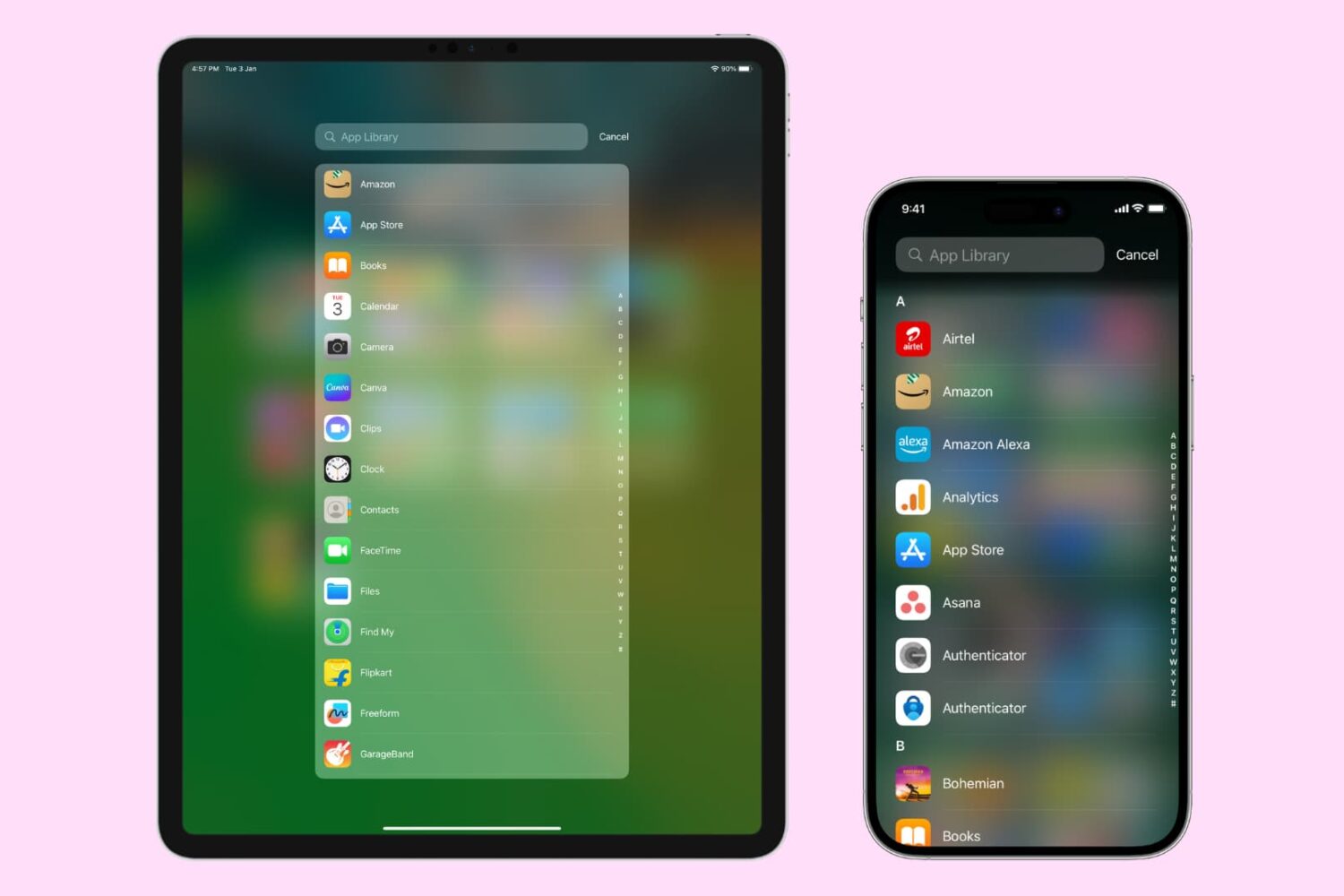
The App Library on your iPhone and iPad automatically organizes your apps, including a handy list view that alphabetically displays all the installed apps.
Follow along with our step-by-step tutorial detailing how to browse iOS and iPadOS apps in alphabetical order.

Tired of endlessly scrolling through your library in search of that one photo? In this guide, we will show you how to use search filters in the Photos app on your iPhone and iPad, and start effortlessly locating the photos you are looking for.

If your handset is jailbroken with unc0ver and you’ve either decided that you revert to a vanilla version of iOS or that you want to start over with a different jailbreak tool, it’s important to know that the unc0ver jailbreak incorporates a mechanism for rolling your handset back to a pre-jailbroken state.
In this step-by-step tutorial, we’ll walk you through the steps necessary to remove the unc0ver jailbreak and all of its components from your iPhone or iPad. This process is recommended over totally restoring your handset because it will preserve your valuable personal data and ensure that your device can still be jailbroken in the future if you happen to change your mind.

Learn how to manually add titles and captions to images and videos in the Apple Photos app on your iPhone, iPad, and Mac to make it easy to search for them later.
Just as promised, the Electra Team’s new Odyssey jailbreak for iOS 13.0-13.5 lets users install Saurik’s tried and true Cydia package manager (and others) alongside the jailbreak’s default Sileo package manager.
While some people prefer the Sileo experience over Cydia, the fact remains that many remain loyal to the package manager they’re most familiar with. With that in mind, we’ll be showing you how you can install Cydia on your Odyssey or Odysseyra1n device in this step-by-step tutorial.

Odyssey is the Odyssey Team’s latest creation, and it’s specifically intended for jailbreaking iOS & iPadOS versions 13.0-13.7. Much like the competing unc0ver jailbreak, Odyssey is a side-loadable jailbreak app that installs a semi-untethered jailbreak.
The Odyssey jailbreak by default uses the Sileo package manager for installing packages and libhooker for tweak injection. Additionally, it installs the all-new Procursus bootstrap, which powers everything that makes this jailbreak tick. If you’re interested in using this concoction, then you’ve come to the right place because this tutorial will show you how you can jailbreak your iPhone or iPad with Odyssey.
Whether you’ve jailbroken with the checkra1n tool and fancy reverting back to a vanilla version of iOS or you merely want to uninstall checkra1n to try a different jailbreak tool, the checkra1n jailbreak includes a convenient built-in utility for removing the jailbreak with just a few simple taps.
In this tutorial, we’ll show you how to remove the checkra1n jailbreak without completely restoring your iPhone or iPad. This method is traditionally recommended over a full-blown device restore because it doesn’t erase your data and it preserves your version of iOS. The latter is especially useful if you’re removing checkra1n to try another jailbreak since other jailbreaks can be picky about the versions of iOS they support.