Learn how to change your Apple Watch's Home Screen from the honeycomb grid layout with app icons to list view that sorts your apps alphabetically.
How to see all Apple Watch apps in List View

Stay up-to-date on the latest Apple Watch news, and learn how to get the most out of your device with our comprehensive tutorials. From updates to features to troubleshooting tips, we’ve got you covered.
Learn how to change your Apple Watch's Home Screen from the honeycomb grid layout with app icons to list view that sorts your apps alphabetically.
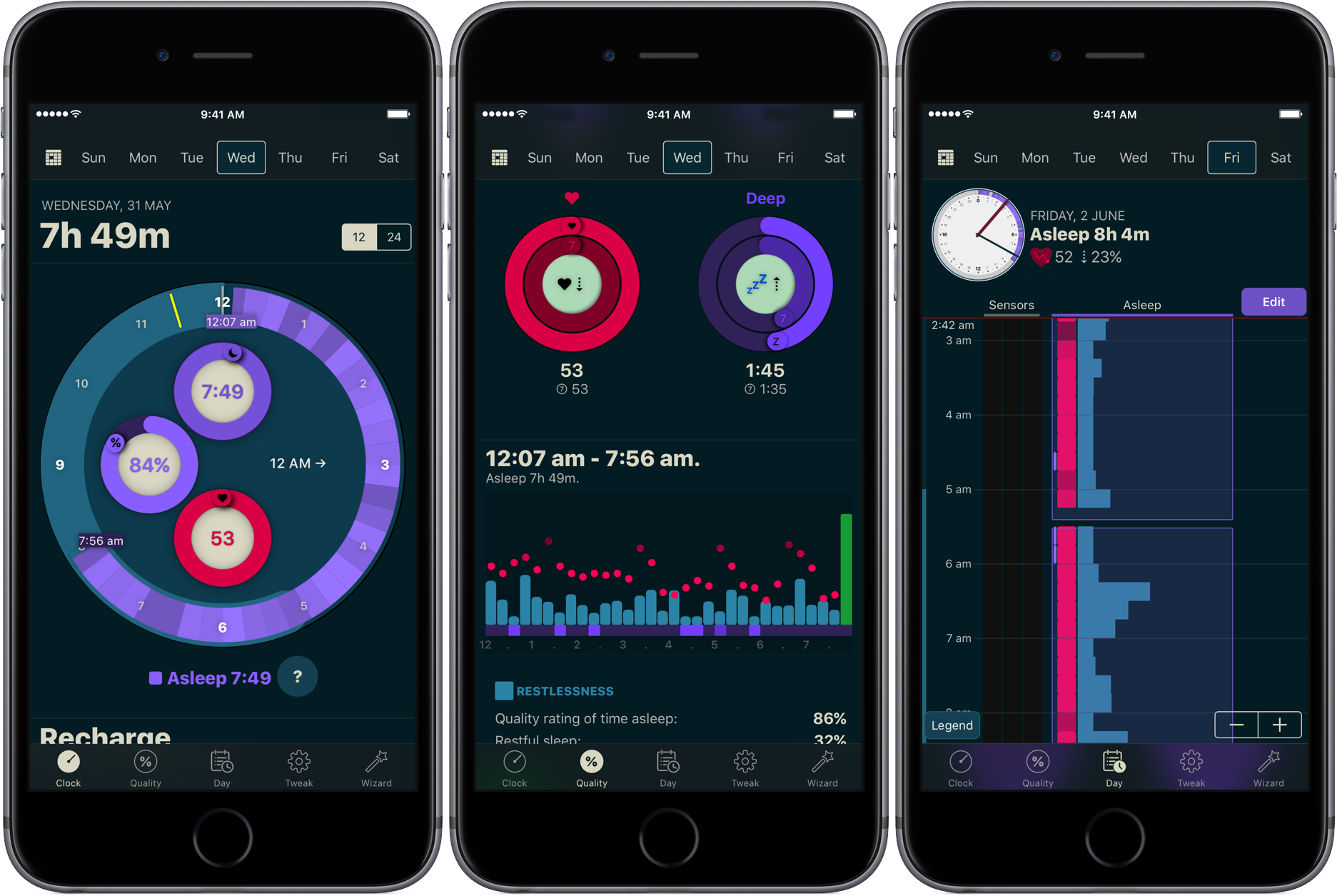
You don’t have to be a scientist to know that a good night’s sleep is conducive to your overall wellbeing and health. On that note, a while ago we have screened the App Store for the best sleep trackers available on iPhone and Apple Watch so as to make it easy for you to pick and choose your new sleep companion.
While varying in looks and features, all of the apps listed serve the same purpose: record how you slept and explain possible discrepancies in perceived quality of sleep and your actual rest. With the hands-off roundup in mind, we decided to select the most requested and popular app featured - AutoSleep - and throw a complementary hands-on tutorial on sleep tracking into the mix. Want to learn more about how to track your sleep using your iPhone, Apple Watch, and the AutoSleep app? Then join us for the tour!
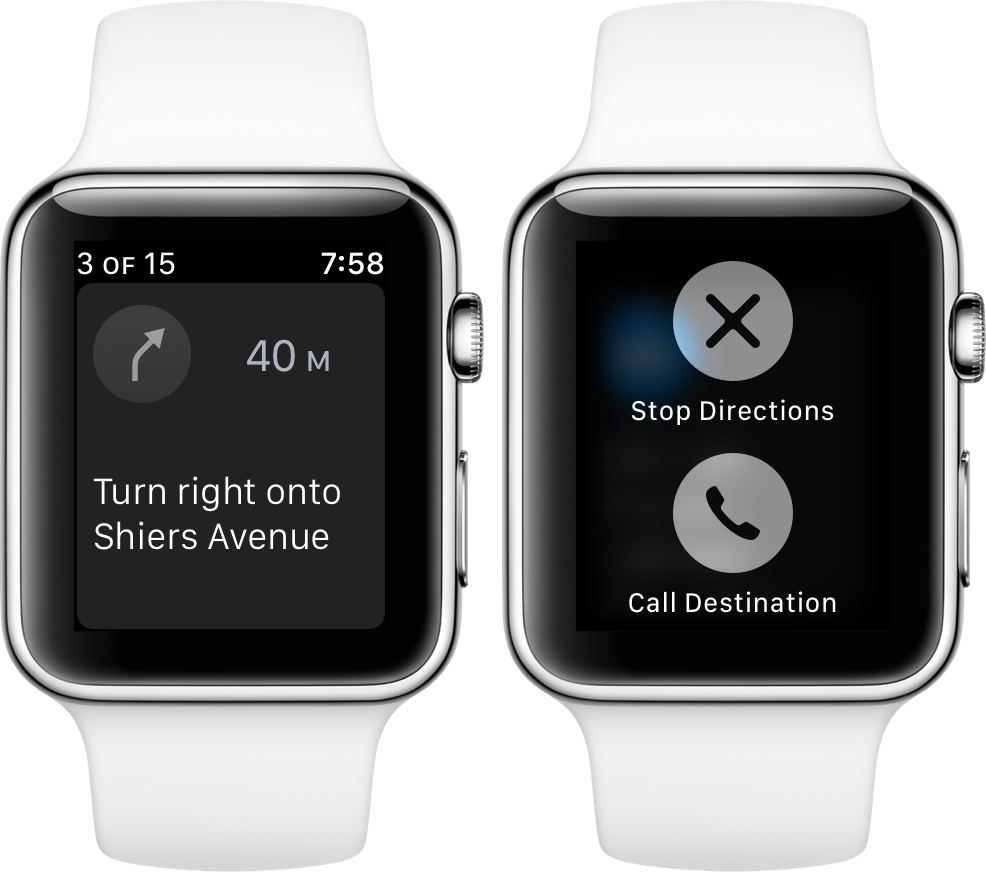
It’s the little shortcuts Apple Watch can provide in life that make wearing the device oh so rewarding at times. The most prominent ones have certainly saturated Apple’s marketing and most corners of the internet by now, still many smaller tricks are hardly covered simply because they can be so darn hard to find.
The following one certainly falls into that category, as I had never heard or read about it before, and I frankly came across it by pure chance. If you have to hit the roads regularly and rely on Apple Maps and your watch to get to your destination, it’s a deft shortcut that makes sure you can keep your eyes on the road at all times - even if you need to make a phone call to the place you are currently headed!
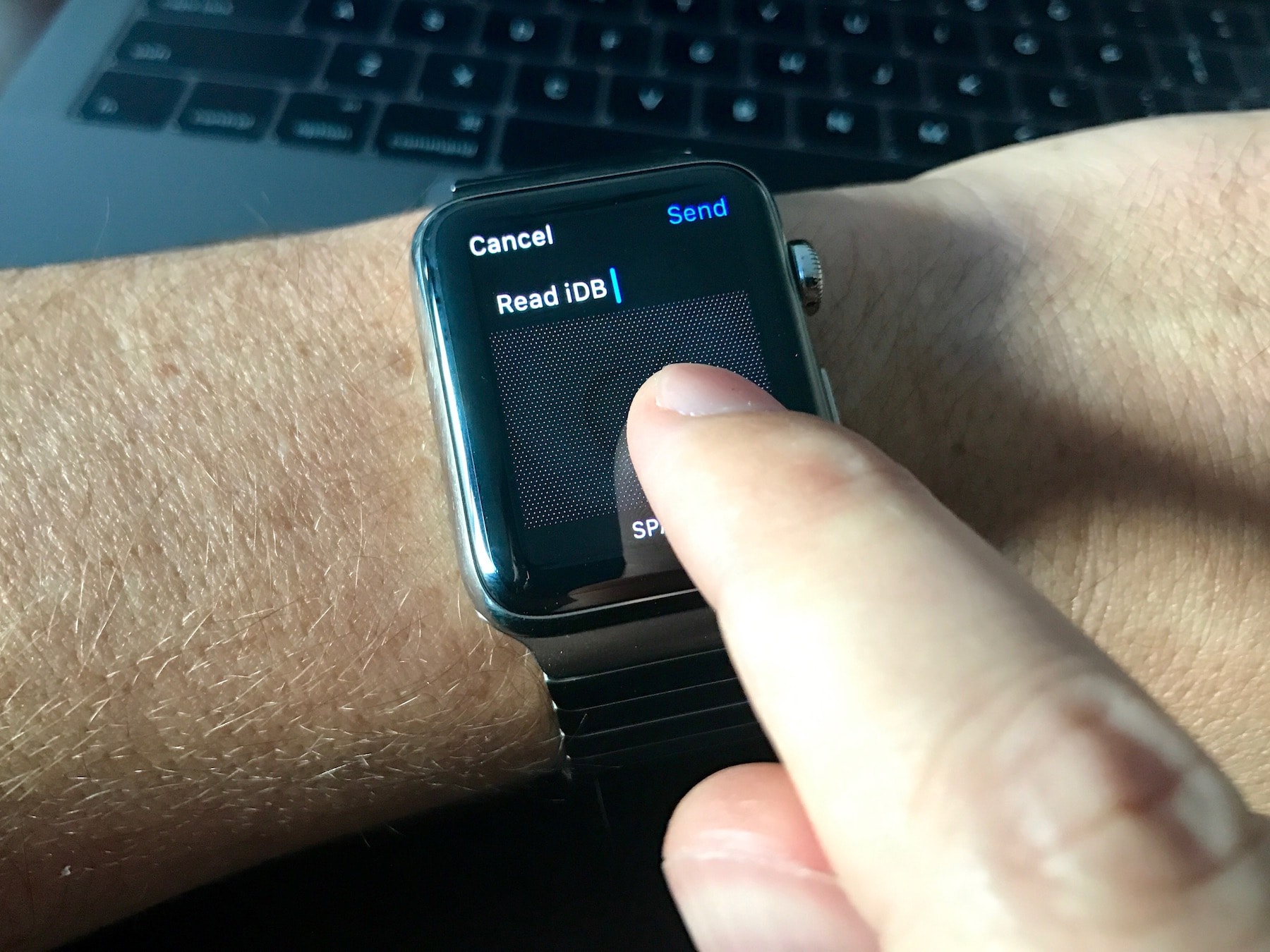
Do you often face difficulties typing words using the Scribble feature? In this guide, we will share five handy tips to make the most of Scribble on your Apple Watch to improve your typing experience.
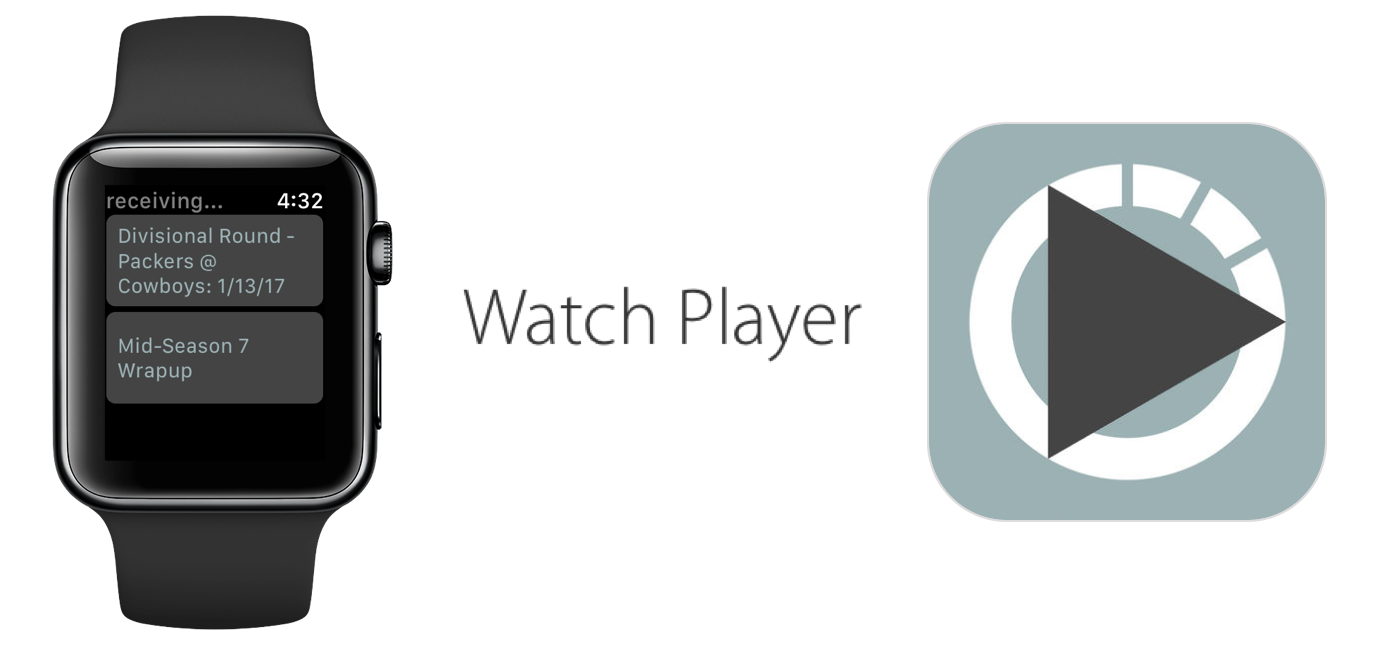
The ability to store and play podcasts on Apple Watch is one of many features advocated for regarding future watchOS updates, but so far it has fallen on deaf ears at Apple. With the cries for podcasts on Watch slowly reaching fever pitch, developers have taken matters into their own hands and released a fully functional podcast app that enables the transfer of your favorite subscriptions from iPhone to Apple Watch.
The app goes by the name WatchPlayer and (while moody at times) gives a solid account of itself, effectively beating Apple to the punch in the podcast race. Find out below how the data transfer is realized, where it trumps Apple's stock apps and what areas of WatchPlayer could do with some attention.
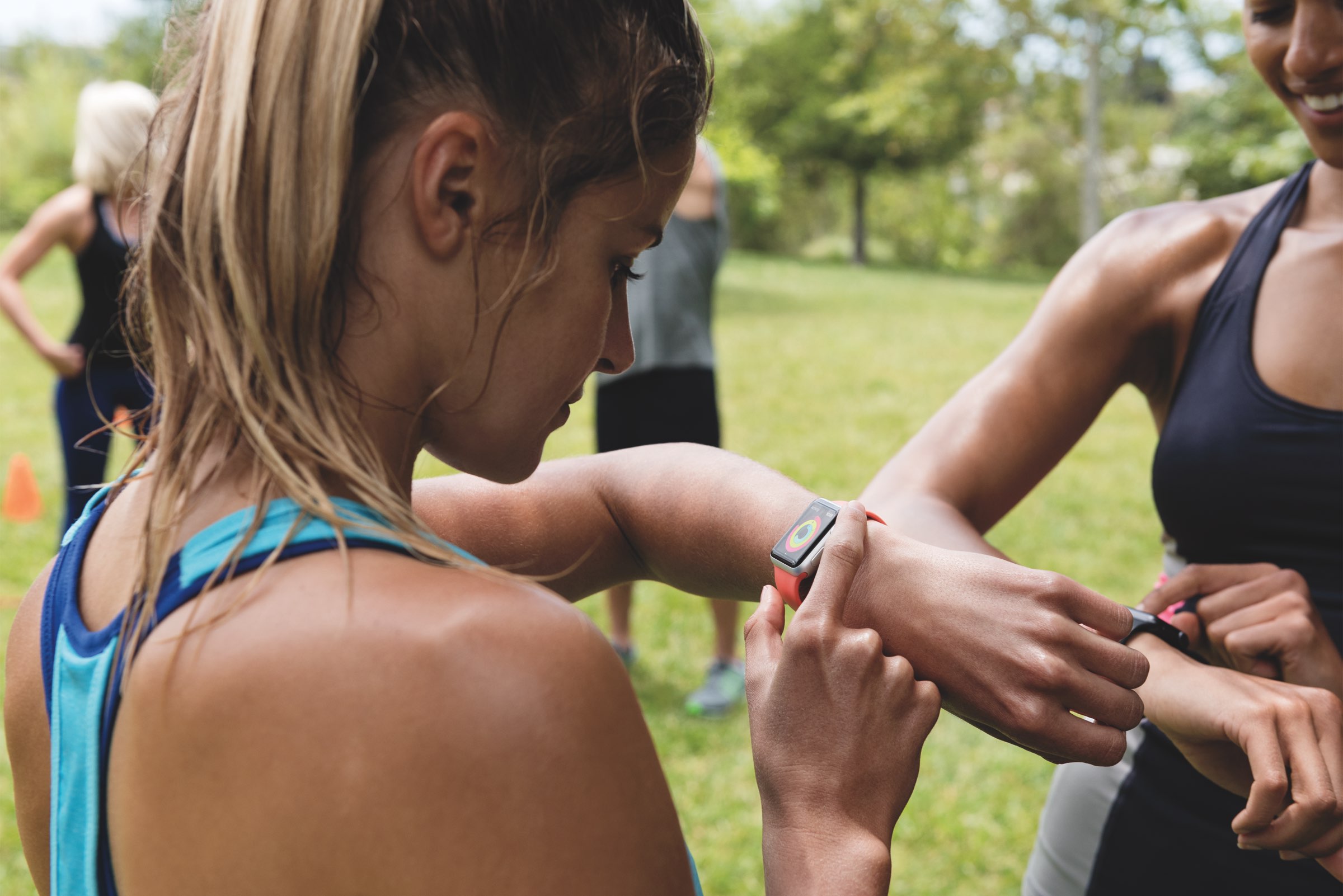
Find out how to use Activity Sharing on your iPhone and Apple Watch to share your daily Activity rings with your family, friends, trainer, or coach. You can use this to compete with them for motivation, or let them track your daily activity progress.

Activity sharing is a tried and tested way to boost your app engagement by pitting your own fitness data against others that are willing to share theirs. Fitbit and Nike knew for a while of the extra motivation released when someone else monitors your activity, Apple knows full well since iOS 10 and watchOS 3. Agreeing to share and relay your activity on Apple Watch can hence be an inspirational thing, but it also results in a considerable increase of wrist-buzzing every day.
If you have committed to sharing your activity and your patience with the daily activity updates from your friend is starting to wear thin, remember that there is an option to mute those notifications. The tutorial also demonstrates how to hide your own activity from that friend, in case you don’t want them to know about your newest calories crushing workout just yet.
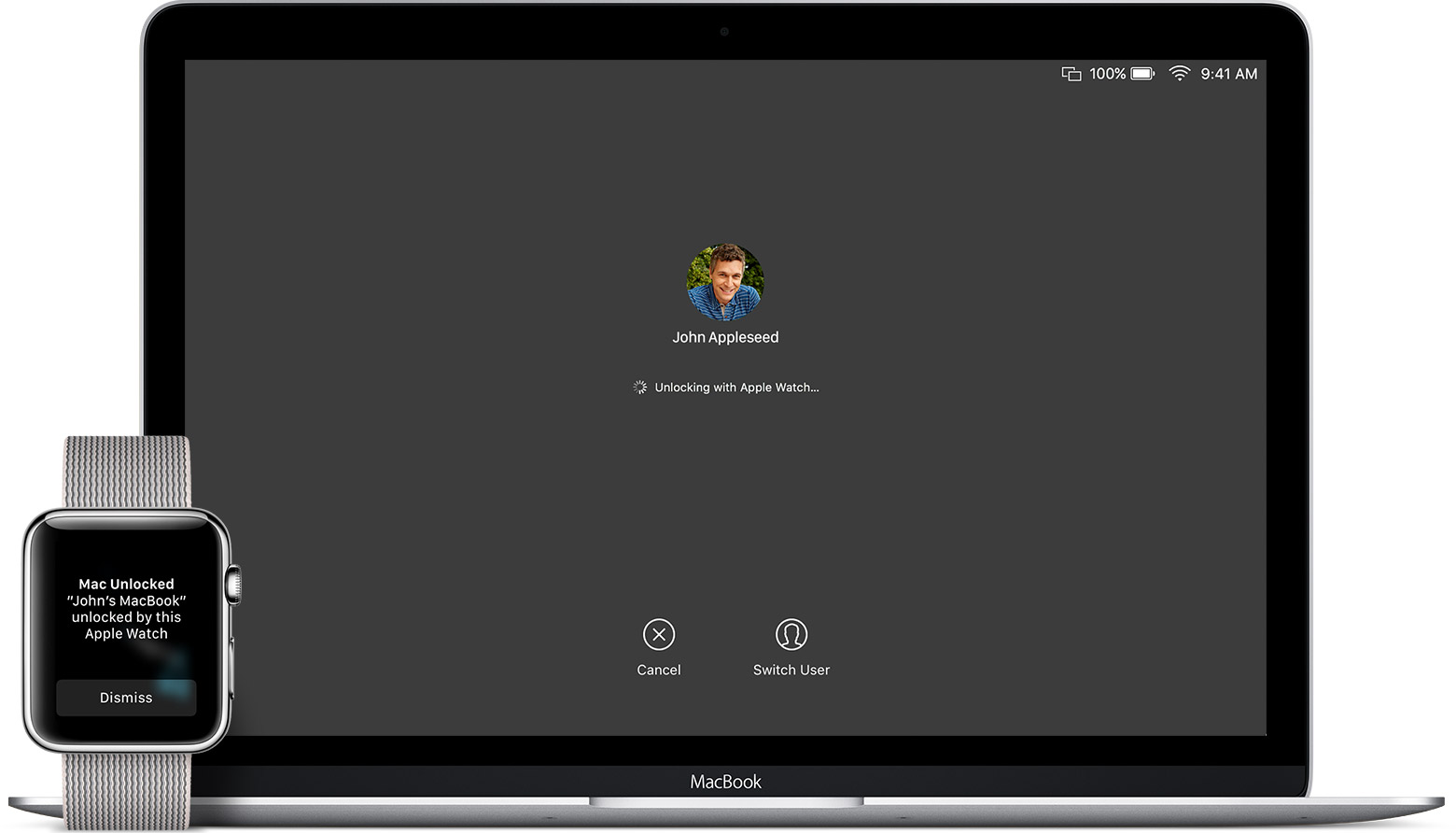
macOS Sierra debuted a new feature called Auto Unlock that lets you get into your Mac without typing your account password simply by wearing a passcode-protected Apple Watch. With Auto Unlock, you just wake up your Mac and if it senses you're nearby and wearing your watch, it'll log you in automatically. Yes, it just works!
Auto Unlock imposes certain hardware pre-requisites in terms of modern Bluetooth and Wi-Fi chipsets. Here's how you can quickly check if your Mac supports Auto Unlock.
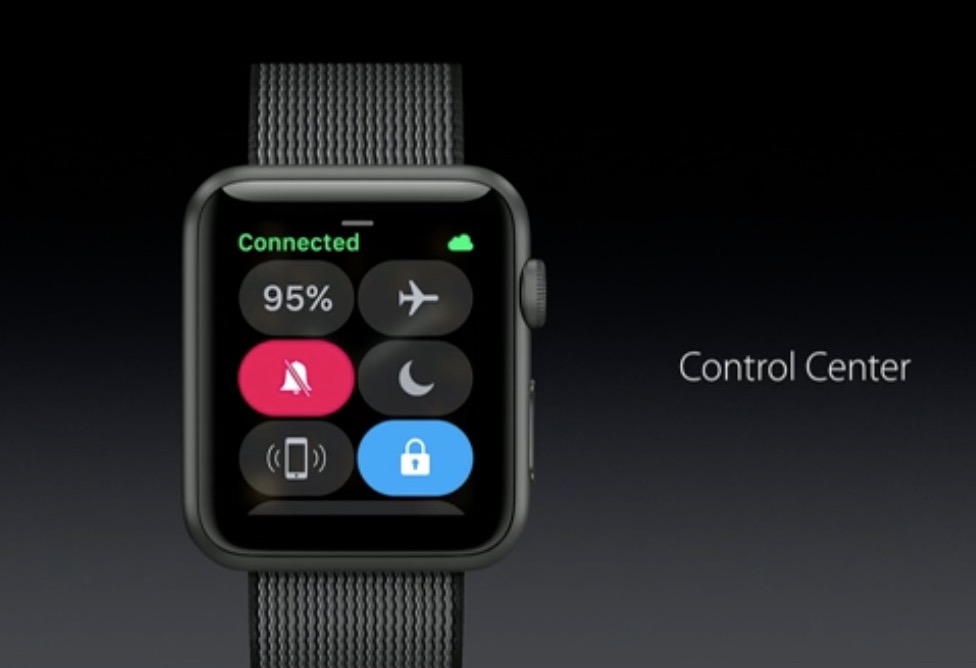
If you are not closely tracking every subtle interface change that Apple puts into practice on iOS, macOS or watchOS, it is likely you have entirely lost sight of a smaller feature or setting before. This is because, in short, Apple likes to relocate and thereby slowly supplant features no longer withstanding the test of time. With watchOS 3, the complete renovation of the operating system and reinvention of the Side button on top of it has had a similar ripple effect for numerous older features.
Power Reserve mode has become one of such cases, a feature still of much use despite the improved battery performance on Apple Watch Series 1 and 2. It used to be as easy as holding down the Side button and swiping to activate Power Reserve, but mind you, nothing is permanent with Apple and it has been silently relocated since. In case you have been caught napping on Power Reserve, let's quickly fill you in on how to deploy the potential life saver on the latest watchOS.
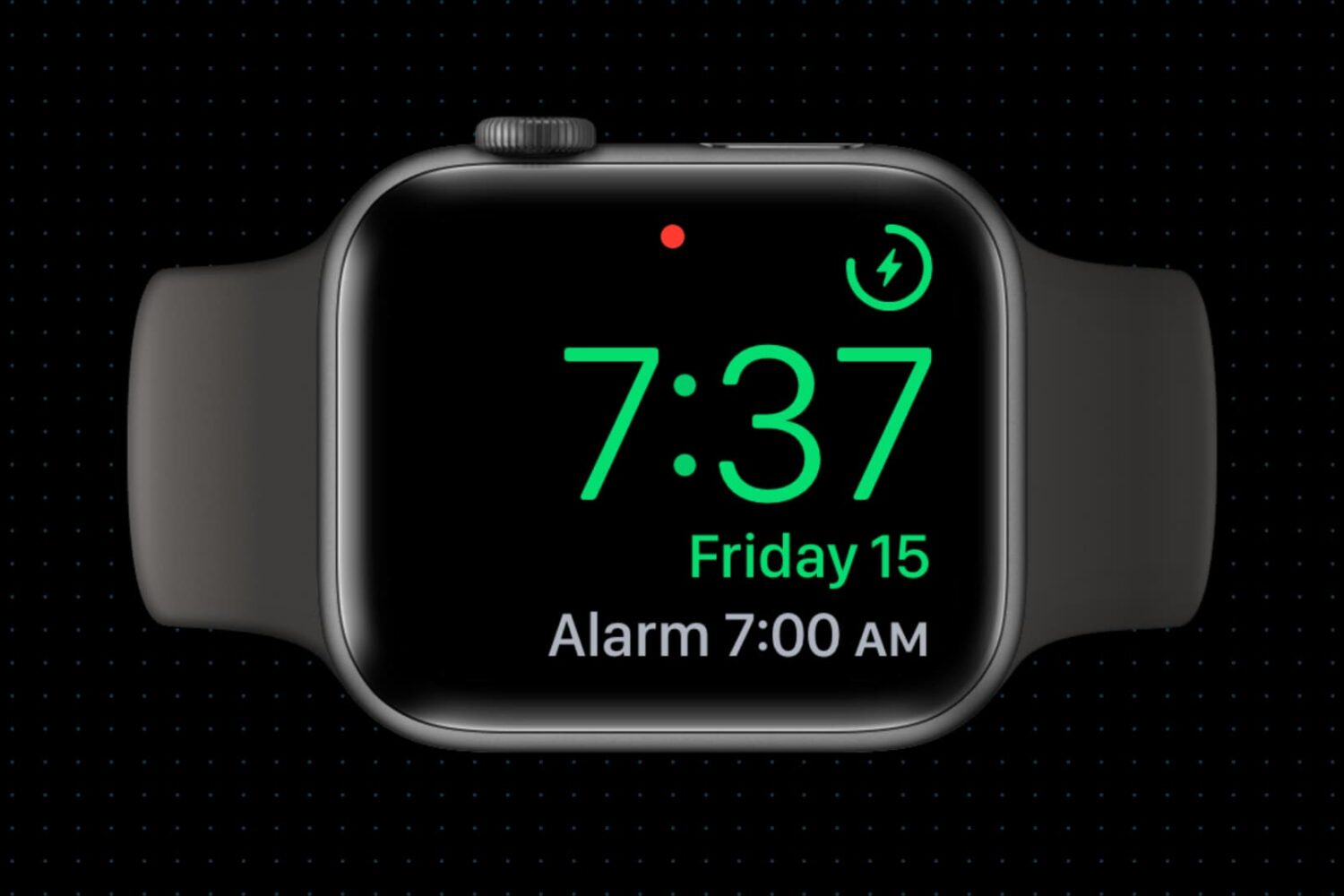
Did you know your Apple Watch can be used as a bedside clock? In this tutorial, we will show you how to use the Nightstand Mode feature to give your Apple Watch a purpose even when you’re not wearing it.

In this tutorial, we will show you how to dive into the Fitness app on your iPhone and see your walking, running, and other workout history in an easy daily list view and Activity rings view.
Learn how to set the Activity and Workout apps on your Apple Watch and the Fitness app on your iPhone to display the energy unit in Kilojoules (KJ) instead of Calories (CAL).