In this guide, we'll show you how to stop displaying Maps directions and receiving alerts for every upcoming turn on your Apple Watch.
How to stop receiving turn-by-turn directions on Apple Watch when using the Maps app
Stay up-to-date on the latest Apple Watch news, and learn how to get the most out of your device with our comprehensive tutorials. From updates to features to troubleshooting tips, we’ve got you covered.
In this guide, we'll show you how to stop displaying Maps directions and receiving alerts for every upcoming turn on your Apple Watch.
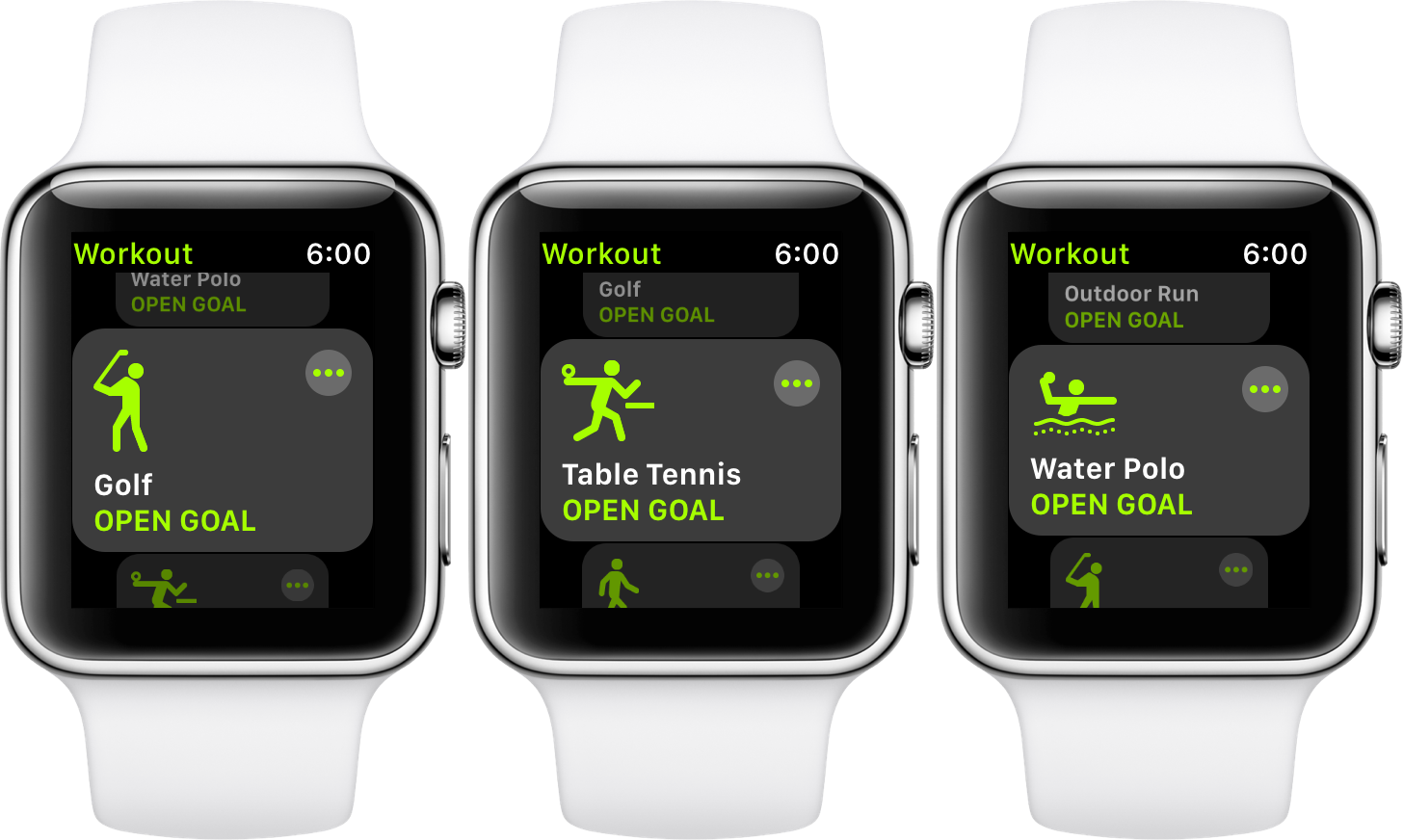
I’m probably not tipping you off on a secret talking about the new sport categories and icons Apple added to the workout app in the early autumn of 2017. After all, these additional workout activities have been around for a while.
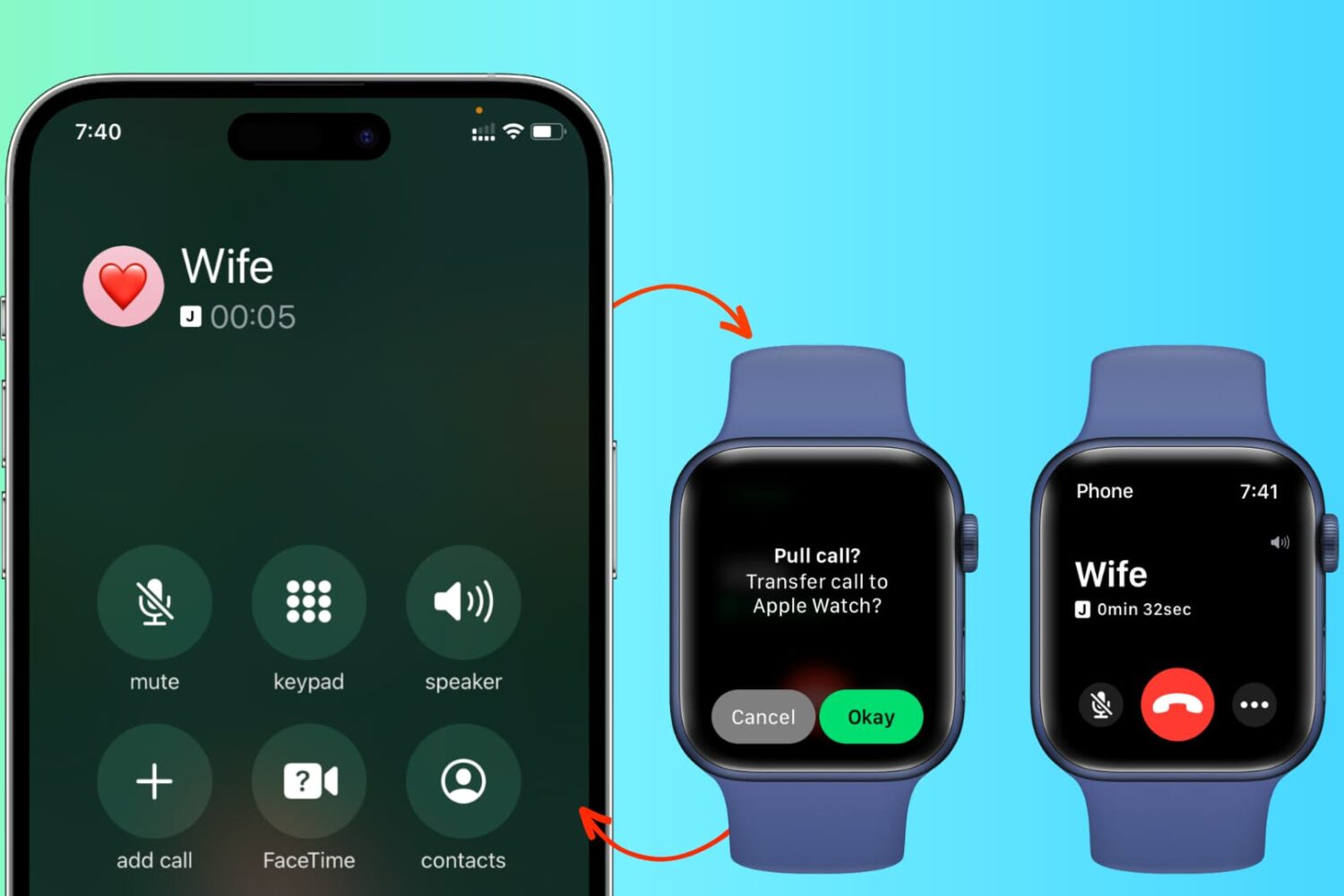
In addition to effortlessly transferring cellular phone calls between your iPhone, iPad, and Mac, you can also switch an in-progress call from your iPhone to your Apple Watch and from your Apple Watch back to your iPhone.
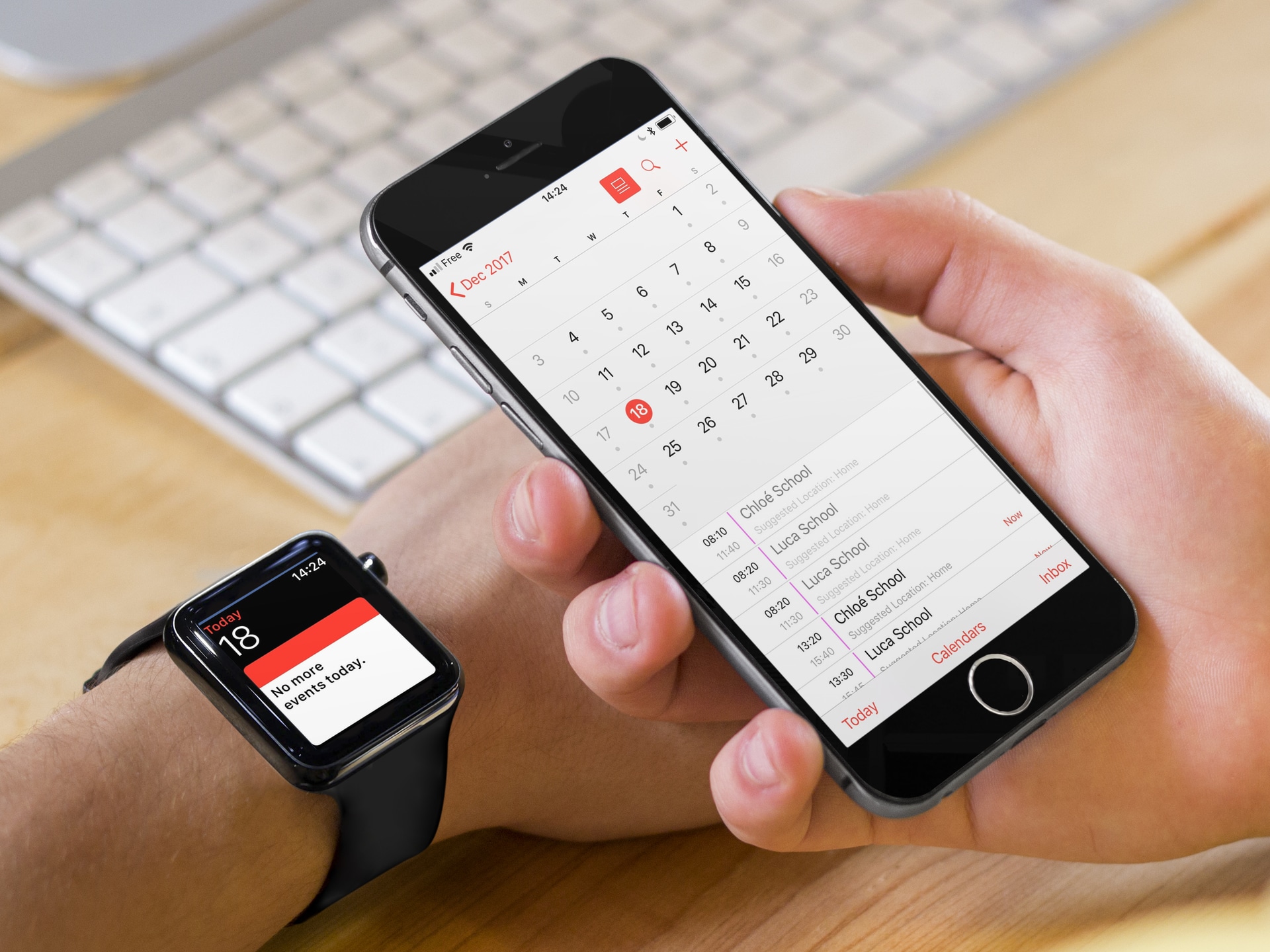
This troubleshooting guide goes over all the effective solutions to fix the problem of your iPhone contacts and calendar events not syncing to their respective apps on your Apple Watch.
Turn on the flashlight and alert light on your Apple Watch so you can see things in the dark without hurting your night vision or safely take an evening run on the road.
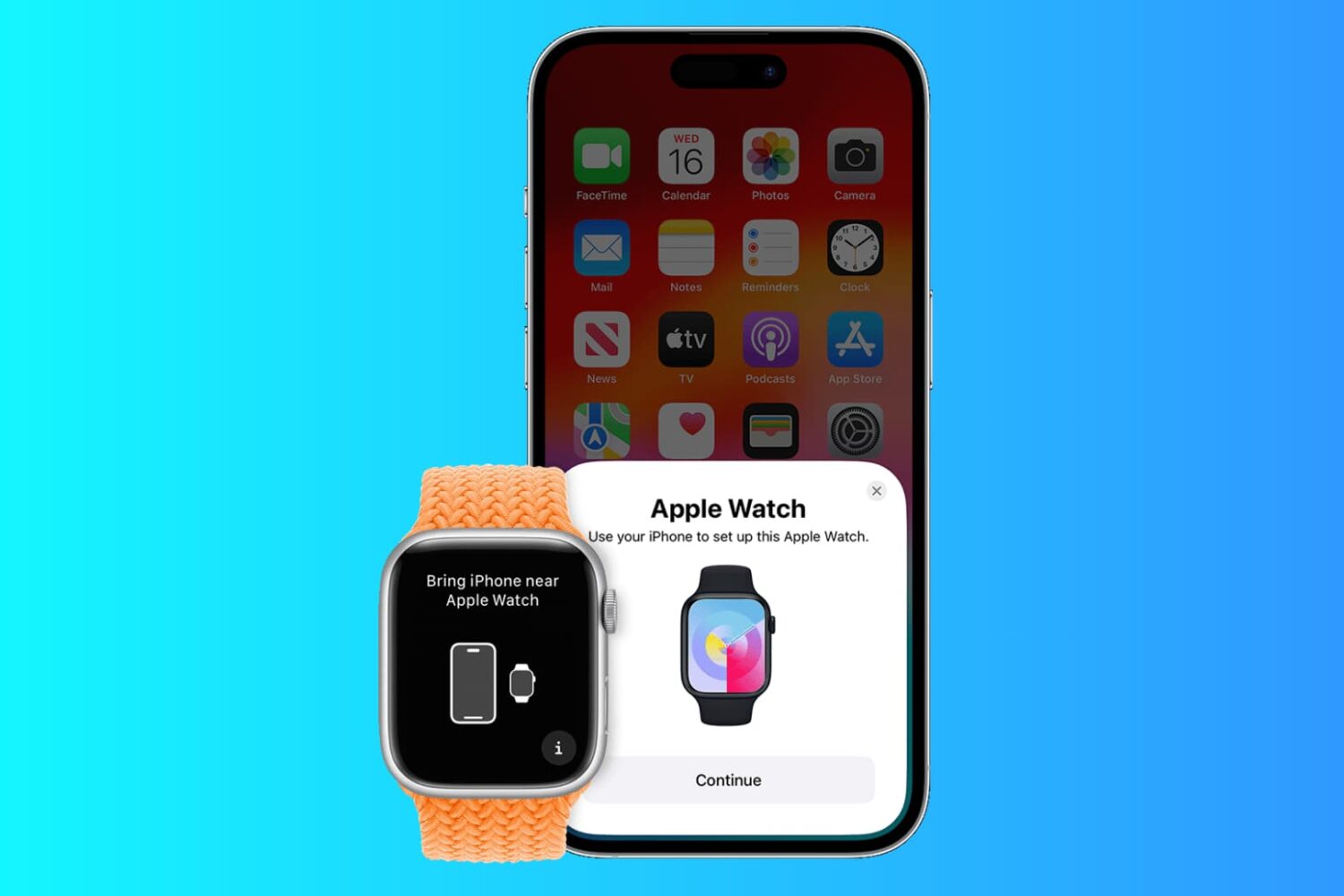
In this post, I'm going to show you how to pair an existing Apple Watch with a new iPhone and make sure you don't lose any data in the process.
As a fitness enthusiast, one of the most attractive features of Apple Watch certainly has to be its ability to capture and analyze your post-workout heart recovery. I’m probably in good company when I say this tidbit caught my eye at WWDC 2017.
Apple Watch has a cool feature that lets it show a corresponding watchOS app on your wrist when you initiate audio playback on your iPhone. It’s called Auto-Launch Media Apps Live Activities (formerly called Auto-Launch Audio Apps), and we’ll show you how to turn it on or off.
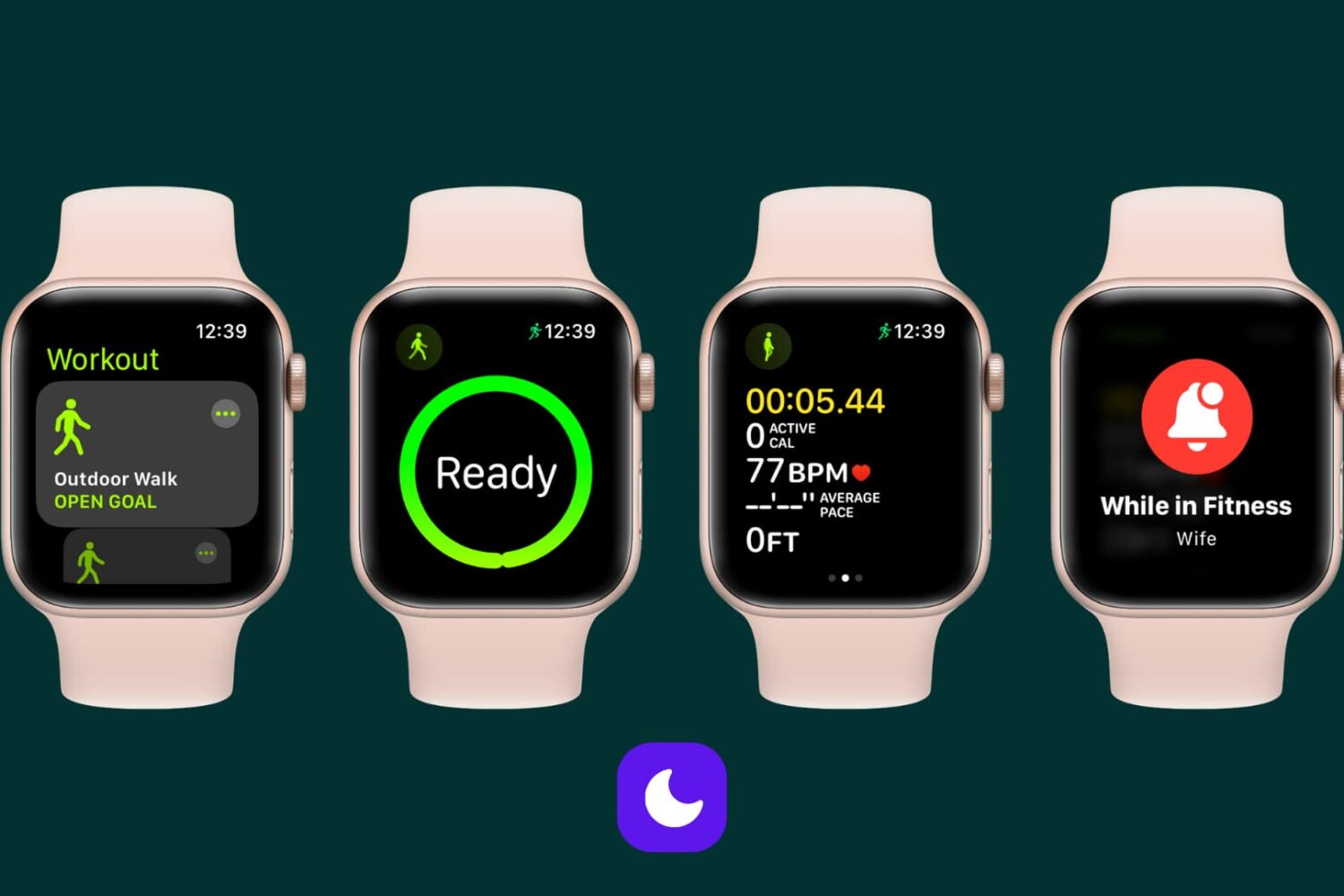
Learn how to automatically silence notifications for incoming calls, texts, and more on your Apple Watch and iPhone during workout sessions.
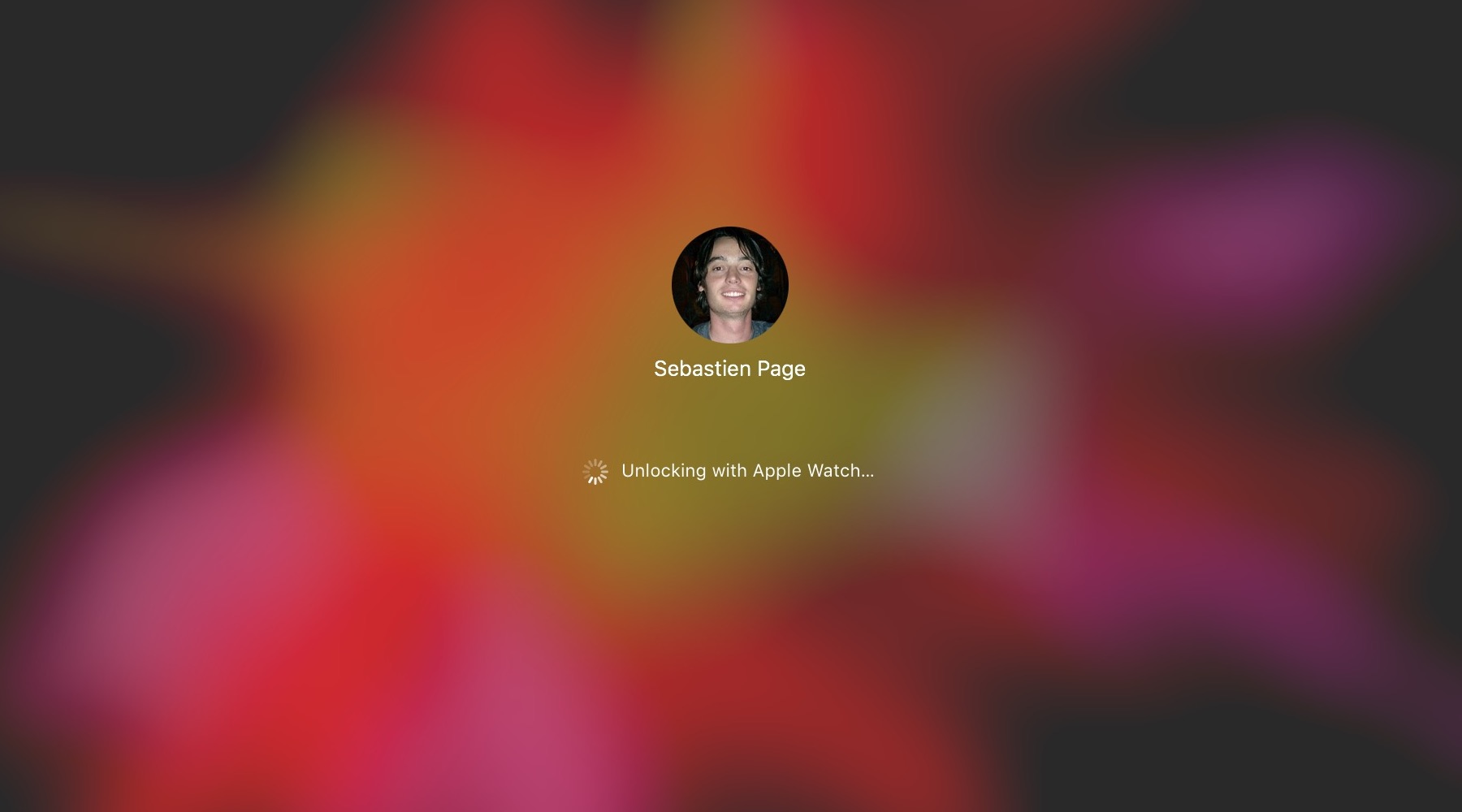
The macOS feature that allows you to unlock your Mac with your Apple Watch offers security and convenience. The problem may arise when that feature doesn't work as expected.
If you have set up your Mac to be unlocked with your Apple Watch and are having issues with the feature not working properly, there are a few things you can try.
In this tutorial, we will show you how to use the Segments feature of the Apple Watch Workout app to divide your active session into multiple splits.
With the right dongle to connect your Apple Watch to iTunes through its diagnostics port, you can easily enter Apple Watch DFU mode.