Learn how to automatically silence notifications for incoming calls, texts, and more on your Apple Watch and iPhone during workout sessions.
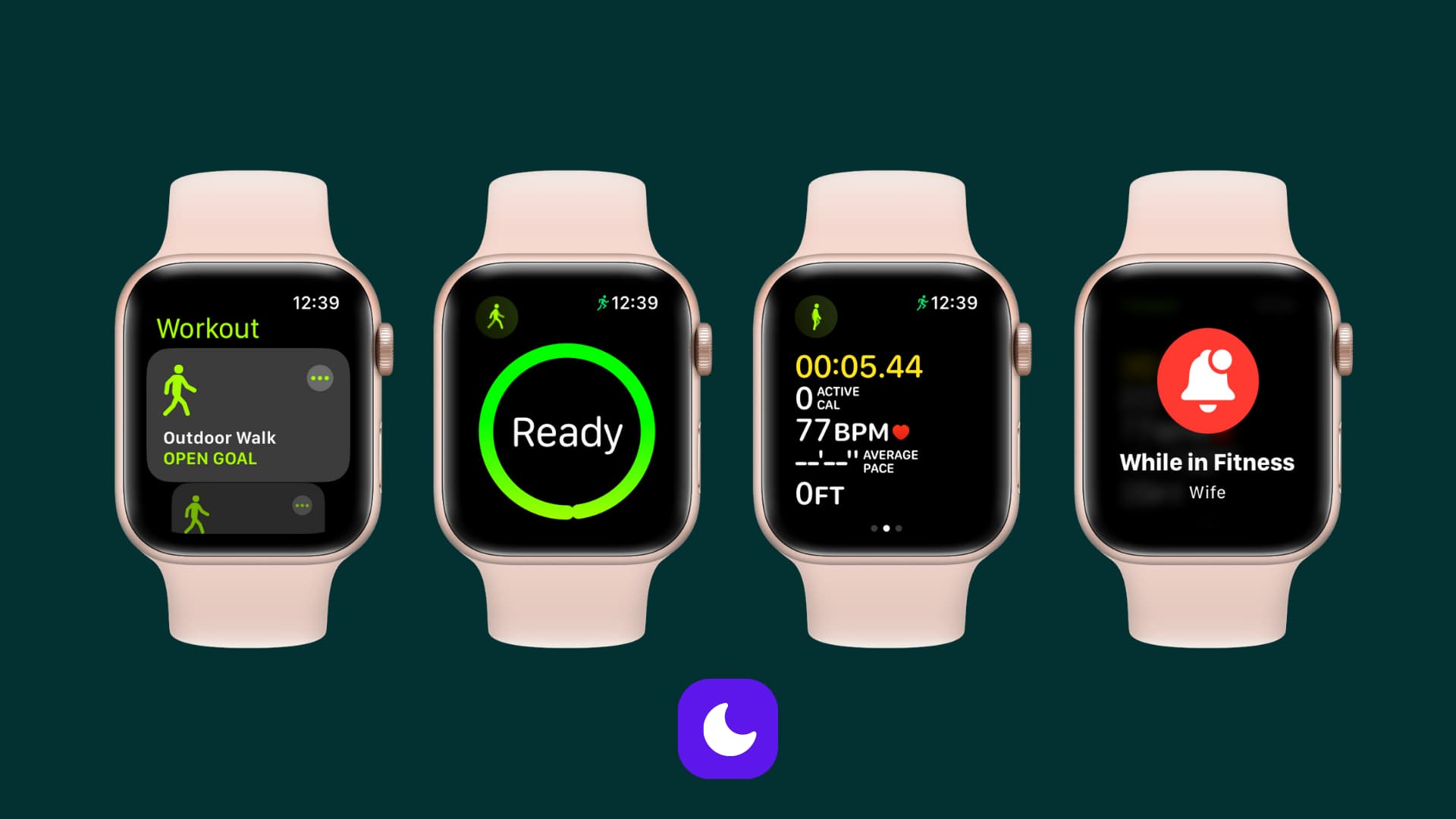
The Fitness Focus mode can automatically silence all notifications hitting your iPhone and Apple Watch when you start a workout, so you aren’t distracted by calls, texts, or app alerts when exercising. And it can automatically resume the alerts when the workout ends.
Automatically enable Fitness Focus on Apple Watch and iPhone when you start a workout
1) Open the Settings app on your iPhone and navigate to Focus > Fitness. If you don’t see the option, tap the plus button at the top and select “Fitness.”

2) When this Fitness Focus is active, you won’t get any notifications from people or apps (to make exceptions, tap People or Apps. And if you use Apple Intelligence, turn on Intelligent Breakthrough & Silencing to only let priority notifications through).
3) Scroll down to the Set a Schedule section, tap Workout, and enable ‘Turn On Automatically.’ Doing so will ensure that the Fitness Focus will spring into action as soon as you start a workout.

4) Now, open the Settings app on your Apple Watch and tap Focus.
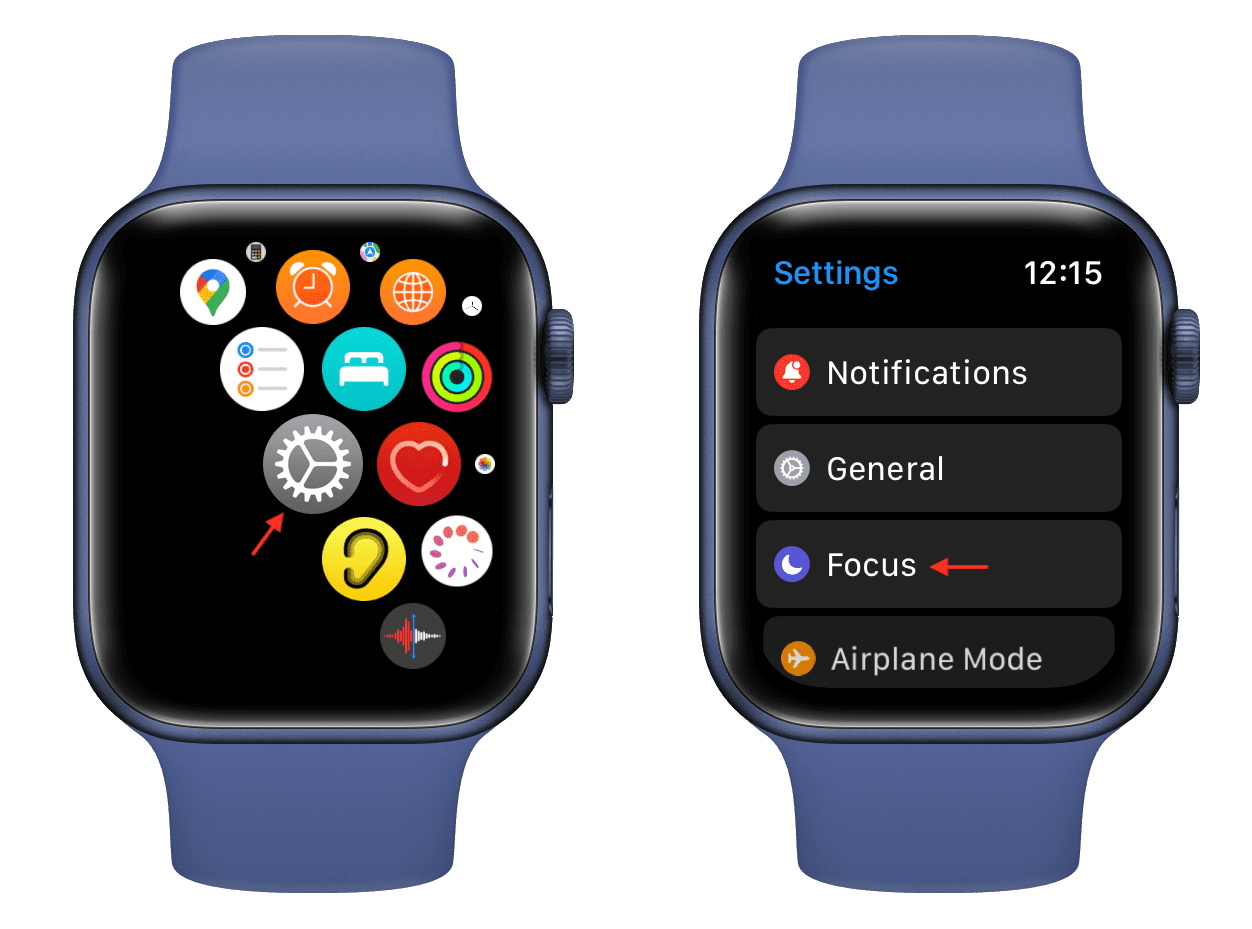
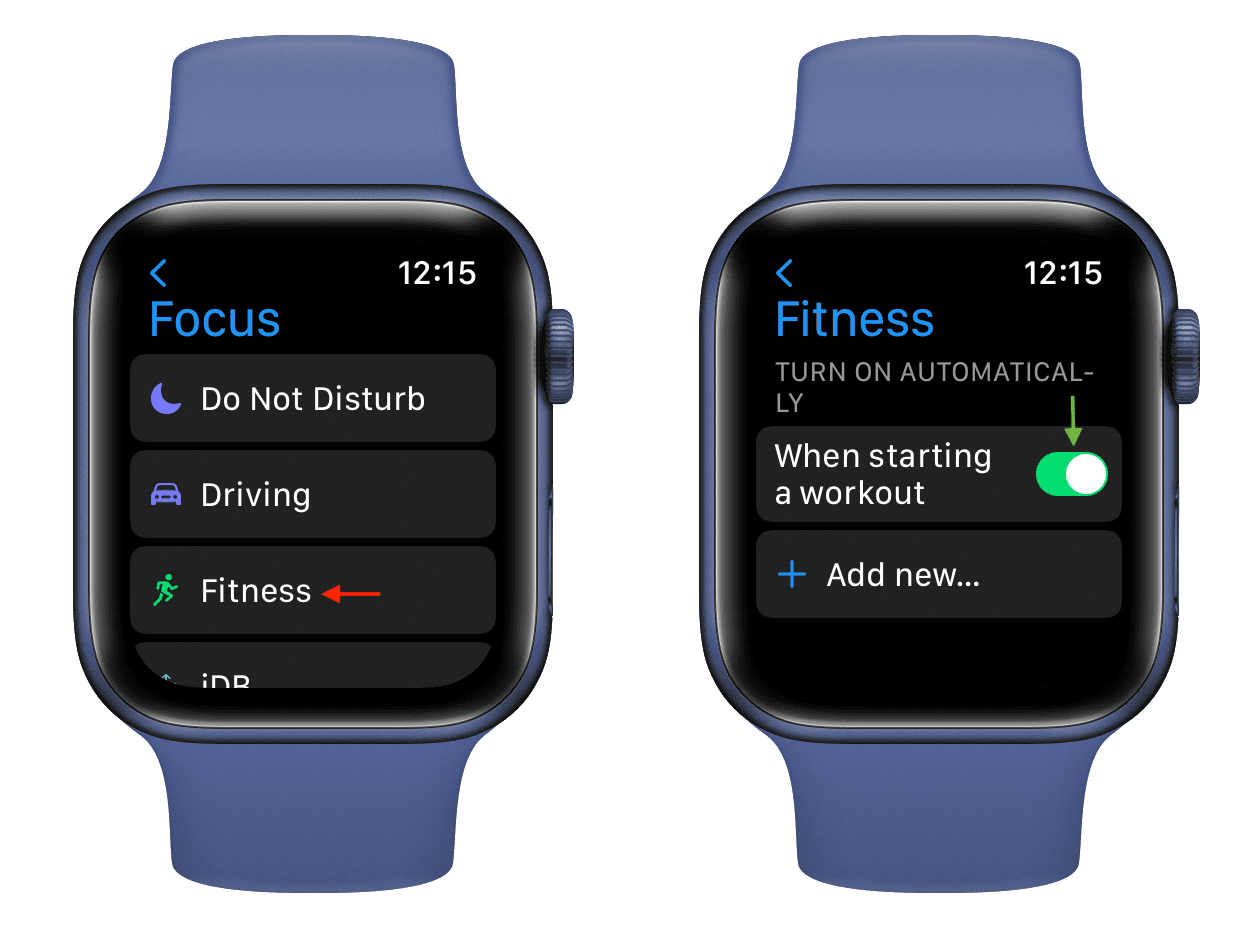
5) Tap Fitness and be sure “When starting a workout” is turned on so that starting a workout also automatically activates the Fitness Focus on the watch.
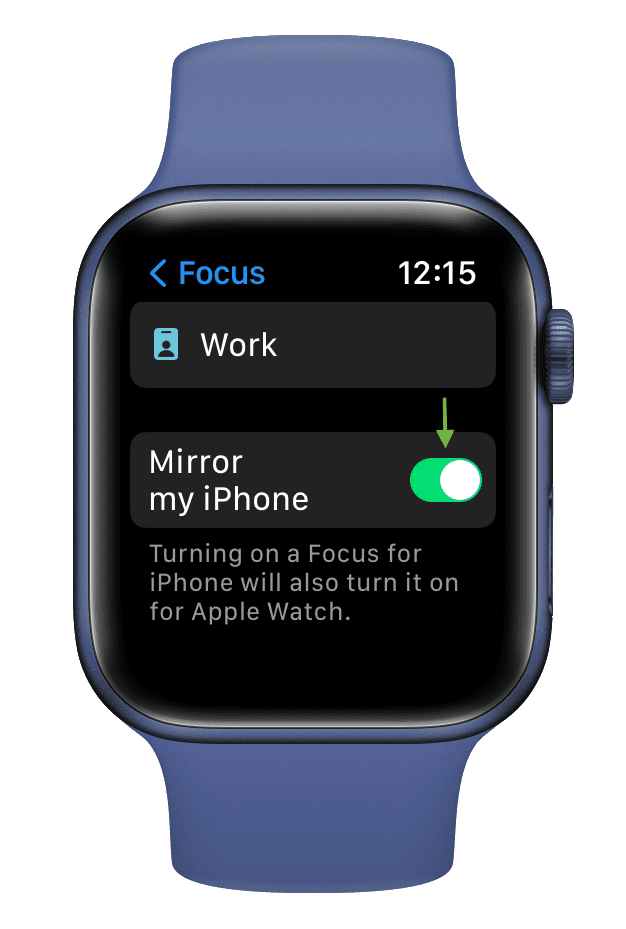
6) Return to the main Focus settings screen, scroll to the bottom, and make sure the Mirror my iPhone switch is turned on.
Your iPhone and Apple Watch will automatically activate Fitness Focus when you start a workout or the watch detects you’re working out, which silences all notifications on your iPhone and Apple Watch.
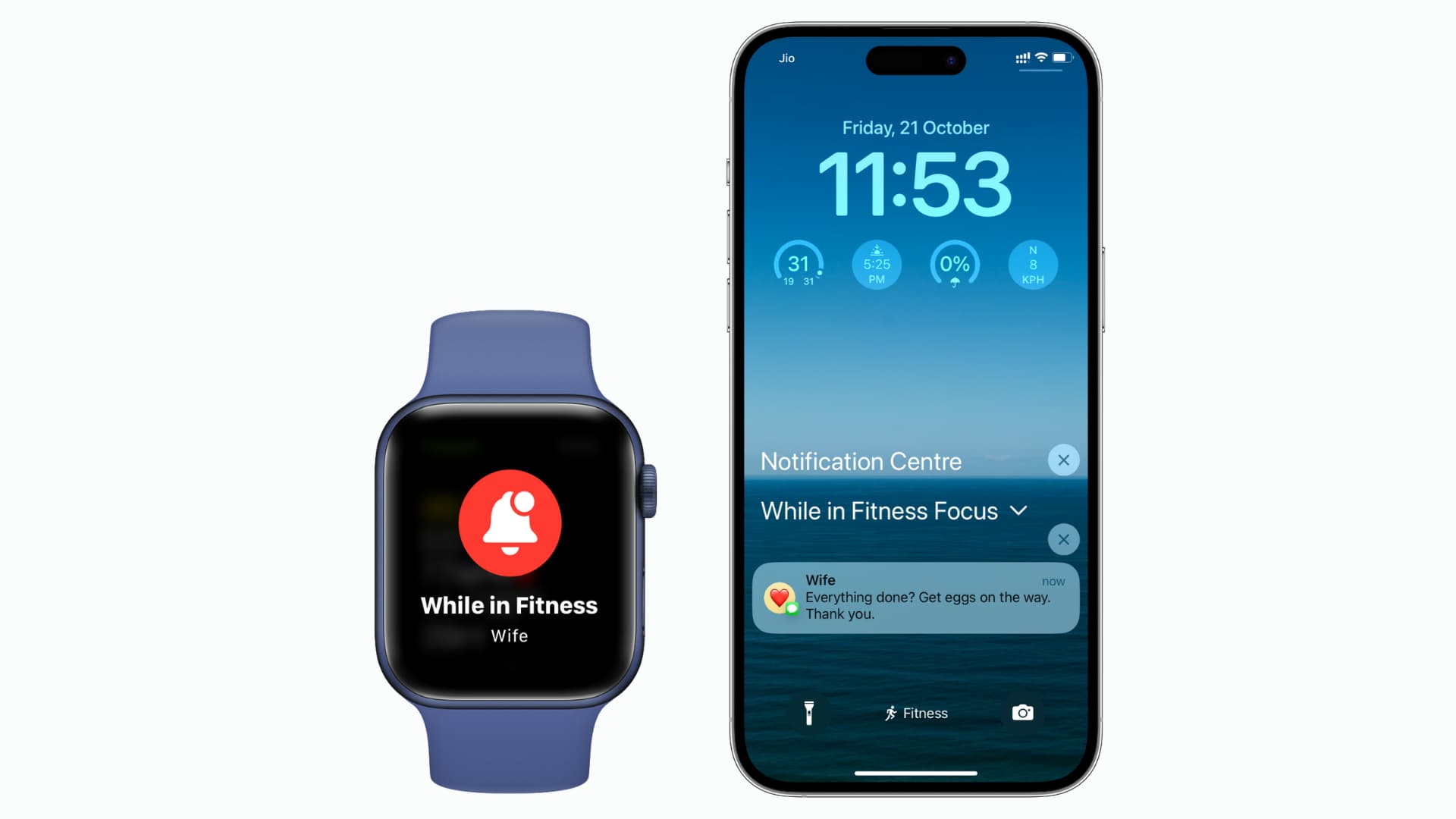
To view missed notifications while working out, swipe up on the iPhone’s Lock Screen and find them below the “While in Fitness Focus” heading. The Fitness Focus will turn off automatically on both devices once you end the workout.
Don’t let notifications disrupt your workout session
Receiving an untimely or unwanted notification or a phone call while in the middle of your chest press or leg press session can break your concentration.
Turning off notifications in the gym is recommended to reduce distractions, improve focus, and lower the stress of checking your phone or watch every time one arrives.
How do you like this cool feature? Do you keep notifications on your Apple Watch turned on while working out? Sound off in the comments below!
Also, check out: 15 built-in wellness features to keep track of your health on iPhone, iPad, and Apple Watch