Apple Watch has a cool feature that lets it show a corresponding watchOS app on your wrist when you initiate audio playback on your iPhone. It’s called Auto-Launch Media Apps Live Activities (formerly called Auto-Launch Audio Apps), and we’ll show you how to turn it on or off.

For audio apps to auto-launch on your Apple Watch, your iPhone app must have a watchOS extension that should be installed on your watch. If the watchOS component is not provided or installed, this feature will simply show your standard Now Playing screen and may lack app-specific controls.
To install a watch component that came with your iOS app, find it under the Available Apps heading in the Watch app on your iPhone, then tap Install.
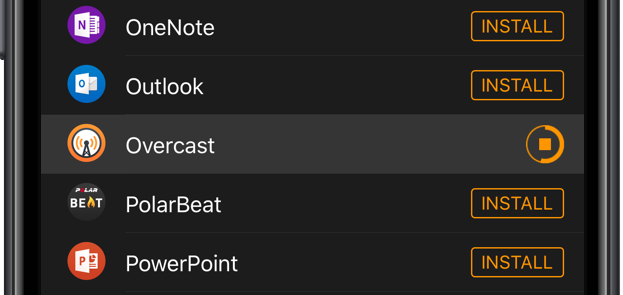
See media apps automatically on your Apple Watch
This feature helps you easily control and keep track of music playback on your iPhone, right from your wrist. So, for instance, if I play Apple Music or an Overcast podcast on my iPhone, my Apple Watch can automatically display full-screen playback controls or show it as a small widget in Smart Stack. Here’s how both look:

While helpful for most, if you think otherwise or if you need to change your preferences, you can do that by following these steps:
1) Open the Settings app on your Apple Watch running the latest version of watchOS.
2) Tap General > Auto-Launch > Live Activities Settings.

3) Make sure Allow Live Activities and Auto-Launch Live Activities are enabled. Then, scroll down, tap Media Apps, ensure Allow Live Activities is switched on, and select Off, Smart Stack, or App under the Auto-Launch heading:
- Off: Media apps won’t launch automatically on your Apple Watch when you use a music or podcast app on your iPhone.
- Smart Stack: Media app controls will appear as a widget in watchOS Smart Stack. But you can tap it to access full-screen controls.
- App: Media app controls appear automatically on the entire Apple Watch screen when something is playing on your iPhone.

You can also manage this from the companion iPhone Watch app > General > Auto-Launch > Live Activities Settings > Media Apps.
On older versions of watchOS
You can toggle “Auto-Launch Audio Apps” on or off by following these steps:
- Open the Settings app on your watch.
- Tap General.
- Select Auto-Launch.
- Slide the toggle Auto-Launch Audio Apps to the off or on position.
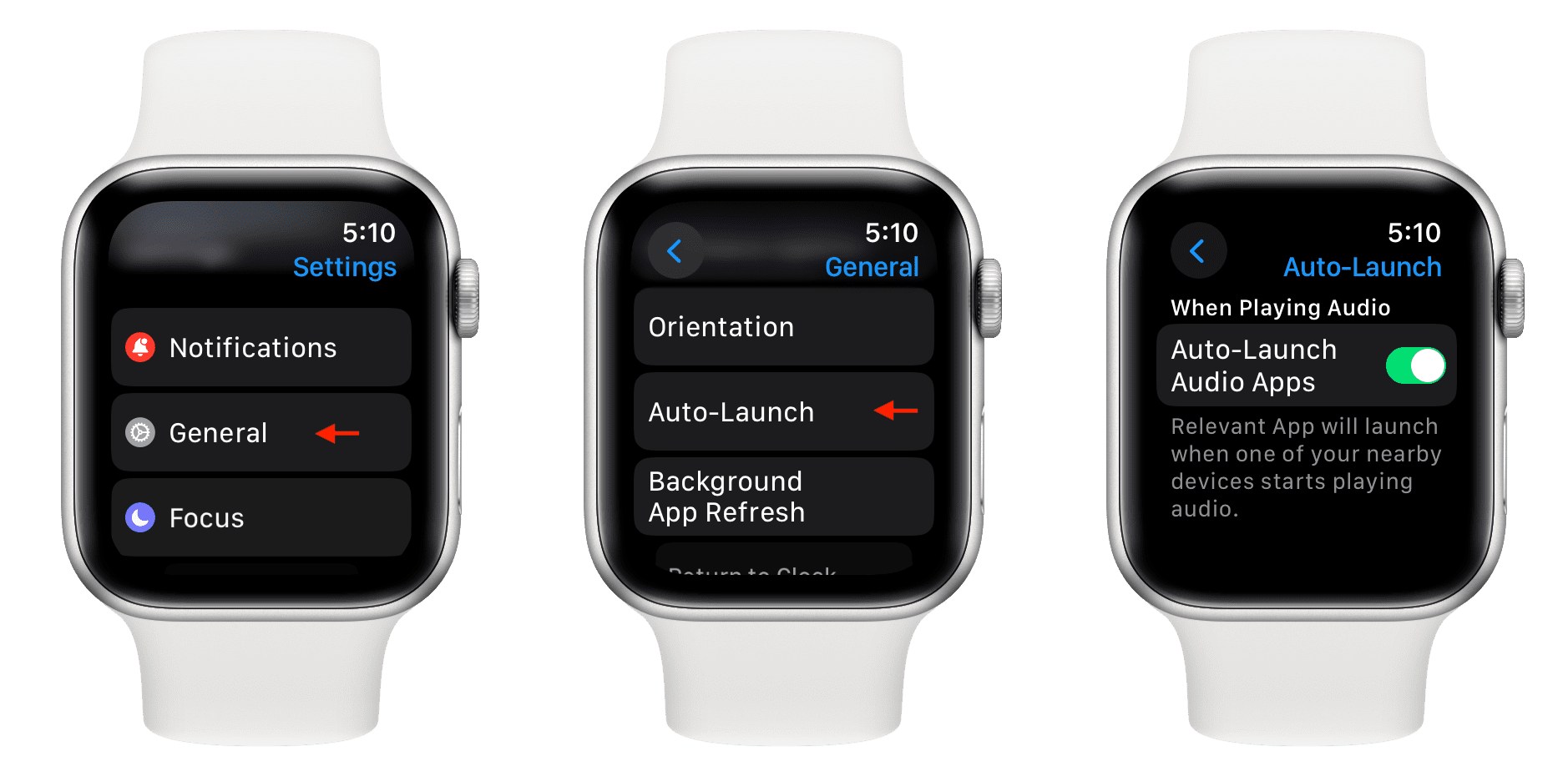
If on, initiating audio playback on your iPhone prompts the watch to put up an appropriate watchOS app when you raise your wrist or wake the screen with a tap.
Also, check out: How to turn off automatic Live Activities on Apple Watch face