Tricks

How to use Siri to toggle system settings

Siri is the personal voice assistant pre-installed on your iOS device. Introduced in iOS 5, the voice assistant allows a wide variety of functions, conversions, information queries, and fun comments to be invoked with just your voice.

But did you know Siri can also be used to toggle certain system settings on or off too? In this tutorial, we'll show you how.

Need a coin toss or roll of the dice? Have Siri do it

When it comes right down to it, you may not always have a coin or a die in your pocket, but fortunately, you probably have your iPhone with you, and all recent iPhones can take advantage of the pocket voice assistant Siri.

Siri is a powerful tool, and you may not have known this, but if you forgot your coin and die at home, Siri has you covered for all of your chance-taking needs – she never forgets hers! In this tutorial, we'll show you how to have Siri flip a coin or roll a die for you.

How to teach Siri how to call you

Siri is a great way to get to the things you want on your iPhone, iPod touch, or iPad without having to tap on anything – it works great for situations where you don't really have your hands free, but who says using Siri has to be boring?

In this quick post, we'll show you how you can spice up your conversations with Siri by configuring the voice assistant to call you something different.

Understanding iOS Location Services and what they do

Location services are among some of the most over-used features on any iOS device. Out of the box, iOS devices with location services enabled are configured to track your location in various reasons, including producing the best user experience possible.

In this guide, we'll show you all about how to configure your iOS location services so that you're not being tracked when you don't need to be, giving you the privacy you deserve.

How to dim your Mac screen brightness even lower than what’s allowed by macOS

Reduce Mac brightness even further using the QuickShade app

When you've pressed your display brightness down key on your Mac's keyboard as many times as you can without the screen going completely black, and it's still too bright for you, then you're probably like me and need a way to further dim the display's dimness level beyond the OEM minimum.

In this tutorial, we'll show you how to further decrease your display's brightness than what's allowed by the standard brightness settings of macOS.
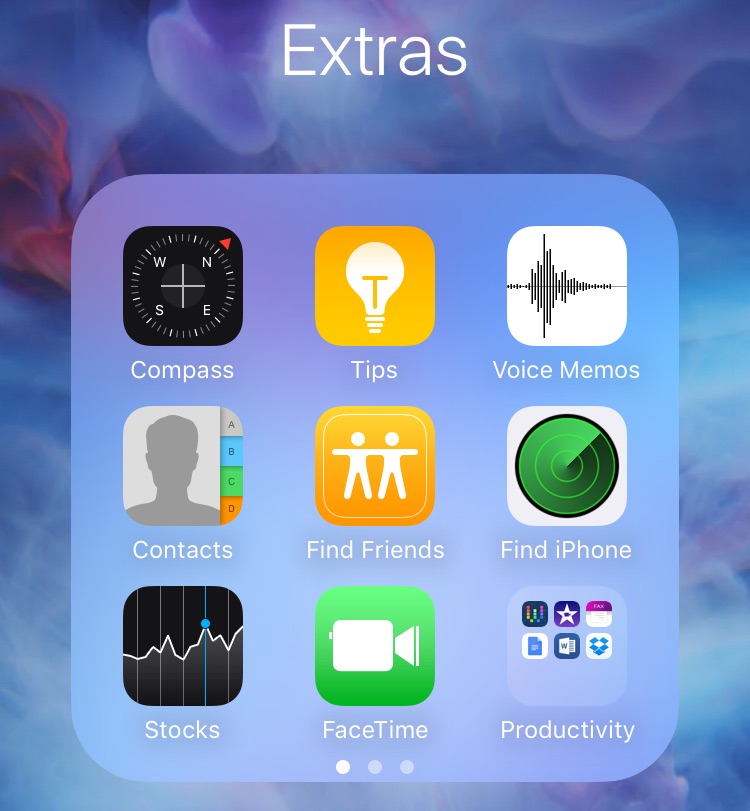
How to put folders inside folders on iOS 9

Since folders first appeared on iOS, there have always been glitches that make it possible to place a folder within a folder. iOS 9 is no different, it too allows you to nest folders on your iPhone. To do so is extremely easy, and requires no quick movements, or ridiculous over the top finger cramping combinations methods.

The only downside about using this method to nest folders is that you'll have to do it all over again when you restart your iPhone. In this post and video, I'll show you how simple it is to nest folders on iOS 9 in just a few seconds.

5 awesome 3D Touch tips that you may not know

Now that we've had the new iPhone 6s for about a week, it's time to share a few more 3D Touch tips that we've picked up over the last few days. By now, everyone knows about the basic 3D Touch features, but there remain a few usage scenarios that continue to fly under the radar. In this post and video walkthrough, we'll examine five different 3D Touch gestures that can help make your life easier when using your iPhone 6s. 

How to get your iPhone on Friday morning at 8am sharp

It's the same dilemma every year. You want the new iPhone as soon as possible, but don't want to spend the night waiting in line to get it. As much as I love Apple crowds, I'd rather spend the night in my bed.

Even if you ordered your iPhone for delivery, there is always a chance the UPS guy won't come by your house until later in the day, which means you could still be left hanging there for several excruciating hours. First world problems indeed!

Thankfully, if you've ordered your iPhone for delivery, we have a trick that may help you score your iPhone first thing in the morning, as soon as 8am.

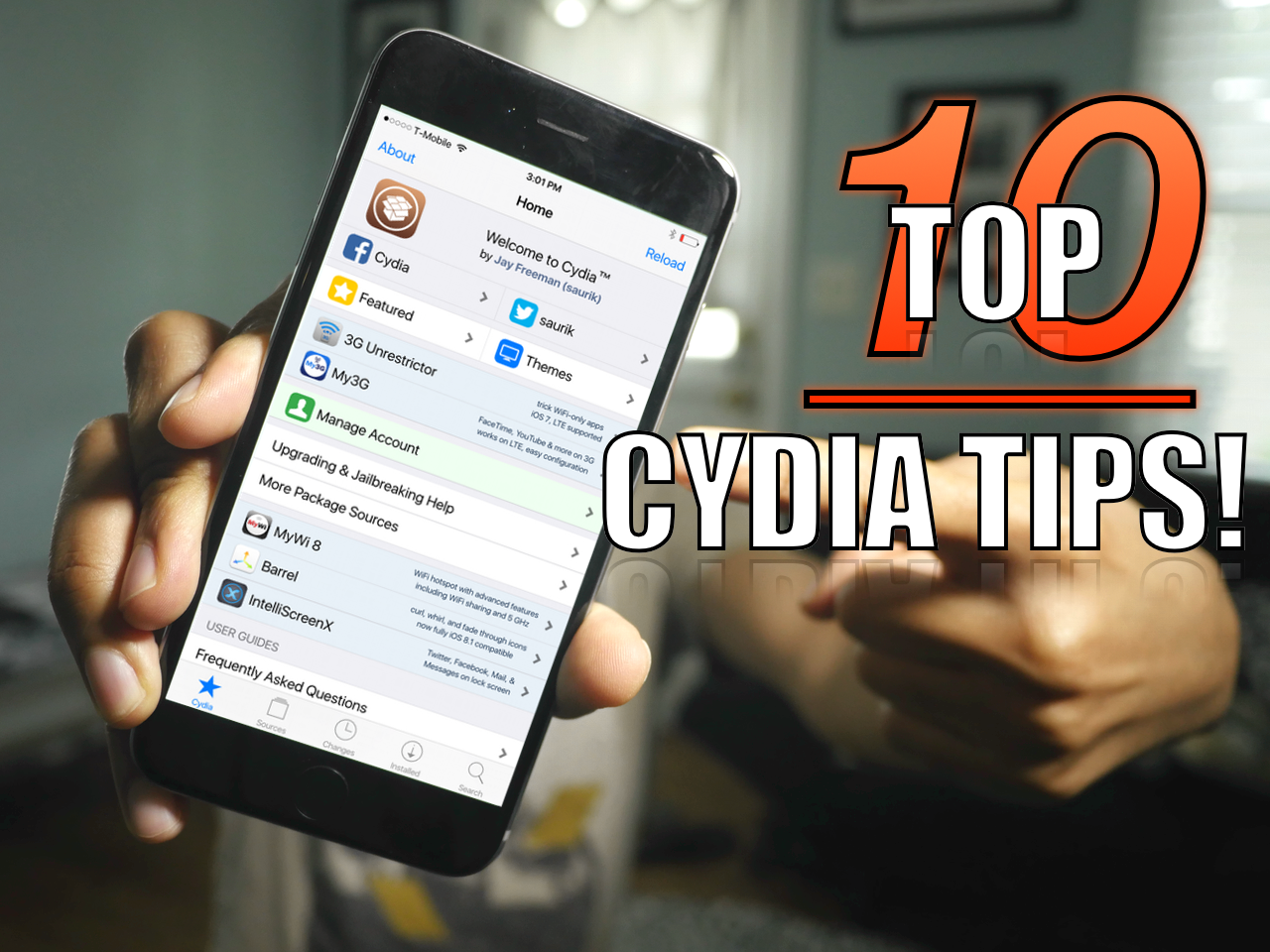
The top 10 must-know Cydia tips [Video]

Since I imagine that there are probably tons of new jailbreakers since the iOS 8.3 jailbreak touched down, now is a great time to review some of my favorite Cydia tips. But even if you're a seasoned Cydia veteran, you may find a tip or two in this list that you'll find handy. How many of these tips do you use on a regular basis? Watch our video and find out.

How to use “Hey Siri” without being connected to power

"Hey Siri" is a new feature in iOS 8 that makes it possible to invoke Siri using only your voice. It's nice for those moments when your hands are full or when your iPhone is across the room.

The only downside to "Hey Siri" is that your iPhone must be connected to a power source in order to use it. This restriction was placed there to save your iPhone's battery life.

But, there is a way to use Hey Siri without being connected to a power source. It's not as handy as using it while connected to power, but it's a nice workaround for those situations where you need hands-free control.

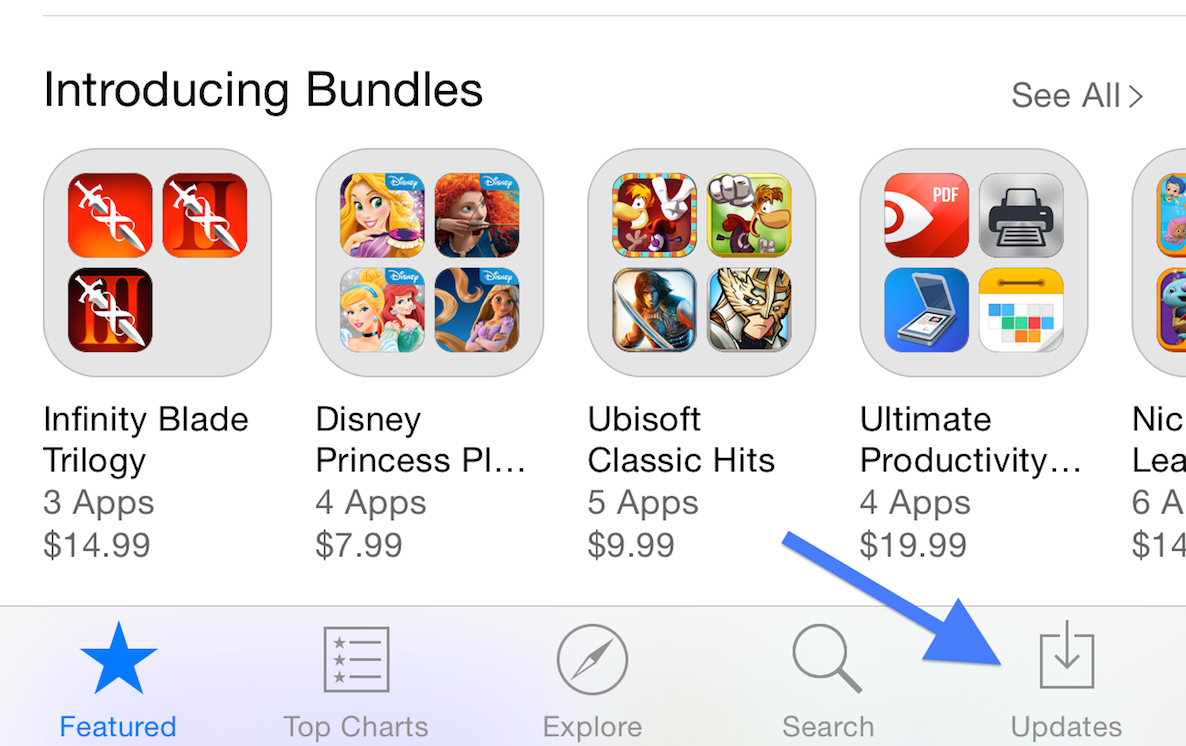
How to refresh the App Store app

Have you ever ventured into the App Store expecting a new update, only to find that the update has not yet appeared? Since the App Store has no refresh button, I used to force close the app, and reopen it to check for new updates.

There’s an even easier way to refresh the App Store. I’m not sure if it was purposely done, or if it’s a bug, or what. All I know is that this refresh trick works on iOS 8 and newer versions of the software, but it doesn’t appear to work on lesser firmware.

Inside, I’ll show you how to quickly refresh the App Store and check for new updates in a flash. Check out the video.

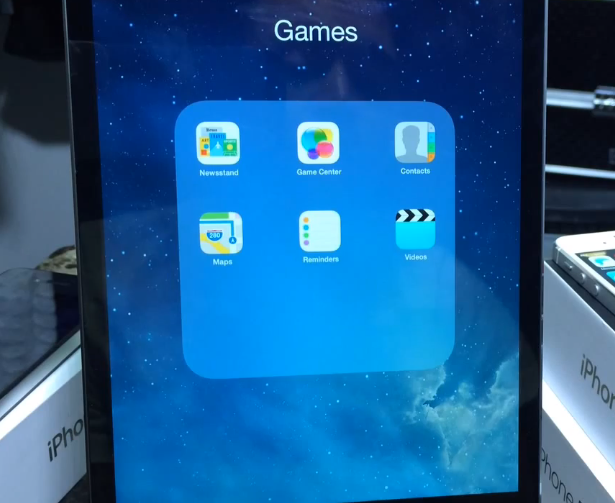
Glitch discovered in iOS 7.1 lets you hide stock apps

Folks who updated to iOS 7.1 earlier this month may be interested in this newly-discovered glitch that allows you to hide stock iOS apps. It's very similar to last year's Newsstand glitch, in that it involves a multi-step process and doesn't [obviously] require a jailbreak.

The glitch is present on both iPhones and iPads, and is relatively easy to exploit. All you have to do, essentially, is create a folder full of apps you wish to hide, drop it in another folder, and then remove it. Interested? Keep reading for a full step-by-step video tutorial...