Tips

Taking Screenshots With Your iPhone

Taking a screenshot is probably one of the first "tricks" you learn as a new iPhone owner. For those of you new to the iPhone, you may still be wondering how to take a screenshot.

In this latest iPhone Basics tutorial, we show you how, and why taking screenshots with the iPhone can prove to be quite useful in your day-to-day activities...

iPhone Quick Tip: How to Email a Photo

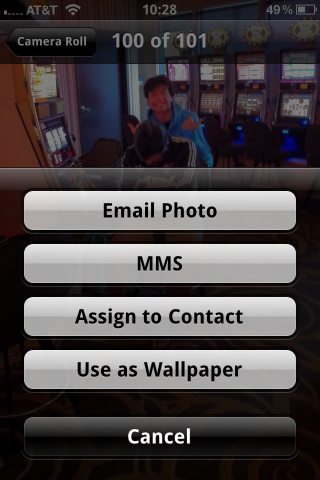
My cousin jut got his first iPhone a few months ago and he's what I'd call a total noob about it. A couple days ago when we were in Vegas, he asked me how to email a photo he had taken with his iPhone. I couldn't help laughing at him but I quickly realized that if he didn't know how to do that, there's probably other people out there in the same situation, which is why I thought it'd be a good thing to write up a quick tip about this.

Obviously, this is a tip for beginners. If you've had an iPhone for a while, you most likely already know how to do that.

In this post, I'll show you 3 ways to email pictures from your iPhone...

iPhone Quick Tip: How to Quote Text in an Email Reply

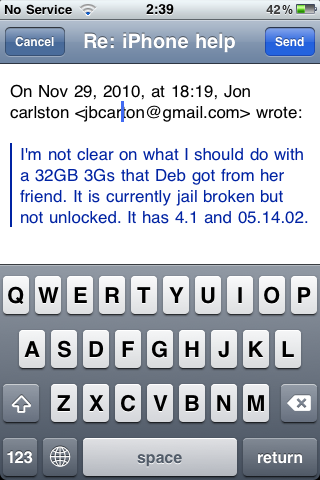
This is a ninja tip that was sent to me by an anonymous reader about how to quote text in an email reply. Let's say you receive an email from someone. In your reply, you want to quote some of the text to comment on it for example.

To do that, simply select the text you want to quote and hit the "reply" icon. This way, only your selected text will be copied in your email reply...

Tip: How to Quickly Respring your iPhone

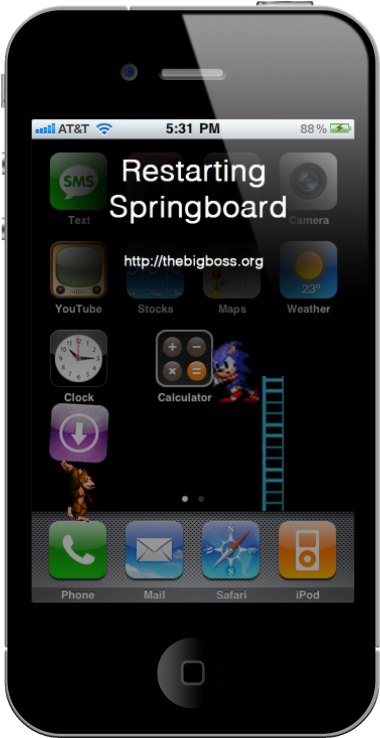
Many of us jailbreakers know how frustrating it can be to debug the modifications we make to iOS. When installing an app in Cydia, if the app requires it, Cydia gives you a prompt to restart your springboard.

There are two types of restarts you can have on your iPhone: a hardware restart and a software restart. A hardware restart takes considerably longer, and it is when you see the Apple boot logo (or your own, modded logo). A simple software restart usually does the trick for installing new packages on your iPhone, and it also helps with ironing out the bugs you may be experiencing...

iPhone Quick Tip: Rearranging Your Icons

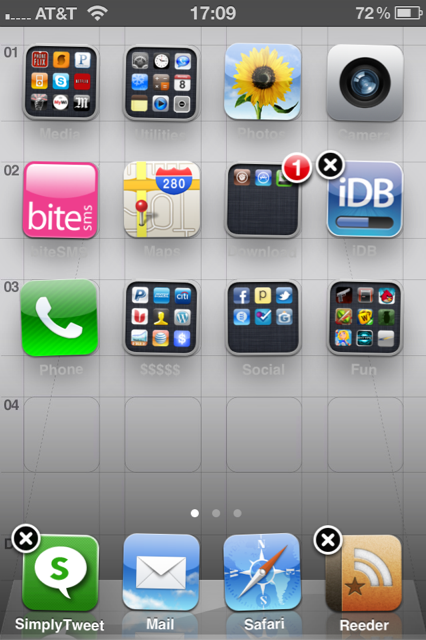
Today, in our iPhone Quick Tips section, we will learn how to rearrange your iPhone icons. While this might sound like the very basics to most of us, I can tell you from experience that some people out there still have no idea they can move their icons around. Don't laugh! You were an iPhone beginner once too.

You can easily customize the layout of application icons on the home screen of your iPhone, including the dock icons at the bottom of the screen...

iPhone Quick Tip: Having Internet Access on an Airplane

This article is the first of a series of quick tips that will be especially helpful to iPhone beginners. In this series, we'll go over some iPhone basics to make sure our new fellow iPhone owners get the best out of their device. Today, our quick tip is about being able to have Internet access while flying.

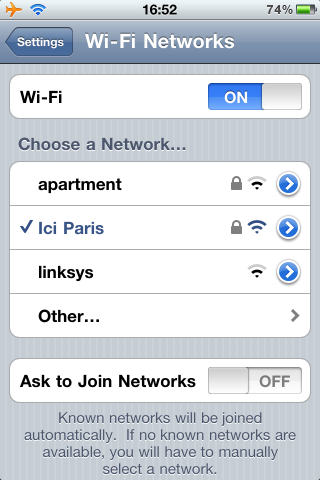
Many airlines now offer in-flight wifi, which is a great way to kill time during a long flight. When boarding an airplane with a phone, you are required to either turn it off or activate the airplane mode, which basically turns off the iPhone cellular, wifi, bluetooh, and GPS to avoid interfering with the aircraft.

But did you know you can still enjoy Internet access while still on airplane mode?

10 iPhone Tips You Should Know About

Every once in a while I meet someone who has absolutely no idea the iPhone can do some very simple things such as moving icons around or even deleting applications. To most of you this will sound like basic iPhone features, however there are some really tech-challenged people out there. This article is for them!

If you're brand new to the iPhone, then read on because you're going to learn some simple and effective tricks...

Tip: How to Make Your iPhone 3G Faster on iOS 4

If you have an iPhone 3G running iOS 4, you know how painfully slow your device can be. This is due to the fact that iOS 4 was designed for more powerful devices like the iPhone 3GS and the iPhone 4.

iPhone hacker Comex tweeted a link to a MMI article showing how you can easily make your iPhone 3G on iOS 4 faster. Apparently, turning off Spotlight Search does the trick.

To do so, go to Settings > General >Home Button > Spotlight Search, then turn off everything and reboot your iPhone.

I don't have an iPhone 3G so I wasn't able to verify this but looking at all the positive comments over at MMI, I assume this is working like a charm.

Please try it and let us know how it goes for you.

[JAiB - Image]

How to Read Saved Web Pages in iBooks

Patrick from Just Another iPad Blog shared a nice tip about how to save web pages for reading in iBooks.

Have you ever started reading a long article on the web and thought that it would be great to be able to read it in iBooks on the iPad? If so, did you know it’s quite easy (on a Mac) to print a web page as a PDF to iTunes and read it later on the iPad (or iPhone) in iBooks?

Well … it is. Read on for a quick rundown on how it’s done …

This little trick requires a few steps, so instead of copy/pasting what Patrick wrote, I suggest you go check out his article.

How to Sync Your iPhone Notes with Your Gmail Account

You probably already know you can sync your Google emails, calendars and contacts with your iPhone using Google Sync. But do you know you can also sync your iPhone notes with your Gmail account?

The only requirement for being able to sync your notes with Gmail is that your iPhone be updated to iOS 4. When you set up your Gmail account on your iPhone, you will now have the option to sync your notes.

If you have several Gmail account set up on your iPhone, you will be able to sync your notes to specific accounts. In the top left corner of the Notes.app, a new button will appear letting you choose what account you want to sync with.

One downside to this is that it's a one-way sync, which means that you can only sync your notes from your iPhone to your Gmail account. You can't sync from Gmail notes to your iPhone.

The Ultimate Guides to iOS 4

iOS 4 was released yesterday and comes with over 100 new features. If you haven't updated your iPhone yet, you may want to consider it so you can take advantage of all these new features.

I started writing a guide of all these new features, shortcuts and settings but I quickly realized that many other blogs before me had already created such comprehensive guides. Instead of trying to reinvent the wheel, I figured it'd be easier to direct you to these guides.

So I found two good guides that I want to recommend you to check out:

Gizmodo's complete guide to using iOS 4 LifeHacker's new iOS 4 shortcuts, features and settings your need to know

These 2 websites will show you the most exciting features of iOS 4.

How to Check Your AT&T Data Usage

Yesterday I told you about AT&T's new data plans. While these plans will benefit a large majority of iPhone owners, there is still a few of us who'll have to closely monitor our data usage to make sure we don't go over board.

Checking your data usage on the AT&T network is pretty easy and straightforward and will prevent you from having bad surprises when the bill comes.

Checking Your AT&T Data Usage

How to check your data usage on AT&T's website

I think the best and most comprehensive way to check your data usage for your iPhone is to do so directly from AT&T's website. This will give you a nice graph showing the last 6 months of data activity, making it clear for you to see what you used through your 3G or EDGE data connection.

This graph excludes all data transferred over wifi network connections because this is not part of your AT&T data plan. That means you can download/upload as much as you want from your iPhone over wifi, you will never be charged for that.

How to check your data usage with AT&T's myWireless app

AT&T has a free application in the App Store called myWireless. On top of giving you important information such as how many voice minutes or SMS you've used, the app will also show you how much data you've used for the current billing period. That's a great way to monitor your data usage on the go directly from your iPhone.

I really like the myWireless app. It is clean and simple and it also allows you to pay your bill from your iPhone. I consider it a must-have.

That's it, now you should be able to manage and monitor your data usage efficiently. For those of you who decide to stay on the unlimited plan, that shouldn't be an issue at all.

If you have more tips and tips like this, please feel free to share them in the comment. [Credit images: TiPB - MacObserver]