Tips

The Ultimate Guides to iOS 4

iOS 4 was released yesterday and comes with over 100 new features. If you haven't updated your iPhone yet, you may want to consider it so you can take advantage of all these new features.

I started writing a guide of all these new features, shortcuts and settings but I quickly realized that many other blogs before me had already created such comprehensive guides. Instead of trying to reinvent the wheel, I figured it'd be easier to direct you to these guides.

So I found two good guides that I want to recommend you to check out:

Gizmodo's complete guide to using iOS 4 LifeHacker's new iOS 4 shortcuts, features and settings your need to know

These 2 websites will show you the most exciting features of iOS 4.

How to Check Your AT&T Data Usage

Yesterday I told you about AT&T's new data plans. While these plans will benefit a large majority of iPhone owners, there is still a few of us who'll have to closely monitor our data usage to make sure we don't go over board.

Checking your data usage on the AT&T network is pretty easy and straightforward and will prevent you from having bad surprises when the bill comes.

Checking Your AT&T Data Usage

How to check your data usage on AT&T's website

I think the best and most comprehensive way to check your data usage for your iPhone is to do so directly from AT&T's website. This will give you a nice graph showing the last 6 months of data activity, making it clear for you to see what you used through your 3G or EDGE data connection.

This graph excludes all data transferred over wifi network connections because this is not part of your AT&T data plan. That means you can download/upload as much as you want from your iPhone over wifi, you will never be charged for that.

How to check your data usage with AT&T's myWireless app

AT&T has a free application in the App Store called myWireless. On top of giving you important information such as how many voice minutes or SMS you've used, the app will also show you how much data you've used for the current billing period. That's a great way to monitor your data usage on the go directly from your iPhone.

I really like the myWireless app. It is clean and simple and it also allows you to pay your bill from your iPhone. I consider it a must-have.

That's it, now you should be able to manage and monitor your data usage efficiently. For those of you who decide to stay on the unlimited plan, that shouldn't be an issue at all.

If you have more tips and tips like this, please feel free to share them in the comment. [Credit images: TiPB - MacObserver]

How to Set Up A Bookmarks Bar on Safari for iPad

A bookmarks bar allows you to quickly access your favorite sites. Since the iPad has a pretty big screen, it's now possible to show a bookmark bar in Safari.

By default, the bookmark bar in Safari for iPad is hidden but you can easily activate it by going to Settings > Safari > Always show bookmarks bar.

To add bookmarks in the bar, you will have to save new bookmarks in the "bookmarks bar" folder.

That's a simple tip that can come in very handy if like me you like to optimize the amount of clicks (or taps).

10 Tips Every iPhone User Should Know

Every once in a while I get asked about how to do something dead simple on the iPhone, such as moving icons around. To most of us, this is very basic stuff, but not everyone knows everything about the iPhone, which is why I decided to write a post with 10 tips and tricks.

Shake to Undo

When you are writing an email or a note, you can shake your iPhone to undo what you just wrote. If you just deleted some text from the note or the email, you can also shake to undo and it will bring back the text you accidentally deleted. Note that this feature works for every application that allows you to input text (ie SMS, Tweetie, etc...)

Quickly Silence or Send Incoming Call to Voicemail

If you are receiving a phone call you don't want to answer, you can press the power button or any volume buttons once to mute the ringing. Now if you want to send the person calling you directly to voicemail, simply press the power button twice.

Zooming on Images in Safari

To quickly zoom on an image in the Safari web browser, simply double tap on the image.

Zooming on Text in Safari

Just like you can zoom on images, you can zoom on text in Safari by double tapping it. If you are on a website with multiple columns (such as the New York Times website), it will zoom in the column, making it easy for you to read what's in it.

Save or Copy an Image

You can easily save images from virtually any application (ie Safari, Mail, Twitter app, etc...) by holding your finger on the image and selecting "Save Image" or "Copy". If you select to save the image, it will be saved in your camera roll.

Quickly Go Back to the Top of A Page

In any application, if you are scrolling down (ie scrolling down a web page in Safari) and you quickly want to go back to the top of the page, you don't have to scoll up. Simply tap the status bar (this is where the time is displayed) and it will take you all the way up the page.

Preview Links

When browsing a web page for example, you may see a link to another page. If you are curious to see where this links may take you without having to open it, simply put and hold your finger on it. It will show you the destination of the link, also giving you the opportunity to open it, open it in a new page or even copy the link.

Save Time Typing Domain Names

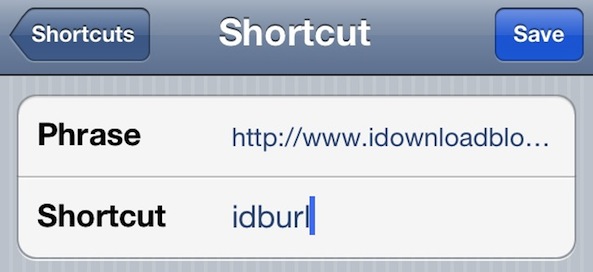
When you are in Safari and you want to go to another web page, you don't have to type the full URL. For example, if you want to go to https://www.idownloadblog.com from Safari, just type iphonedownloadblog and the "www." and ".com" will be added automatically.

Take a Screenshot

You can take a screenshot of any screen on your iPhone by simply holding the Power and Home button together. You will see your screen flashing and making the camera noise. The photo will be saved in your camera roll.

Add Your Favorite Websites to Your Springboard

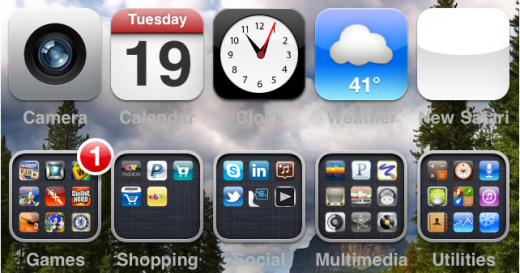
If you have favorite sites that you visit all the time, it might be a good idea to add them to your springboard (the main screen where all the apps are). To do this, simply go to the webpage you want to add to your springboard, tap "+" at the bottom, and choose "Add to Home Screen". This will create an icon on your home screen and you'll be able to access this page quickly, without having to open Safari first.

Do you have more tips? Please share them in the comments.

How to Share Your iPhone Pictures in Full Resolution

There are 2 ways to share your iPhone pictures via email or MMS but one is better than the other because it does not compress the images and keep them in their original size and resolution.

Method 1: The first way is to simply go to the photo application and type "share". This will ask you if you want to share via email or MMS. Whatever you decide, it will compress the picture to 800x600, reducing the quality of the image.

Method 2: The better way to do it if you want to preserve the quality of your images is to "copy" (not "share") the image, then manually launch the mail or MMS app, and paste the image into it. This way, your images will not be automatically resized and should be 1600x1200.

By using the second method, your MMS or email will take longer to be sent out, but at least it will be a full quality image.

If you have other simple tips like this, feel free to let me know.

Add an Extension to A Contact’s Phone Number

If you know the extension of the person you're trying to reach, you may enter it anytime or press 1 for more options. Hi, please listen carefully since our menu has changed. For sales and marketing, press 2. For customer support, press 3. For accounting, press 4...

You know how annoying these long messages can be, especially when you know exactly what extension you want to reach. Today, thanks to iPhone Download Blog reader Carn, I'd like to give you a quick tip on how to add an extension to a contact's phone number, so you never have to type this extension ever again.

1. Create or go to an existing contact.

2. Edit his phone number.

3. Make sure the cursor is at the end of the phone number and tap " + * # " at the bottom left of the keyboard.

4. Tap "pause", which will add a space and a coma after the phone number.

5. Enter the extension and click "Save".

That's it. Now every time you call this number, you will be directed to the contact's extension.

How to Activate Battery Percentage On iPhone 3.0

One of the new features of the 3.0 firmware is numerical battery. This feature, which has been available for jailbroken iPhones for a long time, lets you see the percentage of the battery left. It's a really neat feature as I think it's more accurate that the little battery logo to figure out how much battery you have left.

It took me a while to find out how to activate the battery percentage as this feature is kinda burried in the settings.

To turn numerical battery on, simply go to Settings > General > Usage.

Feel free to contact me should you have tips & tricks about the new iPhone 3.0 firmware.

How to Resell Your Old iPhone At the Best Price

With the new iPhone 3G S now available, some of you will most likely decide to upgrade their old iPhone 2G or 3G to get the "fastest iPhone yet". Depending on your upgrade eligibility with AT&T, you might be able to get the best price on the new iPhone ($299 for the 32GB), or if you're not eligible, the 32GB will cost you up to $699.

A good way to offset the price of the new iPhone 3G S is to sell your old iPhone. There are a few sites out there that "specialize" is buying out old iPhones but I recommend staying away from them. While they may be completely legit sites, they won't give you as much as you could get if you sold your iPhone directly to a third party. The following is what I did to sell my last 2 iPhones and believe me, it worked very well...

Tips About Traveling Internationally With Your iPhone

This morning I received an email from one of our readers, asking me how the iPhone works when traveling internationally.

If I travel to Costa Rica can I use my iPhone there? Do I have to get a special SIM card - or is it like when you go to Europe and it just "works" without doing anything? Also, is it free to e-mail pics using Wi-fi if I am connected there? Gracias!

You don't need a special SIM card to use your iPhone outside of the US. Straight off the plane, your iPhone will work anywhere there is coverage, since AT&T has partnerships with carriers in pretty much every country. Your iPhone will automatically pick up the local carrier and you will be able to receive/make calls, and send text messages. Same for data (Edge or 3G). It will work as well without you having to do anything, assuming that you have Edge or 3G service where you are.

The Costs Of Phone Calls And Text Messages Outside The US

Now be really careful because making calls from outside the US is very expensive. Even more expensive is the use of the data for Internet connection. Depending on where you are in the world, a one minute phone call can cost you between $1 and $5. Text messages are a little more affordable and it will only cost you $0.50 to send a text message. Received text messages are deducted from your monthly domestic data plan.

AT&T has a nice little tool that lets you see how much it will cost you to make calls depending on what countries you're visiting. I suggest you have a look at it.

Unfortunately, I couldn't find pricing about international data roaming but I know for sure it is very expensive...

What To Do To Avoid Being Charged Extra

To make sure you don't go over budget, you have several options:

First thing you can do is to put your iPhone in airplane mode. This is not the recommended option as it will pretty much turn your iPhone into an iPod Touch. You will not be able to make/receive calls and you will have no access to the internet whatsoever. This is a solution recommended for people who are paranoid about their iPhone usage abroad and want to make sure they will not spend a dime on extra charges.

My recommendation is to turn off data roaming in your iPhone settings (Settings>General>Network>Data Roaming). It is Off by default but you want to check to make sure you don't get a $4,286 bill next month. Turning data roaming off will pretty much shut down your internet access via Edge and 3G. You will still be able to get internet through wifi if you have it in your hotel for example. My iPhone being jailbroken, I use a great application called BossPrefs that lets me choose individually what I want to turn off.

If you don't want to make calls from abroad and you just want to check your emails and update your Facebook status from time to time, the best thing to do is to look for wifi. Most hotels and airports offer wireless Internet and using your iPhone over wifi won't cost you anything at all. If you have Skype or Fring installed on your iPhone, then use those apps over wifi to make international calls. This is clearly the best way to make cheap calls from abroad.

AT&T International Data And Voice Packages

If you're going to need an international data plan, the best solution is to call AT&T at 800-331-0500 and get an International Data Package which will significantly reduce the cost of using data abroad. The 20 MB package is $24.99 per month, the 50 MB package is $59.99 per month, 100 MB package is $119.99 per month, and the 200 MB package is $199.99 per month. If you're going to use any of these packages, make sure you reset your iPhone data tracker to 0 (Settings>General>Usage>Reset). This will enable you to track your estimated data usage. More information about International Data Packages can be found here.

If you know you will need to make calls from abroad, again, the best solution is to call AT&T at 800-331-0500 and to get the AT&T World Traveler package. This package is only $5.99/month extra and works in over 200 countries. This add-on will get you discounted roaming rates in over 85 of those countries. Click here to see a list of calling rates by country.

I think we took everything into consideration. If in doubt, please call AT&T to talk to a rep and have a clear idea of what you're getting into when using your iPhone abroad.

What The Duck? Here Is How To Add New Words To The iPhone Dictionary

If you ever tried to type such words as "fuck", or "fucking" on your iPhone, you most likely ended up with "duck", and "ducking", if you didn't manually select the right word you wanted to type. While the iPhone is supposed to add words you typed several times to its dictionary, it doesn't work for some words (fuck being one of them).

My favorite iPhone blogger, Erica Sadun, posted a great tip about this issue over at Ars.

That database is stored in the "mobile" user directory, in /private/var/mobile/Library/Keyboard. The file is called dynamic-text.dat. It consists of a (mostly) plain text list of words that the iPhone has marked for special attention. Once a word appears in that list, the autocorrect feature updates itself and accepts those items as proper spellings. It's really convenient for jargon words and last names that are part of your normal typing but don't appear in the standard dictionary.

How to fix this? Simply go to Safari, and open a new browser (very important!). Now tap the Google search field and start typing the word you want to add to the dictionary. Tap "Google" to launch the search. Now you can close Safari and open your Notes app and type "fuck". No more "duck"! Your iPhone finally learned a bad word!

iPhone Tips and Tricks: Keyboard

Keyboard Slide to the Right Letter

I know that most people have figured this one out, but to be complete, and for Newbies, I thought it would be good to add this.  When you press on a key and you hit the wrong letter, simply slide your finger to the right letter (without lifting it) and lift up to correct your mistake.

Slide to Period Tapping

Instead of switching between letter and punctuation modes, slide your finger to the @123 button, but don’t release it until after sliding and releasing over the period key. The keyboard will switch back to letter input automatically. This makes a big difference. Be sure to measure the improvement of the slide method on your typing speed. This is also known as the McCallum method via Pogue. An otherwise, well documented shortcut, but addresses a very common complaint about the iPhone keyboard.

Misspelling Contractions

You can intentionally spell it’s incorrectly as “itsp” or “itsa” and “it’s” will be suggested. The A and P keys are ideally positioned for this kind of a shortcut. To get popular contractions filled in automatically just add a third repetitive letter to get Safari to suggest the contraction word. Examples include “helll” -> “he’ll” , “welll” -> “we’ll”, “weree” -> “we’re” etc.

Keyboard Switching

Press the space bar from the .123 keyboard to return to the alpha keyboard. This can be good when you just need a number or a period. If you have the iPhone 1.1.1 update you can simply double-tap the space key to get a period.

Automating Other URL Suffixes

On the keyboard press and hold the .com key to see other tld extensions based on your selected languages. For example in the U.S. you will see .net, .edu .org, with German you will see .edu .org .de, and with Spanish you will see .edu .org and .es in a pop up list.

Don't Even Bother Typing .COM

Just like a real browser, it appears that the iPhone will allow you to type in most .com URLs without having to type the actual .com or pressing the button. Simply press Go after typing the site name and iPhone's Safari browser should automatically insert the .com for you.

Magnifying Glass

When typing in an email message, URL, web page text box, or any other item that requires the keyboard, you may make a spelling error. To fix any errors that aren't at the tail end of the string you just typed, hold your finger over the text until a small magnifying glass appears. You will now be able to position the cursor at the proper location in order to make your change.

iPhone Tips and Tricks: Safari

Share your URL in an Email

If you want to send the URL of a Web page you’re viewing to a friend, tap the Address Bar, then tap Share. A new e-mail message, containing the URL, will open in Mail; just choose a recipient(s), add any comments you want to include, and tap Send.  

Page Down

When not using a zoomed-in display, double-tap towards the bottom of the screen. The page will re-center around your tap. Make sure not to tap a link!

Jump to the top of the Page

Double-tap the very top of the screen, just below the time display to pop back to the top of the page. (Thanks John C)

Zoom onto a Single Picture

Double-tapping images in Safari zooms them to fit your iPhone display. If the picture is linked to a URL, this can prove a little tricky but it works great for non-linked images. Double-tap again to return to the unzoomed display.  Using 2 fingers to double tap, and zoom a section of a web page will avoid the accidental clicking of links.

Zoom a Column

You can zoom text columns as well as pictures. Double-tap on the column to fit it to the display. Double-tap again to return out of the zoom. Not only does Safari zoom block-quoted text independently of regular text but if you move your finger after the first double-tap-to-fit, it interprets the next double-tap as a re-center page command rather than a return-to-previous-zoom. Smart.

Stopping a scroll

After flicking a page to get it to scroll, you can tap the page at any time to stop that movement. Don't forget, you can also manually drag the screen display to reset the part you're viewing.

Manual Zoom

This is probably one of the most-advertised Safari features (along with the flip-the-phone-on-its-side-trick) but it's worth mentioning again. To zoom into a Safari page, put your thumb and forefinger on the screen and move them apart. To zoom out, pinch the fingers together after starting with them apart.

Examining the URL

To peek at a link's destination, touch and hold the link for a few seconds. You can also do this with images to see if they are linked. If a link appears and you don't want to activate it, just slide your finger away until the destination text disappears.

Locking the Scroll to One Direction

The iPhone 'locks' your scroll to either vertical or horizontal only if the initial finger-slide is straight up/down or right/left enough. This can be very useful if you've got a skinny column of text with room on either side to get derailed.  If not your initial scroll, using 2 fingers side by side will force vertical scrolling. Likewise 2 fingers stacked is horizontal.

Save Images

Save images in Safari by tapping and holding on the image and you will see a “Save Image” button. Great feature if you want to use images you find online as your wallpaper.

Press & Hold For Alternate Characters

Hold a letter for a popup of various versions of the character (i.e. to type España with the "ñ" simply hold "n" and simply slide/release to the appropriate character).

Click & Hold URL's

In Safari, hold a link to see the URL and site name.

Enter Special Characters in Safari Address Bar

When you have selected the number keypad (@123) while typing text in the Safari Address bar, pressing the Shift Key, changes the symbols you can select.  In other keyboards (for example the Google search text box, the Shift key is replaced with a second symbol option key (#+=) but this doesn't appear in the address bar. To access these symbols, just press Shift key and pick the character.

Changing Search Engine to Yahoo

By default, Safari uses the Google search engine when you enter search text.   However, you can change it to Yahoo but selecting the Safari Option in the Settings application.  Pick this option and select the Search Engine option to change it to Yahoo.