Security

How to generate app-specific passwords

Apps designed to use iCloud Drive for syncing data between devices “just work”. On the other hand, those that don’t natively support Apple's secure Two-Factor Authentication system may ask for your Apple ID password to access data stored in your iCloud account.

For instance, Fantastical for Mac may require your Apple ID user name and password to import your iCloud calendars. And what if you'd like to use your iCloud email account in apps like Spark or Airmail, but don't want to expose your Apple ID credentials to the app?

Given that asking for the user's iCloud password poses a dangerous attack vector, Apple now mandates that all native apps use app-specific passwords to access user data stored in iCloud.

The change goes into effect on June 15, 2017.

To ensure worry-free experience, you can use an app-specific password to sign in to an app or service not provided by Apple, without ever typing your Apple ID password.

In this step-by-step tutorial, you will learn how to create an app-specific password for any native app that wants to access your personal data stored in iCloud, revoke all of your generated passwords one by one or all at once, and more.

About app-specific passwords

Security is paramount.

Protecting your Apple ID account against hackers and nefarious users by turning on Apple's older Two-Step Verification system or the modern, more secure Two-Step Verification also entails using app-specific passwords for any web apps, online services and apps that don’t natively support entering verification codes.

TUTORIAL: How to protect your Apple ID with Two-Factor Authentication

App-specific passwords maintain “a high level of security and ensure that your primary Apple ID password won’t be collected or stored by any third-party apps you might use,” notes Apple.

You can have up to 25 active app-specific passwords at any given time. If you need to, you can revoke passwords individually or all at once.

How to generate app-specific passwords

1) Sign in to your Apple ID account page at appleid.apple.com/account/home.

2) In the Security section, click Generate Password below App-Specific Passwords.

3) Type a password label into the text field, then click Create to generate a random password. The password label helps distinguish one app-specific password from another.

I'll create an app-specific password for Fantastical and name it “Fantastical for Mac”.

4) Click Done to finish creating the password.

5) Now paste the password into the password field of the app as you would normally.

Again, I'm a Fantastical believer so I'm going to type the generated password into Fantastical.

Using an app-specific password ensures that Fantastical is able to access my iCloud calendar and gives me a piece of mind knowing I don't have to worry about the security of my Apple ID.

As a reminder, you can have up to 25 active app-specific passwords at any given time. Keep in mind that each app-specific password is case-sensitive and only works in one app.

How to revoke app-specific passwords

You can revoke app-specific passwords individually or all at once. Revoking an app-specific password stops the app from accessing data in your iCloud account.

1) Sign in to your Apple ID account page at appleid.apple.com/account/home.

2) In the Security section, click Edit.

3) In the App Specific Passwords section, click View History.

4) You can now revoke an individual password or all passwords at once:

Revoke individual passwords—To revoke an individual password, click the “x” next to a password you'd like to delete, then click Revoke. Revoke all passwords at once—To revoke all the app-specific passwords you've generated thus far, click Revoke All.

“After you revoke a password, the app using that password will be signed out of your account until you generate a new password and sign in again,” notes Apple.

Be sure to generate new app-specific passwords for any apps that don't support entering verification codes because, for the sake of your own security, all of your app-specific passwords are auto-revoked any time you update or reset your primary Apple ID password.

Need help? Ask iDB!

If you like this how-to, pass it along to your support folks and leave a comment below.

Got stuck? Not sure how to do certain things on your Apple device? Let us know at help@iDownloadBlog.com and a future tutorial might provide a solution.

Submit your how-to suggestions via tips@iDownloadBlog.com.
Apple shares 3 new ‘Switch to iPhone’ ads

Apple on Monday shared a trio of geeky ads that are part of its new campaign aimed at persuading Android users to make the leap to the iconic smartphone. Published on Apple's official YouTube channel, the new mini-ads, running sixteen seconds each, promote the company's ability to roll out important security fixes fast via iOS software updates.

Apple is also praising the smartphone's smooth, stutter-free performance while highlighting easy contact transfer via the Move to iOS app for those who would gladly switch to an iPhone.

Smooth

https://www.youtube.com/watch?v=TQy2heNOhe8

“We design the hardware and the software so your iPhone just works,” says Apple.

Security

https://www.youtube.com/watch?v=AszkLviSLlg

“Access to the latest updates keeps your iPhone secure,” reads the description.

Contacts

https://www.youtube.com/watch?v=bUWLszbCBF8

“Switch to iPhone,” reads the video's description. “The Move to iOS app makes it simple to move your contacts, photos, and more to iPhone.”

The new ads use the tagline “Life’s easier when you switch to iPhone” and direct viewers to the recently revamped ”Switch to iPhone” webpage at apple.com/switch.

Apple's mini-website for switchers now includes useful new sections covering topics like in-house designed iPhone chips, powerful cameras, easy of use, customer support and more.

Do you like Apple's new ads? Do they manage to sell folks on the merits of iPhones, do you think? Let us know by leaving a comment below.

Video: tricking Galaxy S8’s iris scanner into unlocking the phone

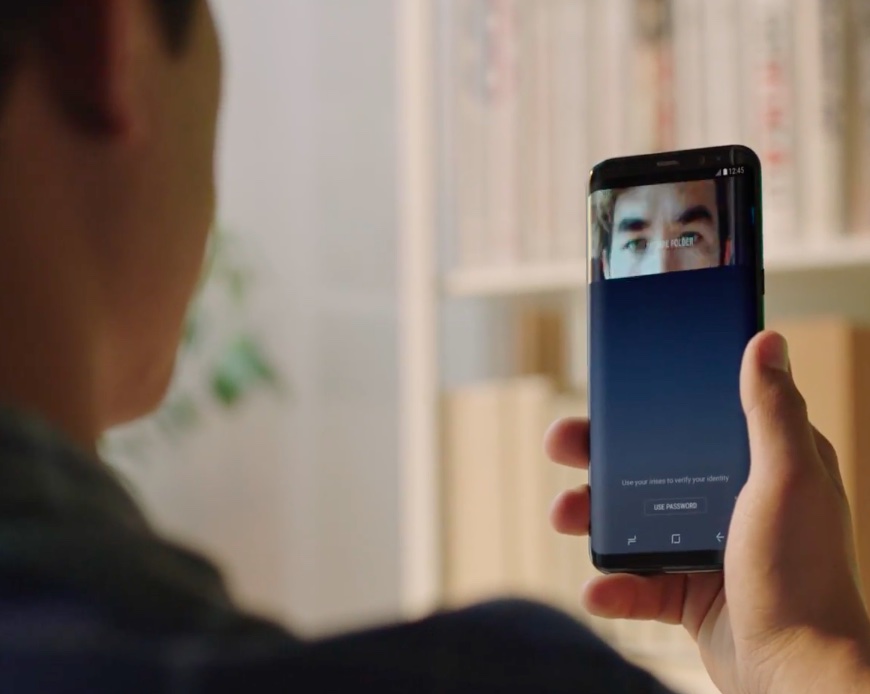
Eyeballs and faces are not as secure as fingerprints—German hackers with the Chaos Computer Club have bypassed iris authentication technology that's prominently featured in Samsung's Galaxy S8 smartphone. All that's needed to trick Galaxy S8's iris scanner into unlock the phone is an infrared photograph of the eye of the phone’s owner and a contact lens.

ArsTechnica says the photo need not even be a close up.

This video below, originally posted by Starbug (the moniker used by one of the principal researchers behind the hack), demonstrates how to circumvent the iris recognition of Samsung's flagship Galaxy S8 smartphone—such as a basic digital camera, Samsung's laser printer and a contact lens—by using equipment that costs less than the $725 price of an unlocked device.

https://www.youtube.com/watch?v=ccQZs8Ofpuk

An attacker must posses a photograph of the phone owner's face, which must be printed out to place the contact lens on the iris in the printout. Holding the image in front of a locked Galaxy S8 fools the iris scanner into unlocking the device.

Princeton Identity, the makers of Galaxy S8's iris authentication technology, say the phone provides “airtight security” and that consumers can “finally trust that their phones are protected”. Samsung itself claimed that Galaxy S8's iris scanning mechanism is “one of the safest ways to keep your phone locked.”

That said, we've known that bypassing the phone's biometrics is laughably easy.

In March, iDevice posted a video proving that Galaxy S8's facial recognition feature can be fooled into unlocking the phone by scanning a simple headshot of the phone's owner.

https://www.youtube.com/watch?v=LXd26Nqg5tQ

According to The Korea Herald, the Galaxy S8 and Galaxy S8 Plus handsets can even be unlocked by scanning the face of a sleeping person. Samsung is aware that Galaxy S8's facial unlocking technology is not its most secure biometric system: in a March statement to Mashable, a company spokesperson said that facial unlocking cannot be used for purchases with Samsung Pay.

For that, you still must use the phone's fingerprint reader as the iris scanner can only be used to purchase apps and media or unlock the phone. Galaxy S8 includes both iris scanning and facial recognition via the front-facing camera, in addition to fingerprint scanning via a sensor relocated to the rear side.

Apple's own Touch ID fingerprint reader isn't immune to hacks either.

Back in 2013, Starbug demonstrated that fingerprints casually collected off of water glasses can be leveraged to fool Touch ID into unlocking your iPhone. Android phones are susceptible to a similar hack.

As you know, Apple is expected to use facial unlocking and maybe even iris scanning in iPhone 8. Starbug, however, cautions that future smartphones with iris recognition may be equally easy to hack. Iris recognition, says Starbug, is hard to make hack-proof because you can't really hide your iris.

“It's even worse than fingerprints,” added the hacker.

1Password’s Travel Mode protects your private data from unwarranted searches

Developer AgileBits announced yesterday a new Travel Mode feature in 1Password, its password manager for iPhone, iPad, Mac, Windows and the web. Designed to protect your sensitive data from unwarranted searches when crossing borders, Travel Mode removes all vaults from your devices except for the ones marked “safe for travel.”

Even if a security agent at the US border asks you to launch and unlock 1Password, they'll be unable to disable Travel Mode from within the app or even realize that the app is currently in Travel Mode, for that matter.

To mark the vaults as safe for travel, sign in to your account on 1Password.com.

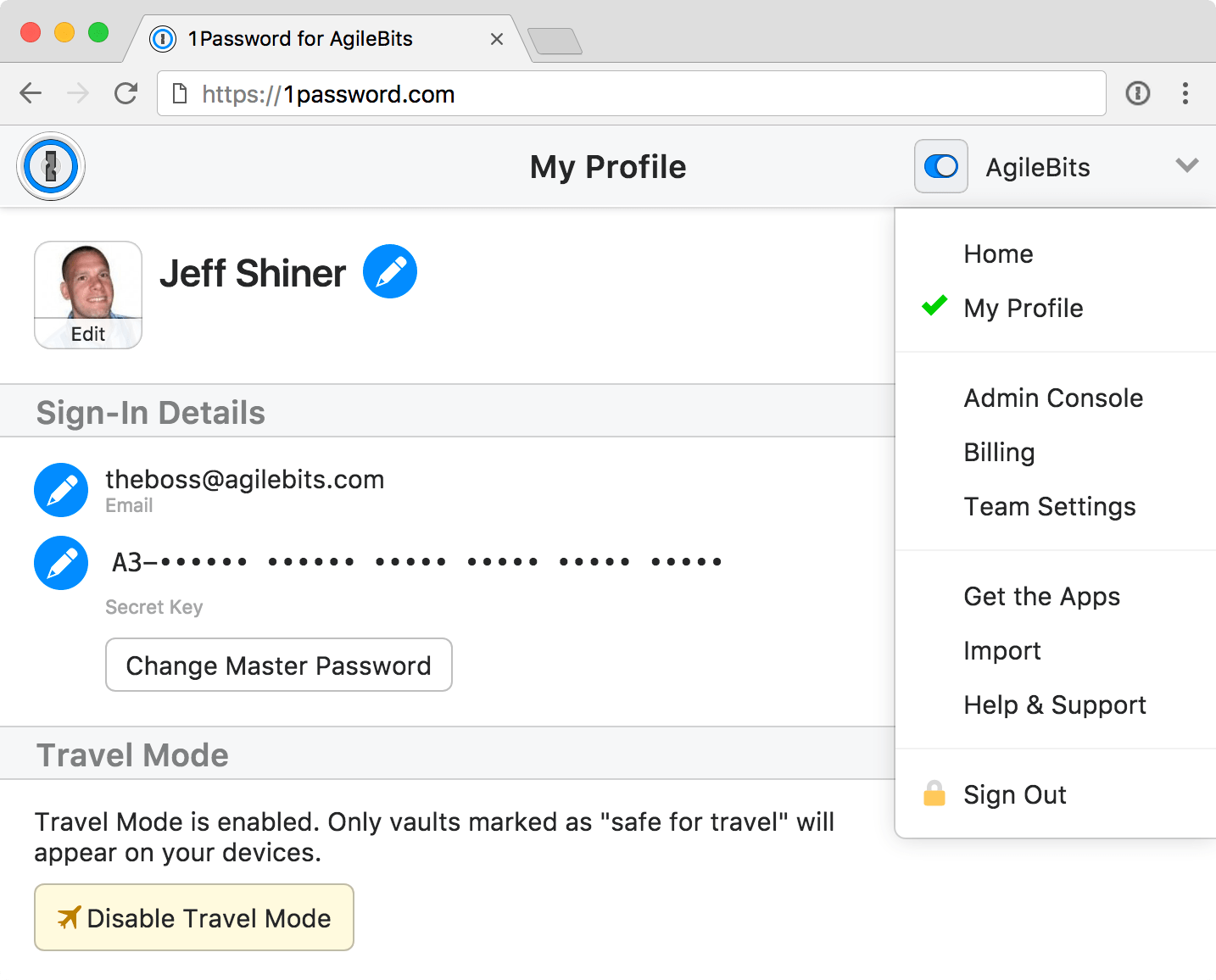
Click the pencil icon on the vault you wanna mark as safe for travel, choose Safe for Travel and click Confirm. Right before you travel, turn on Travel Mode by clicking your account name in the top-right corner of the interface, choose My Profile and click Enable Travel Mode.

On the devices you’re traveling with, open and unlock the 1Password app.

Any vaults that haven’t been marked as safe for travel will be instantly removed from the app. Rather than simply hide the vaults, the app completely removes them from your devices, including all items and your encryption keys so there are no traces left for anyone to find.


When you’re done traveling, return to My Profile on 1Password.com and click Disable Travel Mode. Just like that, your temporarily removed vaults re-appear on your devices.

“Whenever you turn Travel Mode on or off, you’ll need to open 1Password on your devices while connected to the Internet for the change to take effect,” reads the FAQ on the official website.

AgileBits notes that Travel Mode is included with every 1Password subscription. If you’re a team administrator, you can turn Travel Mode on and off for team members and manage which vaults are safe for travel.

A single-user 1Password subscription cost $2.99 per month, or $4.99 per month for a multi-user family account. Separate subscription options for teams are available as well.

1Password for Mac is a freemium download from Mac App Store.

1Password for iPhone, iPad and Apple Watch is available free on App Store.

iPhone hacked by jailbreak developer to interact with NFC devices

iPhones have come equipped with Near Field Communication (NFC) technology since the iPhone 6 launched in 2014. NFC's primary use in the iPhone is for Apple Pay and allows contactless payments via supported merchants at the point of sale.

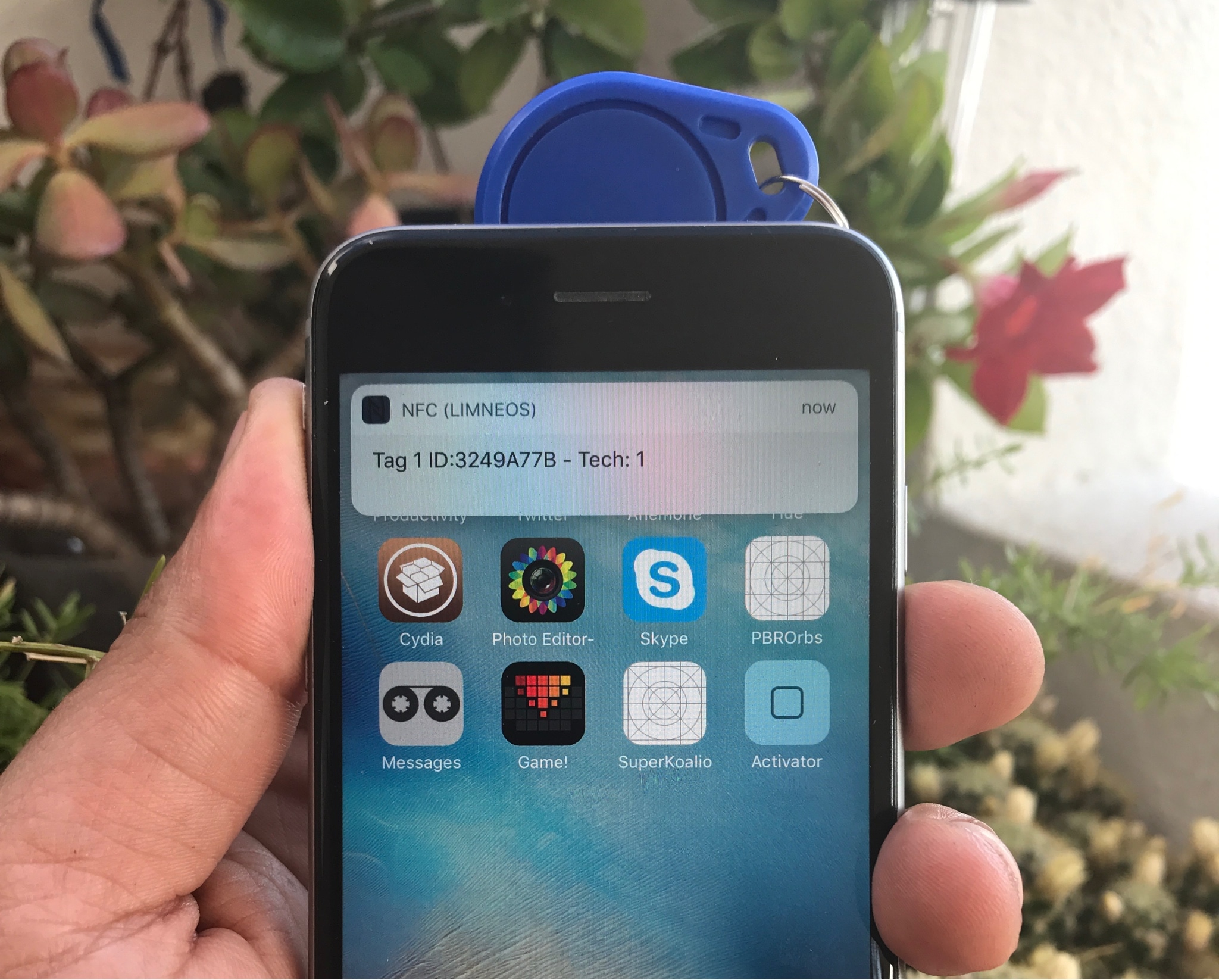
On the other hand, well-known jailbreak developer Elias Limneos was tinkering with iPhone NFC on his spare time and managed to hack it to work in ways that are typically locked off by Apple out of the box.

This tweak masks your iPhone’s Personal Hotspot password

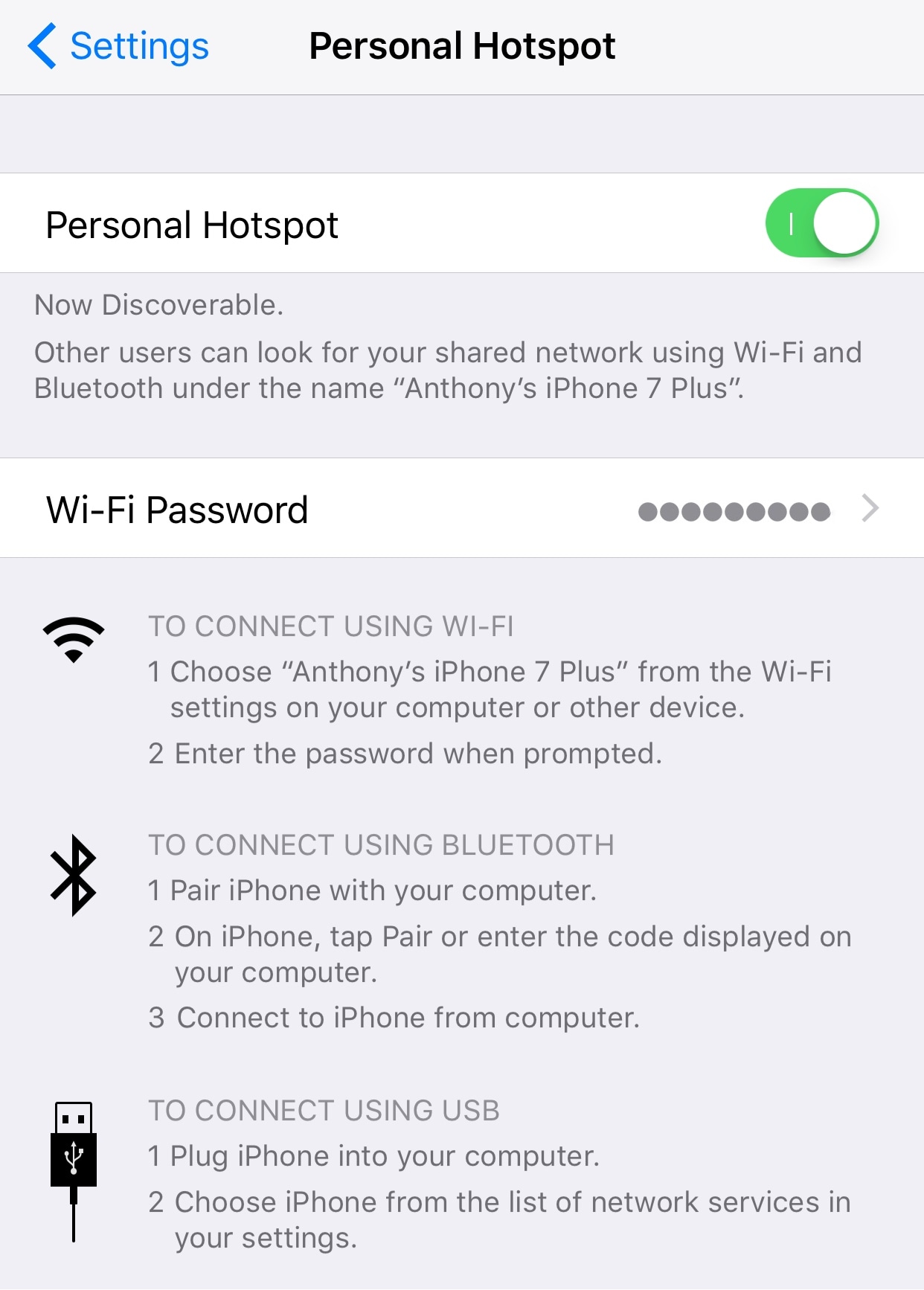
Your iPhone’s Personal Hotspot password is displayed as a string of text in the Settings app, which means anyone can look over your shoulder and figure out your password without you knowing.

A new free jailbreak tweak called MaskedHotspotPass by iOS developer Andreas Henriksson helps to do away with this problem by concealing your Personal Hotspot password from the preferences pane.

AI powered, end-to-end encrypted calls now available in Telegram Desktop

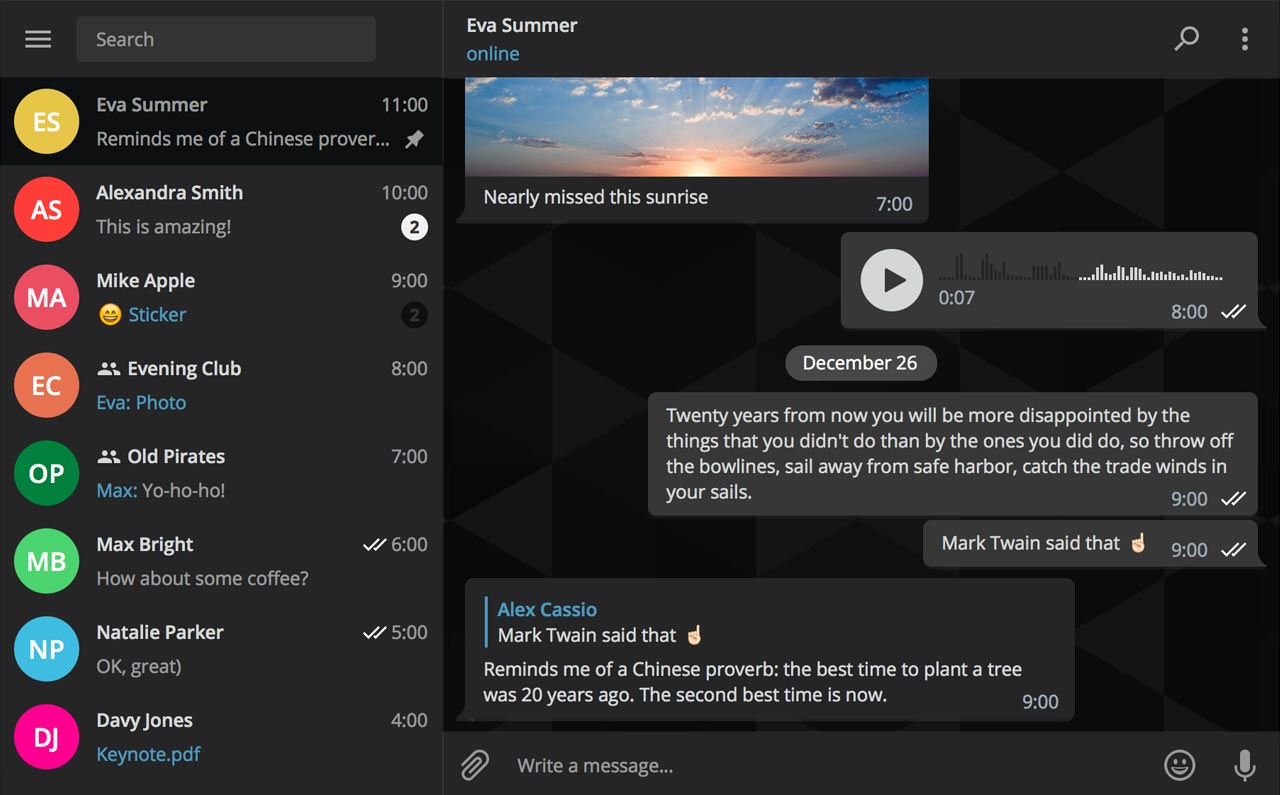
Secure instant messaging service Telegram today launched voice calls in its desktop app for Mac, Windows and Linux nearly two months after implementing the voice-calling feature in Telegram Messenger for iPhone and iPad.

To make sure Telegram calls are the best in terms of quality, speed and security, the app uses artificial intelligence to update its neural network after each call about things such as network speed, ping times, packet loss percentage and other factors that influence the quality of your VoIP calls.

Based on gathered data, the app optimizes dozens of parameters to improve the quality of future calls on the given device and network. By default, Telegram calls are lightweight.

https://twitter.com/telegram/status/864543129847955457

If there's a change in your connection during the call, the app will make necessary adjustments.

For instance, Telegram may boost your sound quality on stable Wi-Fi connection or use less data if your Wi-Fi or cellular coverage is spotty at best.

Whenever possible, your calls will go over a peer-to-peer connection using the best audio codecs to save traffic while providing “crystal-clear quality.” When a peer-to-peer connection cannot be established, the app will use the closest server to you.

Telegram has its own distributed infrastructure all over the world to ensure the fastest possible delivery of your texts and seamless voice calling experience. As mentioned, VoIP calls on Telegram use end-to-end encryption, just like the app's Secret Chats feature, to prevent eavesdropping.

For voice calls, however, they've improved the key exchange mechanism. “To make sure your call is 100 percent secure, you and your recipient just need to compare four emoji”, said the team.

Bottom line: the quality of Telegram calls will further improve as you and others use them, thanks to the built-in machine learning. And with group calling, video calling and screen sharing apparently on the team's to-do list, Telegram is bound to become a capable Skype alternative.

As soon as VoIP calls are enabled for your country, a phone icon will appear on every profile page in Telegram Desktop.

Telegram for iOS is available free via App Store.

Telegram Desktop can be downloaded from Mac App Store or through the official website.

macOS 10.12.5 fixes issues with USB headphones & Windows 10, lays the groundwork for future macOS releases

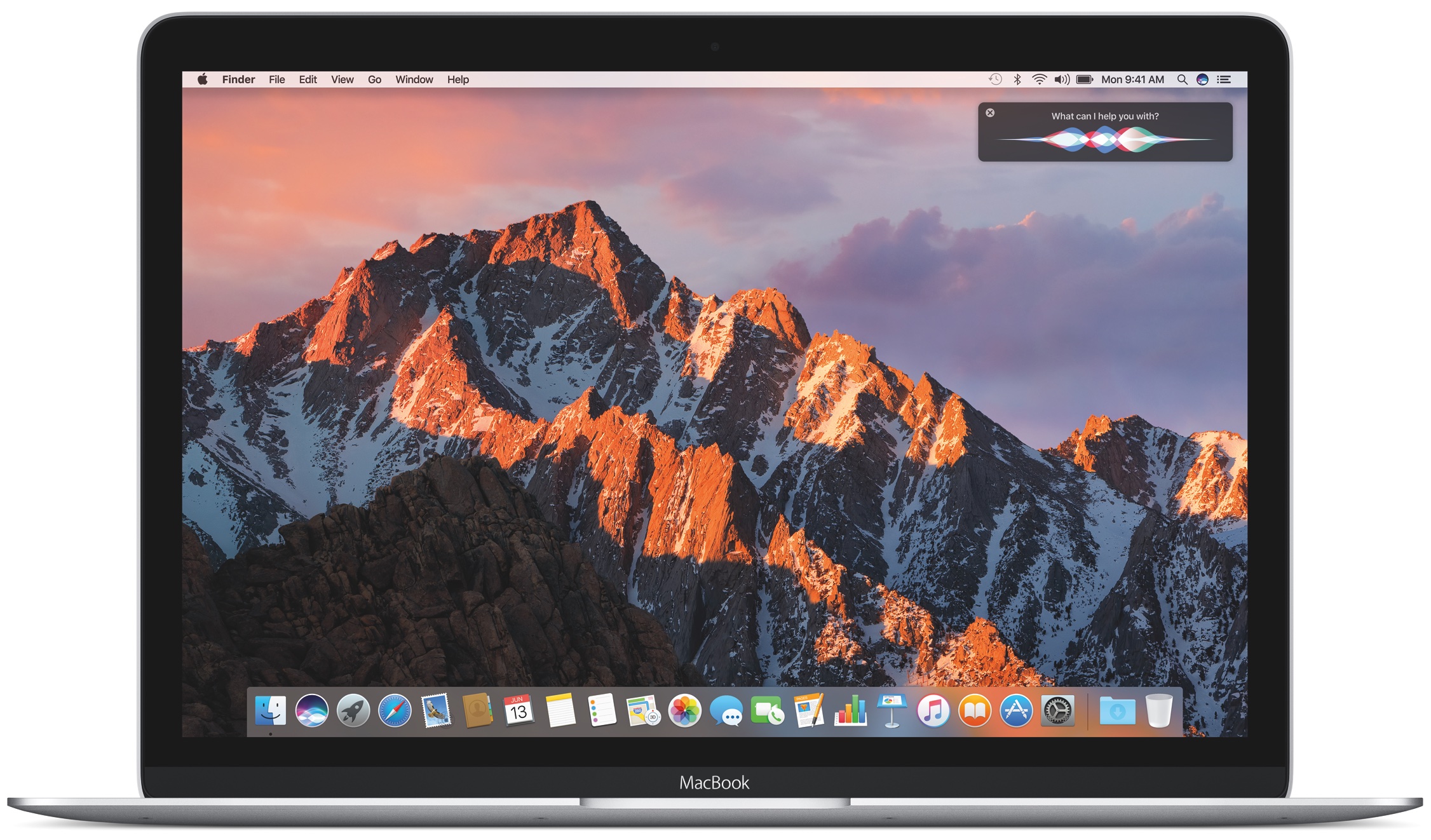
Apple today released the mostly maintenance macOS Sierra 10.12.5 software update alongside updates to iOS, watchOS and tvOS. According to release notes accompanying the download, 10.12.5 fixes issues with USB headphones and Windows 10 installations while laying the groundwork for future macOS releases.

Plus, this version of macOS “enhances compatibility of Mac App Store with future software updates.” Apple is expected to preview the next major version of macOS at its annual developers conference next month.

macOS Sierra 10.12.5 can be installed via the Mac App Store's Updates tab.

Read Apple's support doc for detailed information about the update's security content.

Safari 10.1.1, which comes included in the 10.12.5 update, patches for more than half a dozen WebKit-related vulnerabilities while fixing yet another instance of address bar spoofing that could fool users into believing they're visiting a genuine rather than a maliciously crafted webpage designed for phishing attacks.

It's available for OS X Yosemite 10.10.5, OS X El Capitan 10.11.6 and macOS Sierra 10.12.5.

A minor update to iTunes for Mac and Windows was also pushed today.

iTunes 12.6.1 comes with unspecified app and performance improvements along with a fix for a WebKit exploit on Windows 7 and later which could result in arbitrary code execution after processing maliciously crafted web content.

Safari 10.1.1 for Mac fixes yet another instance of address bar spoofing

Safari 10.1.1, pushed out as part of today's minor macOS Sierra 10.12.5 software update, fixes yet another instance of address bar spoofing. This is good news because the browser can now protect you from phishing attacks that would typically attempt to fool you into believing you were visiting a genuine website rather than a maliciously crafted webpage.

According to the company's security document, the software fixes a flaw where visiting a malicious website may lead to address bar spoofing. “An inconsistent user interface issue was addressed with improved state management,” states Apple.

Even folks who are extremely mindful of phishing are susceptible to address bar spoofing.

The sophistication of today's phishing attacks came to light when Chinese security researcher Xudong Zheng demonstrated how easily users could be fooled into visiting a fake website that seemingly shows the correct URL in the address bar.

To protect yourself from such attacks in the future, manually type in the URL of the website you want to visit or choose your favorite website from Safari's Bookmarks menu. Of course, you should avoid clicking any suspicious links in an email message, even if they appear to originate from a contact you personally know.

The patched vulnerability was discovered in Safari for macOS, not for iOS.

Apple credits Zhiyang Zeng and Yuyang Zhou of Tencent Security Platform Department with the discovery of the vulnerability CVE-2017-2500 and Zhiyang Zeng of Tencent Security Platform Department with the discovery of the vulnerability CVE-2017-2511.

Moreover, Safari 10.1.1 fixed an issue in Safari's history menu that could lead to an application denial of service after visiting a maliciously crafted webpage. The issue was addressed through improved memory handling.

Lastly, Safari 10.1.1 also includes patches for as many as seven vulnerabilities that were discovered in the WebKit rendering engine, five of which dealing with universal cross site scripting, while fixing an issue with WebKit's Web Inspector where an app could execute unsigned code.

Safari 10.1.1 is available for OS X Yosemite 10.10.5, OS X El Capitan 10.11.6 and macOS Sierra 10.12.5. Apple also released a minor update to iTunes for Mac and Windows today.

iTunes 12.6.1 contains unspecified app and performance improvements and a fix for a WebKit exploit on Windows 7 and later which could result in arbitrary code execution after processing maliciously crafted web content.

iTunes 12.6.1 with minor app and performance improvements now available

Alongside public releases of the iOS 10.3.2, watchOS 3.2.2, tvOS 10.2.1 and macOS Sierra 10.12.5 software updates for iPhone, iPad, iPod touch, Mac, Apple Watch and Apple TV, Apple earlier this morning also posted a minor update to iTunes for Mac and Windows PCs.

iTunes 12.6.1 contains only minor app and performance improvements, according to Apple's release notes.

A security document reveals that the app fixes a WebKit exploit on Windows 7 and later which may allow arbitrary code execution after processing maliciously crafted web content.

“Multiple memory corruption issues were addressed with improved memory handling,” Apple states. The vulnerability was discovered by the user “lokihardt” of Google Project Zero.

How to check if the phone you’re buying was stolen

If you're in the market for a used iPhone, it's always a good idea to ask the owner to disable Find My iPhone, which automatically turns off Apple's theft-deterring Activation Lock feature.

But what if you're buying a non-Apple smartphone? Can you still check if it was stolen? As it turns out, that's exactly what CTIA’s Stolen Phone Checker service does for you.

Powered by the GSMA Device Check service, which provides up to 10 years’ of a device’s history as well as the device model information and capabilities, the free Stolen Phone Checker tool is an online service designed to help consumers, businesses and law enforcement agencies make informed purchasing decisions and limit the resale of lost and stolen mobile devices.

TUTORIAL: How to find your iPhone's IMEI number

This is a US-only service so this tutorial may not apply to international readers.

How to check if the phone you're buying was stolen

1) Visit stolenphonechecker.org/spc/consumer on your device.

2) Enter the IMEI, MEID or ESN of the phone you're about to purchase. If you're buying an iPhone, you can find this information in Settings → General → About. If you're buying a non-Apple smartphone, ask the owner to provide the IMEI number.

3) Solve the captcha and click the Submit button.

If the phone isn't stolen,“Not reported lost or stolen” should appear next to Device Status along with some useful information, including the device model, manufacturer and more.

Regular consumers are allowed to check up to find phones per day. Again, this service is limited solely to consumers in the United States.

Related tutorials

Check out the following how-tos:

What to do if your iPhone is lost/stolen How to remotely erase iPhone that was lost/stolen How to use Lost Mode if your iOS device is lost/stolen How to secure your iPhone with Activation Lock How to locate misplaced AirPods Checking Activation Lock status via Apple Support website Wrapping it up

If you have a question, post a comment below and we'll do our best to answer it. Please share this tutorial on social media and pass it along to the folks you support.

Submit your ideas regarding future coverage via tips@iDownloadBlog.com.

WhatsApp quietly added encryption to iCloud backups in late 2016

WhatsApp last year closed an important security loophole by adding encryption to users' chat backups stored in iCloud. Before the change, hackers could theoretically gain access to WhatsApp chat archives in iCloud using third-party forensic tools to access underlying messages in a readable form.

Rather than rely on iCloud Drive to protect customer data, the Facebook-owned company has added a unique encryption key created by the WhatsApp app.

A spokesperson confirmed iCloud backups are now being encrypted, telling Forbes: “When a user backs up their chats through WhatsApp to iCloud, the backup files are sent encrypted.”

Although Apple holds the encryption keys for iCloud, it's up to app makers to use encryption when sending user data to iCloud. According to TechCrunch, a Russian company called Oxygen Forensics, which supplies mobile and cloud hacking tools, was able to generate encryption keys for WhatsApp's iCloud backups.

The workaround requires that an attacker have access to a SIM card with the same mobile number that the app uses to send a verification code to generate the encryption key for the iCloud backup. Of course, Oxygen still needs a user's Apple ID and password to gain access to their iCloud user space in the first place.

“Then, using the associated SIM, Oxygen said it can generate the encryption key for decrypting the data by passing the verification process again,” explains TechCrunch. Forbes suggests the method could be used by police in possession of a device where the WhatsApp account has been deleted but iCloud backups have not been wiped.

https://twitter.com/FiloSottile/status/861569977681412096

In other words, after realizing that forensic tools could be used to download encrypted WhatsApp data from iCloud backups in a readable form, WhatsApp has beefed up security and quietly rolled out encryption for iCloud backups last year.

You can backup your entire WhatsApp chat archive to iCloud by tapping the Settings tab in the lower-right corner of the app. Now tap Chats, then Chat Backup and finally hit Back Up Now.

By the way, WhatsApp should update the wording of the Chat Backup screen because it states, somewhat confusingly, that “media and message you back up are not protected by WhatsApp end-to-end encryption while in iCloud.”