Save time and be more productive by taking a moment to customize these useful Mac Finder preferences and settings.
7 useful Finder settings to check out on your Mac
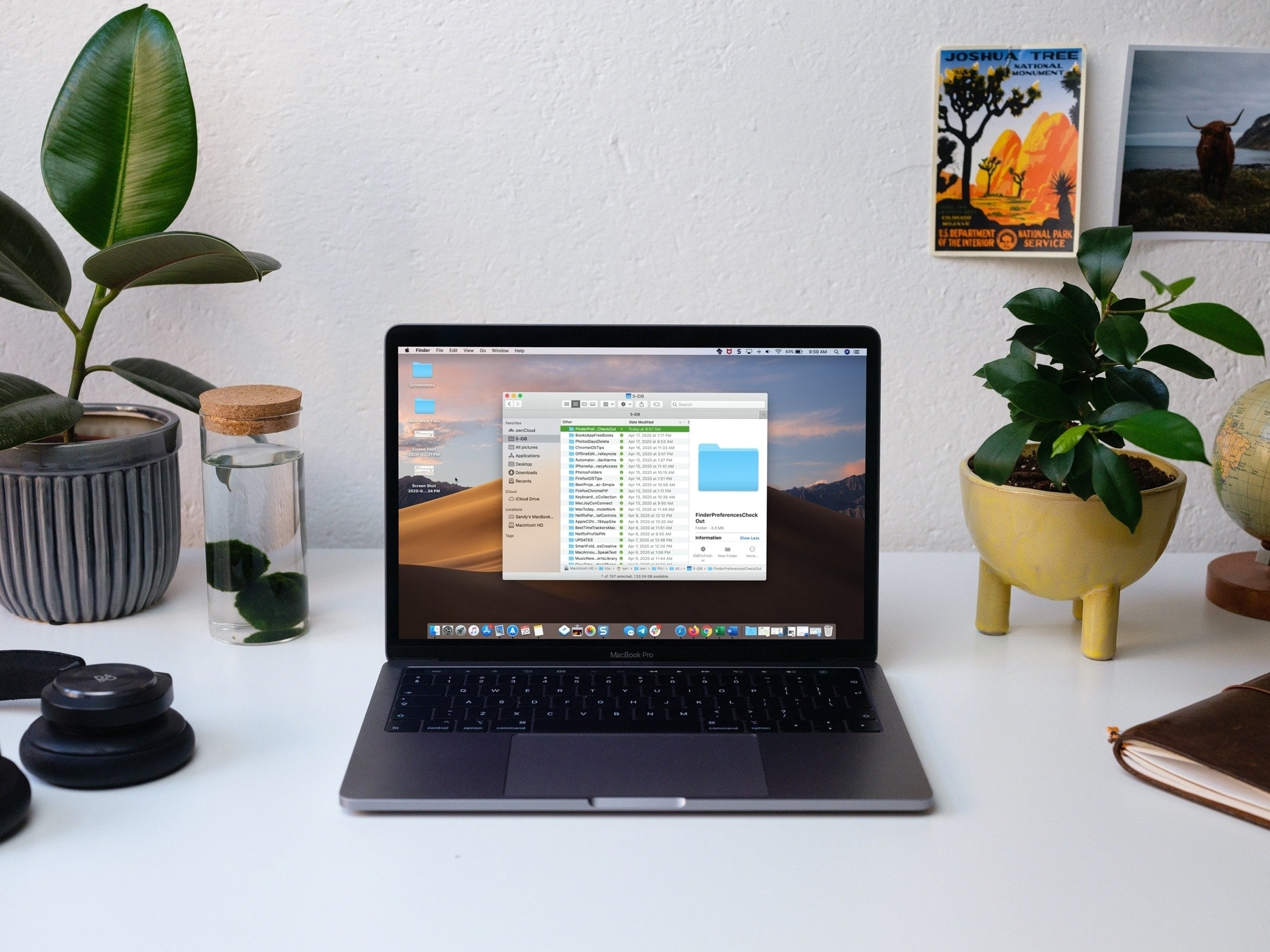
Save time and be more productive by taking a moment to customize these useful Mac Finder preferences and settings.
Learn how to easily control the app and your recordings with these handy keyboard shortcuts for the Voice Memos app on your Mac.
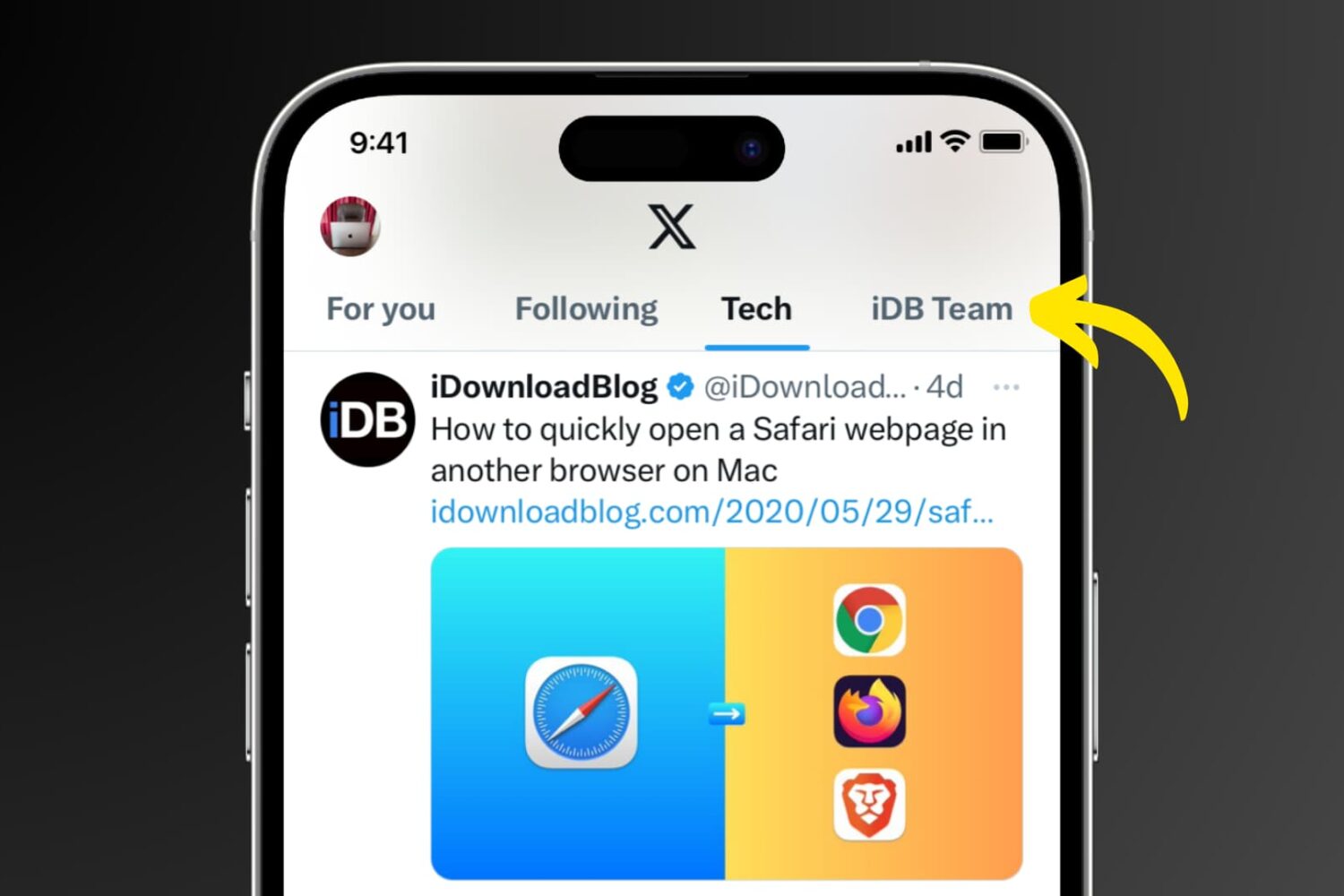
Learn how to create Twitter lists on your iPhone, iPad, Mac, and the web to curate your favorite accounts, and stay updated with the content that matters most to you.
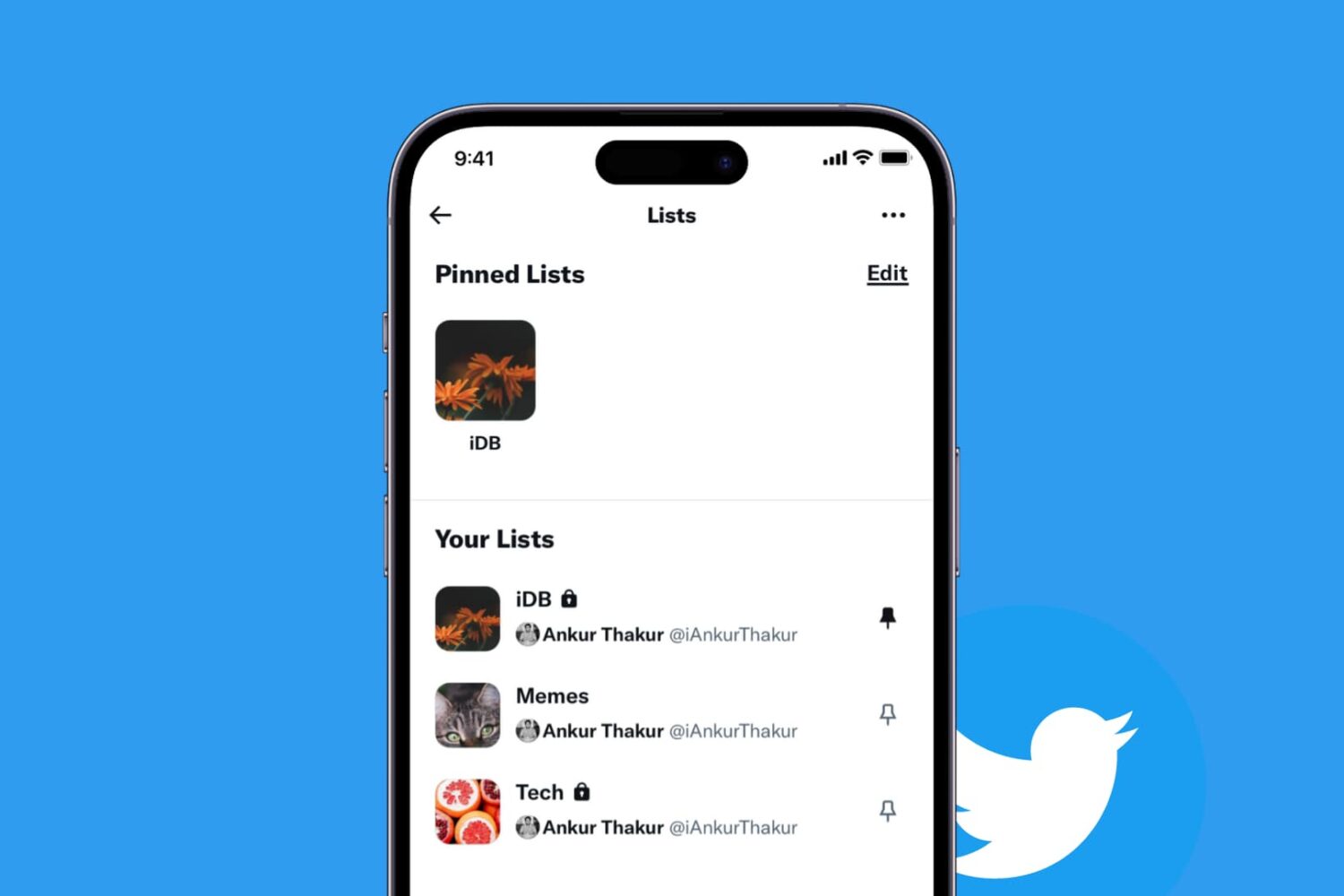
If you take advantage of the List feature on Twitter, then knowing how to pin your lists is quite useful. Once you pin a list, it will appear as another tab on your Twitter Home timeline. So, with a click or a tap, you can jump to that list quickly.
This tutorial shows you how to pin Twitter lists on iPhone, iPad, and Mac.

Stay on top of everything you have to do by using these best task list apps on your Mac that give you the features you need to get your to-dos done at work and home.
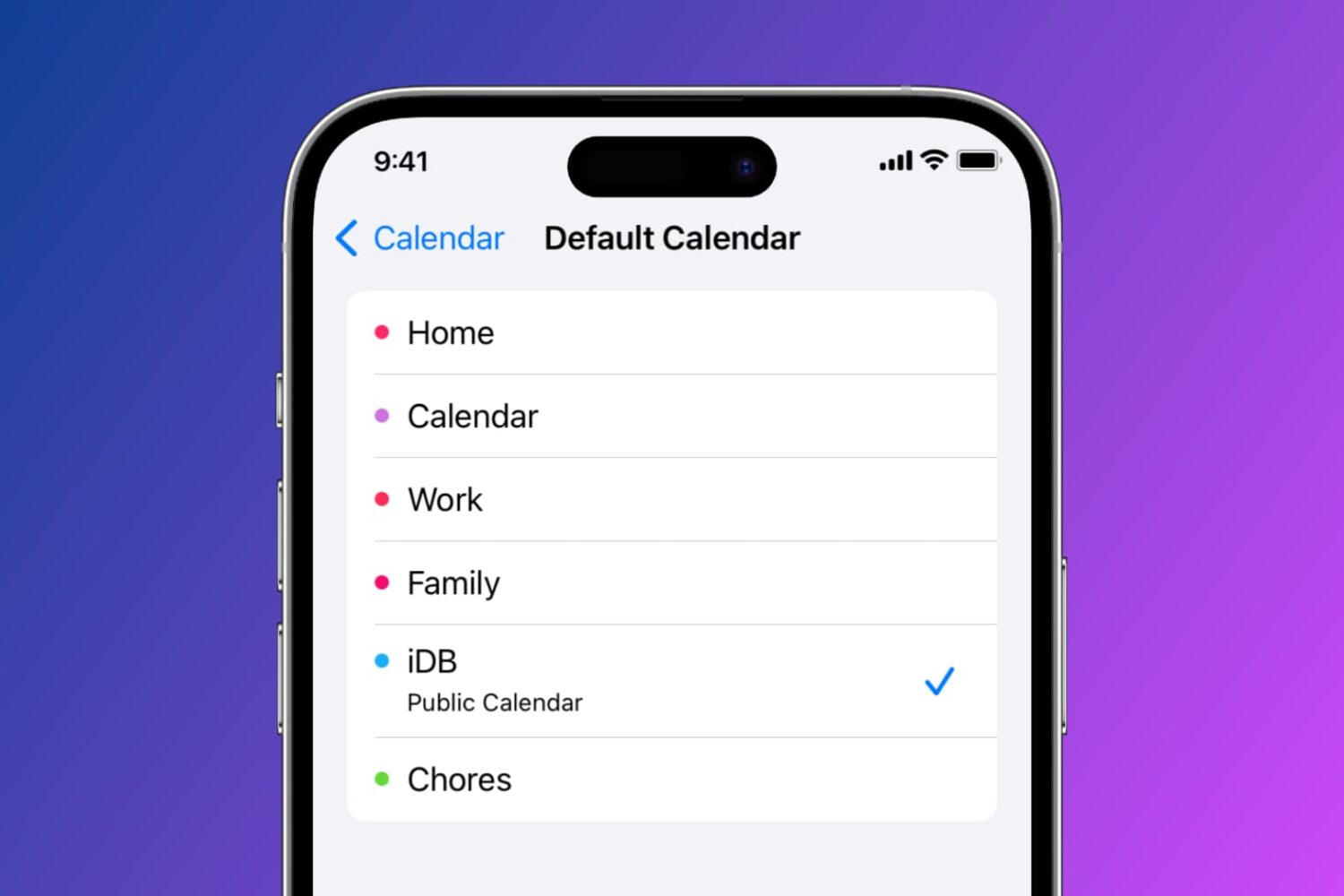
Learn how to set a default Calendar account on your iPhone, iPad, and Mac so that newly created events are automatically added to your preferred default calendar.
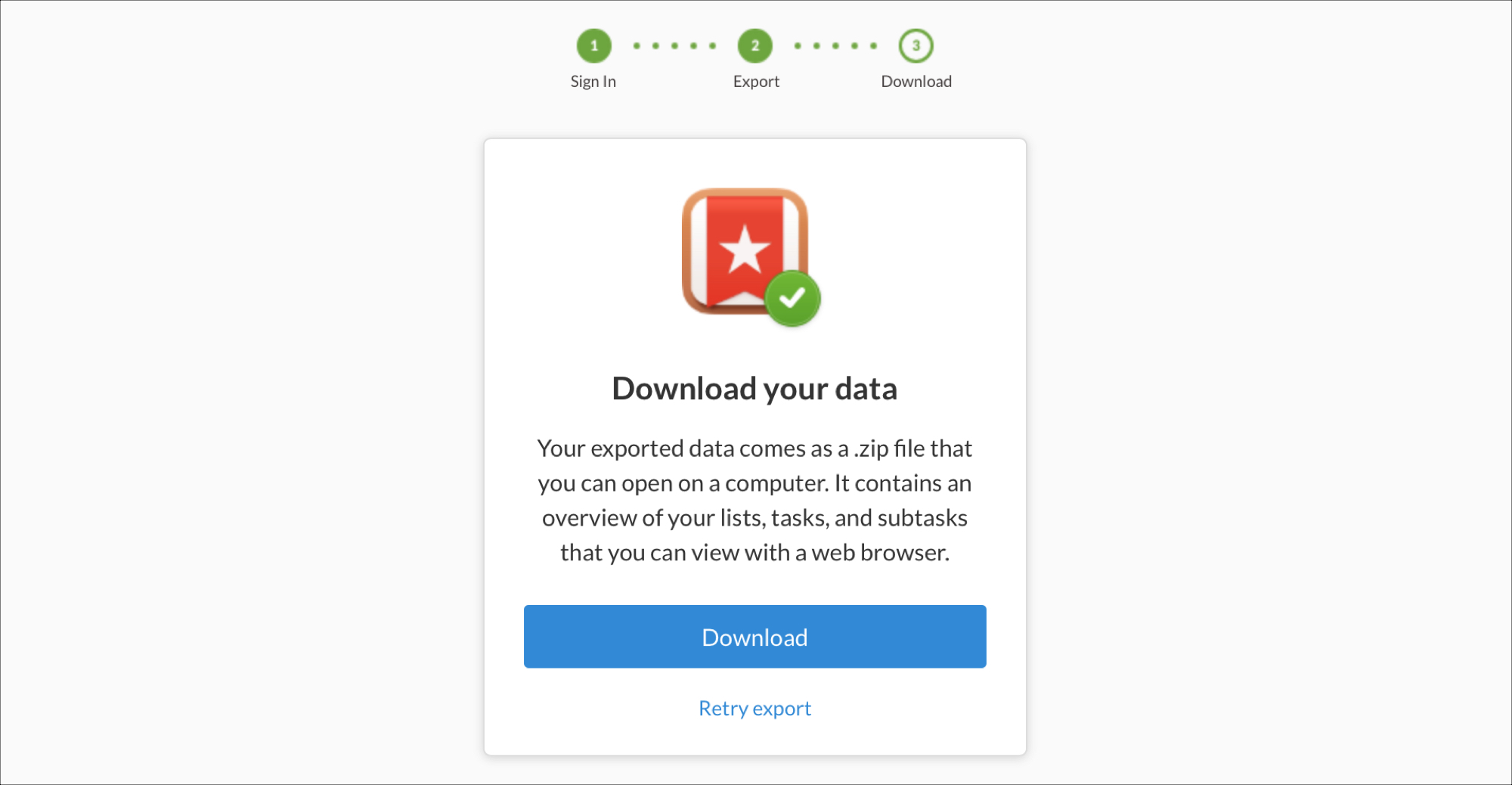
When Microsoft acquired the to-do list application Wunderlist in 2015, no one knew for sure how long it would keep the popular task app alive. Even after an announcement in 2017 that it would discontinue Wunderlist in favor of Microsoft To-Do, the app was still usable. But that has finally come to an end.
As of May 6, 2020, Wunderlist will finally close its virtual doors to users.
If you’re a fan of Wunderlist and have been using it for years, it’s time to grab your tasks and move on, if you haven’t already. Here’s how to export, email, or print your to-dos from Wunderlist.
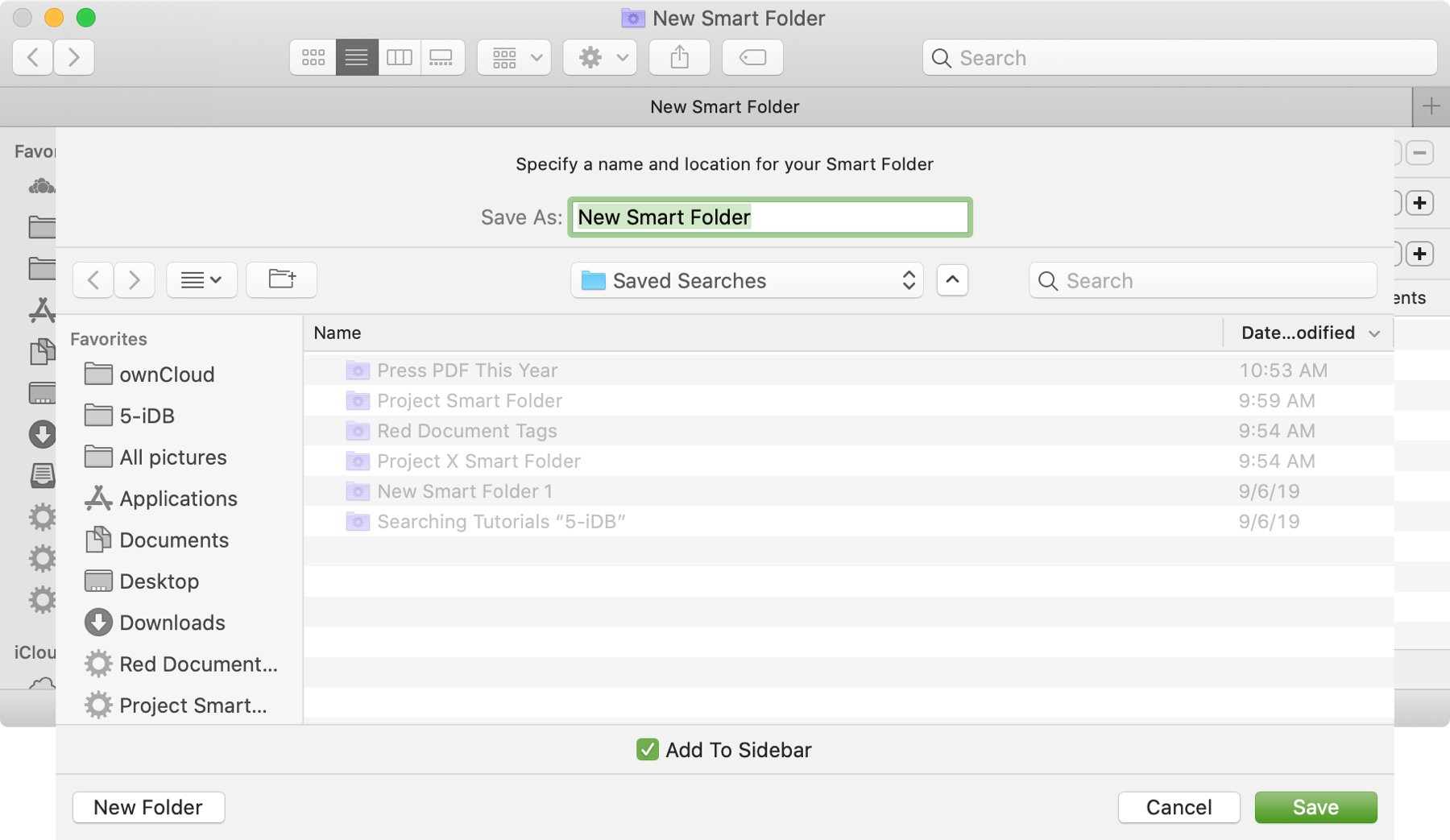
The Smart Folders feature on Mac gives you a great way to collect items that match specific criteria. You can use Smart Folders for business or pleasure and instead of searching for files, images, or documents.
We have a basic tutorial for how to use Smart Folders on Mac if you’re just getting started. But if you’ve used Smart Folders before, you might be interested in additional ways these handy folders can be even more useful.
To keep up with your work or school projects, here are several creative ways to use dates as conditions for Smart Folders on your Mac.

Learn how to organize your albums more efficiently by creating folders in the Photos app on your iPhone, iPad, or Mac.
Learn how to set the Apple Voice Memos app on your iPhone, iPad, and Mac to save all your new voice recordings with the current location name.
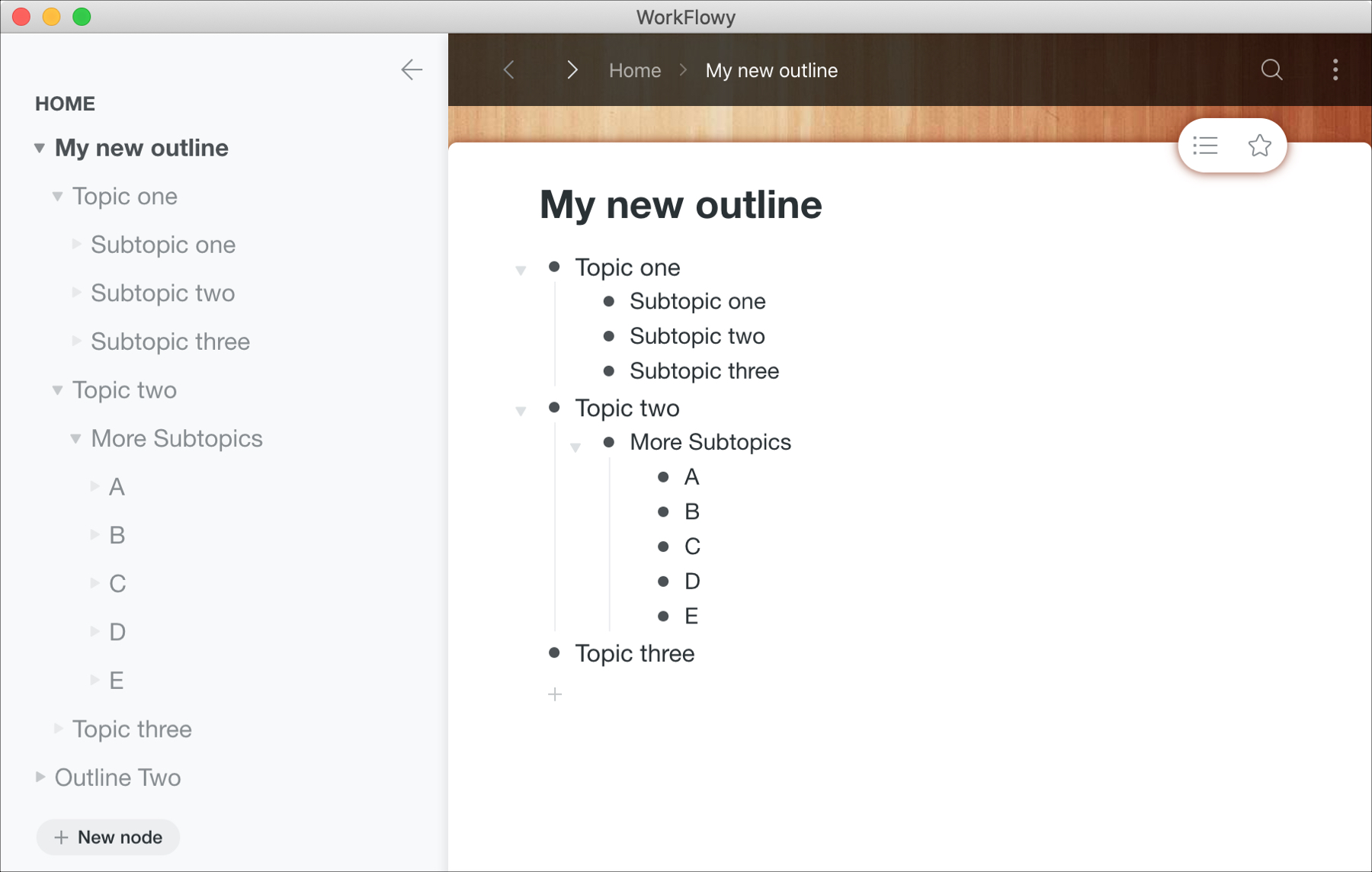
If you need to create outlines for business or for school, you can certainly use Notes or even Pages on your Mac. But setting those apps up for outlines can take a little time. So why not try a tool that’s built specifically for outlines.
The Mac App Store has some terrific apps with extensive features like OmniOutliner, TaskPaper, and Outline. They offer great features, but with a price tag.
Trying a free Mac app for creating outlines is the best first step. After all, you may find that the free app has exactly what you need, so you can save a few bucks. And if it doesn’t, you’ll know exactly which features you do need and can opt for a paid version of that free app or at least know what to look for in a different app.
Here are a few of the best free Mac outline apps to get you started.

Learn how to use the Alexa app to set alarms, reminders, and timers on your iPhone or your Amazon smart speakers, such as the Echo Dot.