Opinion

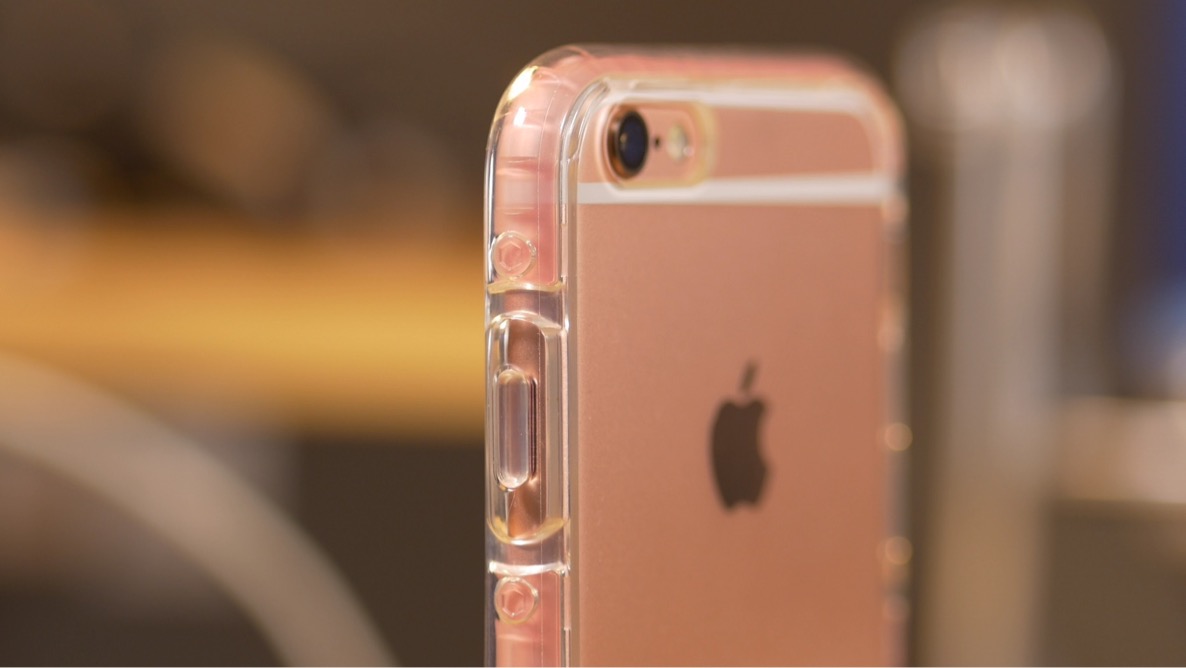
Review: Spigen Ultra Hybrid Tech case for iPhone 6s

I’ve been using the Spigen Ultra Hybrid Tech case for my iPhone 6s since the device launched. As many of you know, I’ve never been big on cases, but the dings and dents suffered on my previous generation iPhone 6 Plus convinced me that I needed to reconsider the case-less strategy.

I decided that I would try a case, but it had to be one that wasn’t overly bulky or gaudy. Thankfully, the choice was fairly easy, because the folks over at Spigen sent us a package with no less than 20 cases and accessories.

I’ve already covered some of their products in previous posts, but today I’d like to talk to you about the Ultra Hybrid Tech case for Apple's latest flagship phone. Is it any good?

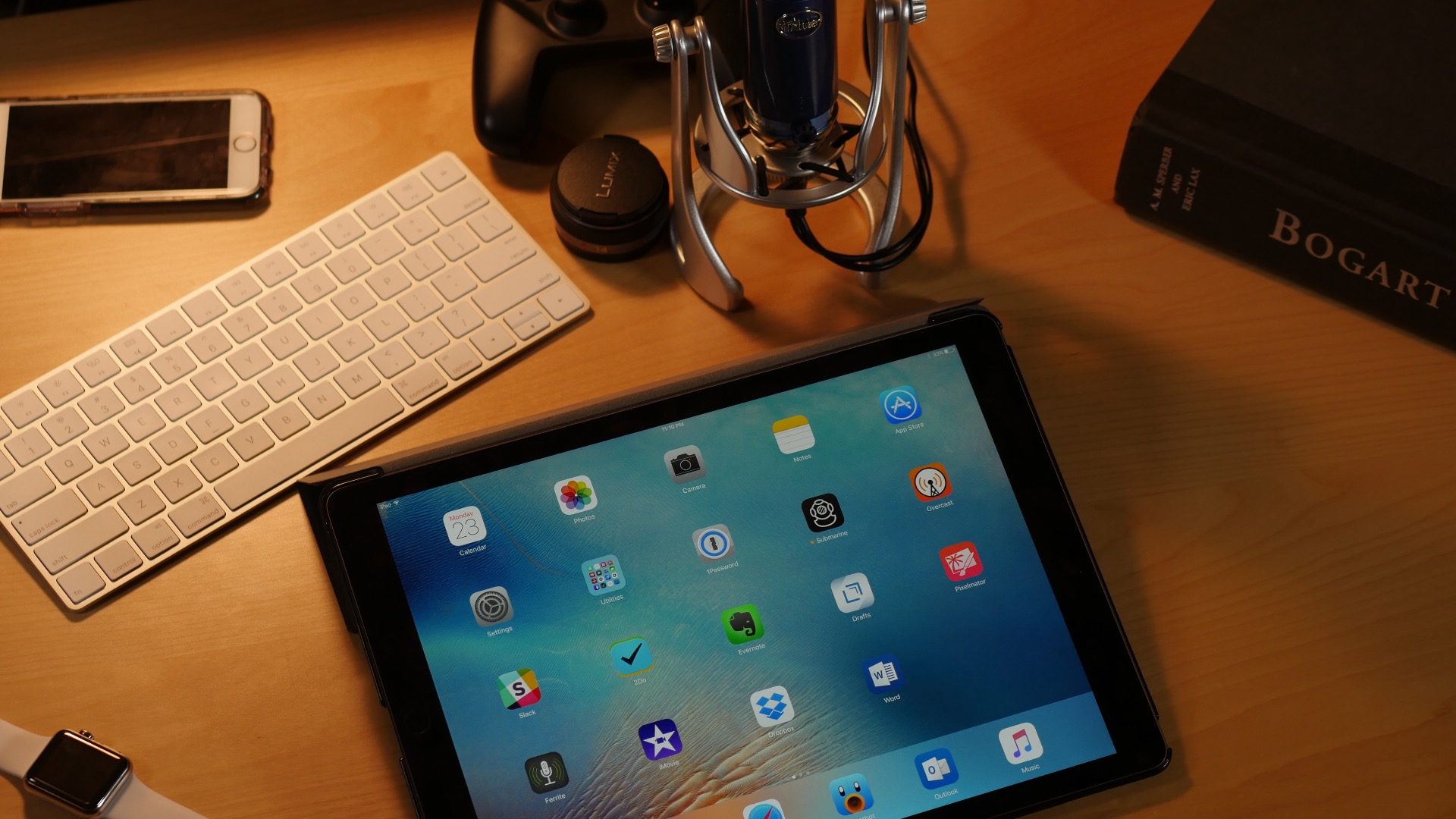
10 reasons why the iPad Pro might be a better computer than your Mac

In my review of the iPad Pro, I made sure to establish that it wasn’t necessarily a replacement for your Mac. At the same time, that doesn’t mean that it can’t replace your Mac, or that it doesn’t do some things better than a Mac can.

To be honest, the iPad Pro does quite a few things better than my MacBook Pro with Retina display. In this post, I’ll consider 10 reasons why the iPad Pro might be the better computer of the two for your workflow.

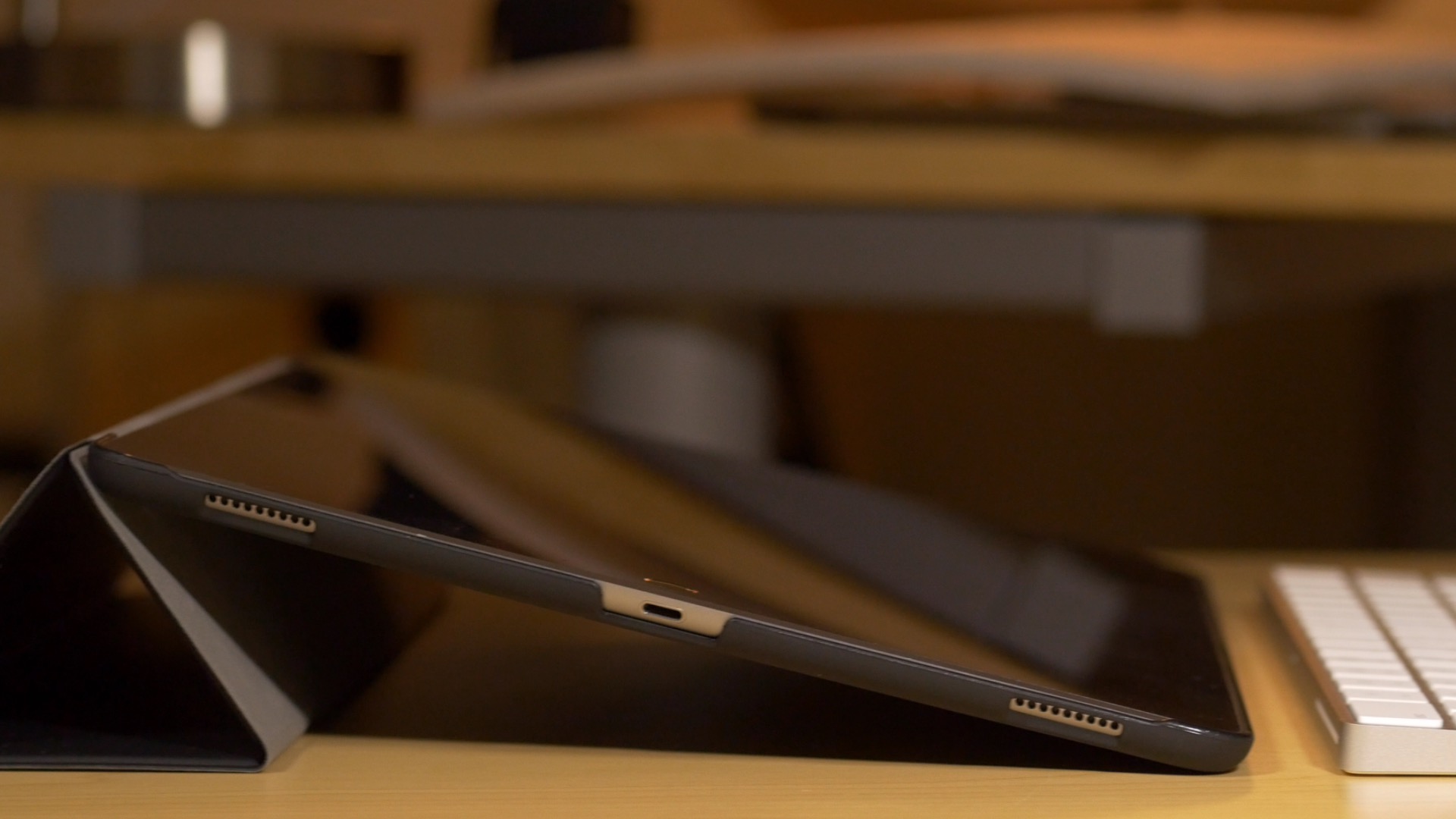
Review: the $10 iPad Pro Smart Case

Earlier today, I got my hands on the JETech Smart Case for iPad Pro. The JETech is an uber-cheap iPad Pro case offering that's currently available for purchase on Amazon.

As you're probably aware of, Apple hasn't produced an all-in-one Smart Case solution for the iPad Pro. Instead, users wanting full 360° coverage will need to opt for both a Smart Cover and a Silicone Case. That combination, while certainly premium feeling, also comes with a premium price at around $140 before tax. In contrast, I was able to pick up the JETech case for a hair under $10.

The JETech isn't perfect, but its exceptionally low price will tempt more than a few iPad Pro adopters. Of course, you do tend to get what you pay for, so should you even bother?

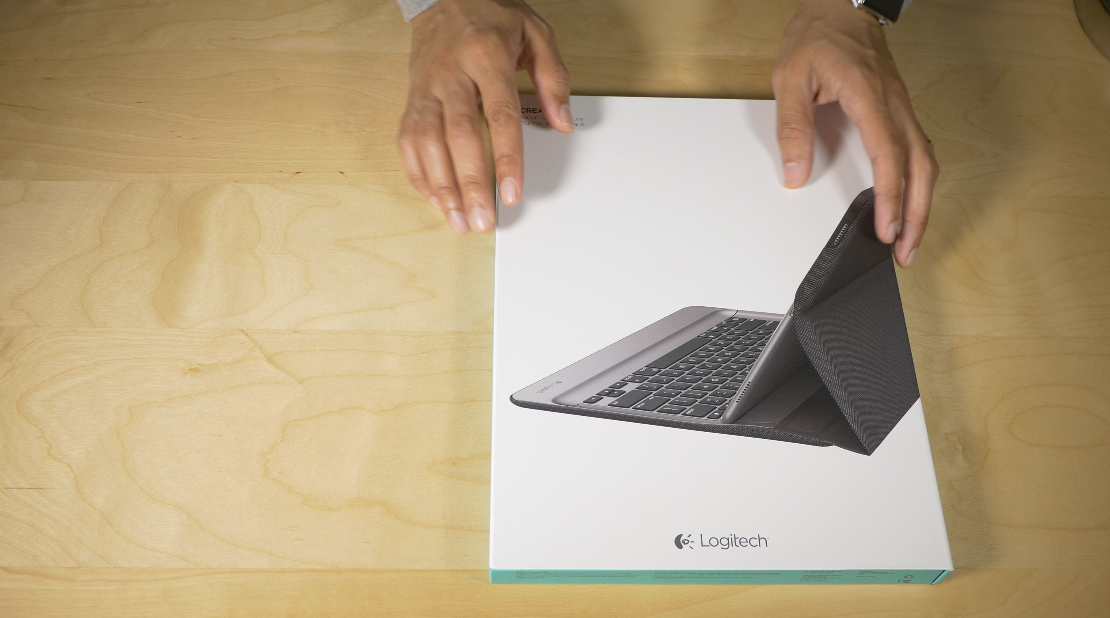
Logitech Create Backlit Keyboard Case Review: a great keyboard solution for iPad Pro owners

The Logitech Create Backlit Keyboard Case for iPad Pro is a great solution for those of you who are heavy typers.

Because this keyboard case, unlike Apple's Smart Keyboard, fully surrounds the iPad Pro when closed, it actually saves you money to go with Logitech's offering over Apple's Smart Keyboard + Silicone Case combo.

Of course, the protection elements offered by the Logitech Create are mere side points to the main questions: How does this keyboard perform for typers? Can I use the Logitech Create to type long-form content, or is it primarily suited for quick text outbursts? How does it fair when attempting to lap type? These are concerns that anyone who's interested in doing real work with the iPad Pro will have.

The Logitech Create Backlit Keyboard Case isn't without a few downsides, but for those of you primarily concerned with having a serviceable keyboard available at all times, it's a very good option that's worthy of your consideration.

iPad Pro review: not just for professionals

I never thought I’d want an iPad Pro. Out of all of the products that Apple was rumored to launch this year, the iPad Pro was at the absolute bottom of my totem pole.

That began to change somewhat after Apple’s most recent keynote, and it completely changed once I was able to actually go hands-on with the super-sized tablet at my local Apple store.

The iPad Pro isn’t for everyone, but it’s less of a specialty device than many might have expected...

iPad Pro first impressions

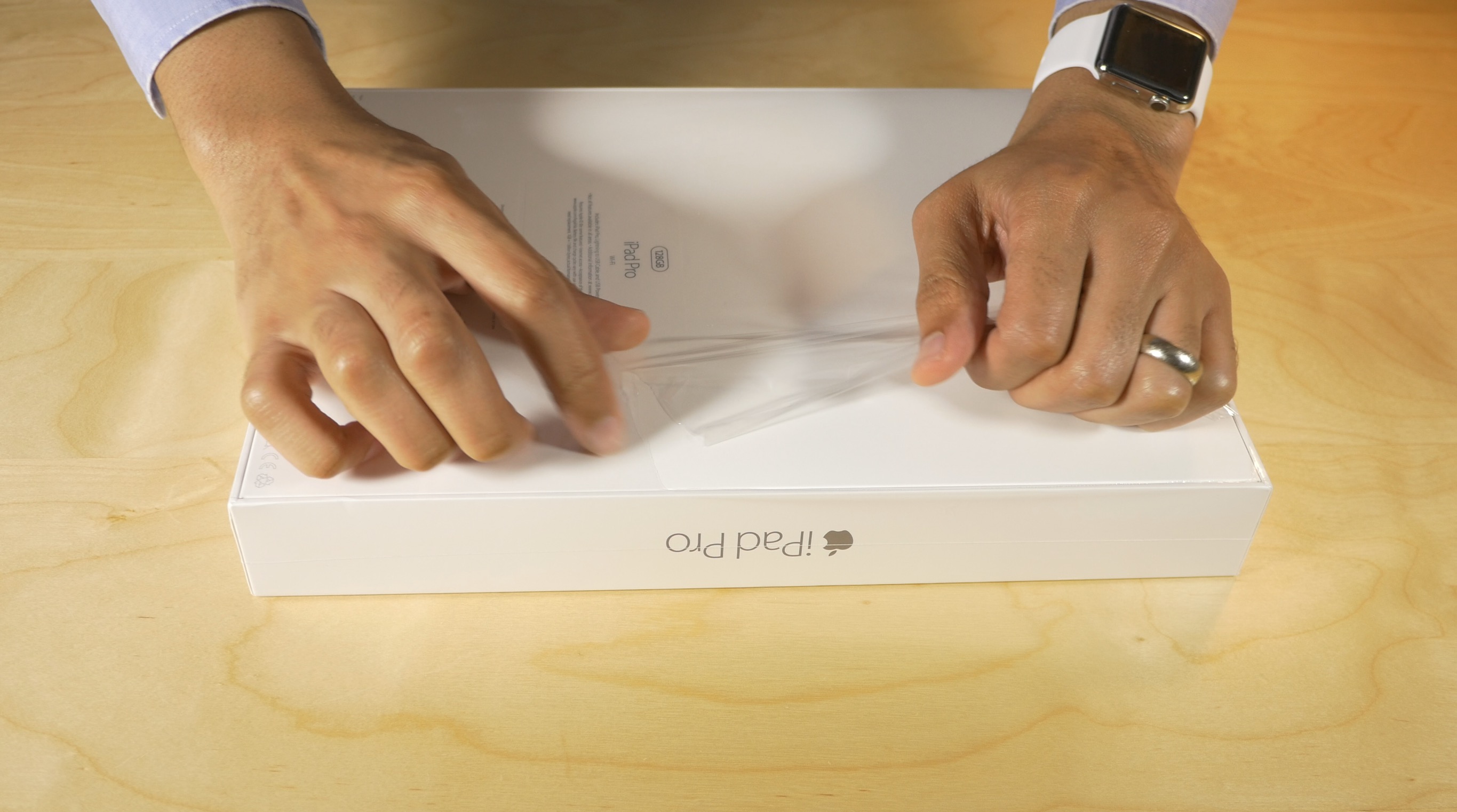
After waking up in the wee hours of the morning to find the iPad Pro on sale and available for in-store pickup, I decided to place an order for a 128GB Space Grey Wi-Fi-only model. Unfortunately, I had to wait until tonight before I was finally able to get my new iPad home and unboxed. Tomorrow, I’ll be posting some deeper impressions and a few videos that showcase the new iPad Pro, but I wanted to leave you with some of my brief first impressions before I hit the hay.

Review: Apple TV Remote Loop

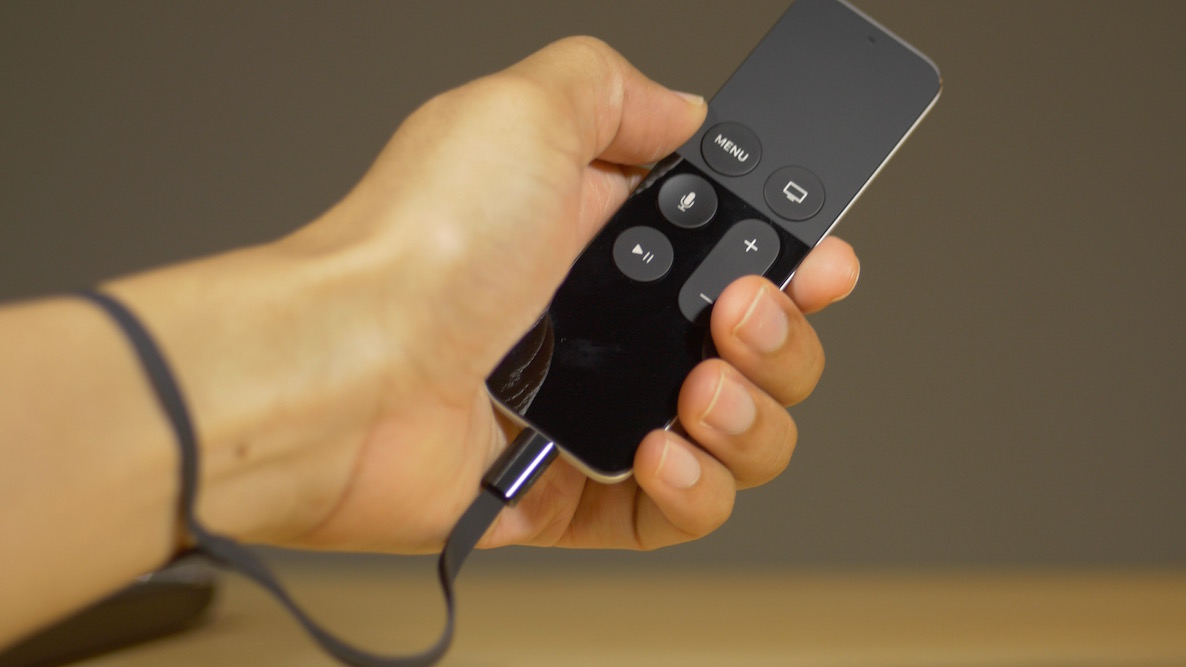
The Apple TV Remote Loop is a $12.99 accessory for the Apple TV Siri Remote, and it essentially functions as a lanyard to keep the remote securely within your grasp. This can be important when using the Siri Remote to play games, as some titles may require you to wave the remote around, sometimes aggressively, to control certain on screen elements.

But the Remote Loop is sold separately, and doesn't come bundled with the Apple TV. With this in mind, should you consider buying it? Is it a wise decision for gamers who'll be using the Siri Remote's sensors to play Wii-inspired games? Read our full review to find out the answer.

Feedbin Notifier review: the best way to get RSS notifications on Apple Watch

Feedbin Notifier is an iOS and watchOS companion app for Feedbin—my favorite feed reading service. Feedbin is a paid service at $3 a month that provides you with one of the best post-Google Reader experiences that I’ve used.

I’ve experienced a lot of feed reading services. I’ve used Feedly, Feed Wrangler, I’ve even installed a custom Fever installation on my web server. Not to throw any of those services under the bus, because they each have their strong points, but Feedbin is the best overall feed reading package available.

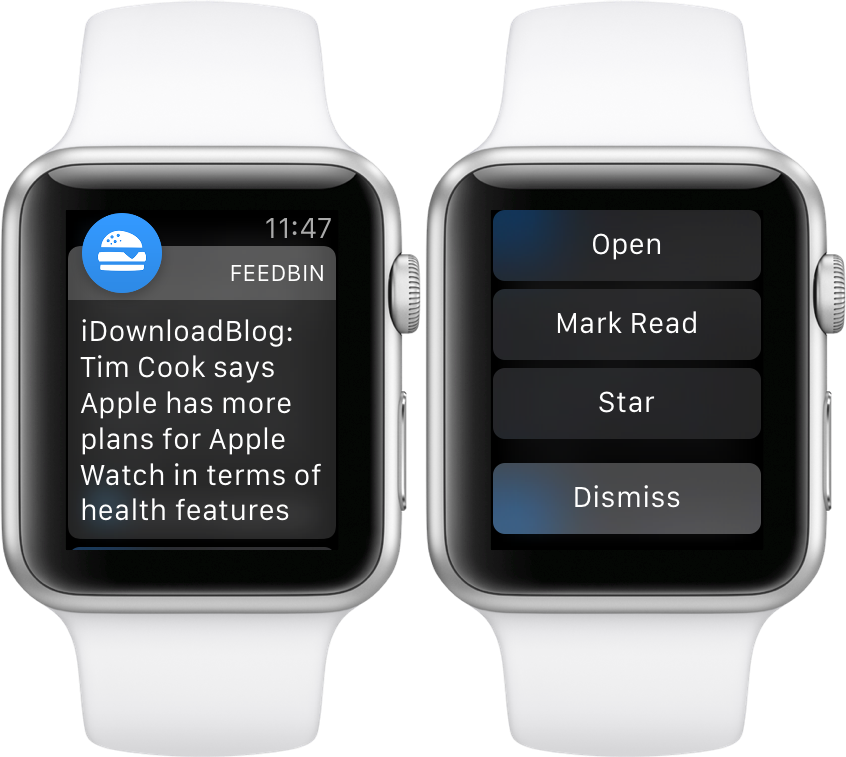
Feedbin Notifier (free on the App Store) is an app that sits on top of the Feedbin service, and notifies you whenever new articles in your feeds meet specified criteria. It sounds simple enough, but if you’ve ever tried to get reliable notifications for RSS feeds, then you likely understand that it’s not as easy to pull off as it sounds.

The thing about Feedbin Notifier, and I’m going to use an overused catchphrase here, is that it just works. If you wish to have reliable notifications for all of your favorite RSS feeds, then you owe it to yourself to try Feedbin coupled with the Feedbin Notifier app.

For the record, this isn’t a review of Feedbin as a service, although I do plan on following up with a post about Feedbin in general sometime in the future. In this post, however, I want to talk about notifications. More specifically, I want to talk about notifications on Apple Watch, and how Feedbin Notifier is now my favorite app for Apple Watch.

Apple TV review: it’s all about the potential

Potential. That's a word that you're going to hear tossed around a lot when it comes to the newly released Apple TV. It has the potential to be a great streaming device. It has the potential to be a wonderful music playing machine. It has the potential to be an awesome gaming console. It has the potential to really become your living room's nucleus for entertainment.

Is it doing any one of those things in a mind-blowing fashion currently? Not exactly. Fortunately, the Apple TV has plenty of room for growth, because it's powered by a more significant operating system called tvOS, and Apple has opened the platform up so that developers can create apps. Just like an iPhone 4s at its beginning, which shipped with iOS 5, looks nothing like an iPhone 4s running iOS 9, the Apple TV experience is bound to evolve, grow, and improve.

If you purchase an Apple TV now, you're buying into that potential. Already, the Apple TV can do more than the 3rd-generation version that it supplants. The older hardware couldn't download apps, and wasn't capable of playing games natively on device.  With the new Apple TV, you have all of that, along with much-improved hardware, a better remote that doesn't require line of sight, and limited Siri access.

At this early stage in the game, you shouldn't expect a perfect experience, but even out of the gate, it's obvious that the new Apple TV is a much better device than prior versions. Right now, it's just good, but with the proper direction, it has the potential to be the best set top box that we've seen thus far.

Opinion: The Apple Watch is a fashion device first

As many of you may know, I’m now on my second Apple Watch. I got in the game on launch day with a 42mm Space Grey Sport, and after a month or so with the device, I quickly realized that it just wasn’t for me.

Not only was the functionality not quite there with watchOS 1, it was heavily lacking in the looks department. You may not agree with me, but I think the aluminum Apple Watch Sport looks pretty bad with anything other than sweatpants or basketball shorts. Don't feel bad if that's what you have or prefer; remember, it's just one person's personal opinion.

If you’re the type that uses your Apple Watch primarily as a fitness device, then fine, I can certainly see the appeal of the Apple Watch Sport, hence its name.

For me personally, however, the Apple Watch is a fashion device first. It’s pretty good on the technical side of the fence in several areas as well, but coming to terms with this reality has made the experience of wearing this watch so much better in my eyes.

Magic Trackpad 2 review: Force Touch-enabled and rechargeable, but should you upgrade?

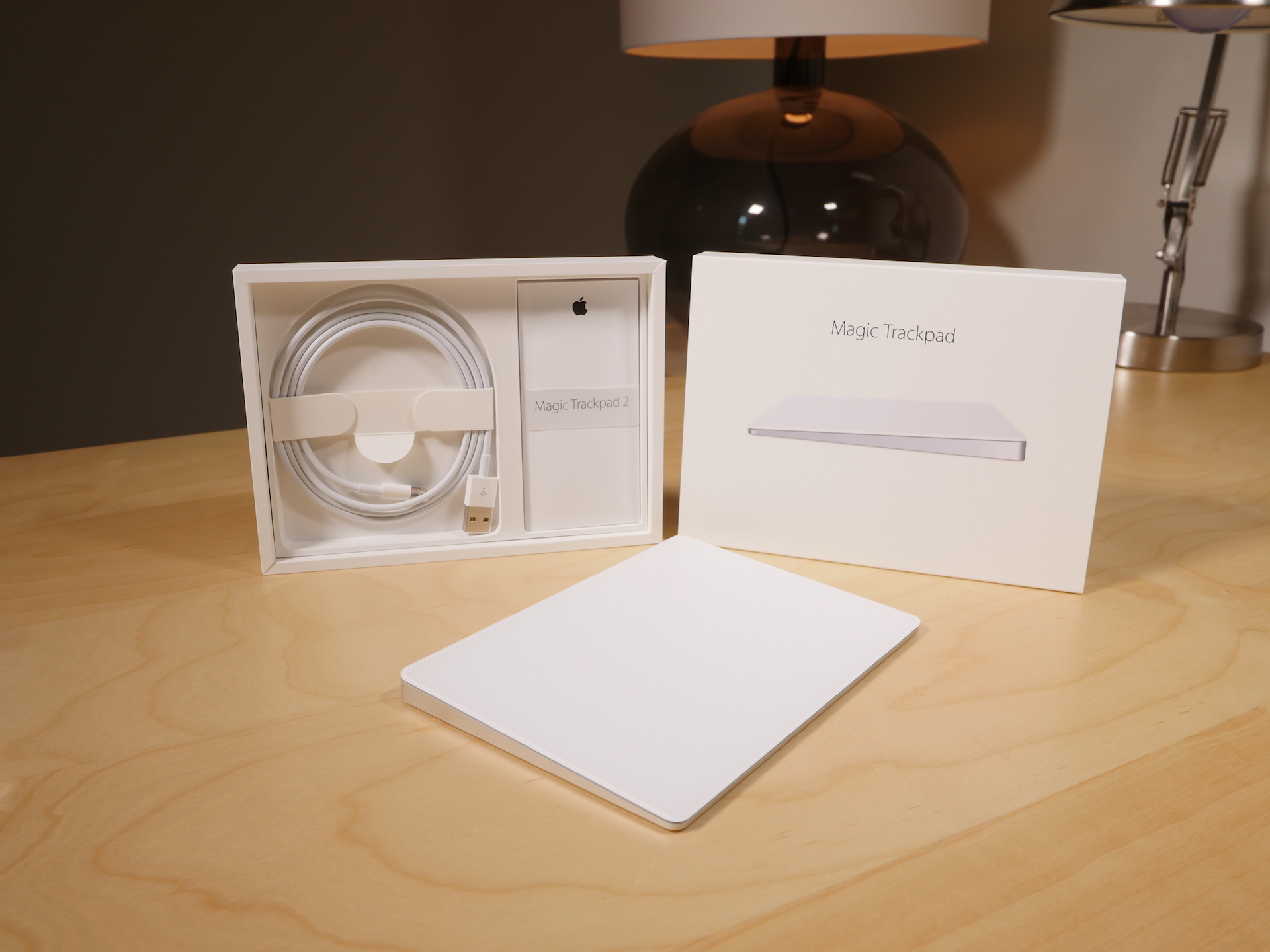
Of all of the new "Magic" devices in Apple's lineup, perhaps no device is more deserving of the moniker than the Magic Trackpad 2. It's the only device, out of the three new peripherals that Apple recently launched, that truly brings new functionality to the table.

While the Magic Mouse 2 and the Magic Keyboard are legitimate upgrades over the products they replace, the Magic Trackpad 2 is the most justifiable upgrade from a pure features standpoint, and Apple's pricing for it says as much.

At $129.00, this isn't exactly a knee-jerk purchase to be made on a whim. And if you already own the old Magic Trackpad, an impulse buy is lessened even more.

I've been testing out the new Magic Trackpad 2 for several days now, and it's taken me a while to put my thoughts down in writing. This device takes significantly more time to get to know than either the Magic Mouse 2 or the Magic Keyboard. That's because the Magic Trackpad offers the most diverse functionality of the trio.

With all of that said, is the Magic Trackpad 2 worth upgrading to if you already own the previous Magic Trackpad? Watch our video review, and read my full analysis for the details.

The Magic Mouse 2’s Lightning port location isn’t the problem it’s being made out to be

As soon as I saw the location of the Lightning port for recharging Apple's new Magic Mouse 2, I knew that a mini outrage was imminent. It took a while, but I guess everyone's Magic Mouse 2 finally arrived in the mail. Thus, let the outrage commence!

Did Apple commit a design faux pas by placing a Lightning port on the bottom of the mouse, rendering it useless while the device is charging? Is it really that big of a deal?