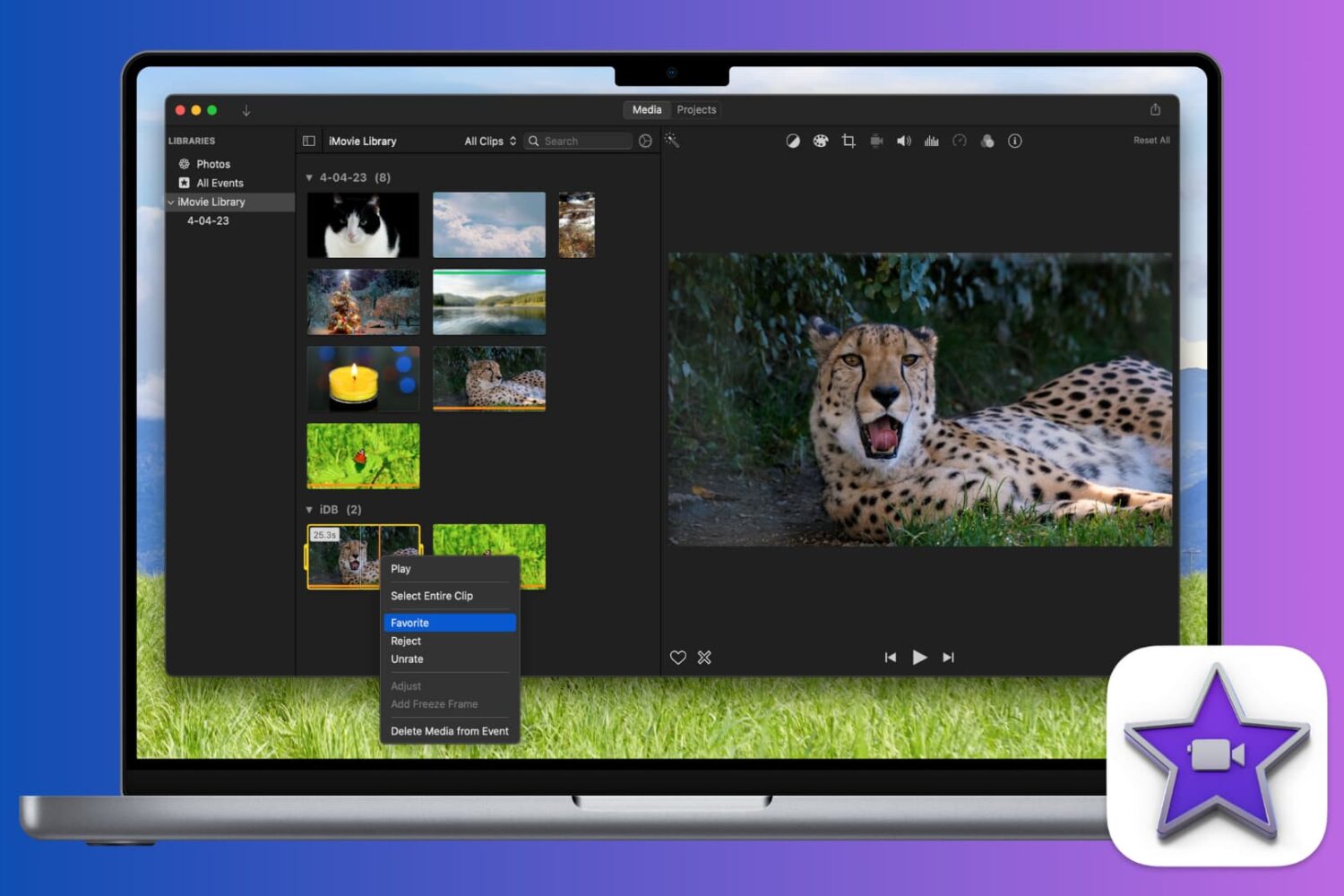
Learn how to speed up or slow down videos in iMovie on your iPhone, iPad, or Mac to highlight specific moments, create dramatic effects, or change its on-screen time.
How to change speed of a video in iMovie on Mac and iOS
Stay up-to-date on the latest Mac news, and tutorials. Get expert tips and tricks to optimize your Mac’s performance and learn about the latest Apple products and software updates. Discover the best Mac apps and accessories to enhance your user experience.
Learn how to speed up or slow down videos in iMovie on your iPhone, iPad, or Mac to highlight specific moments, create dramatic effects, or change its on-screen time.
Learn how to use the Find My app on your iPhone, iPad, and Mac to find your devices, share your location, and see other people's location -- all in one convenient spot.
Two things are happening: first, subscription services are becoming more popular. Second, people are playing more on their phones than on consoles and PC. So it was a matter of time before someone would put 2 and 2 together. Well, the time is now, my fellow gamers. Google and Apple are both getting ready to launch their respective game subscription services, Google Play Pass and Apple Arcade.
At its core, both services are similar. However, they do have some differences, other than the platform they're on. If you're like me, and you have both Android and iOS devices, you're probably wondering which one is more advantageous. Well, wonder no more, as we dive into Apple Arcade versus Google Play Pass. We'll cover each subscription service and determine which one is better suited for you.
Learn how to block specific email senders in the Apple Mail app on iPhone, iPad, and Mac to make sure you never see an email from that person or company again.
Learn how to use a freeze frame effect in iMovie to pause a scene briefly and direct the viewer's attention to something.
If you want to work with the musical notes in GarageBand for your song, you can show, add, and edit notes. In GarageBand on Mac, you can work with notes for MIDI regions, and on iOS, you can work with them for green touch instrument regions.
Here’s how to show, add, and edit musical notes in GarageBand on Mac, iPad, and iPhone.
Whether you’re ramping up for your first iPhone or upgrading to the iPhone 11, you need a simple way to make a seamless transition. You might want to migrate your data from Android, create a backup of your current iPhone for an easy move, or even erase data from a phone you’re getting rid of.
Whatever the case may be, one tool can take care of all of these tasks and more. AnyTrans is an intuitive iPhone manager that lets you transfer, back up, and manage the content on your device, all in one spot.
We have covered AnyTrans in the past for backups and transfers as well as AnyTrans for Cloud to manage files. But now, we have a brand new AnyTrans to introduce to you, AnyTrans 8. This latest version of AnyTrans gives you new features and enhancements that make managing your iPhone content easier than ever.
When you’re making music in GarageBand, you’re mixing regions and tracks to create your song. Whether you’re using vocals or instruments, not every track needs to have the same volume. You might want an instrument to play subtly in the background while emphasizing vocals, for example. Or you may want the volume of a track to increase and decrease at certain points.
Here’s how to adjust the track volume in GarageBand on Mac, iPhone, and iPad.
In this quick guide, we tell you how to get started with the incredibly useful Apple Preview app on your Mac and what you can do with it.
Learn how to showcase two clips simultaneously using the Picture in Picture effect in the iMovie video editor on your Mac, iPad, and iPhone.
We all have good memories related to Apple. That's the reason we're attached to a brand or a product. At least, that's what science says. Maybe it's the Apple Watch helping you take better care of yourself, or the first time you FaceTimed your crush. These good memories are what make you want to stay on Apple's side, no matter how many times people say the new iPhone has a kitchen stove on its back.
The tempo in GarageBand is expressed in beats per minute and is set to 120 by default. But you can change it to match the tempo you need for your song. On iOS, you can change the tempo for your song to a specific value. And on Mac, you also adjust it for the entire song or add tempo points to the Tempo Track so that the tempo changes throughout the song.
This tutorial shows you how to change the tempo for a song in GarageBand.