Save time and increase productivity by editing multiple reminders at once, including marking them as done or revising their due date.
How to edit multiple reminders at once on iPhone or iPad
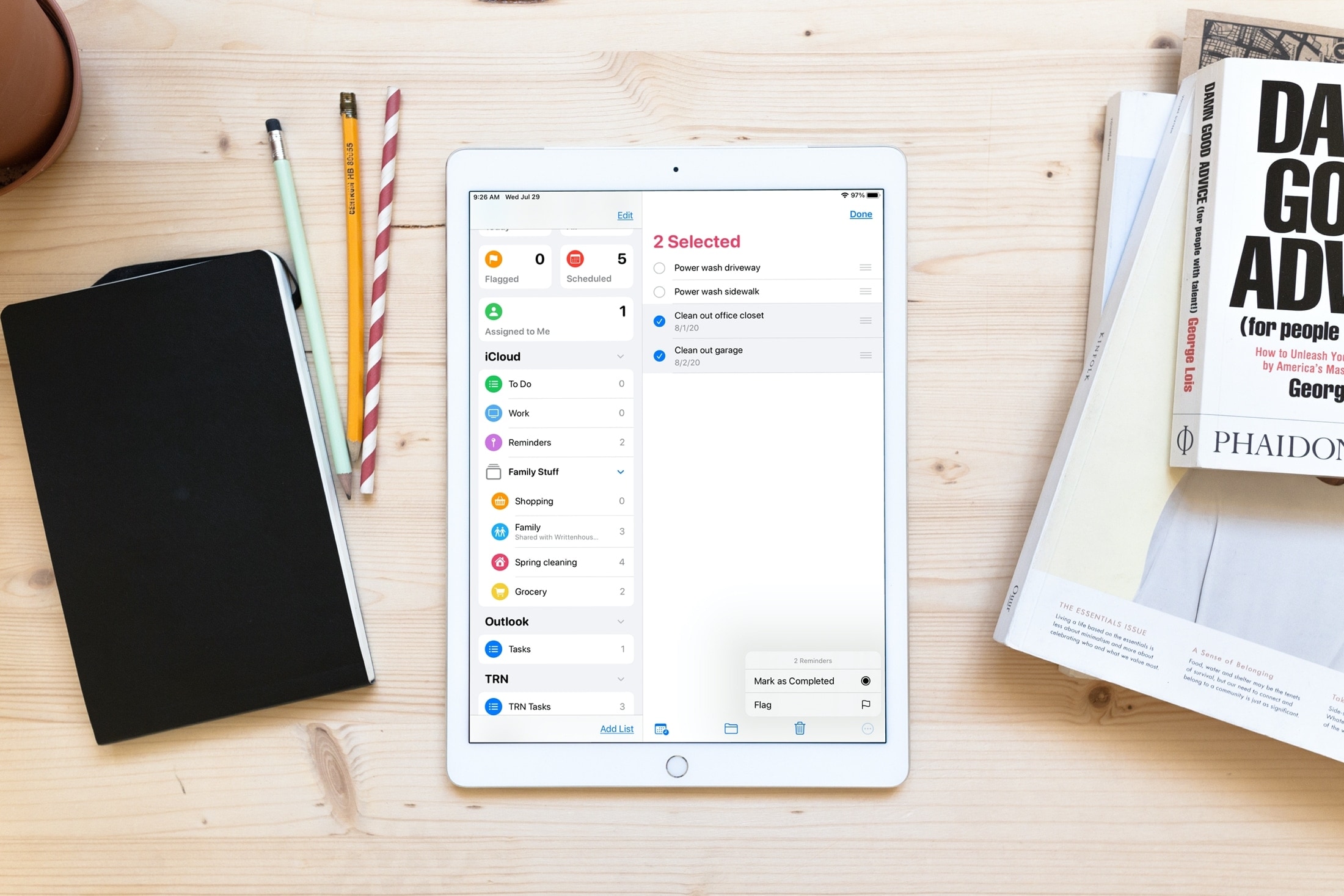
Save time and increase productivity by editing multiple reminders at once, including marking them as done or revising their due date.
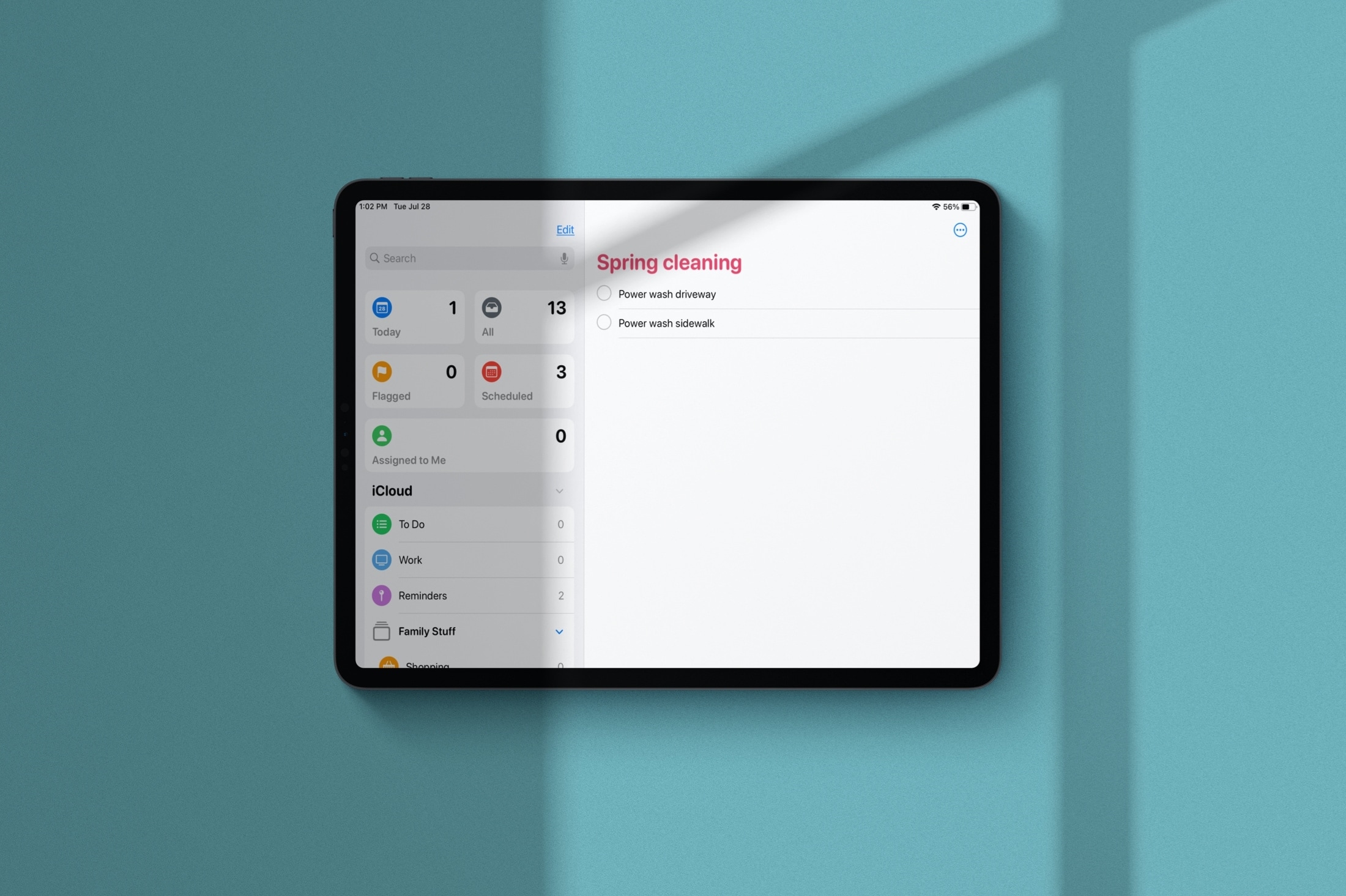
Learn how to manage Smart Lists in the Apple Reminders app and rearrange their order or hide the ones you never use.

Learn how to add, format, and customize ordered and bulleted lists in your document, spreadsheet, and presentations to improve the look and readability of your text.
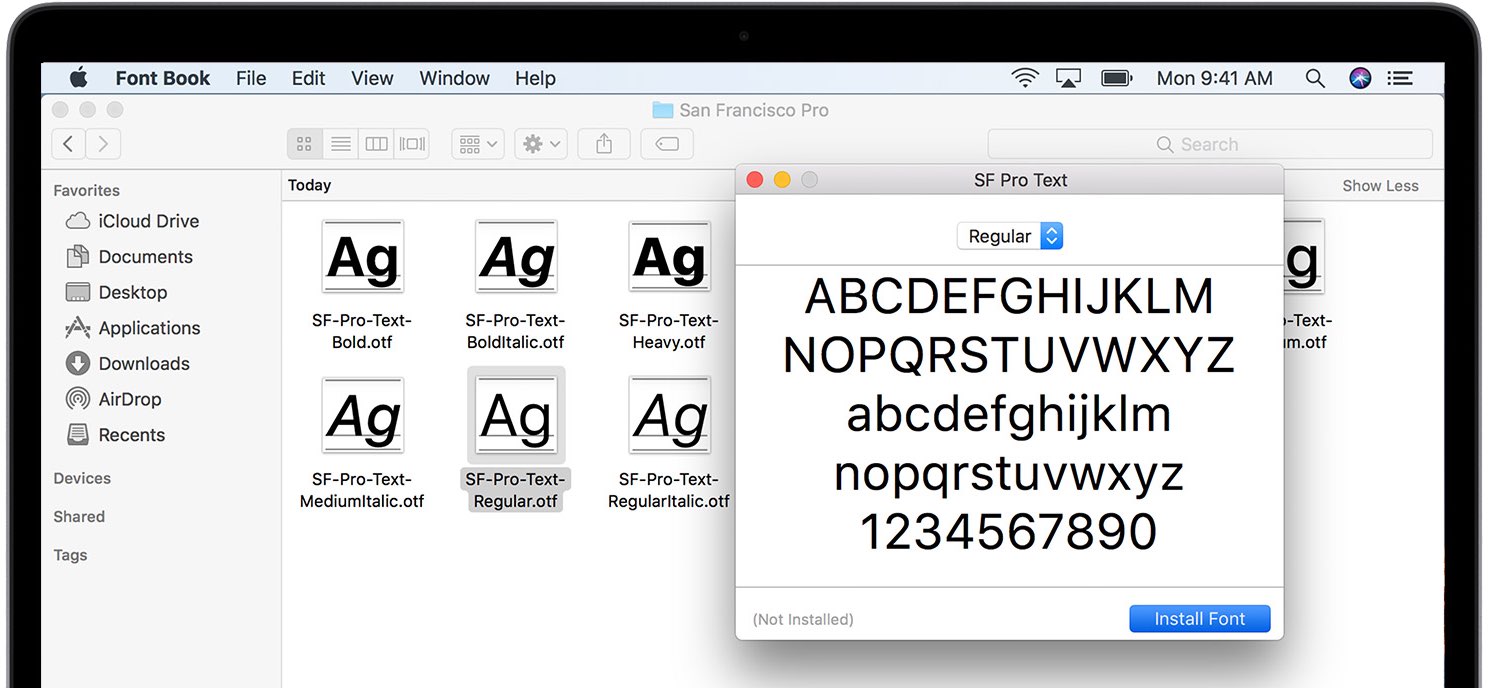
macOS Catalina packs in many licensed fonts and they're beautiful. The vast majority of fonts in Catalina are available out of the box while some must be downloaded. Here's the complete list of all the macOS Catalina fonts, including built-in and downloadable typefaces.
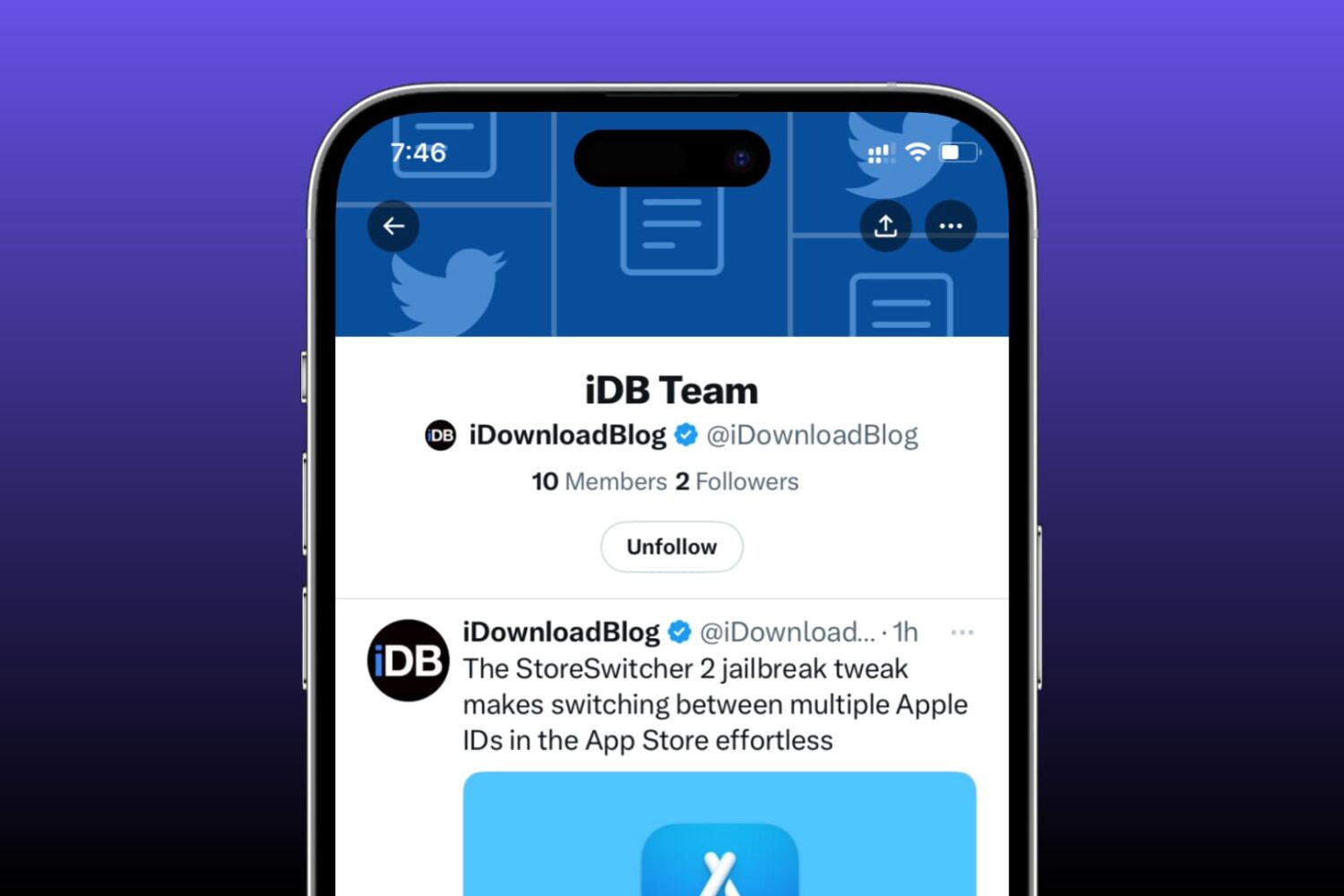
Find out what Twitter (new name X) lists you’re on and how to remove yourself from a list if you don't want to be a part of it.

If you use the Notes app on your iPhone or iPad, you probably already know that it’s a convenient app for making lists. You can make numbered or bulleted lists for shopping, to-dos, or whatever you need.
The nice thing about creating lists in Notes is that you can indent your list items. This is terrific for creating subtasks or nested lists. And while indenting list items isn’t a difficult task, we have a tip that will make it even easier.
Here’s how to quickly indent list items in Notes on iPhone and iPad.

Learn how to create Twitter lists on your iPhone, iPad, Mac, and the web to curate your favorite accounts, and stay updated with the content that matters most to you.

If you take advantage of the List feature on Twitter, then knowing how to pin your lists is quite useful. Once you pin a list, it will appear as another tab on your Twitter Home timeline. So, with a click or a tap, you can jump to that list quickly.
This tutorial shows you how to pin Twitter lists on iPhone, iPad, and Mac.

Stay on top of everything you have to do by using these best task list apps on your Mac that give you the features you need to get your to-dos done at work and home.
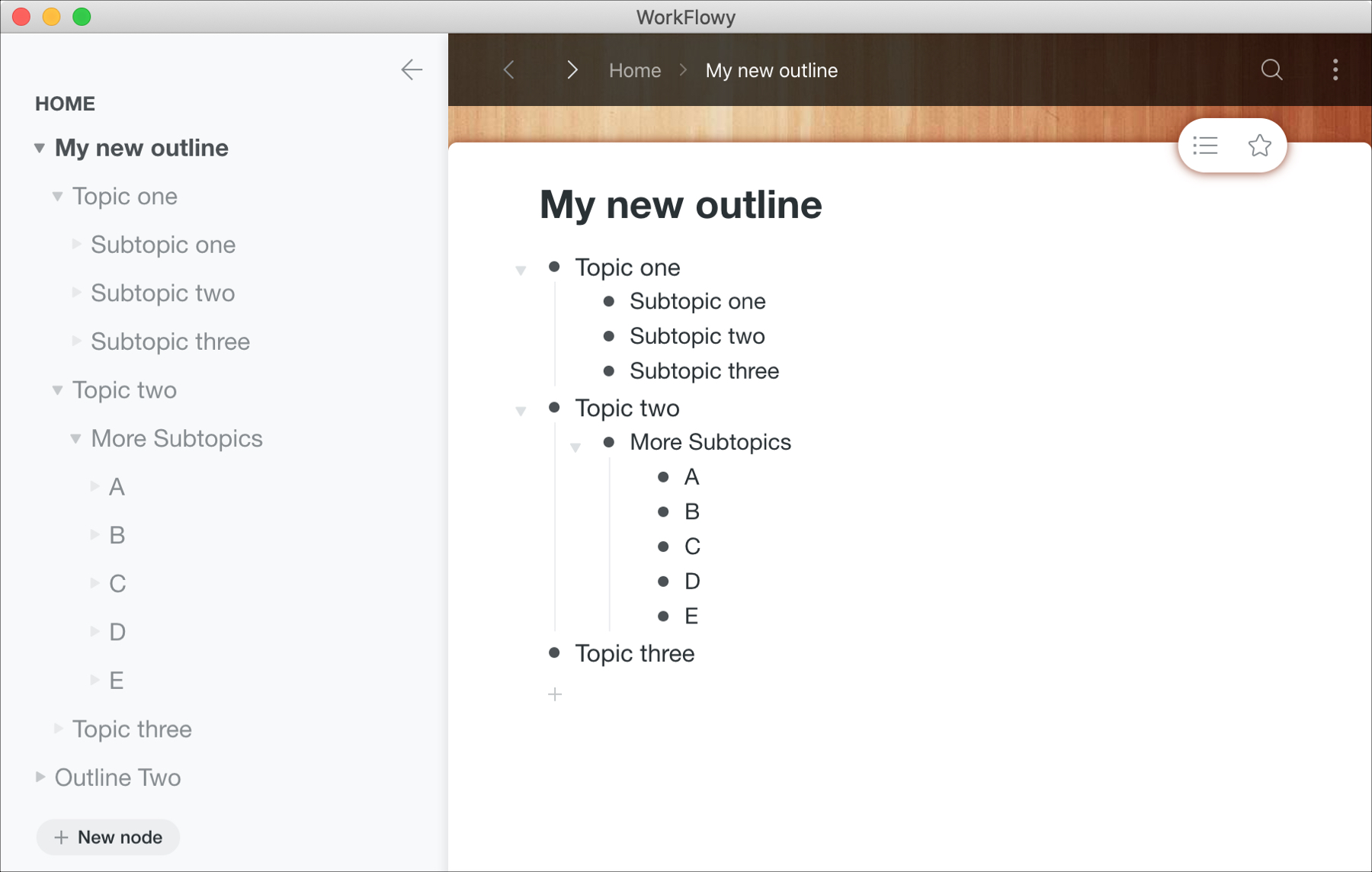
If you need to create outlines for business or for school, you can certainly use Notes or even Pages on your Mac. But setting those apps up for outlines can take a little time. So why not try a tool that’s built specifically for outlines.
The Mac App Store has some terrific apps with extensive features like OmniOutliner, TaskPaper, and Outline. They offer great features, but with a price tag.
Trying a free Mac app for creating outlines is the best first step. After all, you may find that the free app has exactly what you need, so you can save a few bucks. And if it doesn’t, you’ll know exactly which features you do need and can opt for a paid version of that free app or at least know what to look for in a different app.
Here are a few of the best free Mac outline apps to get you started.
Learn how to enhance your text documents on Mac by creating tables or lists in Apple’s TextEdit app.
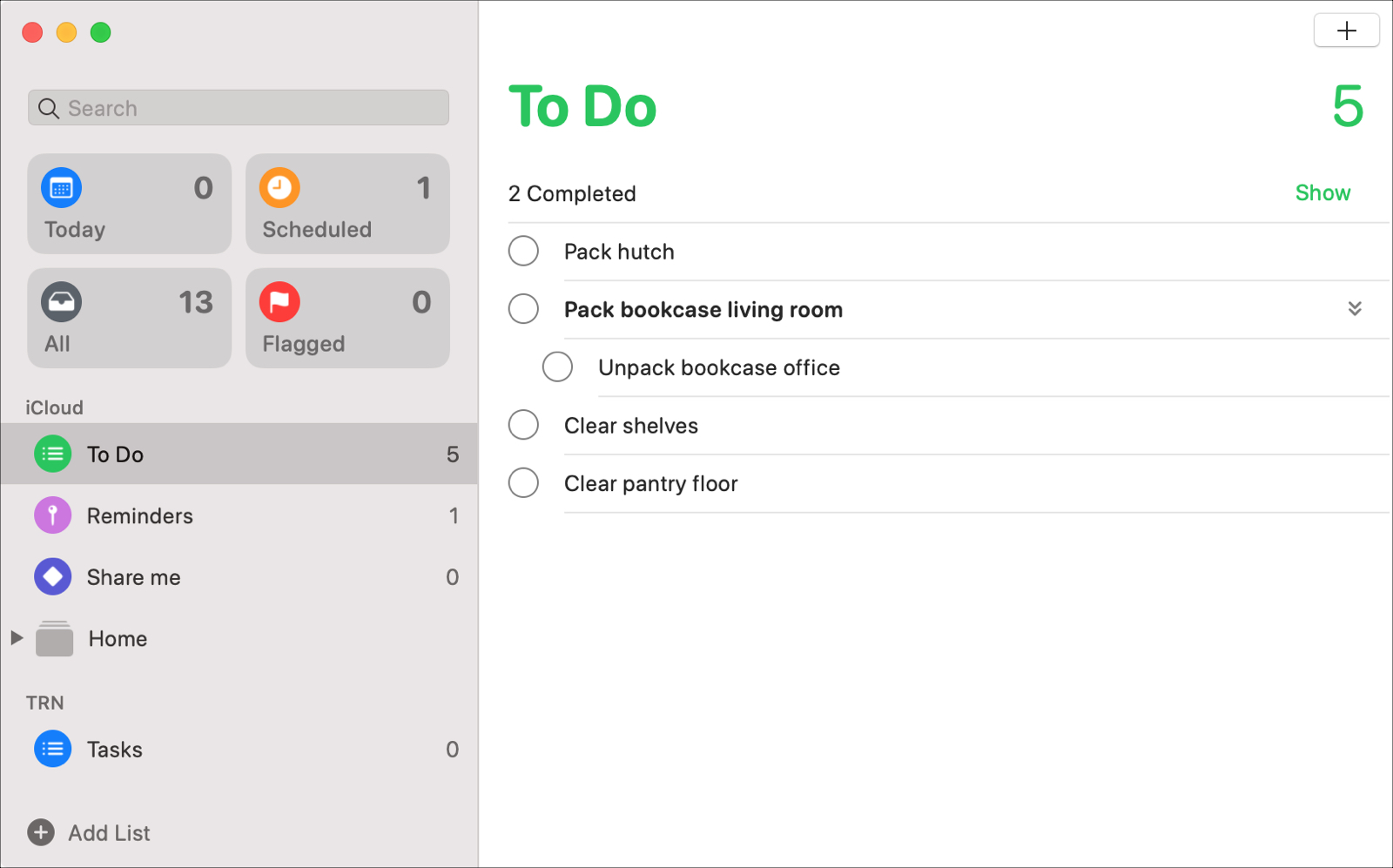
With the macOS Catalina update, users received new apps like Music, TV, and Podcasts along with updates to others like Notes and Mail. The Reminders app also got an update to its appearance and functionality that many have been waiting for.
Enhancements like subtasks and Messages integration, that can increase your productivity both at work and at home, are now part of the package.
Let’s take a look at all of the new features and how to use them in the redesigned Reminders app on Mac.