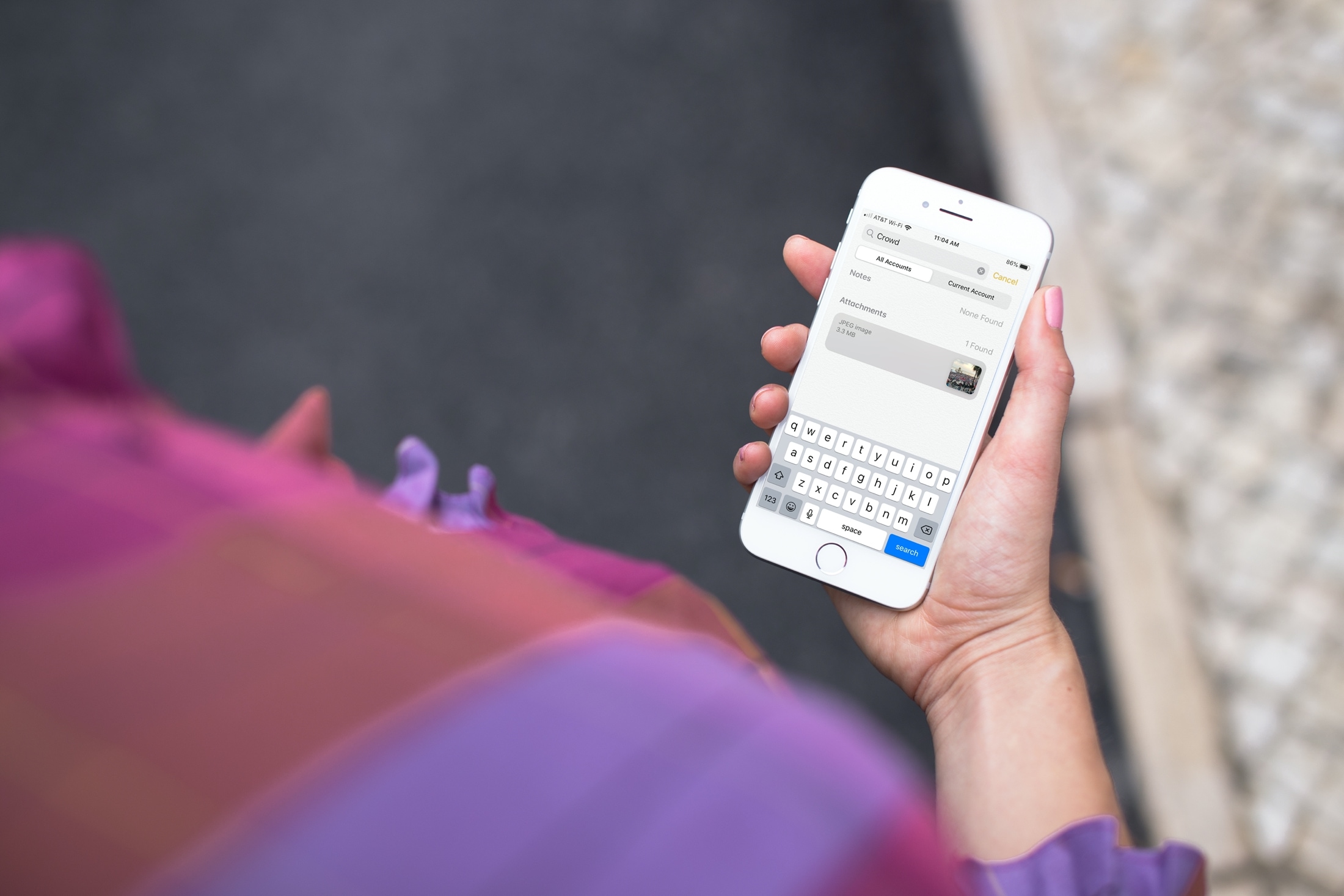
Learn how to search for images and scans in the Notes app on iPhone and iPad to quickly find a photo or a document you’ve attached to a note.
How to quickly search for images, attachments, and scans in Apple Notes
Stay up-to-date on the latest iPhone news and learn new tips and tricks with our comprehensive tutorials. From software updates to new features, we’ve got you covered.
Learn how to search for images and scans in the Notes app on iPhone and iPad to quickly find a photo or a document you’ve attached to a note.
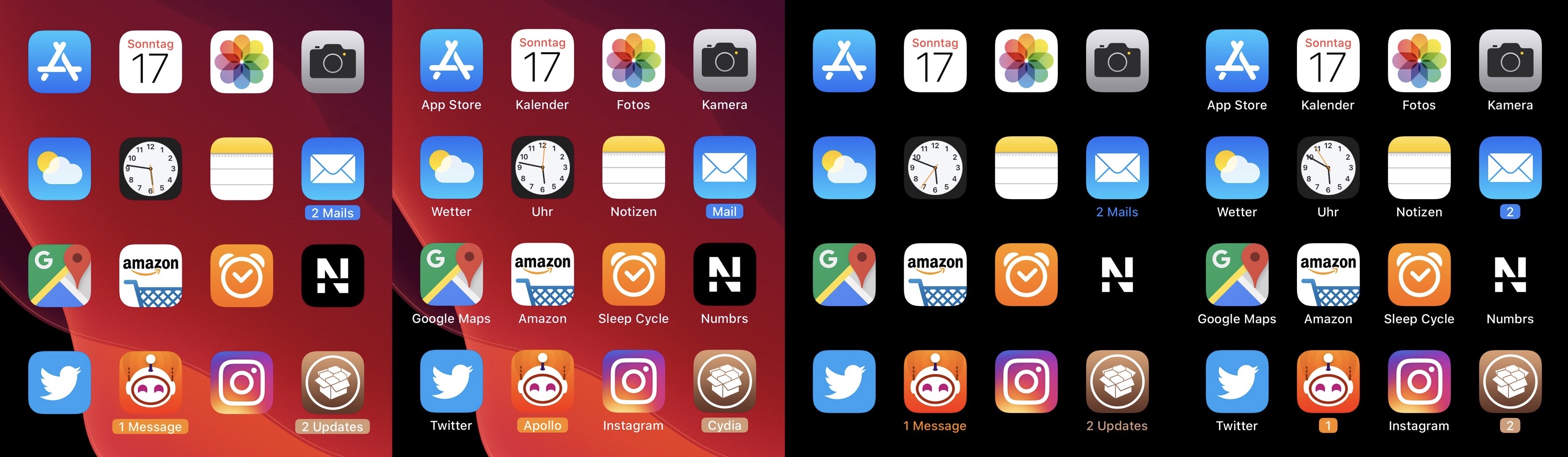
Apart from a few tiny revisions in iOS 7 and later, iOS’ notification badge system has appeared mostly unchanged since its conception. Jailbreakers seeking a fresher take on notification badges would do good to check out a newly released jailbreak tweak called CozyBadges by iOS developer NoisyFlake.
As depicted in the multitude of screenshot examples above, CozyBadges replaces the traditional red circular notification badge with something much more subtle — an updated icon label that appears highlighted or colorized when there are missed notifications. Moreover, the label can be configured to display alternative text, assuming the user wants this.
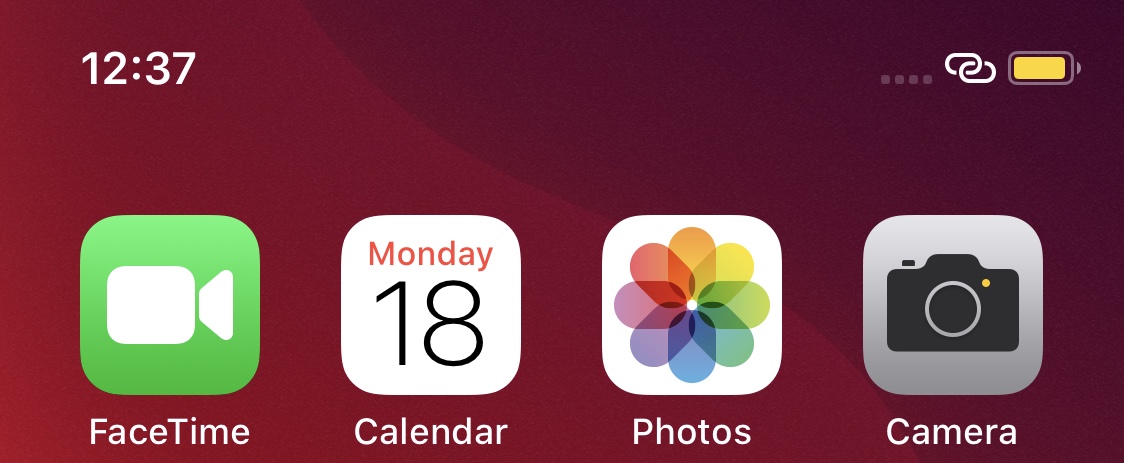
Your handset’s Status Bar displays pertinent information about current events, including the time, battery percentage, internet connection source, VPN connection, and even the date if you happen to be using using an iPad. But it also displays various icons and indicators depending on what your device is doing, such as location usage, personal hotspot usage, web loading activity, and more.
Those who’d like a greater command over what appears in the Status Bar may want to try using a jailbreak tweak called HideStatusBarItemsPro by iOS developer Chashmeet Singh. Just as the name denotes, this add-on lets users choose what does and doesn’t appear in their pwned handset’s Status Bar.

Find out which songs you played recently on Apple Music on iPhone, iPad, or Mac, to listen to them again or delete them from your history.

When was the last time you played a racing game? Because it's been a while since the last time I played one. That's why I was actually looking forward to checking out Speed Demons, a new racing developed by Radiangames.
Speed Demons looks like it has potential. A lot of cars, different game modes for people than don't like regular racing games and a ton of things to collect. On paper, it may seem like a great game. But we need to take this game for a test drive in today's Arcade review.
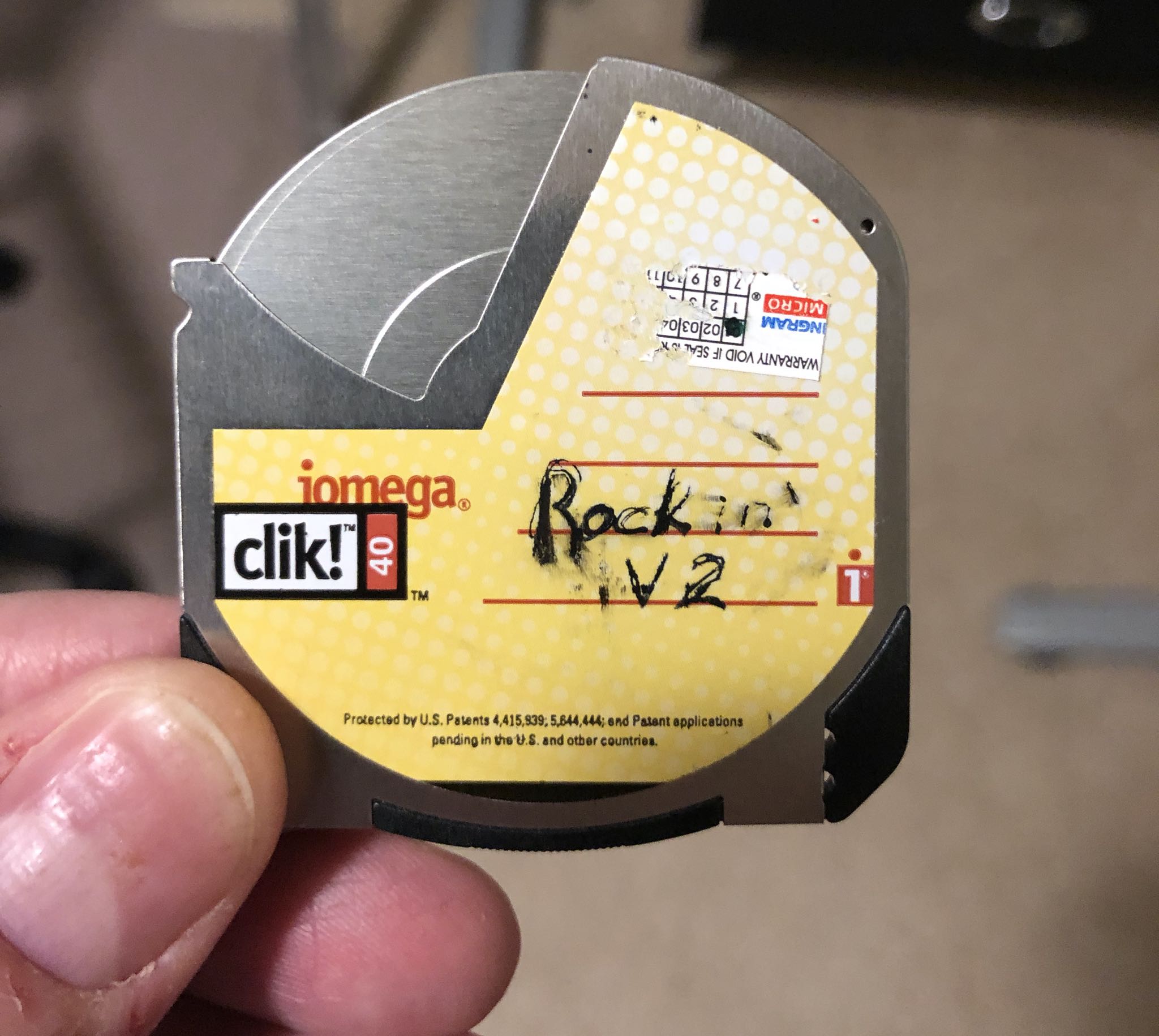
iDownloadBlog reader Niles Mitchell is back with another cool video in his excellent "Will It Work” series, showing an iPhone successfully interfacing with a Clik! drive from Iomega.
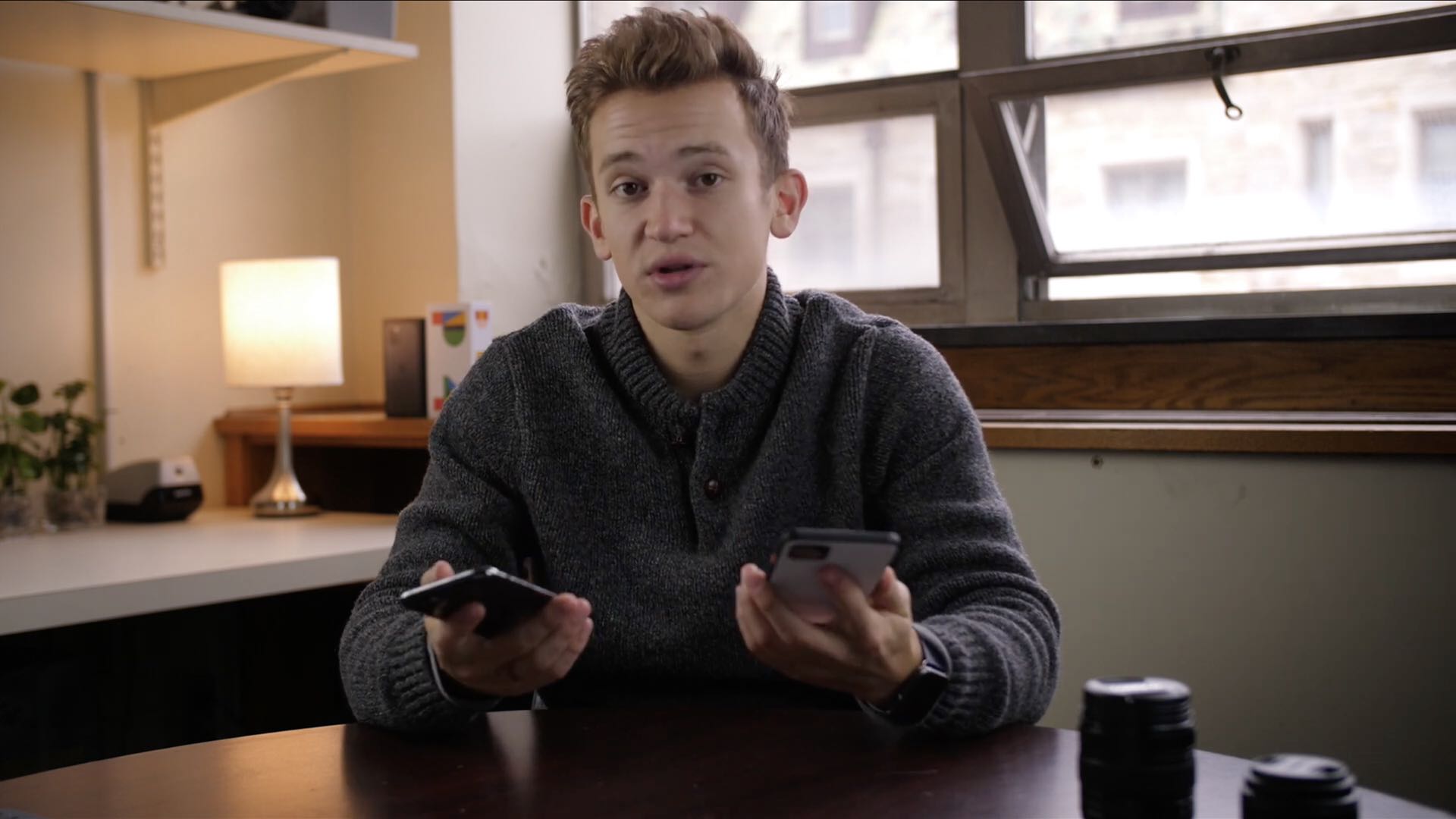
iDownloadBlog's video editor Harris Craycraft has been playing with his Pixel 4 XL smartphone for a while now. We thought you might be interested to hear about some curious impressions of the latest Google device from the perspective of this particular iPhone 11 Pro user.
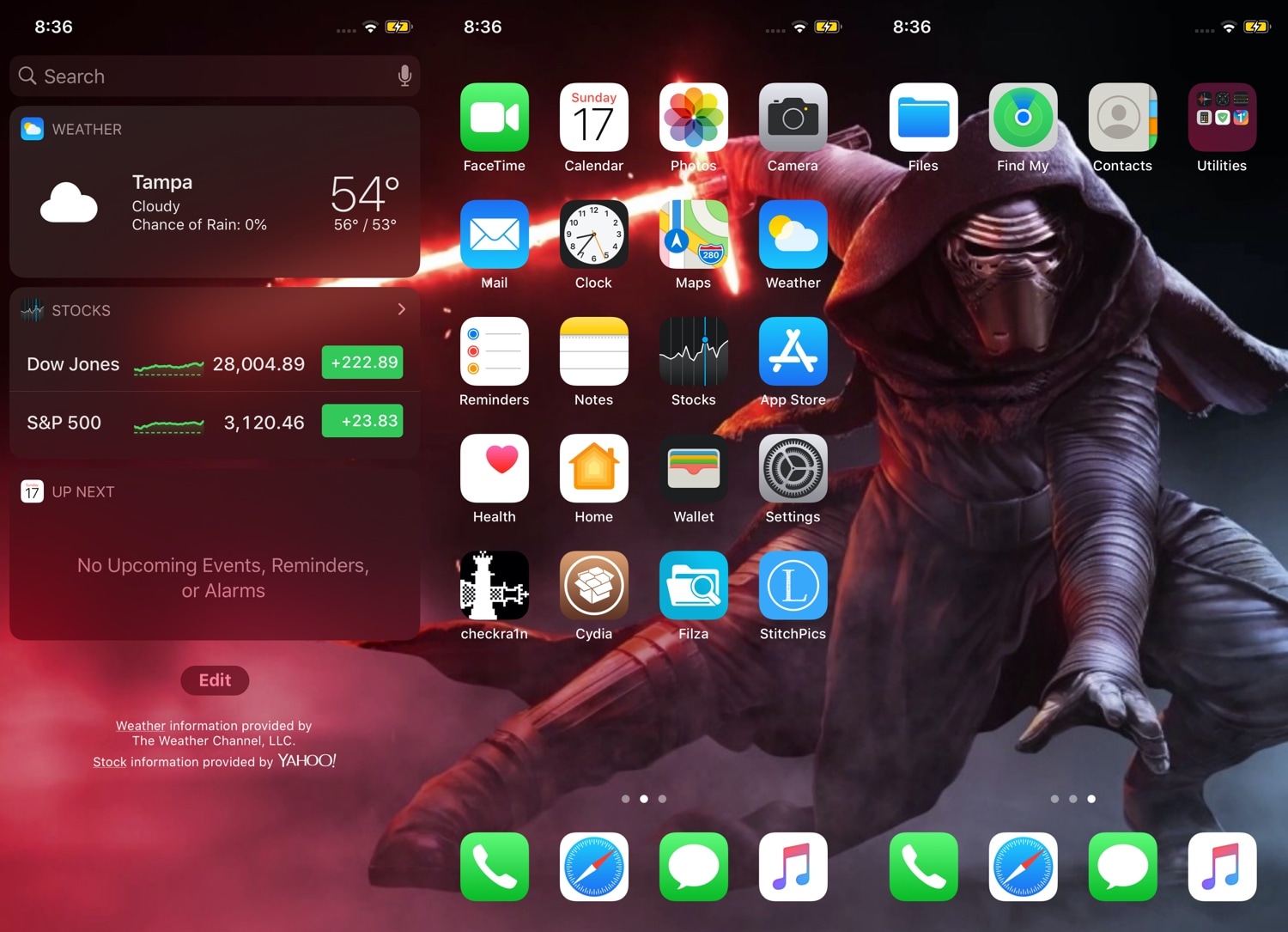
If you’re anything like me and you change your wallpaper somewhat frequently, then you might've noticed how some of the best wallpapers are optimized for horizontally-oriented displays such as laptops and tablets rather than vertical ones found in smartphones.
Applying these types of wallpapers on your iPhone generally results in an unpleasant viewing experience, but with the help of a newly released jailbreak tweak called Continuity by iOS developer Johnny Waity, you can make even the widest of wallpapers look fascinating on your tall smartphone display.
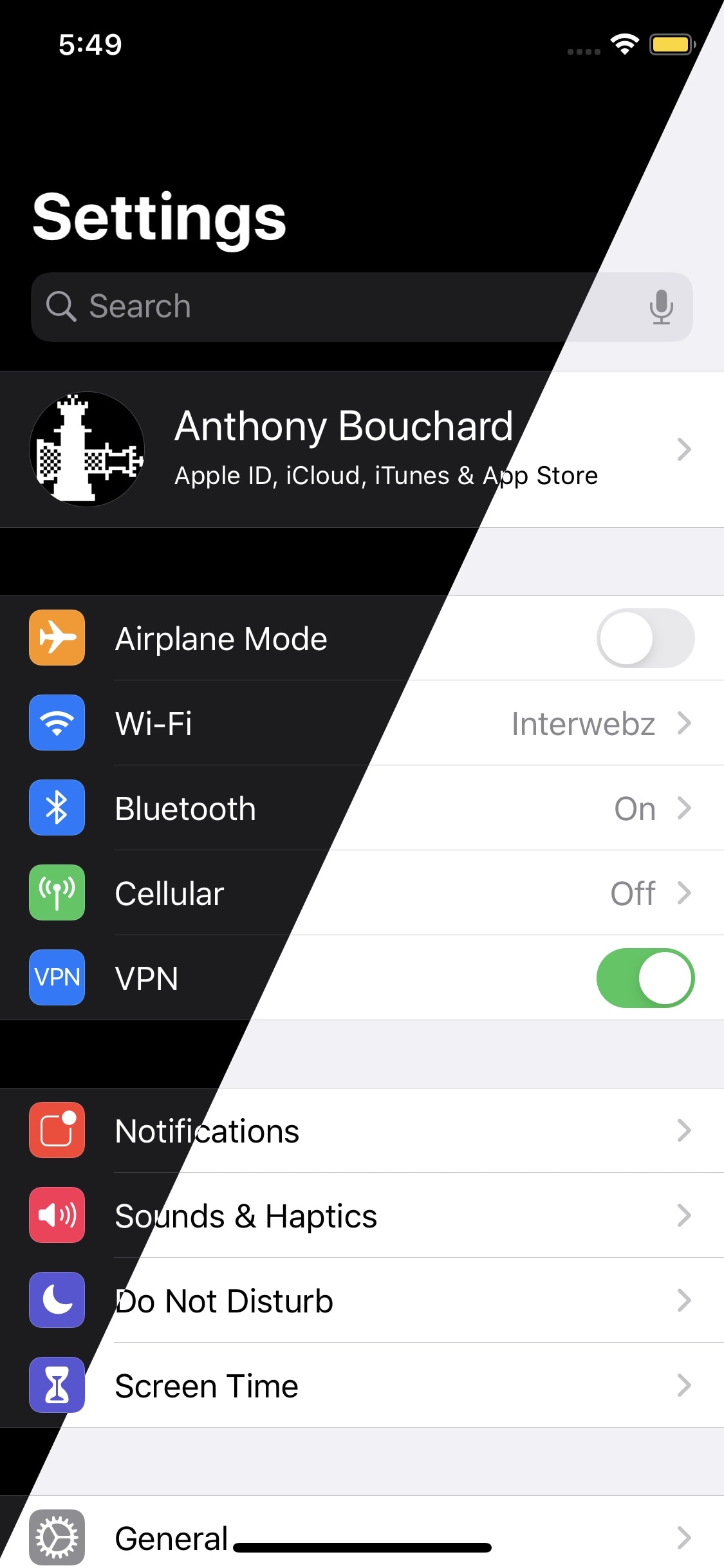
Dark mode is one of my favorite new features in iOS 13, but Apple doesn’t give you too many options as far as switching between dark and light mode is concerned apart from doing so manually and automatically based on the time of day it is.
An iOS developer by the name of Smokin1337 recognized that this as something that could be improved, and with that in mind, a new and free jailbreak tweak called AdaptiveDarkMode was conceived.
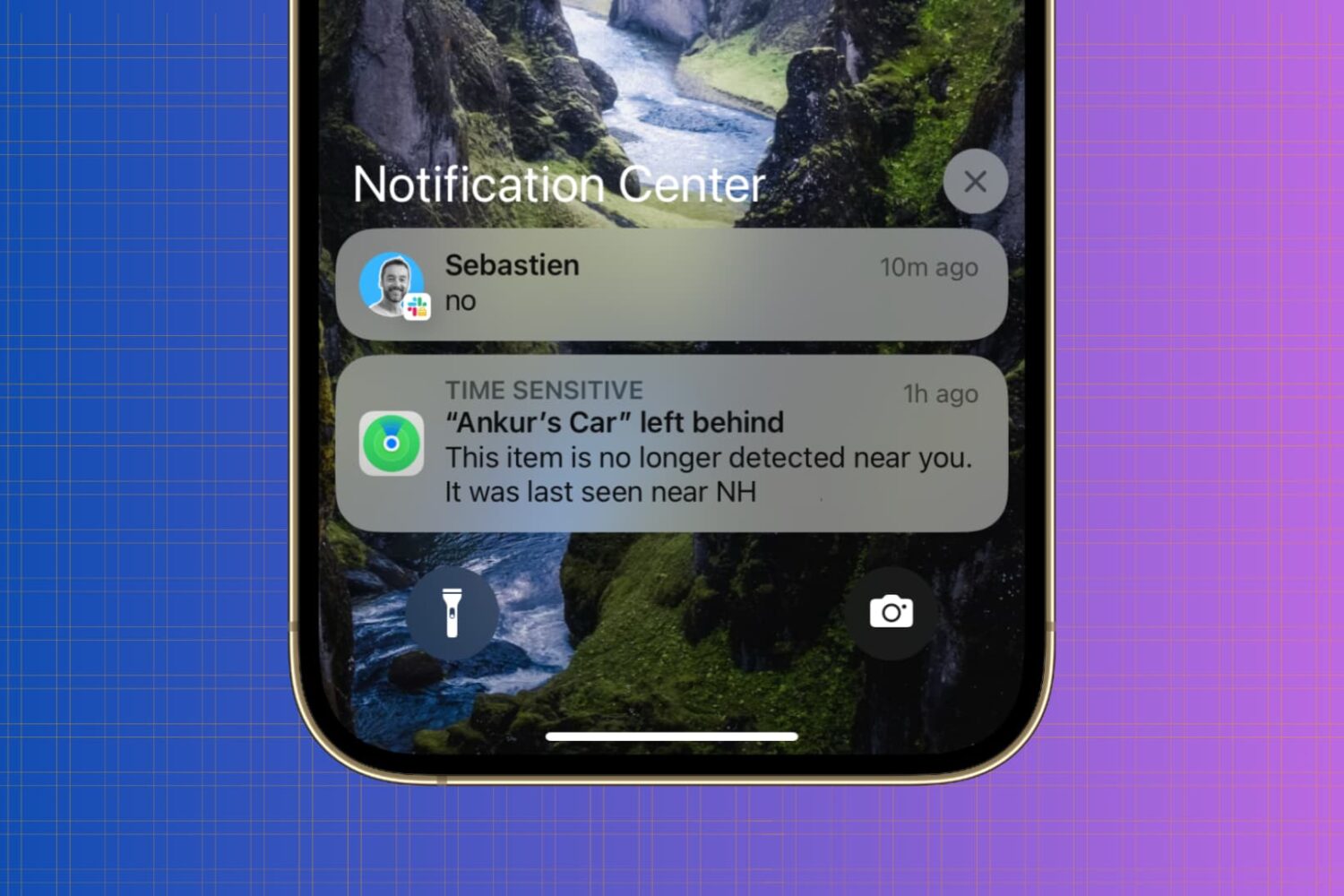
Whether you’re looking to silence unnecessary alerts during meetings, prioritize important messages, or simply declutter your Lock Screen, maintaining a healthy balance between staying informed and avoiding notification overload is essential.
In this article, we’ll go over all iPhone notification settings and provide a comprehensive guide on how to adjust them to best suit your needs.
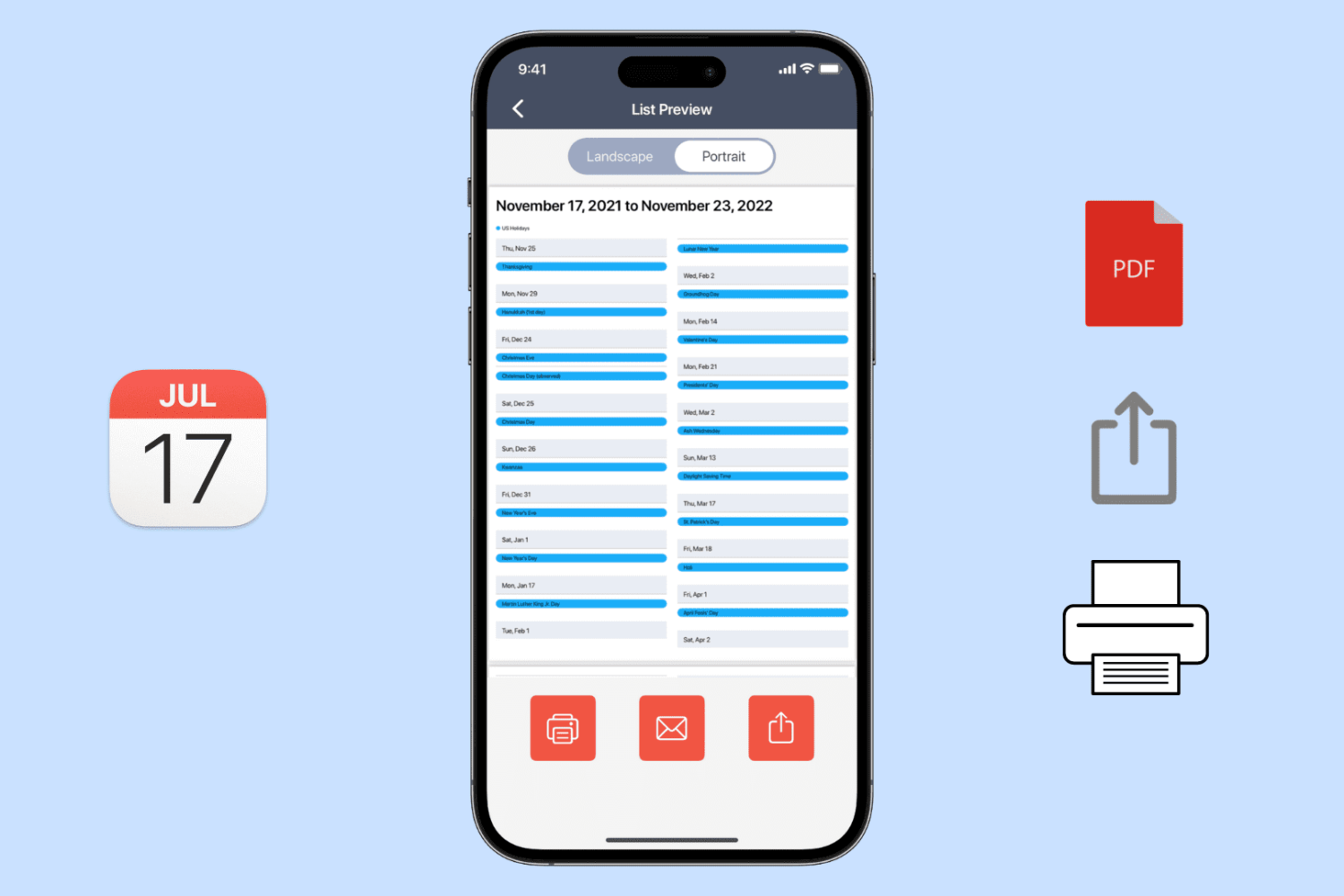
Learn how to export, save, and share your calendar events as a PDF on your iPhone, iPad, or Mac, or print them to get a physical copy.