iOS 11

Here are some of new emoji coming to iPhone, iPad, Mac and Apple Watch later this year

Celebrating World Emoji Day on July 17, Apple on Monday previewed some of the new emoji coming to iPhone, iPad, iPod touch, Mac and Apple Watch later this year.

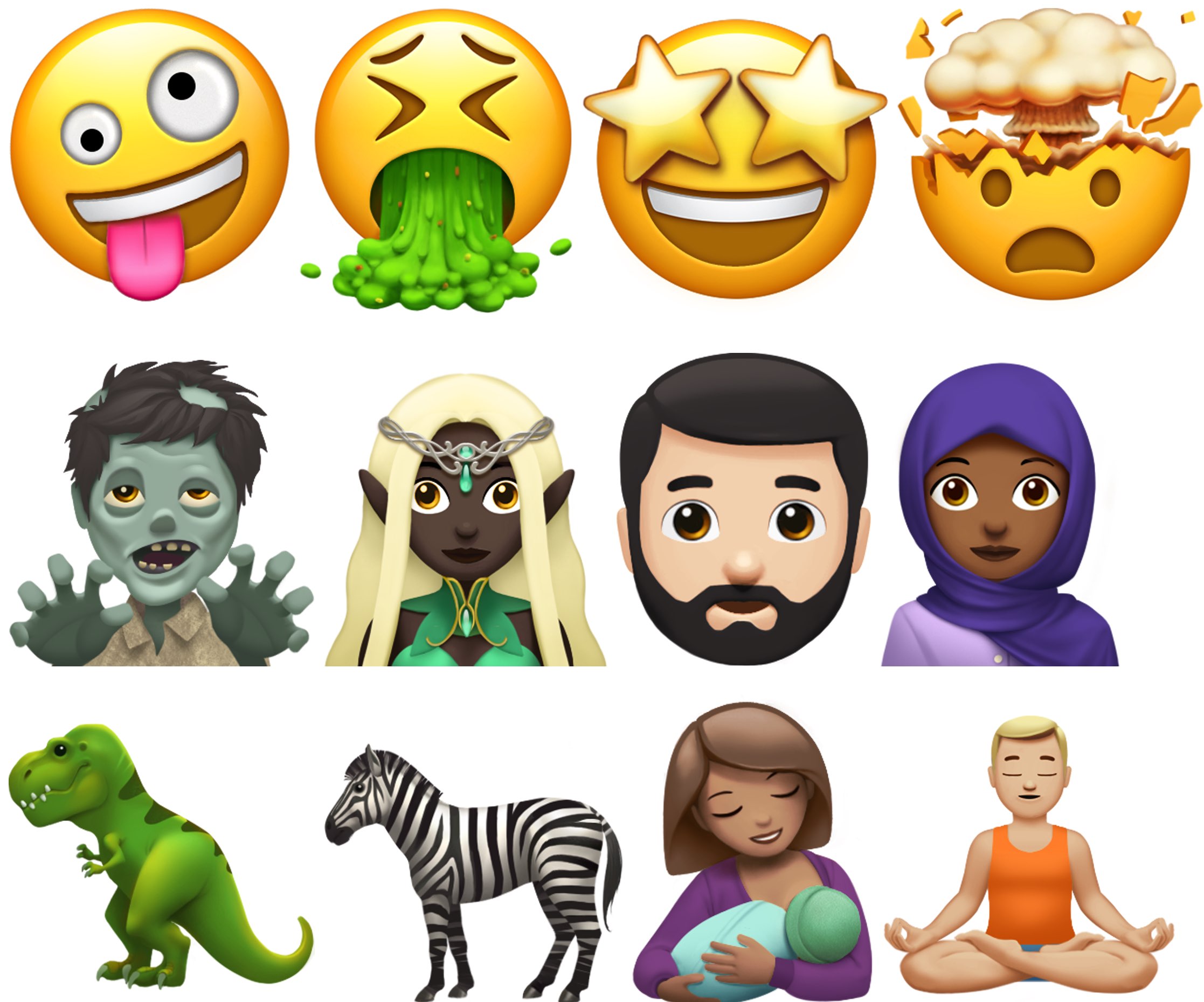
They include a woman with a headscarf, a bearded person and breastfeeding, as well as various new food items such as sandwich and coconut.

“More animals and mythical creatures like T-Rex, zebra, zombie and Elf are a fun way to describe situations and new star-struck and exploding head smiley faces make any message more fun,” said Apple.

The aforementioned emoji are coming to iOS, macOS and watchOS later this year as part of the 56 new emoji recently unveiled by the Unicode Consortium.

Emojipedia provides the complete list of new Unicode 10 emoji.

https://www.youtube.com/watch?v=9hIJLOgdSZo

Emoji on iPhone, iPad, Mac, Apple Watch and Apple TV are part of the Apple Color Emoji font.

Also in celebration of World Emoji Day, App Store will be highlighting apps to create or do fun things with emoji. iTunes Movies is already featuring emoji in place of select movie titles. The new emoji should be delivered via point updates to iOS 11, macOS High Sierra and watchOS 4.

GIFRoll brings animated GIF support to iOS 10

One of the critical shortcomings of iOS is how the Photos app doesn’t display animated GIFs as they’re meant to be seen. Instead, opening one reveals a still image, which is a single frame of the animated GIF you’re trying to view.

Users have requested animated GIF support for years, but Apple waited until iOS 11 (Fall of 2017) to finally implement it. On the other hand, if you plan on keeping your jailbreak after the release of iOS 11 this Fall, you can use a new free tweak called GIFRoll by iOS developer isklikas to enable animated GIF support in the Photos app ahead of time.

Augmented reality is the future of home decor shopping

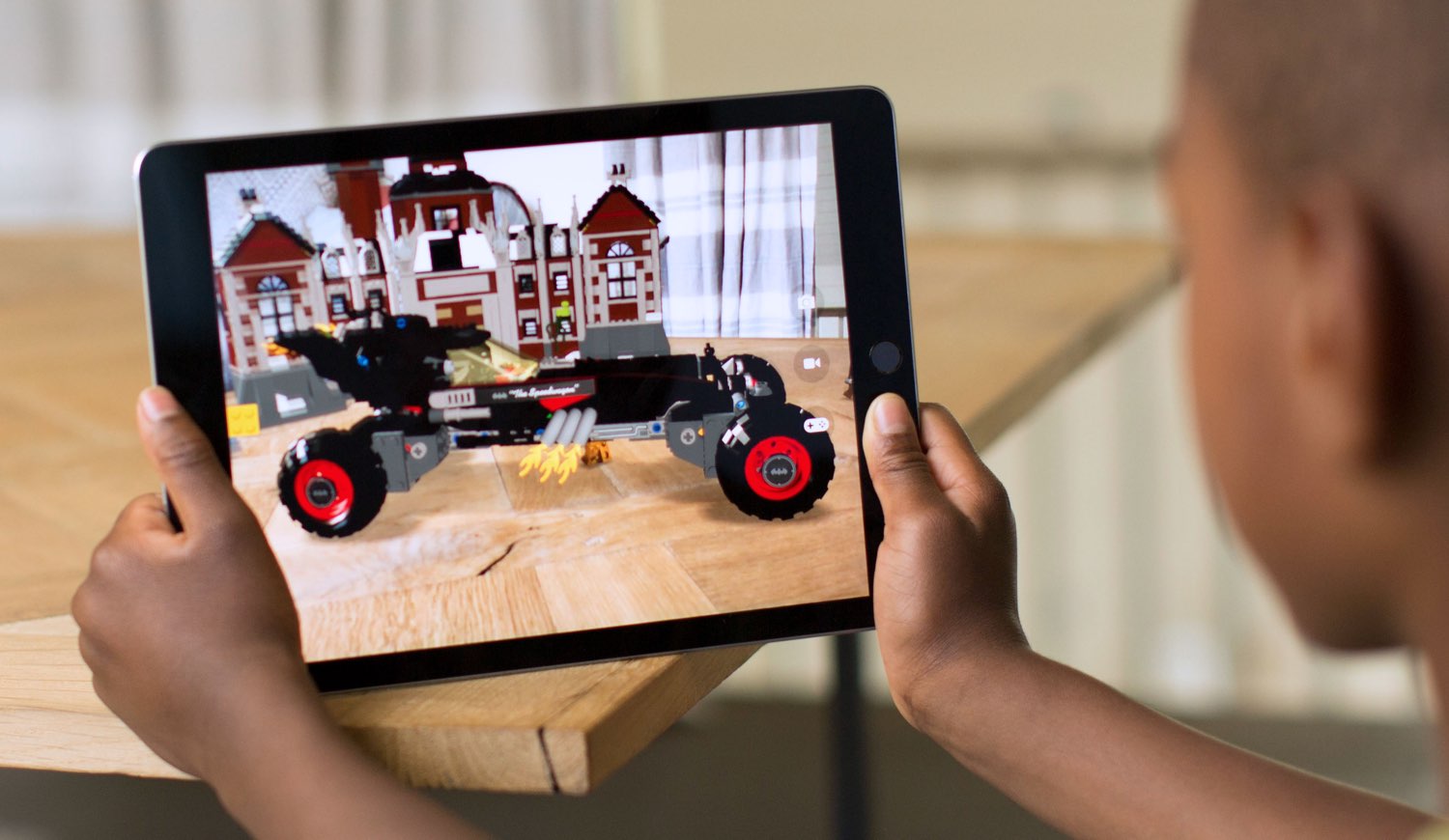
A great little ARKit-powered hackathon project by Melbourne, Australia developer Jacqui Hyslop of RedBubble shows off the tremendous potential of Apple's new framework for building augmented reality experiences for iPhone and iPad with iOS 11.

The simple proof-of-concept app allows the user to place virtual cushions (and other home decor items) on a couch and other pieces of furniture in their real world, but without the psychedelic surface-shifting effect plaguing many other AR platforms.

This app clearly proves that home decor shopping in augmented reality beats having to drive to a store just to see how that cushion would look like on a bed that isn't yours in a showroom that shares little resemblance to your own home.

The video demonstration, embedded below for your viewing pleasure, highlights the full sophistication of ARKit's reliable plane and object detection and precision tracking. It's remarkable that all of this is happening so fluidly without any special hardware involved.

https://www.youtube.com/watch?v=bwNAykf4IKw

ARKit uses machine learning, artificial intelligence, computer vision and sophisticated algorithms to analyze live camera feed and “see” the world around you. It also taps into data from on-board device sensors, such as the accelerometer and gyroscope, to detect horizontal planes in your real world, determine local lighting conditions and so forth.

Those kinds of ARKit-powered apps should be even better on iPhone 8 due to the rumored rear-facing 3D laser sensor that will allow the device to accurately sense depth and map objects.

Be sure to watch another sophisticated ARKit demo showing off an app that basically allows the user to map out the floorspace by walking around a room. It calculates total footage of the room and may even produce detailed blueprints that could be exported to CAD apps.

And here it is.

https://www.youtube.com/watch?v=iw9MPZoPqCQ

The future of furniture shopping looks bright, too, as furniture giant Ikea has partnered with Apple on an ARKit-powered app of its own that promises to let users try out virtual furniture at home before placing an actual order right inside the app.

Just imagine the possibilities: with Ikea's app, you could make sure that the bookshelf you've been eyeing for some time would fit in that corner—again, without being bothered to actually, you know, visit one of their stores.

Are you excited for ARKit-powered apps?

Second public beta for iOS 11 is out now

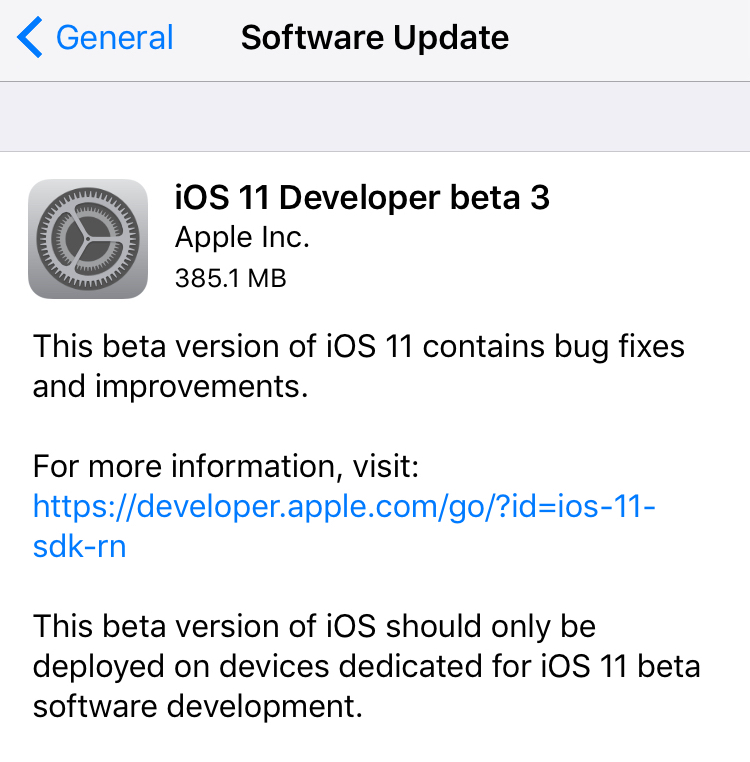
Apple on Wednesday released iOS 11 public beta 2, which has the same features as a third developer-only beta that was seeded to developers two days ago.

Before it can be installed on your device, you must sign in with your Apple ID at beta.apple.com in order to enroll your iOS device to access the latest public beta of iOS 11.

Next, from your iOS device visit beta.apple.com/profile to download the configuration profile.

Follow the onscreen instructions to allow installation of the profile, which will permit your iOS device to automatically receive over-the-air public beta software updates.

Lastly, go to Settings → General → Software Update to install the public beta.

Screenshot via Joey Antonini

You're wholeheartedly recommended to perform a full iCloud or iTunes backup of the device before installing any beta software. Do not install the iOS 11 public beta on your daily driver.

Here's our overview of the changes in the iOS 11 public beta 2.

https://www.youtube.com/watch?v=bixdLWqPIvA

Subscribe to iDownloadBlog on YouTube

For the complete list of all the changes in iOS 11 public beta 2 and developer-only iOS 11 beta 3 (which, again, have the same features), check out our previous article.

iOS betas are typically riddled with bugs and various issues until a Gold Master candidate is released ahead of public launch. You've been warned—performance issues, crashes, battery drain and various other problems and hiccups are a commonplace with iOS betas.

Apple typically optimizes iOS for speed and power consumption close to launch.

To report any issues and bugs to Apple, use the included Feedback Assistant app. The iOS 11 software update will release to everyone this fall.

Everything new in iOS 11 beta 3

A third beta of iOS 11 for the compatible iPhone, iPad and iPod touch devices was released earlier today to Apple's registered developers and members of the paid Apple Developer Program.

The accompanying second public beta of iOS 11, which would have the same features as third developer-only beta, should be released through Apple's Beta Software Program later this week, probably tomorrow, allowing non-developers to take the latest beta for a spin on their iOS devices.

Here's everything new in iOS 11 beta 3, based on Apple's official release notes and community findings (which you can contribute to in the comments section).

https://www.youtube.com/watch?v=bixdLWqPIvA

Subscribe to iDownloadBlog on YouTube

New features in iOS 11 beta 3

iOS 11 beta 3 takes advantage of a brand new syncing system for Safari's Bookmarks and Reading List features, which should increase performance and elevate your security. Migration to the new sync system occurs silently after all the devices signed in to your iCloud account are running iOS 11.

Safari content blockers are working again in beta 3. A new API allows native apps who will implement it to log in the user automatically by re-using a previously saved Safari password for the app's web-based version.

Siri in iOS 11 can translate text for you and the third beta adds support for translation requests from English US to Chinese, Spanish, German, French and Italian. New Siri voices for both genders of Brazilian Portuguese, Canadian French, Dutch and Swedish are available in beta 3, as well as new female voices for English and Mexican Spanish.

Plus, the Siri voice for both genders of Japanese and Chinese has been upgraded.

iOS 11's built-in screen recording feature now comes with a new Start Broadcasting option, which seems to do nothing in beta 3 beyond saving the screen recording to the Photos app. We expect subsequent betas will fully implement this feature.

https://twitter.com/iamgroot11/status/884476382129999872

Siri can now get directions when Do Not Disturb While Driving is active.

Elapsed time is now updated when using the system media player's play and stop controls , or when seeking during video content playback. Notifications in the Music app are now working and song metadata now syncs correctly with iTunes.

Messages on iCloud should now be available after a device has been offline.

Safari's view controller, a feature that lets you browse the web within apps complete with Safari features like Reader Mode, now sports an improved interface for 3D Touch previews and default preview actions.

When you open a link in an app that supports Safari's controller, like Tweetbot, you'll notice that Safari's toolbars have been collapse to show just the domain.

iOS 11 beta 3 implements SFAuthenticationSession, Apple's new API for authenticating a user with a web service. For what it's worth, some of my colleagues are experiencing issues using Google services with iOS 11, but this problem does not seem to be replicable for everybody 100 percent of the time.

Top fixes in iOS 11 beta 3

Aside from these outward-facing new features and improvements, iOS 11 beta 3 includes a fair share of bug fixes, under-the-hood improvements and other changes. We'll only mention the most important fixes.

For starters, third-party keyboards should now work if not allowed full access. Audio should no longer drop during Skype calls. The Phone app should no longer crash when a voicemail message is deleted and carrier services like voicemail, messaging, call wait, call forwarding and others on Wi-Fi calling-enabled devices may now work for specific carriers/markets.

Pulling down the notifications shade when the device is unlocked now displays both your current and older alerts without the need for scrolling. An upward swipe for force-quitting apps is back on iPad, replacing the “x” button which appeared in prior betas when an app was held down in the app switcher.

Apps over 100 megabytes should no longer download over your iPhone's cellular connection after acknowledging the warning prompt. Speaking of which, connecting to a cellular network after restarting or powering on your device should now work correctly, as does activating a Sprint cellular data plan on your iPad.

Buttons for Day, Week, Month and Year in the Calendar app now trigger on the first tap.

The Offload App feature now works for apps that are shipped with iOS 11. The Settings app no longer crashes when you delete the Podcasts app or add/delete keyboards, while storage graph and size information now updates correctly.

You can now create a new Photos or Kaleidoscope face for your Apple Watch from the share sheet in the Photos app, as well as share Live Photos via AirDrop. Photographs captured on iOS 11 now show the correct orientation on versions of macOS earlier than 10.13.

In the Watch app, changes to Mail → Include Mail are now saved and watchOS email alerts now use your configured settings.

Tapping Learn More from the prompt that appears when you attempt to launch a 32-bit app now opens the App Compatibility section within the Settings app, as it should.

Apple says 32-bit apps will not run on future betas of iOS 11.

Migrating from your Android phone using Android Migration should work correctly while restoring a device from an iTunes backup will no longer yield white app icons on your Home screen. After restoring from an iTunes backup, you can now authenticate iCloud credentials during the iOS 11 setup process.

When restoring from iCloud Backup in Setup Assistant, you'll see the correct list of backups. Apple says that “certain services” should sync correctly on initial iCloud login.

Using 3D Touch with phone numbers, addresses and so on now works correctly throughout the system. AirPlay has been fixed to work as expected in apps. The SlingTV app now plays back audio and video normally and Kindle books sync as you'd expect.

Facebook Messenger now launches when the Facebook app is not installed. In Amazon Video, the video playback controls now work correctly and navigation bars should look correct.

Last but not least, iOS 11 beta 3 fixes the most annoying thing about the new Control Center where the Wi-Fi toggle would not work properly. Now if you hit the Wi-Fi icon in Control Center, your device disconnects from the current network and temporarily disables Wi-Fi networking (the same goes for the Bluetooth control).

And if your press the Wi-Fi control in Control Center to expand it, it now updates the network name when transitioning between networks. The 3D Touch shortcuts menu for the Camera app in Control Center has been improved as well.

In Apple's new File app, you can now use the QuickLook feature to preview iWork documents while file thumbnails should now display properly.

If you use HomeKit, Siri will finally recognize your smart home setup on devices upgraded to iOS 11 beta. You can now drop PDFs and books into iBooks and audiobooks now appear in your library after purchasing or re-downloading.

Say hello to new bugs

There are still many known issues to be resolved before the iOS 11 software update releases publicly.

For example, syncing 32-bit apps via iTunes may leave a placeholder for the app. In a similar vein, you many be unable to log in to the Pinterest app using your email address.

In Tweetbot, you may not be able to post tweets containing recently taken photos. The excellent VSCO camera app may throw an error when importing photos that have been recently taken.

Under some circumstances, rotating an iOS device may cause Apple Pencil to become unusable.

Restoring from an iTunes backup containing an offloaded app which is also present in the iTunes library on your computer installs the offloaded app and then re-installs it from App Store, which can result in the restored backup taking more space on your device than the size of the backup.

As a workaround, offload the app after the restore process completes.

Submit your own discoveries

If you have managed to detect other user-focused changes or improvements in the new beta not mentioned in the article, post your findings in the comments below and we'll update the write-up as new information becomes available.

You can also submit them via tips@iDownloadBlog.com.
iOS 11 beta 3 seeded to developers

Apple today seeded a third beta of iOS 11 for iPhone, iPad and iPod touch to its registered developers and members of the Apple Developer Program. To deploy iOS 11 beta 3 (build number 15A5318g), use the Software Update mechanism in the Settings app on your device with an appropriate configuration profile installed, which can be obtained from Dev Center.

iOS 11 was originally released as a developer-only preview at WWDC in June, followed by iOS 11 beta 2 on June 21 and the iOS 11 public beta on June 26. The first public beta of iOS 11 has the same features as developer-only iOS 11 beta 2.

Here's Andrew's hands-on walkthrough of the changes in the previous beta.

https://www.youtube.com/watch?v=TZ5pwZMPRxI

Subscribe to iDownloadBlog on YouTube.

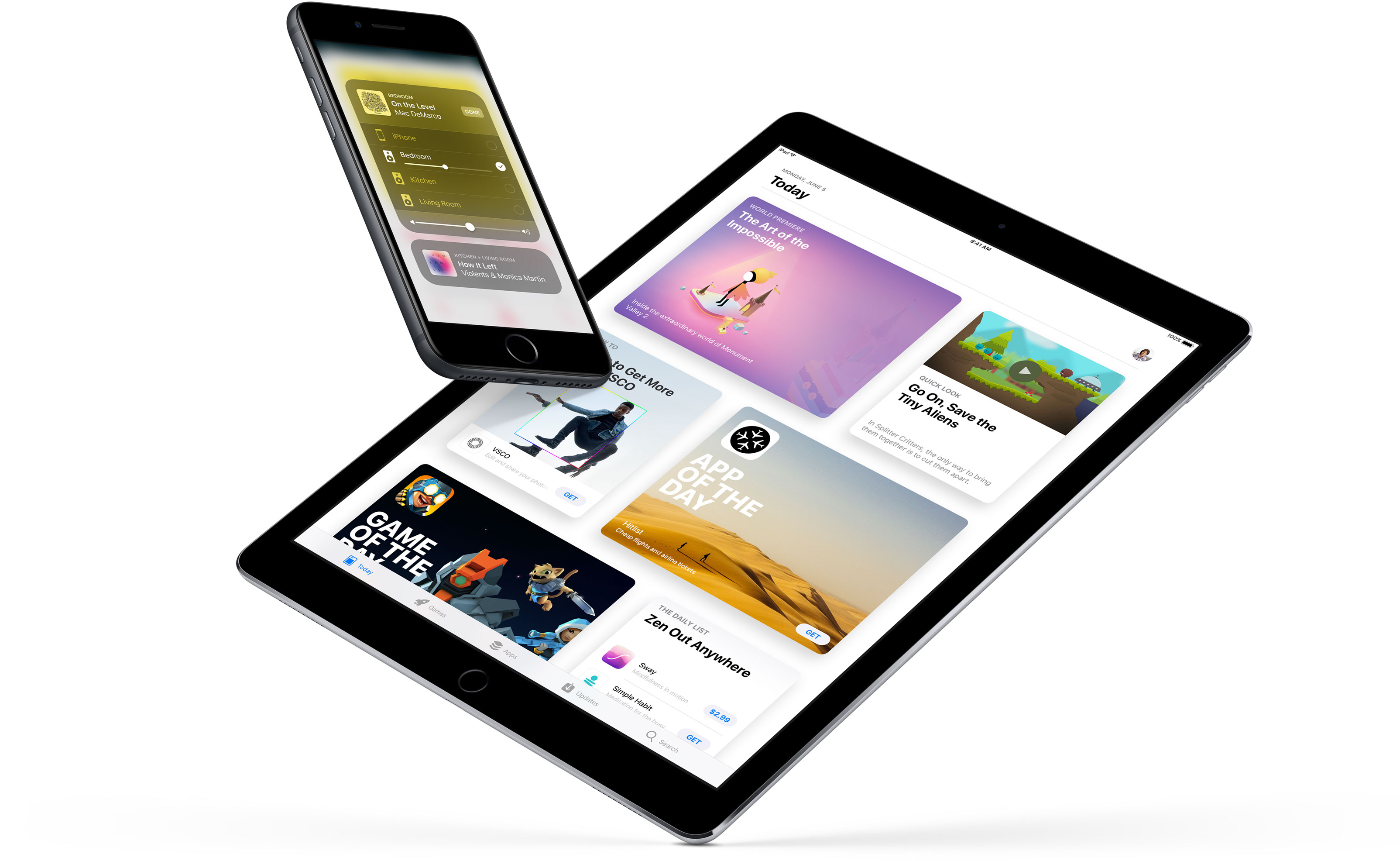
iOS 11 sports a redesigned App Store, new iPad multitasking features with the Dock and drag and drop, a Files app, AirPlay 2 with multi-room audio, new Siri capabilities, visual refinements, a customizable Control Center, a redesigned app drawer in Messages and much, much more.

TUTORIAL: How to switch from iOS 11 beta to official iOS release

iOS 11 will release for public consumption this fall across supported iOS device models.

If you have identified new outward-facing user features in iOS 11 beta 3, ping us on Twitter, shoot us an email at tips@iDownloadBlog.com or post your findings in the comments section and we’ll make sure to update the article with new information as it becomes available.

LockscreenXI brings iOS 11’s Lock screen interface to iOS 10

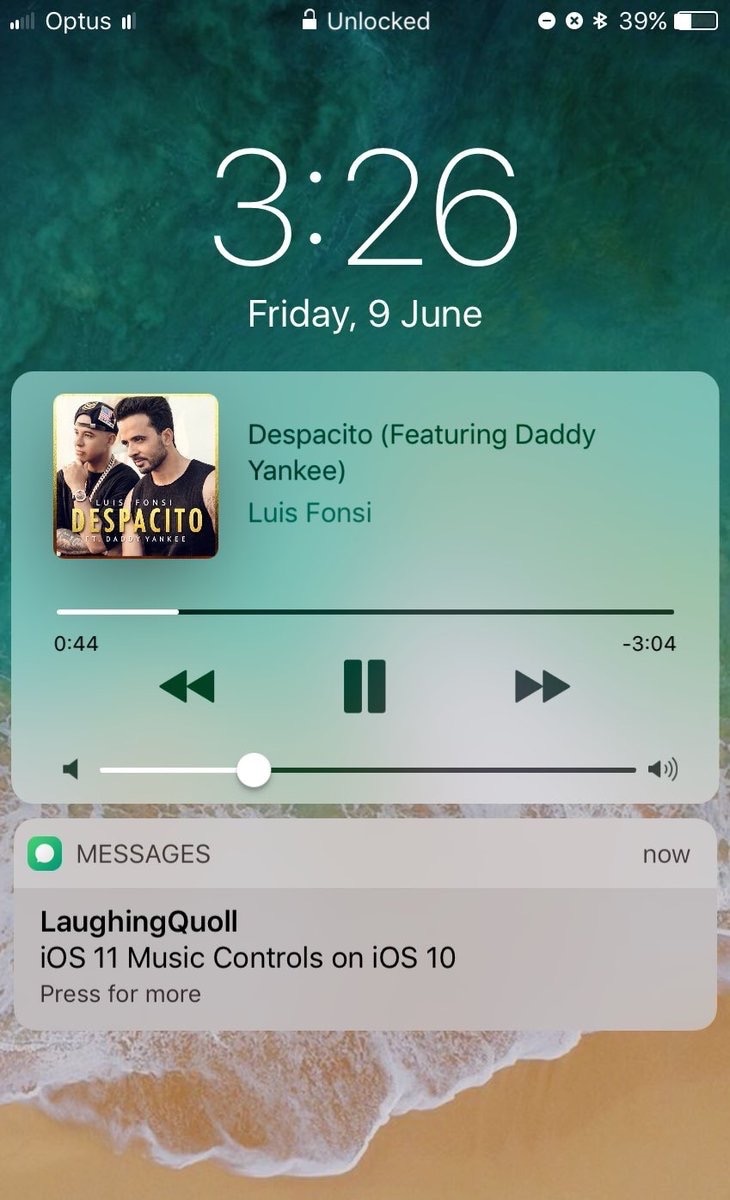
Some jailbreakers are already drooling over the host of interface changes that come with iOS 11, but we encourage these folks to hold onto their seats. A jailbreak tweak collection dubbed Eleven is nearing full release that will bring many of iOS 11's new interface experiences to jailbroken iOS 10 devices.

The first piece of Eleven, LockscreenXI, brings the Lock screen experience of iOS 11 to jailbroken iOS 10 devices. It was just released in Cydia by its creator LaughingQuoll ahead of all other pieces of Eleven, which are still a work in progress.

How to use Control Center without 3D Touch

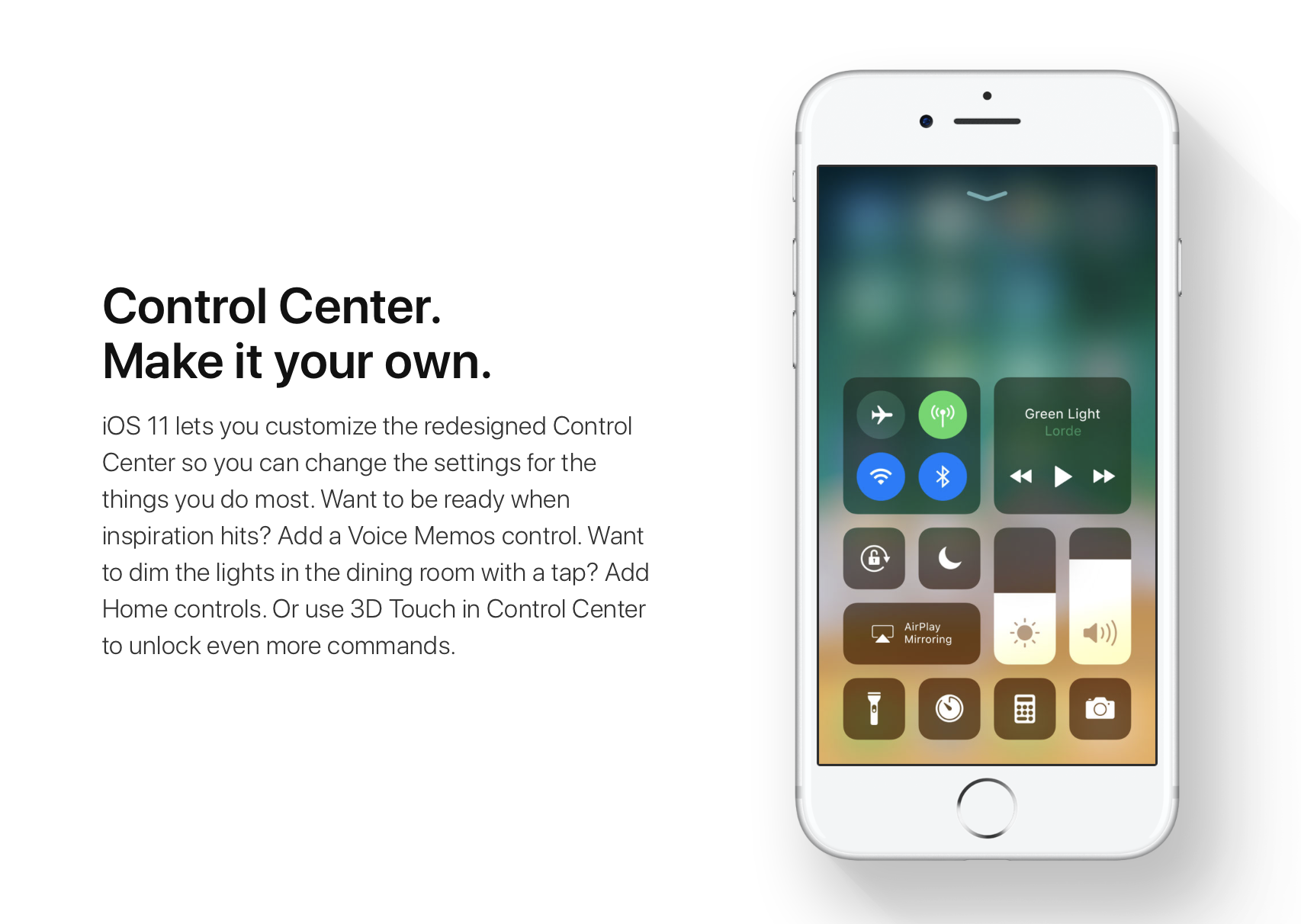
iOS 11 offers more customization for Control Center than ever, allowing you to make it your own by disabling toggles you rarely use. If puts frequently used controls all on one page, many of which can be expanded to reveal additional options when pressed with 3D Touch.

For instance, you can press the Home toggle lightly to bring up your HomeKit scenes, press the Now Playing toggle with 3D Touch to expand media controls, press the Apple TV Remote toggle to navigate your Apple TV or type some text into it, and much, much more.

So far, so great. But what if your device lacks 3D Touch?

Unlike prior iOS editions that didn't provide a fallback mechanism for 3D Touch interactions on non-3D Touch devices, iOS 11 allows you to use all of the features the redesigned Control Center has to offer without having to own a 3D Touch device.

Our resident video editor Andrew O'Hara details how iOS 11's Control Center works on devices that don't include 3D Touch features, like iPads and iPhone 6 and older models.

https://www.youtube.com/watch?v=cpSoo5_TqIQ

Subscribe to iDownloadBlog on YouTube.

Continue reading for step-by-step instructions on using Control Center without 3D Touch

How to use Control Center without 3D Touch

1) Access Control Center by swiping up from the bottom of the screen

TIP: Enable Access Within Apps in Settings → Control Center to have your device respond to that gesture when you're using an app.

2) Tap and hold on the control to expand it.

In Andrew's example, he long-taps the Brightness toggle to access controls for turning Night Shift on or off. You can long-tap other Control Center items that are expandable. For example, long-tapping the Volume control enlarges the slider as if you pressed it with 3D Touch.

iPad lacks Taptic Engine so you won't feel haptic feedback when long-tapping.

That's it, boys and girls, now you know how to interact with Control Center on iOS 11 without actuating having to have a 3D Touch device. This tip should be especially useful for iPad owners as Apple's tablets lacks 3D Touch features.

TUTORIAL: How to force-quite iPad apps on iOS 11

Don't forget you can selectively enable or disable nearly two-dozen different toggles and change the order in which they appear in Control Center under Settings → Control Center → Customize Controls, including new system toggles and features like Screen Recording, Voice Memos, Low Power Mode, Apple TV Remote, Accessibility Shortcuts and more.

To lear more about iOS 11's Control Center, watch another walkthrough video below.

https://www.youtube.com/watch?v=UGWjmt6UXJI

Aside from drag and drop, iOS 11 brings five different types of tap gestures, including a longer tap to move multiple apps on the Home screen, a special half-long tap to pull up an extra Dock menu and a long-tap in the notifications overlay to access additional options.

Need help? Ask iDB!

If you like this how-to, pass it along to your support folks and leave a comment below.

Got stuck? Not sure how to do certain things on your Apple device? Let us know via help@iDownloadBlog.com and a future tutorial might provide a solution.

Submit your how-to suggestions via tips@iDownloadBlog.com.