How to

Apple Watch User Guide now available as a convenient download from the iBooks Store

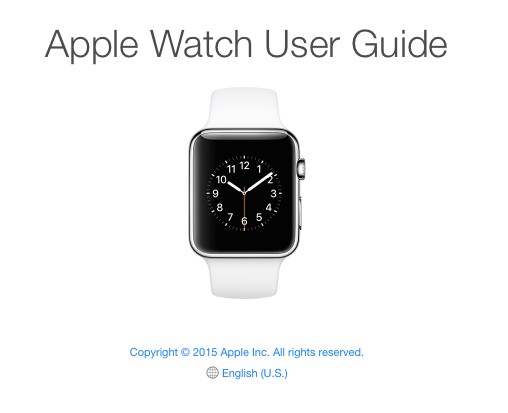
The official Apple Watch User Guide is now available for download on the iBooks Store. Content-wise, the free electronic book is the same as the online version that Apple published yesterday on its website, it's just optimized for the iBooks app for the iPhone, iPod touch, iPad and Mac.

“Here’s everything you need to know about Apple Watch and the Apple Watch app on iPhone,” reads the blurb on the iBooks Store.

Apple Watch User Guide

Apple on Thursday posted its official Apple Watch User Guide to the web, offering information and instructions on all of the wearable's major features and functions. The move follows the rollout of the Apple Watch App Store, and the seeding of the first Watch firmware update, as Apple prepares for folks to start receiving their Watch orders tomorrow.

How to disable WhatsApp Read receipts

You probably already know the two blue check marks you see next to your messages in WhatsApp conversations are Read receipts indicating your contact has indeed read your message. This is a blessing and a curse. It's a blessing because it can be very helpful at times, when you want to make sure your friend read your message for example. It can also be a curse, because you can't really pretend you didn't read a message if you actually have.

These problems are now a thing of the past with WhatsApp recent update that lets you disable and enable Read receipts at will. In this post, I'll show you how to disable WhatsApp Read receipts.

Five Apple Watch tips for a more accurate heart rate reading

There's no two ways about it: even under the most ideal of conditions, the Apple Watch may not be able to get a reliable heart rate reading every time for everybody. Now, our recent overview of the Apple Watch's heart rate sensor provided a good starting point for enthusiasts wishing to learn more about the feature. It gives you a better idea of the intricacies and benefits of the custom-designed hardware feature marketed primarily to fitness aficionados.

But the truth is, it's been designed for everyone, really. It's something every Watch customer will be using without even being aware of it, simply by wearing the device (for those wondering, the average human heart rate is about seventy-two beats per minute).

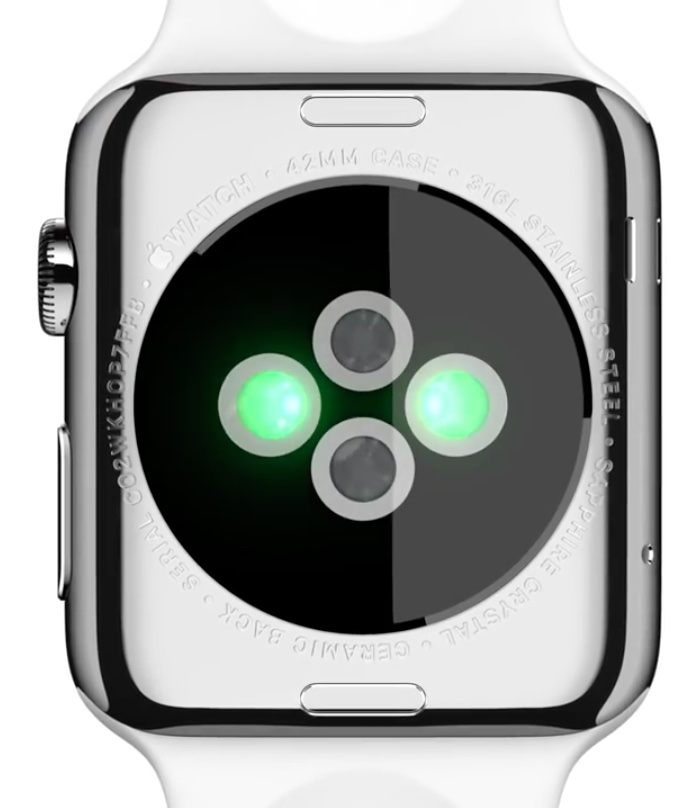
On the back of the Watch is a specially designed sensor protected by a ceramic cover with sapphire lenses, with infrared and visible-light LEDs and photodiodes detecting the amount of blood flowing through your wrist at any given moment.

Knowing your heart rate helps the Watch determine your intensity level during workout while improving the accuracy of your active calorie burn measurements. Therefore, knowing the sensor's limitations and pitfalls is important.

Luckily, there are some things you can do to help the Watch get the most consistent and best heart rate readings possible. Here are five sound tips regarding using this feature optimally and with minimal disruption.
How to manage received AirDrop files with Hazel on Mac

Every waking day I send tons of screenshots from my iPhone to my Mac via AirDrop. And every day I wish that Apple allowed users to customize the AirDrop save location. Not only is the ~/Downloads folder the default save location, but it can't be modified, not even via undocumented methods.

As a workaround, I use Hazel ($29 w/ free trial) to automate the process of moving images sent via AirDrop to my Desktop. It's a great workaround that does the job. While it would be nice if Apple allowed you to specify an exact save location, this is probably the next best thing.

How to check your Apple Watch shipment status via UPS

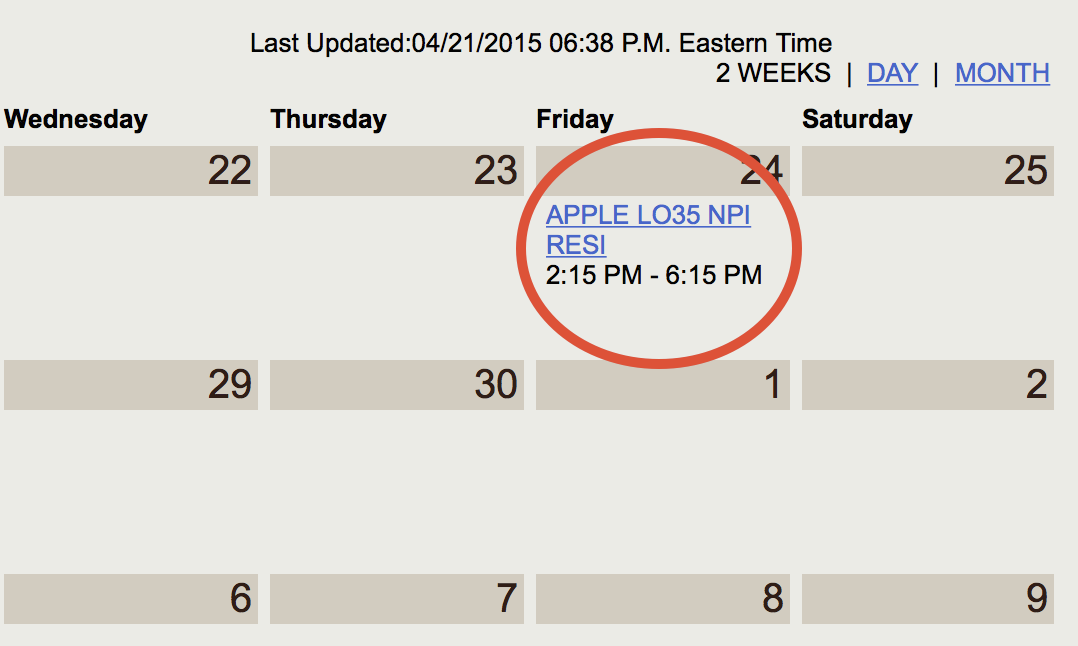
I just stumbled upon some great news: my Apple Watch will be here Friday. I was able to verify this via the UPS My Choice website. If you're already a My Choice member, log in here, and if your watch has shipped, you should see your Apple Watch shipment on a calendar with the scheduled date of arrival. My watch is scheduled to arrive on Friday, April 24th, between 2:15 PM and 6:15 PM.

How to hide the battery percent sign in the iOS status bar

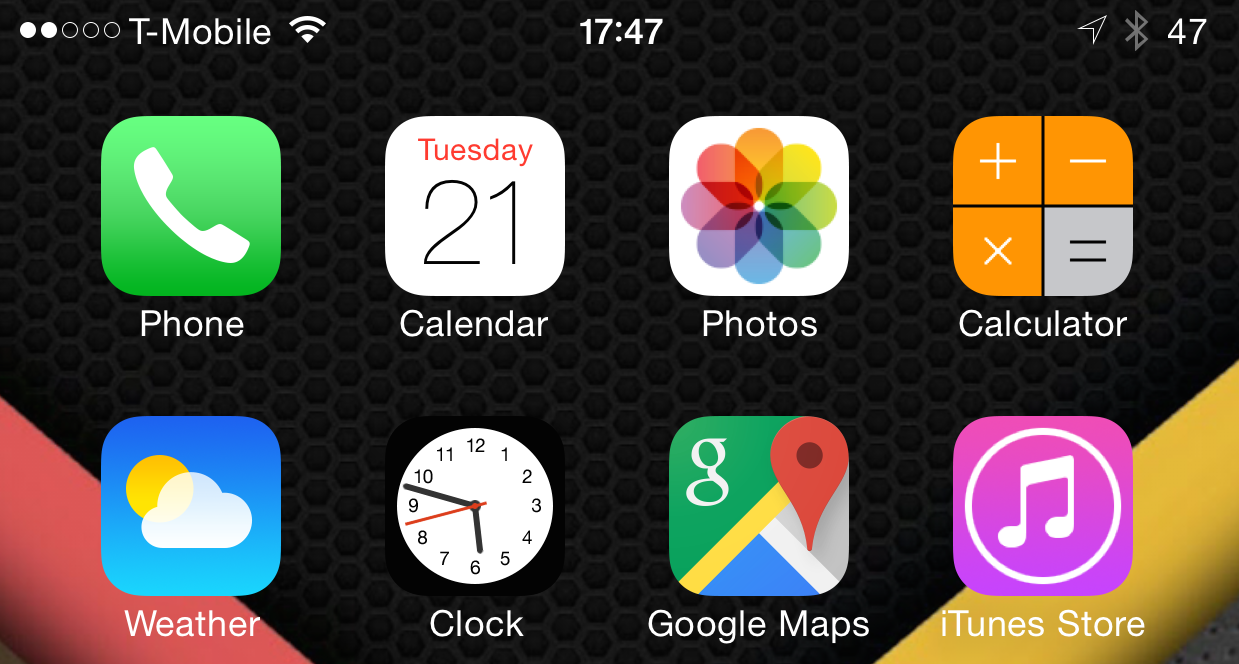
I find it to be kind of odd, but some people really hate the percent sign that appears alongside the battery indicator in the iOS status bar. Our very own Sebastien Page is one such person.

Over the last few months, he's been lamenting about his disdain for the percent sign, and how he hasn't been able to find a jailbreak tweak that lets him remove the pesky little symbol. Many tweaks, like Springtomize, can customize the iOS status bar to a high degree, but the percent sign seems to be off limits.

Fortunately, there is a jailbreak tweak that can hide the percent sign, and it's been sitting under our noses for quite some time. The aptly entitled No percent sign is a jailbreak tweak that lets you easily hide the percent sign symbol on iOS.

How to use the Pixelmator Repair Tool extension on Mac

One of the most under-the-radar new features to hit OS X Yosemite was the addition of extensions. Action extensions are particularly nice, because they allow apps to interface with other apps directly.

Some app developers, such as Pixelmator ($29.99 on the Mac App Store), have brought third-party extensions to the Mac, which demonstrates how beneficial extensions can be. Watch our video that showcases Pixelmator's Repair Tool extension to see what I mean.

How to enable battery charging chime on MacBook

Illustration for battery charging chime on MacBook

Learn how to use this simple Terminal command to make your MacBook play a confirmation sound when you plug it into a charger.

Note: Owners of recent MacBook models need not even finish reading this article because their machines come with the power-charging chime enabled by default.

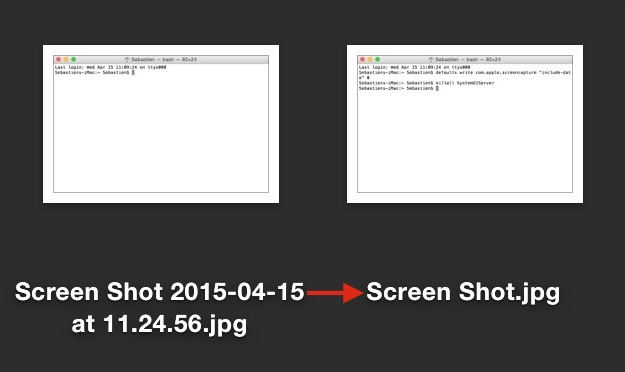
How to remove date and time from screenshot file names on Mac

By default, every time you take a screenshot on macOS, the file generated will be named "Screen Shot date time" where "date" and "time" are replaced with the actual date and time the screenshot was taken. For most people, this is a useful feature as it allows to quickly sort screenshots depending on when they were taken. But for other people, it might be an annoyance.

In this post, we will show you how to remove the date and time from screenshots that were taken on Mac.

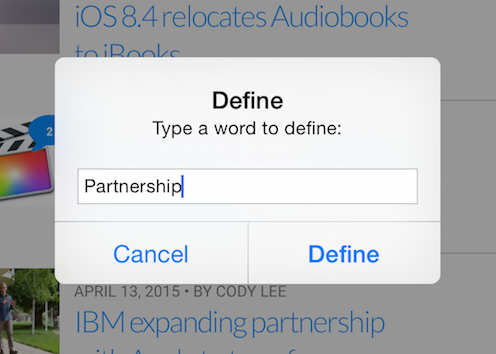
How to define words from anywhere using Activator

Have you ever wanted to quickly learn the definition of a word, but you weren’t actually viewing the word on your iPhone? Sure, you can use Siri, but sometimes even that’s not a option or a possibility.

Define Activator is a new jailbreak tweak that allows you to define text using a preset Activator gesture. Once you invoke the assigned gesture, a pop-up box appears where you can type in the term that you wish to define.