Learn how to rename your Apple TV and make it easier to identify, especially if you have multiple Apple TVs in your household.
How and why to rename your Apple TV
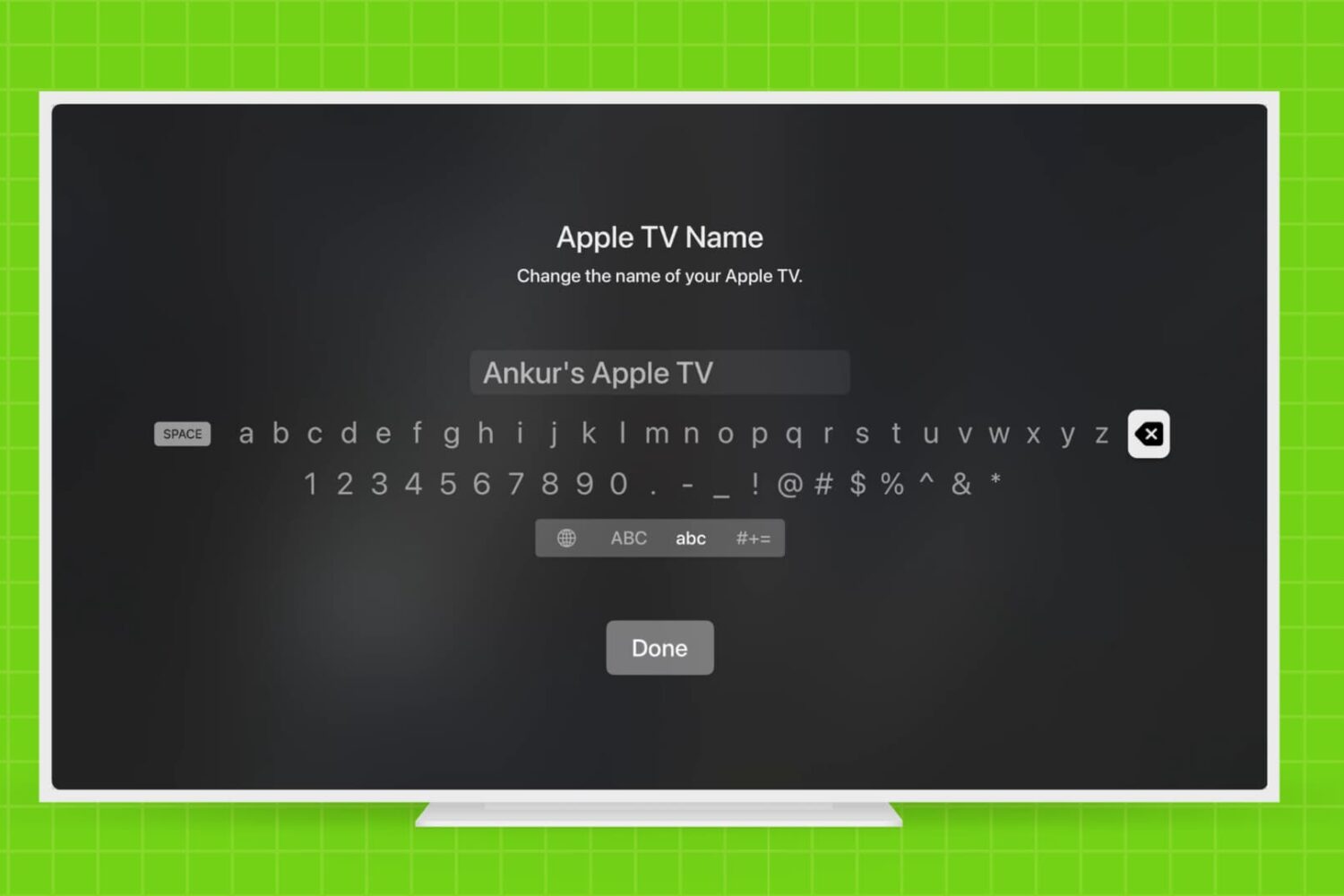
Learn how to rename your Apple TV and make it easier to identify, especially if you have multiple Apple TVs in your household.

By now, you have learned how to use the new Apple TV's task switcher, rearrange and delete apps on the set-top box, take screenshots, disable password prompts for free and paid downloads and more.
Our coverage of the device continues with this tutorial which will teach you how to restart your Apple TV or put it into sleep or standby mode using either its remote or by selecting an option in the Settings menu.

Learn how to manually check for Apple TV software updates and install the latest version of tvOS so it has all the latest available features and can run without hiccups.

You are probably aware that you can disable password prompts altogether for free downloads made on your iPhone, iPod touch, iPad and Mac. As an added layer of protection, iOS and macOS will either require your Apple ID password for each paid download or after fifteen minutes of making your last purchases in the iTunes Store, App Store, Books Store or Mac App Store, depending on your preference.
What you cannot do on iOS and macOS is disable password prompts for both free and paid downloads. On the Apple TV, however, it's possible to turn off password protection for both free and paid items and this tutorial will help you do just that.
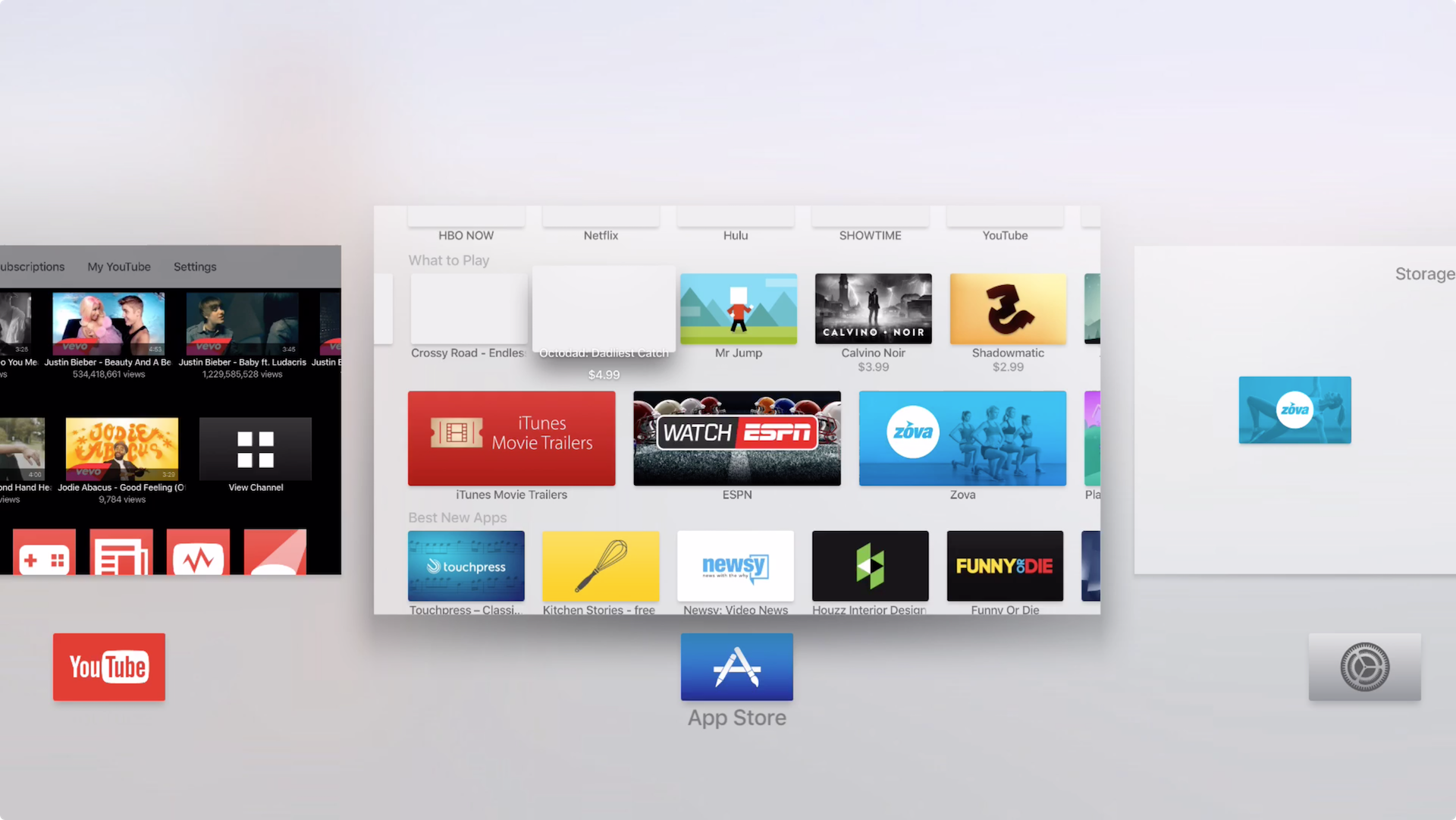
Did you know that you don't have to go back to the Home screen every time you wish to switch between an app on the Apple TV? Unlike the Apple TV of old, the new version allows you to quickly switch between apps similar to how its done on iOS. In the brief video tutorial that follows, we'll show you how it's done.
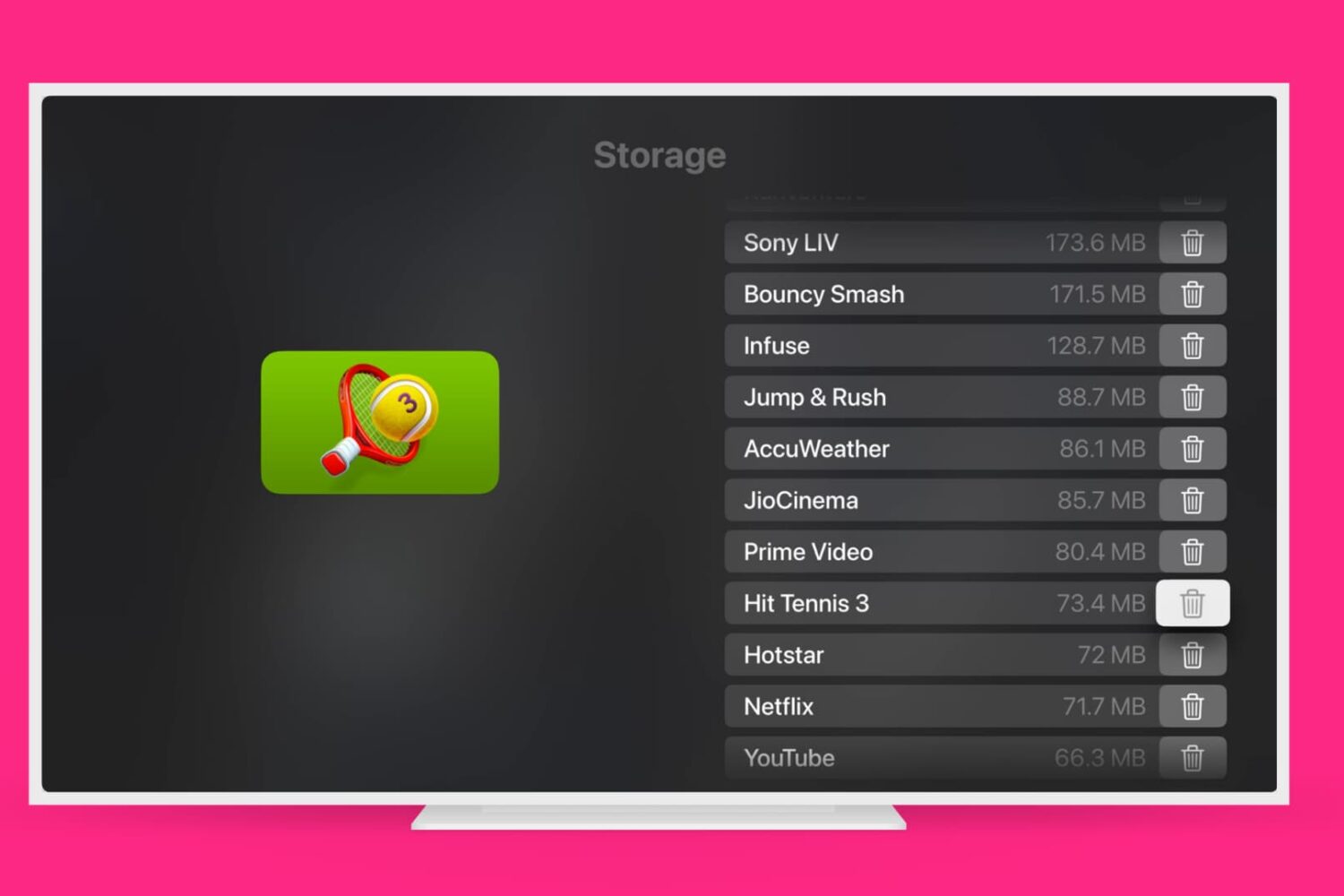
Learn how to remove those Apple TV apps you no longer need to have a tidier Home Screen and free up local storage space.
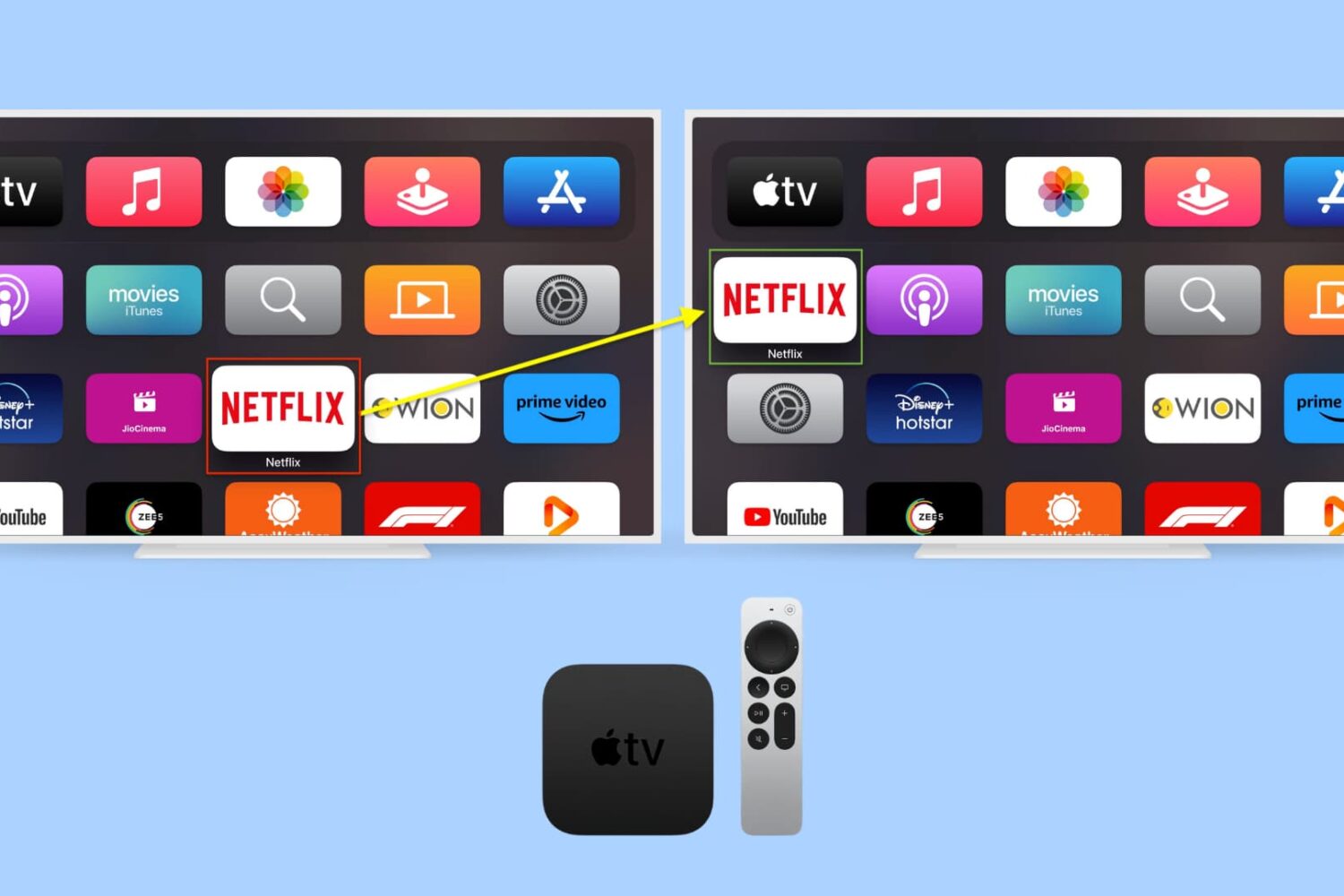
Rearranging apps on the Apple TV works much as it does on iPhone or iPad. First, you enter into "jiggle mode," and then you move the user-installed apps to your preferred location. This written tutorial, along with a video, shows you how to change the position of installed apps on your Apple TV Home Screen.
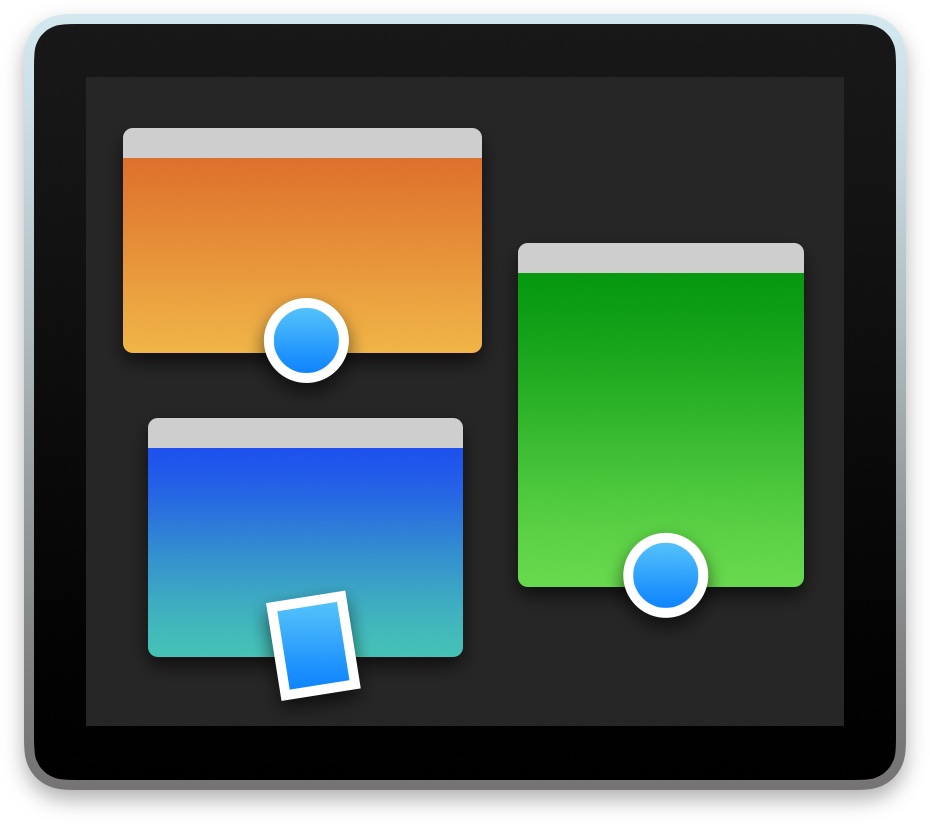
macOS has a nifty little productivity boost that makes it both easy and fun to run two apps side-by-side in your Mac's native full-screen mode.
This can be indispensable when focusing on specific tasks at hand while disregarding everything else, like online research and taking notes, or blogging and writing, or reading news while keeping tabs on your Twitter feed and so forth.
This mode, called Split View, is normally activated by dragging an app to either side of the screen by its window's upper left green button, and then choosing another app to fit the other half of the screen.
But the multi-step process is often a tad confusing for novice users, especially those accustomed to Windows 7's effortless window snapping. Thankfully, your Mac supports creating Split Views right within Mission Control, which in macOS has been tidied up and made clearer and more obvious.
In this tutorial, you'll learn how to go, and exit, Split View just by dragging app windows inside your Mac's Mission Control.

About two weeks after releasing the first version of their jailbreak tool for iOS exclusively for Windows, the Pangu Team has now released its utility for the Mac. The process is roughly the same between both platforms, but for the sake of completeness, we are going to post instructions on how to jailbreak iOS 9 with Pangu for Mac.
Pangu for Mac can only be used to jailbreak all iOS 9-compatible devices running iOS 9, iOs 9.0.1, and iOS 9.0.2. The latest version of Pangu can also jailbreak 64-bit devices running iOS 9.1.
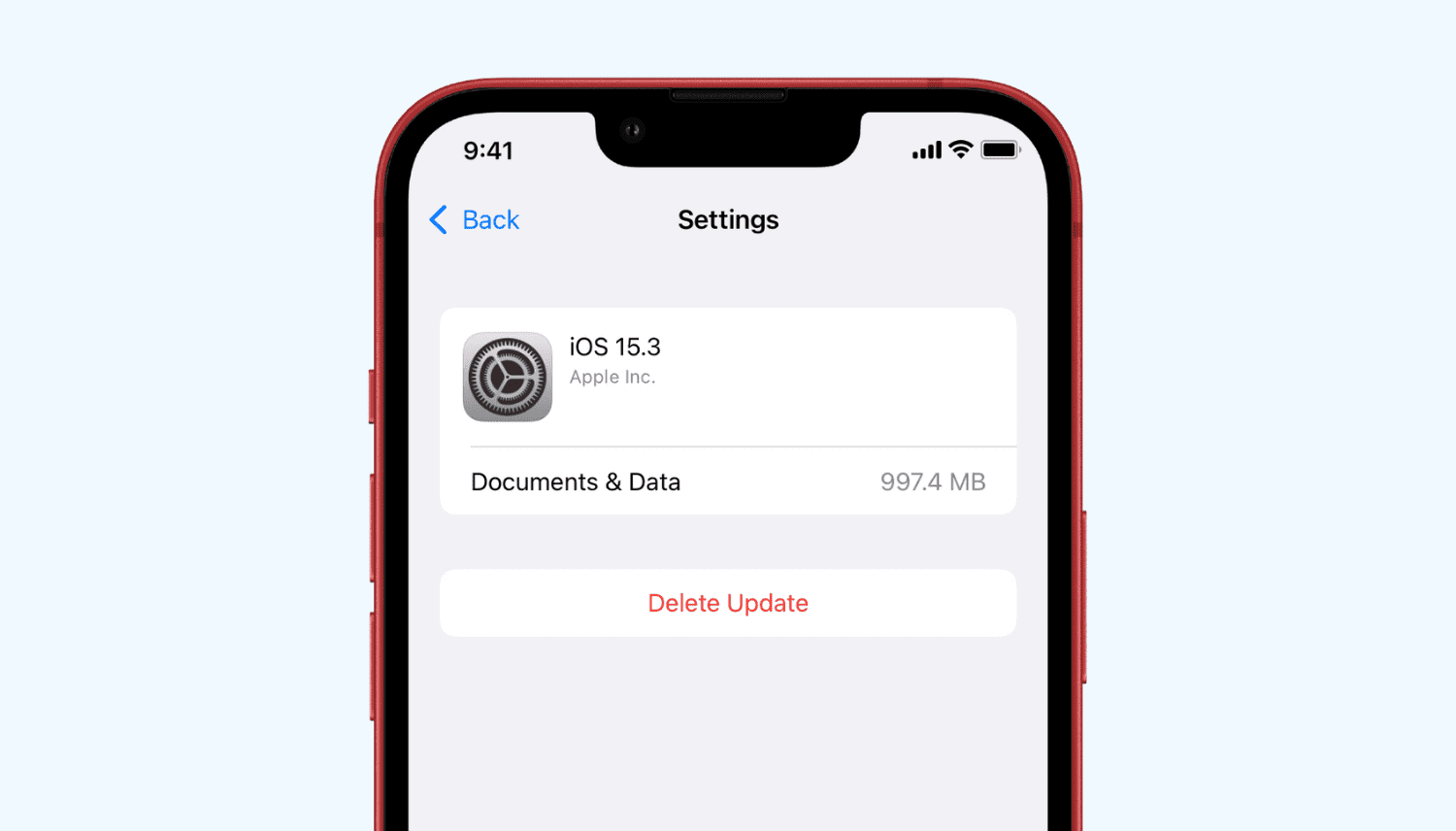
Learn how to delete a software update file that has already been downloaded to your iPhone or iPad if you don’t want to be asked to install iOS 27 beta, iOS 26, or some other update every day.

So you've grown sick and tired of Facebook and will be no longer using the service in the foreseeable future, eh? You'd be making a mistake assuming you could wipe your data and close the account by flipping a switch.
Facebook makes it fairly easy to temporarily deactivate your account, but the company's surely gone to great lengths to make the account deletion process overly complicated, no doubt in an attempt to discourage users from leaving the service en masse.
But don't your worry, iDownloadBlog has you covered, In this tutorial, we're going to lay out how you can permanently delete your Facebook account and guide you step-by-step along the way.
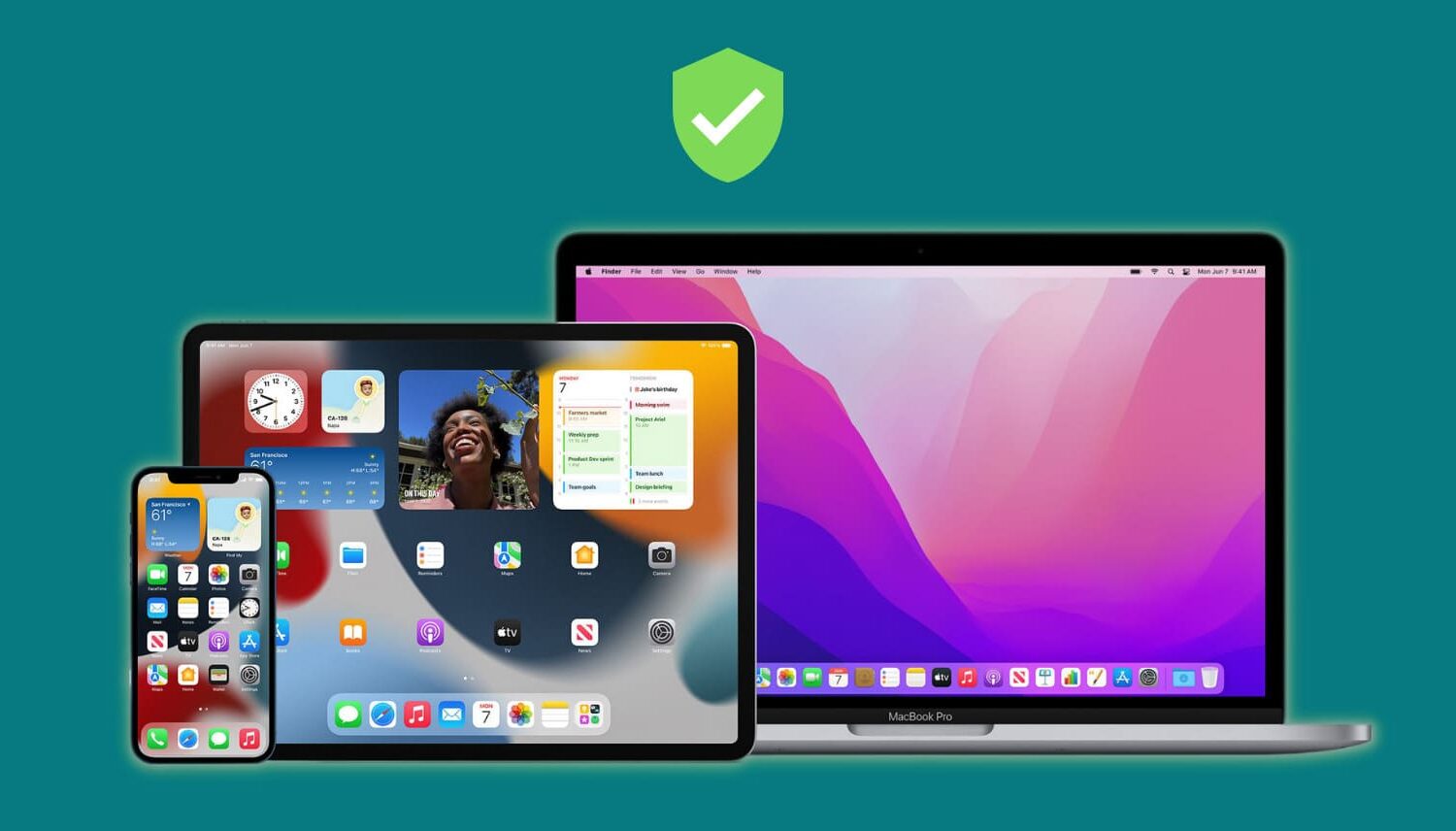
A trusted device is an iPhone, iPad, or Mac, where you have previously signed in using your Apple ID. Trusted devices are used to verify your identity when signing in and keep your Apple ID secure with two-factor authentication.
In this tutorial, we will go over trusted devices for Apple ID two-factor authentication, their requirements, and some other pieces of valuable information that you should know.