How to

How to add and remove trusted devices for Apple ID two-factor authentication

Trusted device for Apple ID two-factor authentication

A trusted device is an iPhone, iPad, or Mac, where you have previously signed in using your Apple ID. Trusted devices are used to verify your identity when signing in and keep your Apple ID secure with two-factor authentication.

In this tutorial, we will go over trusted devices for Apple ID two-factor authentication, their requirements, and some other pieces of valuable information that you should know.

How to disable Location History on Facebook to extend iPhone battery life

Yesterday, Facebook issued an update to its main iOS client to help extend your iPhone's battery life by preventing it from playing audio silently in the background.

File the move under the 'too little, too late' drawer: if history is anything to go by, waiting for Facebook engineers to deliver a fully battery-friendly iOS app might be a fool's errand.

The biggest contributor to Facebook's infamous battery drain has got to be the app's continuous monitoring of your location, which continues after leaving the app. In this tutorial, we'll teach you how to prevent this by disabling a feature called Location History, thereby helping reclaim some of the juice lost to the battery-hogging app.

How to downgrade iOS 9.1 to iOS 9.0.2

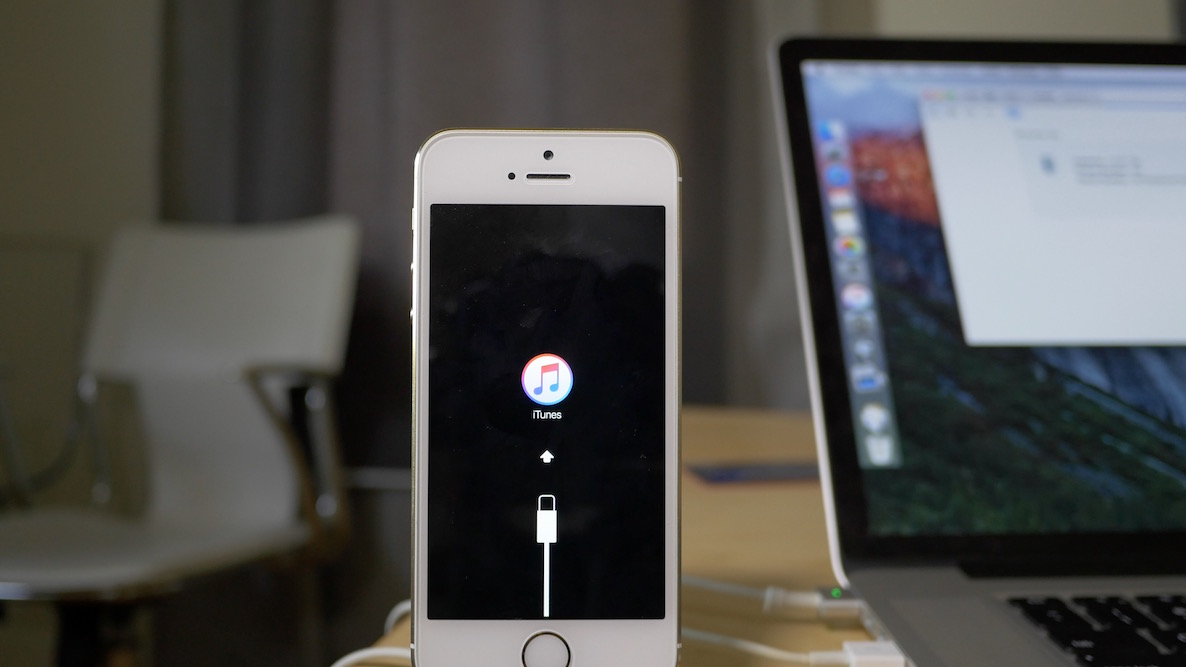
Maybe it was the new emoji that tempted you? Or maybe you just made a mistake? Whatever the reason, you've found yourself on iOS 9.1, but wish to go back to iOS 9.0.2—the last jailbreakable firmware that's currently available for iOS 9. Fortunately, you still have time to downgrade back to iOS 9.0.2.

In this video tutorial, we'll show you how easy it is to downgrade from iOS 9.1 to iOS 9.0.2. But act quickly, this tutorial certainly has an expiration date, which will occur when Apple closes the 9.0.2 signing window.

20+ things you can do with a Force Touch trackpad on Mac

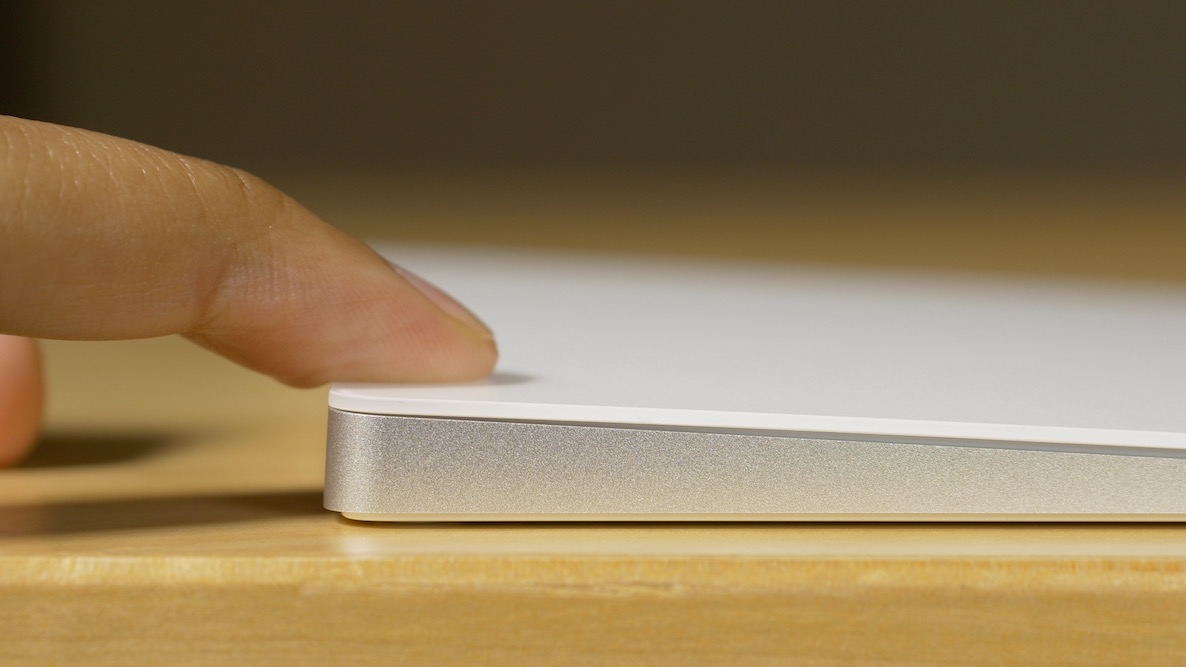
Apple just released its Force Touch-enabled Magic Trackpad 2, which joins the Force Touch trackpads already built into many of its MacBooks. The significance of the Magic Trackpad 2 sporting Force Touch, is that it essentially brings the feature to everyone without needing to go all out and purchase a brand new machine.

Force Touch is an interesting concept that's been a part of our vernacular for over a year with the unveiling of the Apple Watch. Since then, the pressure sensitive technology has made its way, in some way, shape, or form, to both MacBooks and the iPhone.

I've come to the conclusion that Force Touch is best implemented on the iPhone (as 3D Touch), but it's an interesting feature on the MacBook as well. Now that pretty much anyone can add the ability to Force Touch via a $129 Magic Trackpad 2 purchase, I figured it was time to showcase some of the things that you can do with the nifty pressure sensitive input method.

How to share Reminders lists

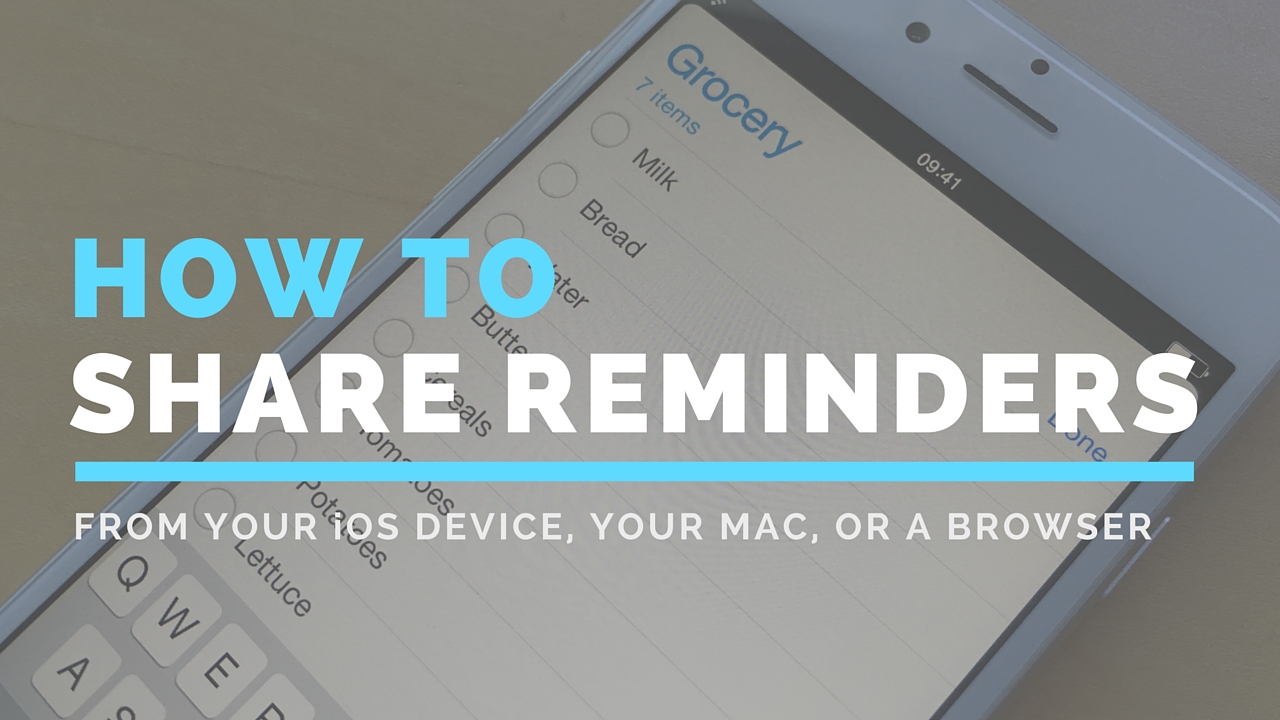
Although not apparently obvious, Apple's Reminders app on iPhone, iPod touch, iPad, Mac and iCloud.com lets you share to-dos and checklists with friends and family.

Sharing a reminder list with, say, your girlfriend (or wife) is particularly convenient as you’ll both be able to add, delete and check off items as completed, and all changes will instantly appearing on everyone's devices thanks to seamless iCloud syncing.

This isn't just great for grocery lists, shared to-dos and interactive lists among family members, but for business, too. For example, you could share a to-do list with team members to keep everyone apprised of what needs to be done on any particular day.

In this post, we're going to show how easy it is to create a list in Reminders and invite others to participate across iOS, macOS, and the web.

How to quickly locate a specific setting on your Mac

Just like the familiar Settings application on an iPhone, iPod touch and iPad, the macOS System Preferences is probably the most frequently used application on your Mac.

If you're new to the Mac, System Preferences—much like the Control Panel on Windows—is a one-stop shop for adjusting various settings on your computer. Various settings are categorized into logical sections and laid out as a grid of  preference pane icons.

In this post, we're going to outline five different time-saving ways to jump quickly into any specific setting nested within System Preferences.

How to direct connect an iPhone to an iPad to share photos and videos

iPhone and iPad connected to each other via cable

It's possible to directly connect an iPhone to an iPad via a Lightning cable. To create a dual-sided Lightning cable, just take a regular Lightning cable and connect the USB end to a Lightning to USB Camera adapter. This, in essence, creates a Lightning to Lightning cable that can be used to directly connect an iPhone to an iPad.

This setup is a novelty to do just because you can. In practice, I find that it adds little value in terms of transmission speed. Still, it's cool that it can be done at all, which is why I thought I'd share it with you.

How to use your iPhone EarPods like a pro

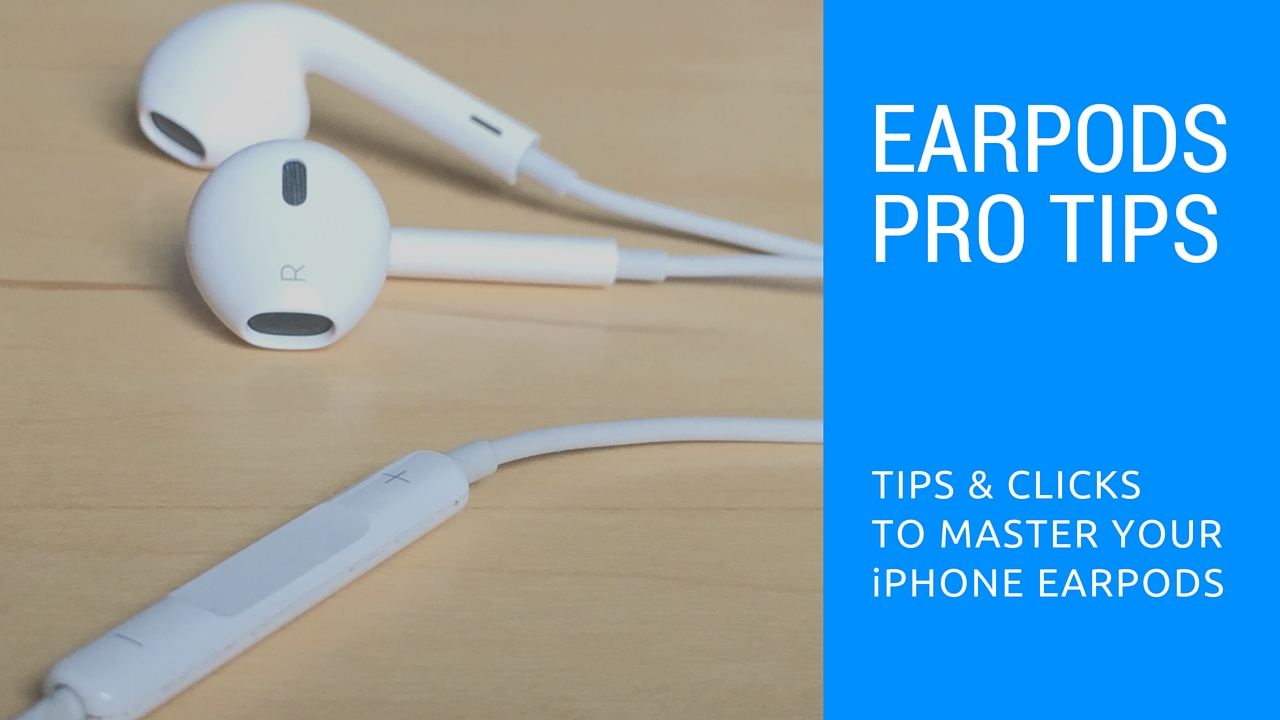
Those funky headphones that came with your iPhone—EarPods with Remote and Mic they're called—only have 3 buttons but boy do they perform a surprising number of functions beyond volume control. And with built-in mic, your EarPods can make and receive phone calls and control media playback.

Moreover, you can use them for recording voice memos, interacting with Siri hands-free, VoIP calling in apps like Skype and more, all with a pinch of the cord. Wait, I need this article to tell me how to plug my EarPods and listen to music?

We're not saying you're not familiar with your EarPods. But as with other things in life, there are always new tricks to be learned. This post will hopefully help you master your EarPods like a pro.

In this article, we'll tell you all the cool things your EarPods can do, from rich playback control and controlling Siri to switching calls on the fly, using VoiceOver and so forth. We'll also discuss EarPods compatibility, talk about keeping your headset in pristine condition and lay out sound advice for using your headset responsibly.

How to find your Mac’s Bluetooth version

With the recent release of Apple's new "Magic" devices—the Magic Trackpad 2, Magic Mouse 2, and the Magic Keyboard—some of you may be wondering if your Mac can support these new peripherals. Since all of the new Magic devices are wireless and work with the latest Bluetooth versions, it's important to know if your Mac will support them before making a purchase.

Apple doesn't exactly make it easy and straightforward to find what version of Bluetooth your Mac sports, but it can be done. In this post, we'll show you a simple method for quickly deriving your Mac's Bluetooth version in just a few steps.

How to customize your view of System Preferences icons on your Mac

Like iOS's built-in Settings app, the System Preferences application on OS X lets you customize the various aspects of your Mac to your liking.

For instance, you can adjust the size and location of the Dock, select a desktop background, set your computer’s clock to a different time zone, customize how your keyboard, mouse and trackpad work and much more.

With System Preferences, changing your computer's settings happens in one easily accessible central place. Our recent tutorial has shown you how to manually remove a third-party pane from System Preferences if it stays intact after uninstalling its container app.

Today, we're going to discuss customizing your view of System Preferences and teach you to organize System Preferences icons and show and hide individual icons from the view.