How to

How to sort iOS notifications

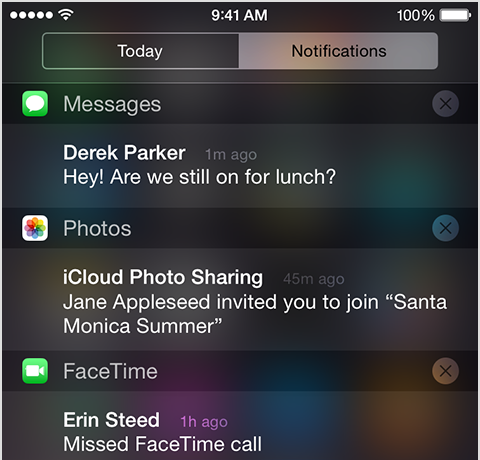
iOS has always grouped alerts in the Notification Center in the order they were received. If you're overwhelmed with numerous notifications from apps and services on a daily basis, this can quickly clutter your view and push important notifications out of the view.

It is possible to change grouping of push alerts to have them compartmentalized according to their respective originating app and listed in the order you define.

In this tutorial, we'll detail how you can select, manage and adjust app grouping within the Notification Center on your iPhone, iPod touch or iPad.

How to use photos from the Shot on iPhone 6 campaign as screensavers on your Apple TV

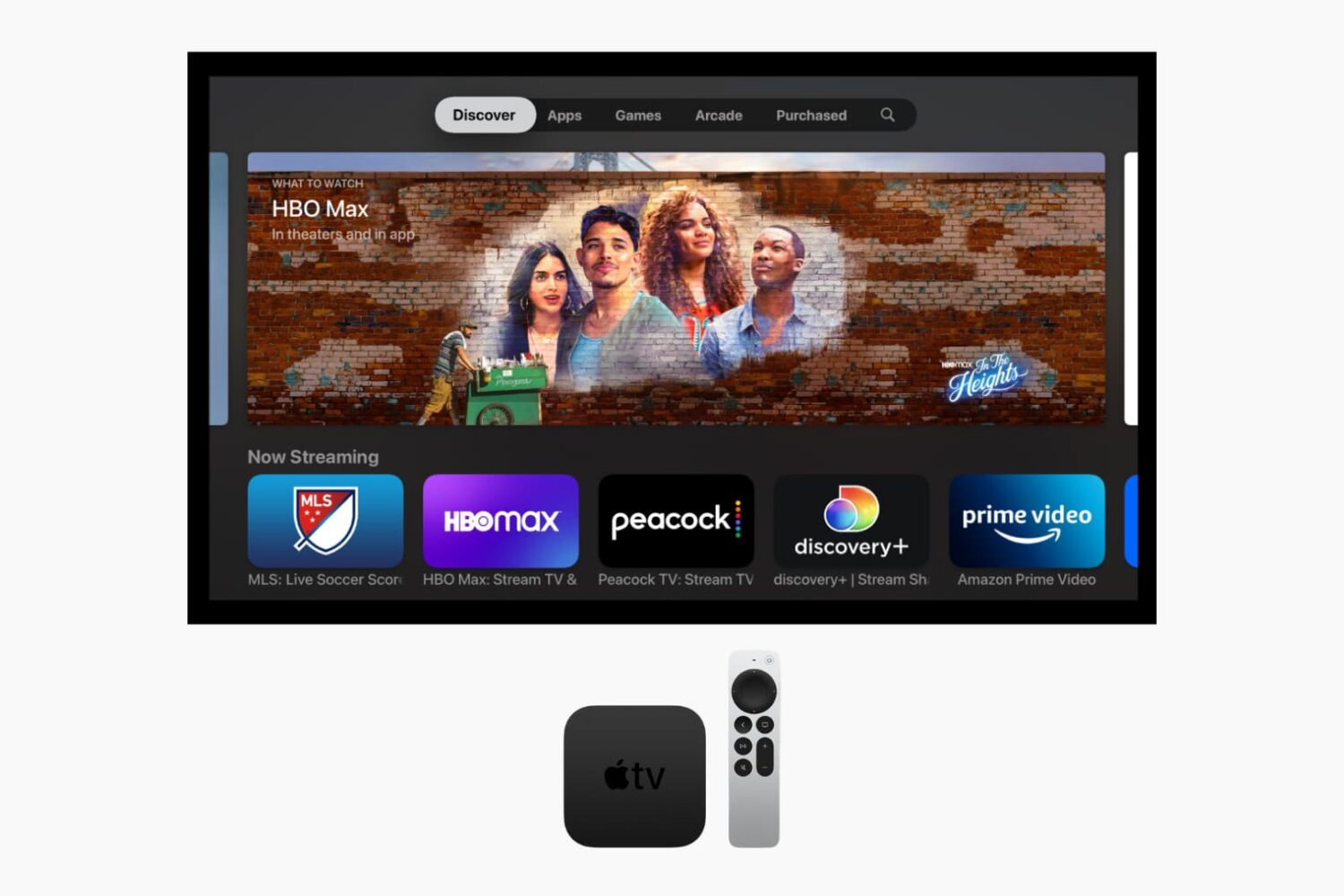
The new Apple TV features quite a few screensaver options available via tvOS' Settings app. In it, you can setup the cool new aerial view screensavers, or you can choose to use screensavers based on album artwork from music found in your music library.

Along with those screensaver options, you can enable screensavers based on photos in your photo library, including Photo Stream photos and iCloud Photo Library photos. You can even go as far as to extract photos from videos and music accessible via Home Sharing if you happen to have Home Sharing enabled.

Of course, Apple is lending us the typical Animals, Flowers, and Nature photos as screensaver options as well. Needless to say, there's no shortage of potential screensavers for use on the new Apple TV.

But one particular option stood out to me above all of the others, and that's Apple's new "Shot on iPhone 6" screensavers. Yes, Apple is allowing us to take photos from its Shot on iPhone 6 media campaign, and use them as screensavers on our Apple TV. In this post, we'll show you how.

How to program a universal infrared remote to control your Apple TV

Your universal infrared remote which used to control your old Apple TV should work just fine with the fourth-generation Apple TV right out of the box. In some cases, however, your legacy remote might need configuring in order to learn the signals that the Siri Remote generates.

In this post, we're going to show you how you can program a universal infrared remote that came with your TV, cable box or DVD/Blu-ray player in order to navigate the entirety of tvOS, or use it with a prior Apple TV model.

How to control your TV or receiver volume using the Apple TV remote

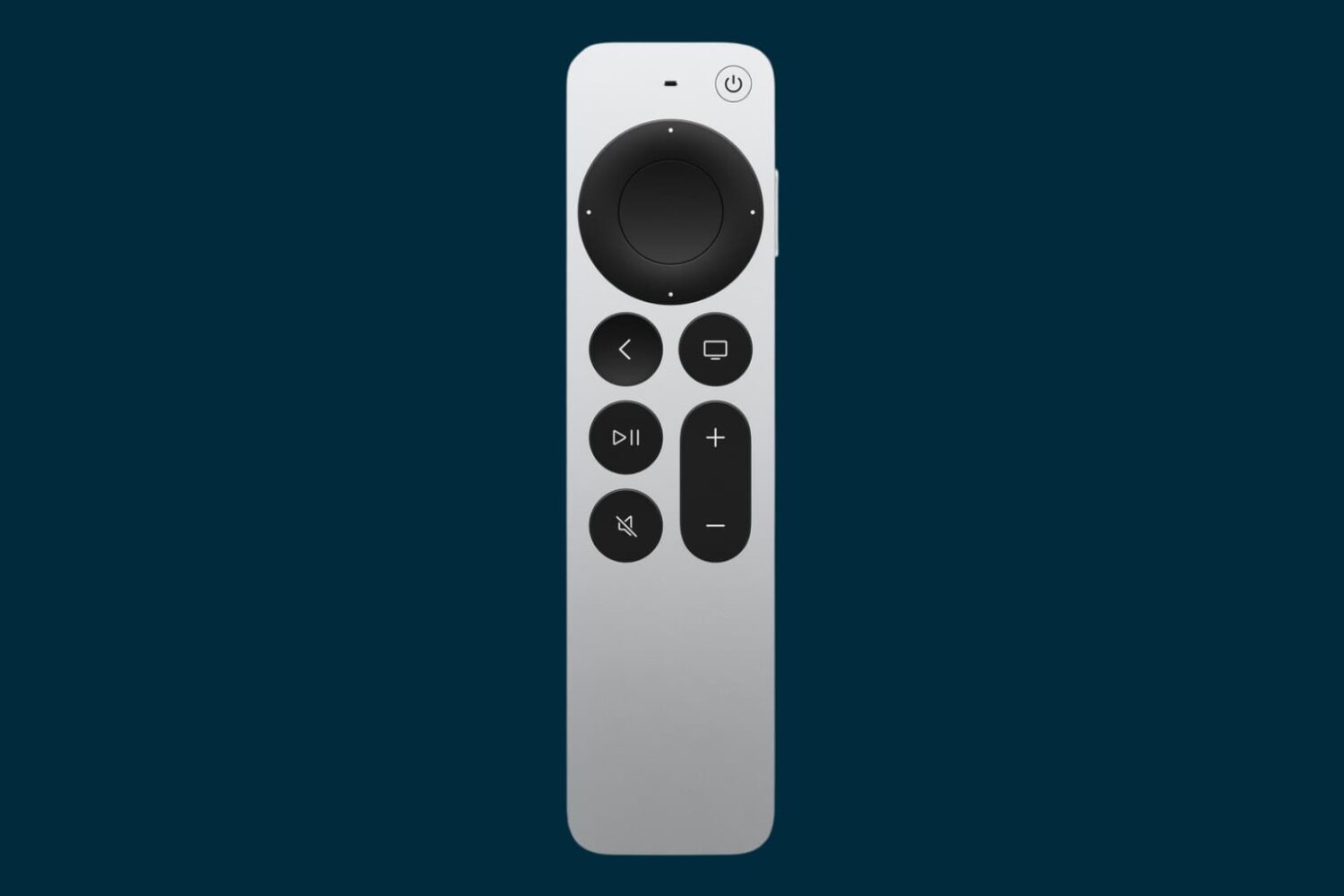
In addition to using your Siri Remote to navigate the tvOS user interface and play games on the fourth-generation Apple TV, you can program it to control power and adjust volume levels of your television set or home theater receiver.

That's because your Apple TV and the Siri Remote that came with it are compatible with HDMI-CEC and outfitted with a built-in infrared receiver and blaster.

This means owners of the new Apple TV can adjust the volume of their TVs and home theater receivers via the HDMI cable or line of sight, using just their Siri Remote.

In this tutorial, you'll learn how to program your Siri Remote and configure it to work with your home entertainment equipment.

How to use a 4-digit passcode for purchases on Apple TV

Yesterday, on Let's Talk iOS, we discussed how arduous and tedious it is to enter a password on the Apple TV interface. It's a difficult process, because the Apple TV lacks support for Bluetooth keyboards, and features an A-Z text entry setup that makes the process even more difficult that it was on last generation's Apple TV.

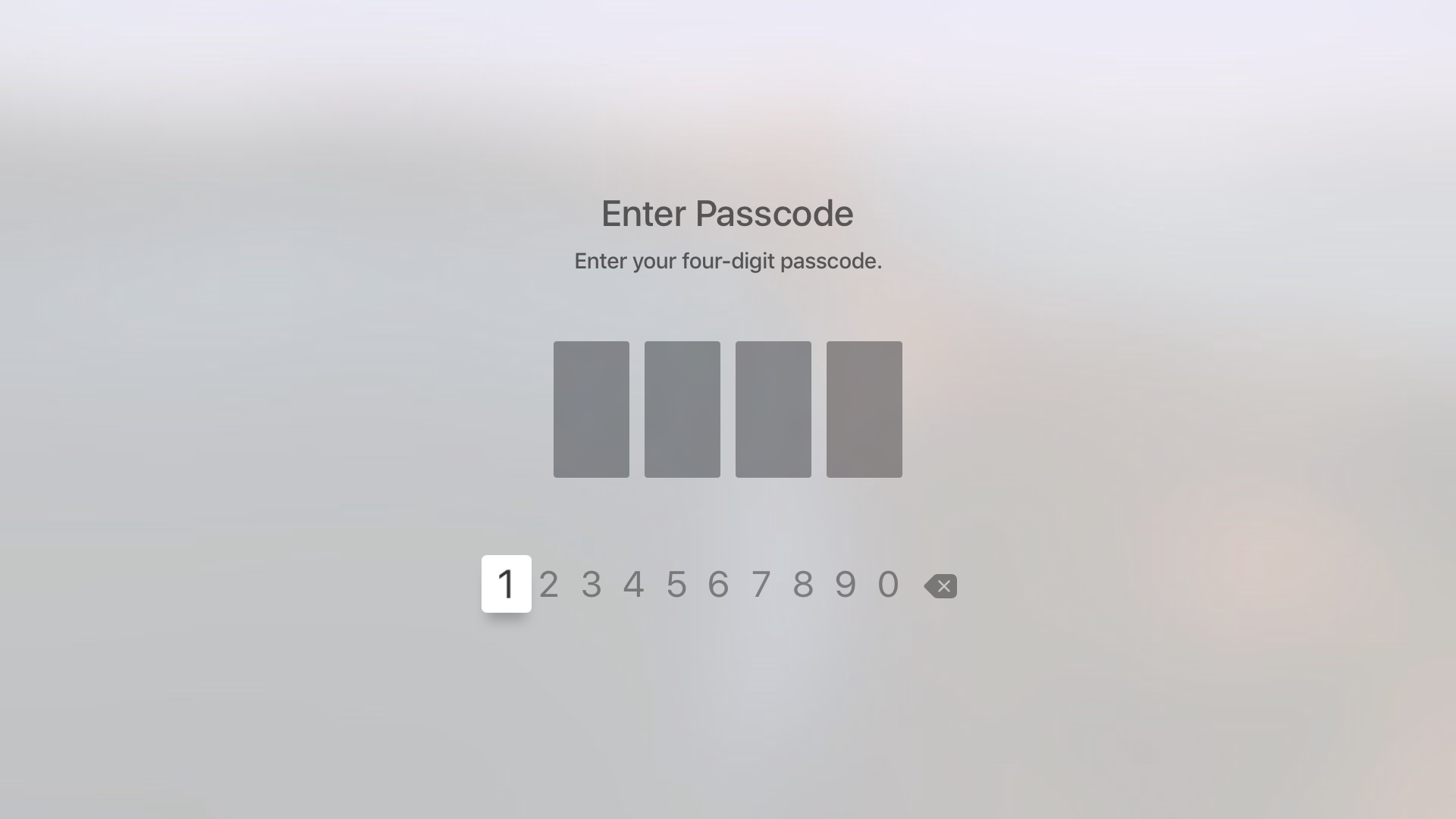
Fortunately, the Apple TV features an option that allows you to never require a password for iTunes & App Store purchases. While using such an option works, it leaves your device open to unauthorized purchases. The good news is that, as we discussed on the podcast, you can easily set up restrictions for App Store and iTunes purchases, which will make it so that purchases only require the entry of a 4-digit passcode.

How to set up carrier billing as payment method for App Store, iTunes Store and iBooks Store

In October 2015, Apple began rolling out support for carrier billing on iTunes in select markets, starting with Germany. This feature joins the existing payment methods accepted on the App Store, iTunes Store and iBooks Store and permits customers to have apps and media bought through these content stores charged to their monthly mobile phone bill or deducted from their prepaid amount.

If your carrier supports it, you too can opt-in to pay for your iTunes Store, App Store, and iBooks Store purchases—and your Apple Music membership—through mobile phone billing.

In this tutorial, we're going to cover setting up mobile phone billing as your payment method in the iTunes Store, App Store or iBooks Store.