How to

How to move your iTunes library to an external drive

You'd be amazed how much of your Mac's storage is wasted on the iTunes library. All those apps and media you have purchased and downloaded over the years pile and clog up your Mac's precious storage.

But with one-terabyte external hard drives retailing for less than $60 on Amazon, there are no excuses not to spring for external storage to move that humongous iTunes library of yours on.

This post takes you step-by-step through the process of consolidating your iTunes library and moving it to an external drive in a way that will preserve your playlists, ratings and other interactions, so you won't miss a beat.

How to use bookmark folders in Safari

In Safari, you can save websites you visit frequently so you can quickly revisit them later without having to remember their URLs. Saved webpages are accessible in Safari's Bookmarks menu on the iPhone, iPod touch, iPad or Mac.

If you save a lot of bookmarks, they will clutter the Bookmarks menu over time so locating that favorite website of yours will begin to feel like finding a needle in the haystack. You can avoid this by creating themed folders for organizing your bookmarks.

This tutorial provides step by step instructions for creating new Safari bookmark folders for iOS and macOS. You will also learn how to rename, reposition and delete these folders and file websites into them, all of which will help you organize your favorite websites to your liking.

How to reset NVRAM on your Mac

Macs are nice computers, but they're not without their issues that can spur up at random times. Fortunately, troubleshooting problems on a Mac isn't incredibly difficult and there are tons of simple steps you can take as a Mac user before calling AppleCare for support.

One of the easiest troubleshooting steps is resetting your Mac's NVRAM, a step which can solve an array of problems. In this tutorial, we'll explain what the NVRAM is responsible for and how to reset it to fix common problems.

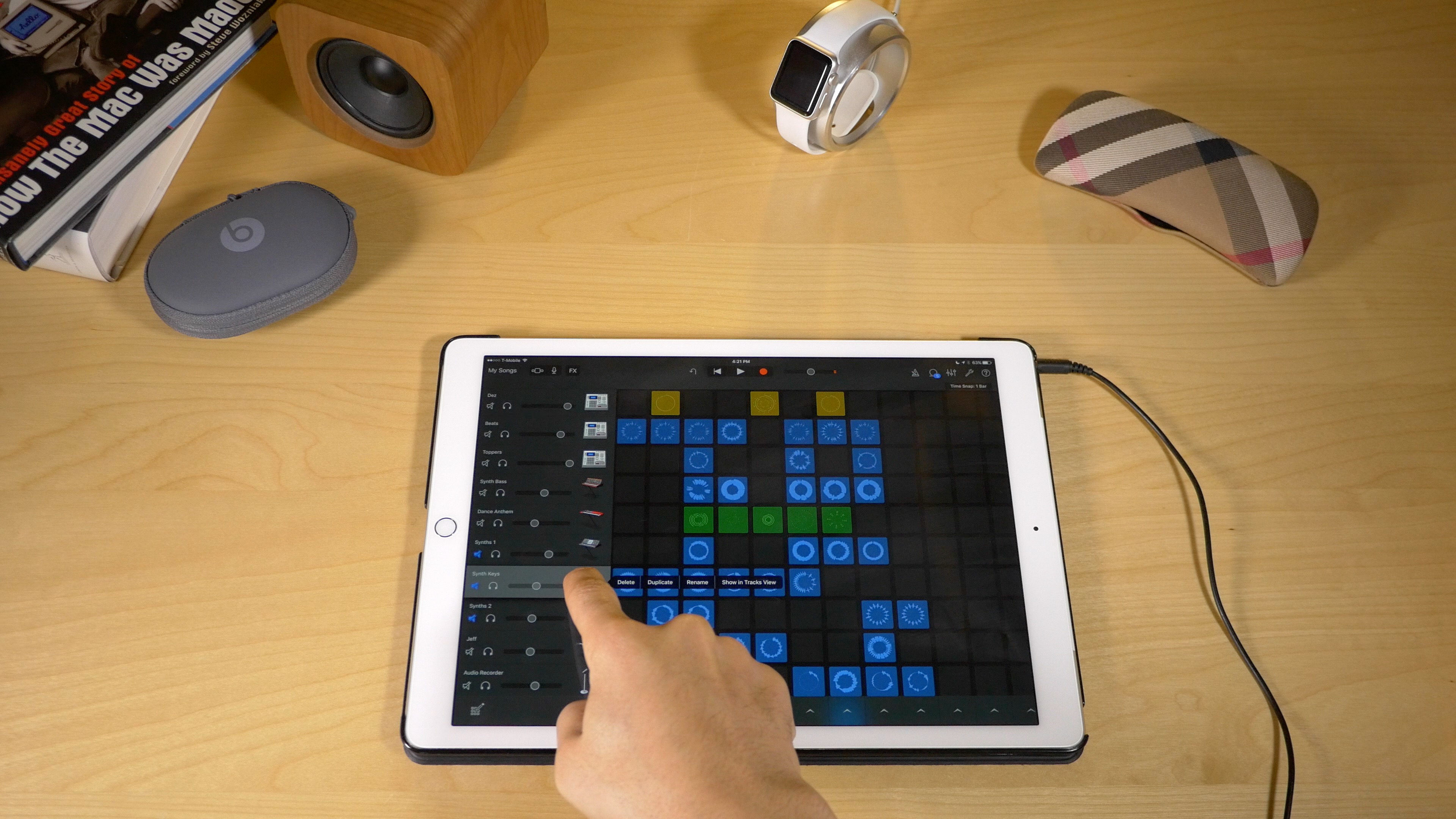
GarageBand: a beginner’s guide to Live Loops [video]

In addition to the iPad Pro support brought forth in the GarageBand 2.1 update, the app comes with a new killer feature called Live Loops. Live Loops makes music creation accessible to anyone. Creating songs using Live Loops features a low barrier to entry, but a high ceiling and virtually endless possibilities.

In this video walkthrough, I'm going to share with you 20 basic GarageBand Live Loops tips for getting started with this awesome new feature. I'll even make a song, and rap to it on the fly! If GarageBand has always seemed intimidating to you, then I guarantee that after watching this video, you'll be ready to roll your sleeves up and start creating your own musical masterpieces.

How to measure Mac frame rates and enable HiDPI display modes on older models with Quartz Debug

Have you ever wanted to benchmark the graphics performance of your favorite Mac apps and games, or measure the refresh rates of macOS's user interface?

If so, you'll be delighted to learn that Apple provides a free application, called Quartz Debug, which has a built-in live frame rate monitoring tool that can measure the refresh rate of the graphics subsystem in frames per second (FPS).

Here's how you can download Quartz Debug to your Mac and use it to display the number of screen updates per second, see the FPS and CPU gauges changing as you perform different actions on your Mac, enable HiDPI display modes on non-Retina Macs and adjust other settings related to the computer's GPU.

How to watch Super Bowl 50 on iPhone, iPad, Apple TV, and other devices

On Sunday evening, millions of people will gather around their TV sets to watch Super Bowl 50. The game features the Denver Broncos taking on the Carolina Panthers, and kickoff is scheduled for 6:30 (ET).

For those of you who aren't going to be around a television Sunday night, but still want to follow along with the action, we've put together a list of ways you'll be able to do so using an iPhone, iPad, Mac and other devices.

How to disable transparency effects on your Mac

The release of OS X Yosemite in 2014 gave the Mac's user interface a fresh coat of paint in part through adopting much of the transparency effects that Apple added to iOS 7 in prior year.

Transparency is used throughout macOS and can be observed on the desktop and seen in drop-down menus, title bars, sidebars and toolbars.

This post will teach you how to disable transparency for all user interface elements that have a translucent appearance on your Mac.

How to turn any photo scene into a snowy one with Snow Daze

Winter may be coming to an end next month, making room for the Spring season, but that doesn't mean you can't keep enjoying the snow!

Snow Daze is a wonderful app that can be had from the App Store for $1.99. The app can turn any photograph scene into a snowy wonderland. With all of the different filters, configurable snow settings, and color options, you can make even the least suspecting photograph look like it was taken in the middle of a blizzard storm.

In this tutorial, we'll be showing you how the app works.

How to choose which contacts appear in the Phone app 3D Touch shortcut menu

Are the contacts in the 3D Touch shortcut menu of the Phone app confusing you? Upon pressing Phone's icon lightly, a menu pops up with four seemingly random contacts, making it easy to call them quickly from the Home screen. Believe it or not, there's actually some logic behind listing these quick contacts. Even better, you can change their order as well as set other people to be listed in Phone's shortcut menu.

How to annotate email attachments in iOS with Markup

One of the major features that shipped with iOS 9 was Markup, better known for the ability to draw on and annotate attachments of various file types that you receive in the Mail app and then send them back to the original sender, or someone else for that matter.

Despite how useful this feature is, few people actually use it, either because they don't know it exists or they don't know how to access it. In this tutorial, we'll take you through how to access it and cover some of the features it provides.