Learn how to check timestamps in Apple’s Messages app on the iPhone, iPad, Mac, and Apple Watch to see exactly when chats were sent or received.
Knowing when you sent or received particular messages can be handy for a number of reasons. Apple’s built-in Messages app hides timestamps by default for simplicity’s sake, but you can reveal them with a quick gesture, and here’s how.
iPhone, iPad, and Apple Watch
- Open a conversation in the built-in Messages app on your iPhone, iPad, or Apple Watch.
- Swipe from right to left anywhere on the chat to reveal timestamps next to chat bubbles on the right side of the screen.
- Hold the finger to check the timestamps that interest you; let go when done to hide timestamps again.

Mac
- Open conversation in the built-in Messages app on your Mac.
- If you’re using a MacBook or Mac with an external trackpad, swipe left with two fingers to swoosh timestamps into view from the right side.
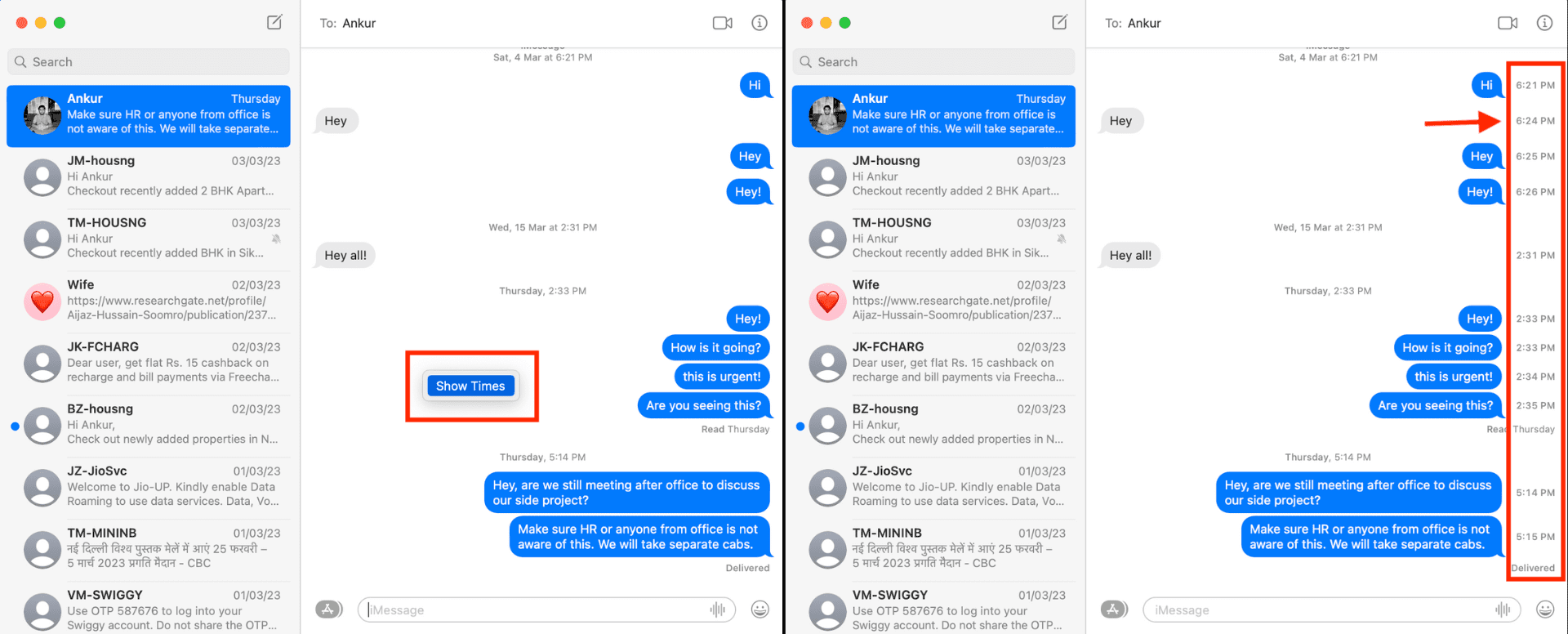
- Alternatively, right-click or Control-click anywhere within the chat and choose Show Times from the menu. Doing so will reveal timestamps for all messages exchanged in this chat. Right-click again and choose Hide Times to hide the timestamps.
View timestamps for context on your chats
Timestamps give you better context in conversations, especially when the other person swears they messaged you at a particular time and you feel otherwise. In those moments, you can easily confirm the truth since timestamps show the exact date and time a text was sent or received.
They’re also fun for sparking curiosity—like when you revisit old conversations and want to see when you last chatted with someone. And if you’ve left a message unanswered for a while, timestamps make it clear exactly when you got it, helping you decide how to respond. For more practical ways to get the most out of Apple Messages, explore our guide to the 50 best iMessage tips for iPhone and iPad.