How to

How to disable suggested search terms in Safari

Google Suggestions while typing in Safari address bar

Safari Smart Search Field lets you type in either an URL to visit or a search query to send to the default search engine. It's also a place where search suggestions automatically pop up as you type. With this cool feature, you can type just the first few letters of a query and rely on the search engine (Google, Bing, Yahoo, etc.) to help you complete the search term without needing to type out the rest of your query. But, certain users may not be fond of this feature for privacy reasons.

If you're among them, use the step-by-step instructions provided in this tutorial to turn off suggested search terms in Safari for iPhone, iPad, and Mac.

How to delete your old iPhoto library

After upgrading your Mac to OS X Yosemite or later, the new Photos app gets installed automatically.

On first launch, Photos will auto-upgrade your default iPhoto library to its new library format. People with multiple iPhoto libraries must manually convert them to the new format by holding the Option (⌥) key when clicking the Photos icon in the Dock.

Upon completing migration, you'll have two sets of photo libraries on your machine: the original iPhoto libraries and their Photos counterpart.

In order to free up a significant amount of storage space on your Mac, you can safely delete any iPhoto library that has been migrated to the new Photos app.

How to quickly redial the last number on your iPhone

Using a 3D Touch gesture on the Phone app icon gives you shortcuts for calling your favorite contacts right from the Home screen. But aside from 3D Touch, the Phone app has received little innovation in years past.

That being said, a lot of iPhone owners are not completely familiar with the ins and outs of the Phone app beyond making and receiving phone calls. Many of my friends, for instance, routinely go to Phone → Recents to call the last dialed number.

Apple's interface designers have thought of that, too, but unfortunately their solution is not readily apparent in Phone's interface. In this quick tutorial, we'll teach you how to call the last dialed number right from Phone's Keypad section.

How to manage multiple accounts in Instagram

Instagram officially announced support for logging into more than one Instagram account at a time in its free iOS and Android apps on Monday, and many of you that use Instagram on a daily basis are probably wondering how you can get your hands dirty with the feature.

Although signing in with multiple Instagram accounts is a feature that is still currently rolling out to all users, it's possible to force your app to allow you to sign in with multiple accounts right now.

Once you get your Instagram app updated to the latest version and are ready to get started with using multiple user accounts in the app, you can follow this tutorial on how to manage all your Instagram accounts from the app.

How to rotate a video on your Mac

Every so often, you may come across the need to rotate a video after you've recorded it with your camera or iOS device because it didn't quite come out how you expected it to.

Fortunately, Apple's QuickTime app, which is built into the macOS operating system on your Mac, is powerful enough to do just that; and it's very easy to do.

In this tutorial, we'll be showing you how to rotate a video in any direction on your Mac using the QuickTime app.

How to move Photos library to an external drive

In addition to moving your multi-gigabyte iTunes library to an external drive, a significant amount of Mac storage space can be freed up by moving your photo libraries onto a separate drive.

If you take a lot of pictures with a DSLR camera or your iOS devices and import them in Photos, you'll fairly quickly run out of free space on most Macs.

This tutorial will guide you through the process of moving an entire library of photos to an external drive, preferably to a much larger external hard drive, in a way that won't disrupt your photography workflow.

How to make the most of 3D Touch in Phone app

Our 3D Touch tutorial series has so far covered various user interface shortcuts and 3D Touch Peek and Pop gestures in several Apple stock apps like Messages, Safari, Mail, iBooks and Apple Maps.

Today, we're going to discuss how pressure-sensing screens enhance the Phone app, one of the most frequently used stock apps on iPhones. Here's how to make the most of 3D touch and the Phone app.

How to view your download history in the Mac App Store

Heavy Mac App Store users will download, install, and delete apps from their Mac all the time. It may be because you're interested in experimenting with new utility releases, downloading games to get a thrill, or checking out the productivity apps that developers claim to be the "best" out there.

Through all this downloading, installing, and deleting, you may want to check out one of the apps you remember using from a long time ago to see if it got any cool new updates, and sometimes you don't particularly remember what the name of said app might be.

Fortunately, the Mac App Store comes with a way to see your purchase history, allowing you to see all of the apps you've ever downloaded from the Mac App Store whether they were free or paid ones. In this tutorial, we'll show you how to see your Mac App Store's download history.

How to stop ‘Up Next’ videos from autoplaying on YouTube

One of my pet peeves with YouTube is how after completing a video, the service shoves a new video down your throat with a feature called "Up Next," which gives you a 15-second time frame to click the "X" button at the top right of the video before the next video starts to play.

Sounds familiar? If you feel the same way, then you've stumbled upon the right tutorial, because we're going to be showing you how you can disable this feature right from the YouTube website without installing any plug-ins, hacks, or other crazy stuff.

With this time-saving shortcut, you can quickly set some Mac display options

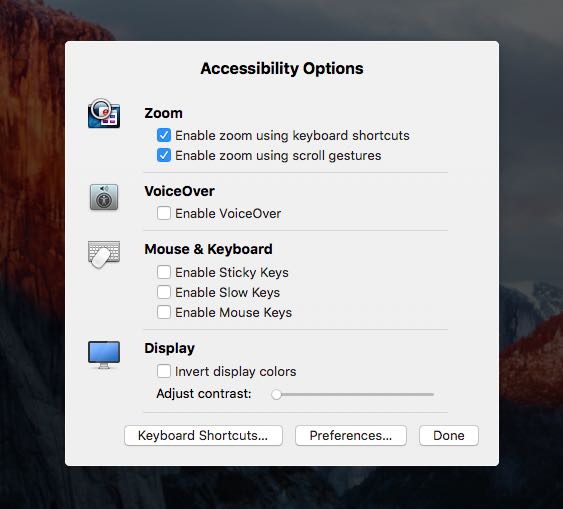
In addition to adjusting the screen resolution and choosing between the available display modes on your Mac, the macOS System Preferences application gives you additional display options to play with.

If you use display zoom, a great feature for people with less than perfect eyesight who find themselves squinting at the screen all the time, or you want to quickly access common features related to making items on the screen easier to see and the display easier to read, use the following time-saving shortcut to quickly adjust these options.