How to

How to decrease ‘Other’ storage on iPhone or iPad

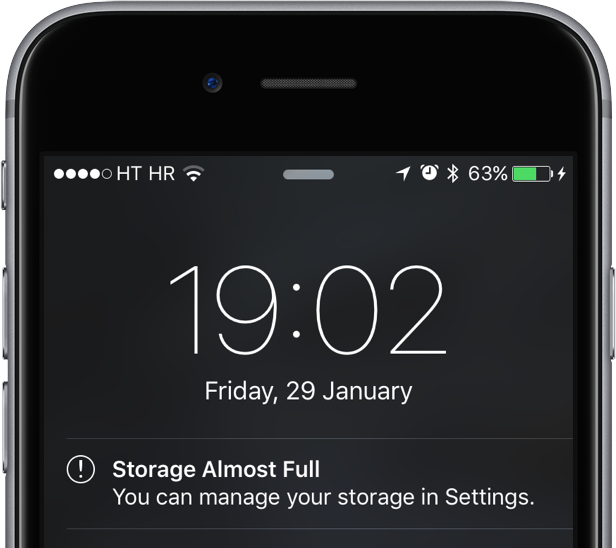
The infamous 'Other' storage section displayed in iTunes after connecting an iPhone, iPod touch or iPad to a computer is definitely one of the pain points for users mainly because it keeps increasing on its own.

'Other' storage is a combination of system settings, caches and various files that iOS stores temporarily to speed up system performance and minimize your dependency on network connectivity.

This all happens automatically and without any intervention on part of the user. That said, software can (and will) break and so these files may not get cleaned out properly. And when that happens, a large amount of storage will be lumped into the 'Other' category. The good news is, your proactiveness in dealing with this issue should pay off.

It's actually fairly easy to recover your usable storage lost to 'Other' space hogs by specifically targeting certain items. In this post, we'll lay out a few different techniques to decrease 'Other' storage on your iPhone or iPad.

How to open ZIP files on iPhone using the Notes app

Although neither Apple's Safari nor Google's Chrome browser can extract files from ZIP archives on iOS, it has been discovered that Apple's Notes app lets users view the contents of ZIP files by taking advantage of iOS's built-in file attachment viewers.

Starting with iOS 9, Notes has received several new features, among them support for adding content to a new or existing note through iOS's multi-purpose Share menu in apps like Safari, Maps, Pages and more.

As it turns out, you can also use iOS's Share menu in conjunction with the “Open In” feature to add a downloaded ZIP file to a note on your iPhone, iPod touch or iPad.

How to share iCloud calendars

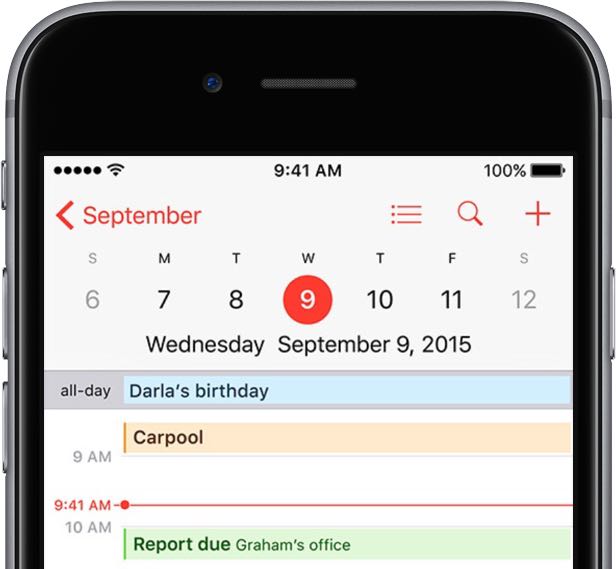
Apple's Calendar application for the iPhone, iPod touch, iPad, Mac and iCloud.com makes it simple to share events and to-dos with select people, or let anyone with a link subscribe to a read-only calendar.

For example, you could share a “To Do” calendar with your significant other, create a calendar for your entire family so every member can put errands on it, invite your wife to a shared “Kids” calendar to keep parents in the loop about school activities and more.

Not only do shared calendars increase your productivity in the workplace, they help those who use them become more organized in everyday life. You can assign edit privileges to invitees, adjust how participants access the calendar and more.

Invitees have a myriad of options at their disposal to view shared calendars, including the iCloud Calendar web app, the stock Calendar app on the iPhone, iPad, iPod touch and Mac or Microsoft Outlook on a Windows computer.

In this tutorial, you will learn how to share a calendar privately or publicly on iPhone, iPad, Mac and iCloud.com. You will also learn how to manage calendar sharing by adding or removing participants, changing privileges, adjusting calendar notifications, and more.

3D Touch shortcuts for the Camera app

Whenever an awesome photo opportunity presents itself, I instinctively grab my iPhone, launch the Camera app and press the shutter button.

But boy, way too many times did I find myself in the wrong camera mode. One time, I would realize I was shooting video instead of taking a great picture. Other times I would snap a selfie, whereas I wanted to take a quick photo of my neighbor's dog jumping in the air catching her frisbee.

3D Touch can help avoid such distractions when you're in the middle of your photography moment. With a little help of 3D Touch shortcuts and gestures, iPhone owners will hopefully never miss that important shot again.

3D Touch lets you take a selfie or start shooting video from the Home screen, review the photos you’ve taken without leaving the Camera app, play Live Photos with a press and more. In this tutorial, we'll take you through every 3D Touch-enhanced feature that's available to iPhone photography fans in Apple's built-in Camera app.

Office Lens converts scanned paper documents to editable Word files

For those of you that still use hard copies for all your important documents, or have physical business cards, photographs, whiteboards, and other important information that are looking for a way to digitize it and even modify it after the fact, Microsoft's Office Lens app will be your best friend.

Office Lens, which is a free download from the App Store, allows you to scan these kinds of information and media and can create software versions of them to make sharing and editing easier so you can get rid of the filing cabinet taking up space in your home or office.

In this tutorial, we'll give you some background on the app and show you how you can use it to scan and then edit documents in Word.

How to keep apps, games and websites from spamming your Facebook Timeline

One of the biggest challenges Facebook users face in their daily usage of the service involves keeping apps, games and websites that connect to Facebook as a sign-in mechanism from posting random updates, unwanted stores, ad links and other garbage on their Timeline.

For most people, this constitutes spamming because not only do these posts appear on your own Timeline, but also in your friends' News Feed and ticker.

Unfortunately, too few people are aware that they can easily squelch this spammy behavior with just a few clicks. In this tutorial, we're going to show you the tools Facebook put at your disposal which were designed to stop apps from posting updates on your behalf.

Using Gatekeeper to help secure your Mac

macOS comes with a security feature known as Gatekeeper, which can help prevent unwanted apps from launching on your Mac without your permission. It can also prevent potentially malicious apps from launching because it can be used to limit the kinds of apps that are allowed to open on your Mac.

In lieu of the recent Sparkle updater framework vulnerability having been uncovered in a variety of popular macOS apps, now is a great time to set up your Gatekeeper settings to prevent potential issues with malware on your Mac in the future.

In this tutorial, we'll be showing you how Gatekeeper works and how you can configure it to keep your Mac just as secure as you want it to be.

How to view, search and edit Safari passwords

If you're tired of always having to log in, Safari will happily save web passwords in your keychain. Even better, the browser can automatically fill in your user names and passwords the next time you visit your favorite websites.

And with the iCloud Keychain feature, your saved passwords can be synchronized across devices in a safe, secure manner. In this tutorial, you're going to learn how to search saved Safari passwords without needing to visit their websites, view your saved logins, as well as add, delete and manage saved passwords. 

Why and how to use a VPN on your iOS device or Mac

A virtual private network, commonly referred to as a VPN, is a type of connection you can use over the internet that helps to secure your identity as you surf the web.

Often times, they're used to improve your security and privacy on public Wi-Fi networks, but they're also used for a wide variety of other reasons. If you've been considering using a VPN on your iOS device(s) or Mac(s), then you've come to the right place. We're going to tell you all about why you should consider using one and how to use a VPN on iPhone, iPad, or Mac to your advantage.