Check out these handy sidebar tips to make the most of the Apple Files app on your iPad and get things done effortlessly.
6 tips to use the sidebar in the iPad Files app
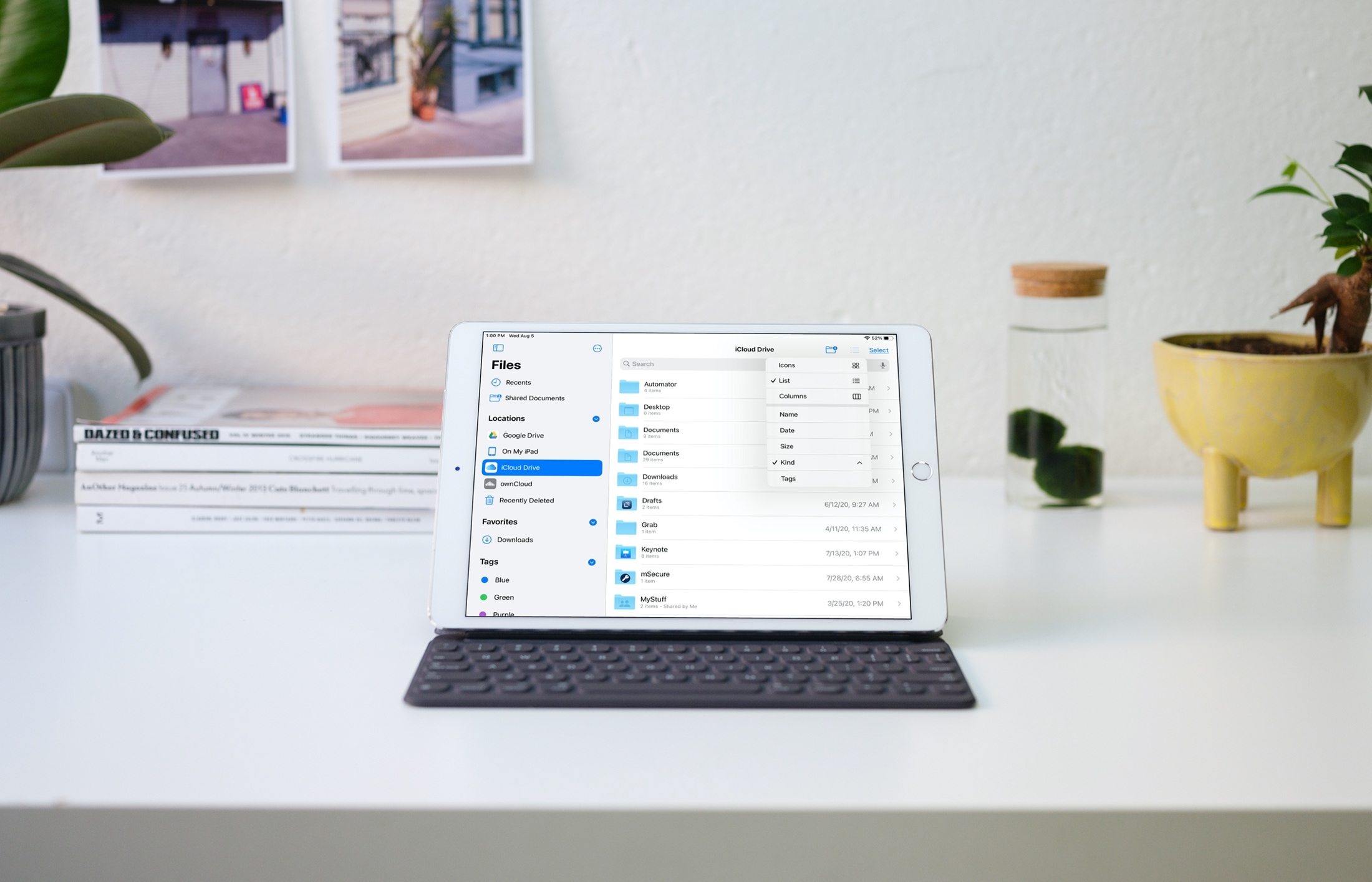
Check out these handy sidebar tips to make the most of the Apple Files app on your iPad and get things done effortlessly.
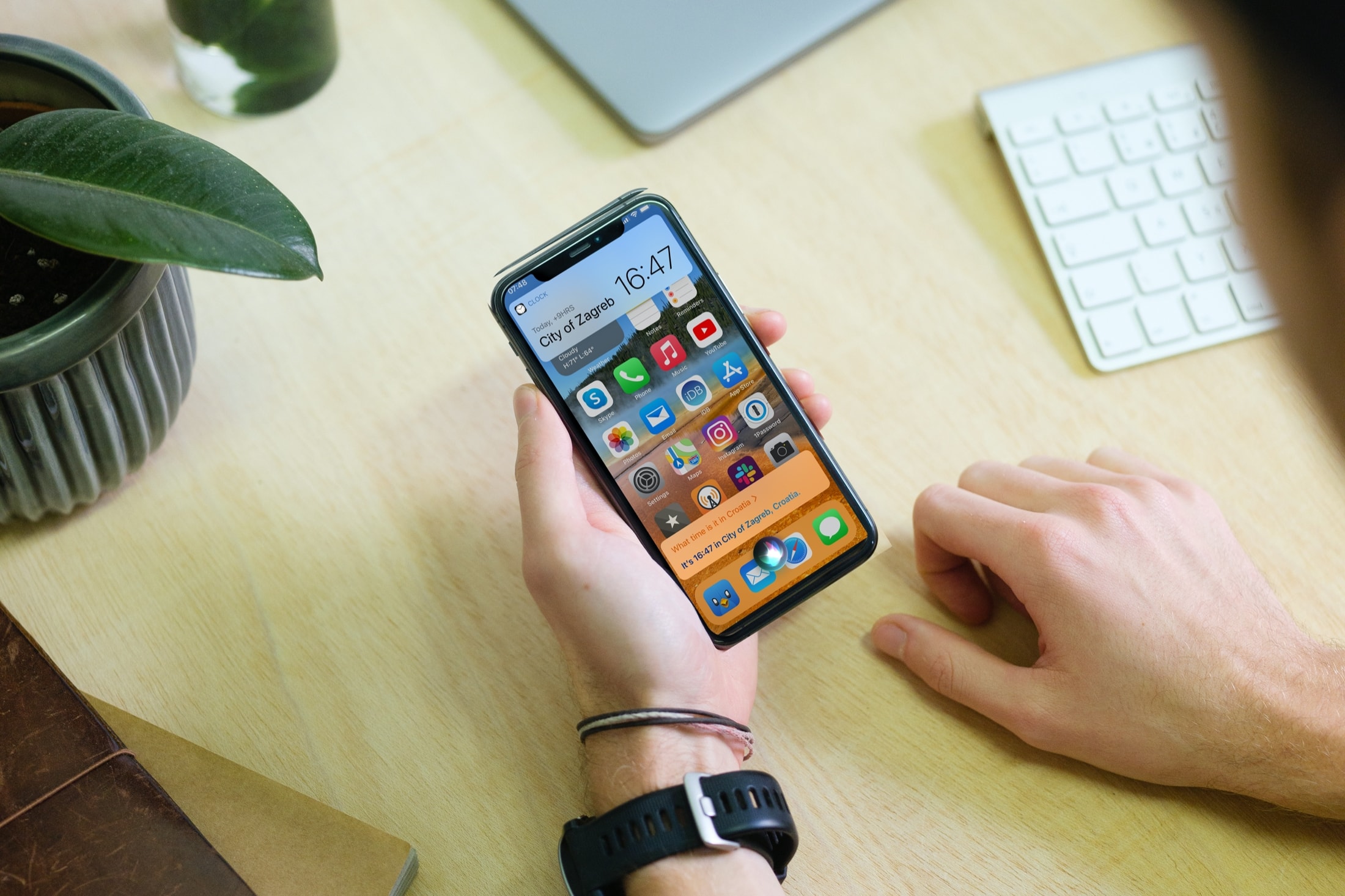
By default, Siri appears in a compact view on your iPhone and iPad. In this tutorial, we'll show you how to use that compact view or go the old way and have Siri take the entire screen.
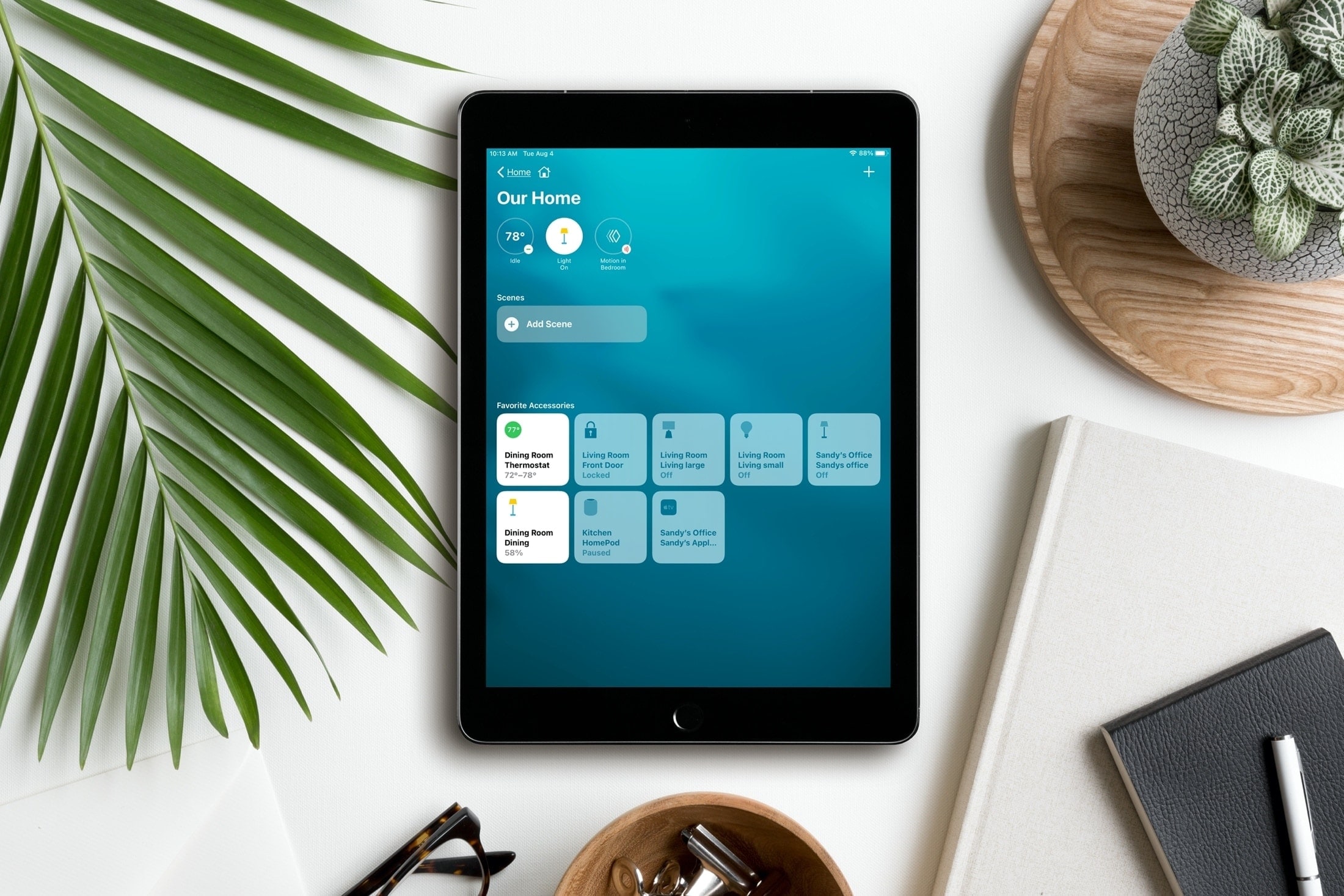
Controlling your smart home from your iPhone and iPad is simple with the Home app. And with iOS 14, iPadOS 14, and macOS Big Sur, you have a clearer way to see and manage your HomeKit accessories.
What used to be written summary section at the top of the Home app is now a visual summary of your connected devices. This allows you to quickly take action or more easily control your accessories. Here’s the scoop on using the visual status section for devices in the Home app.
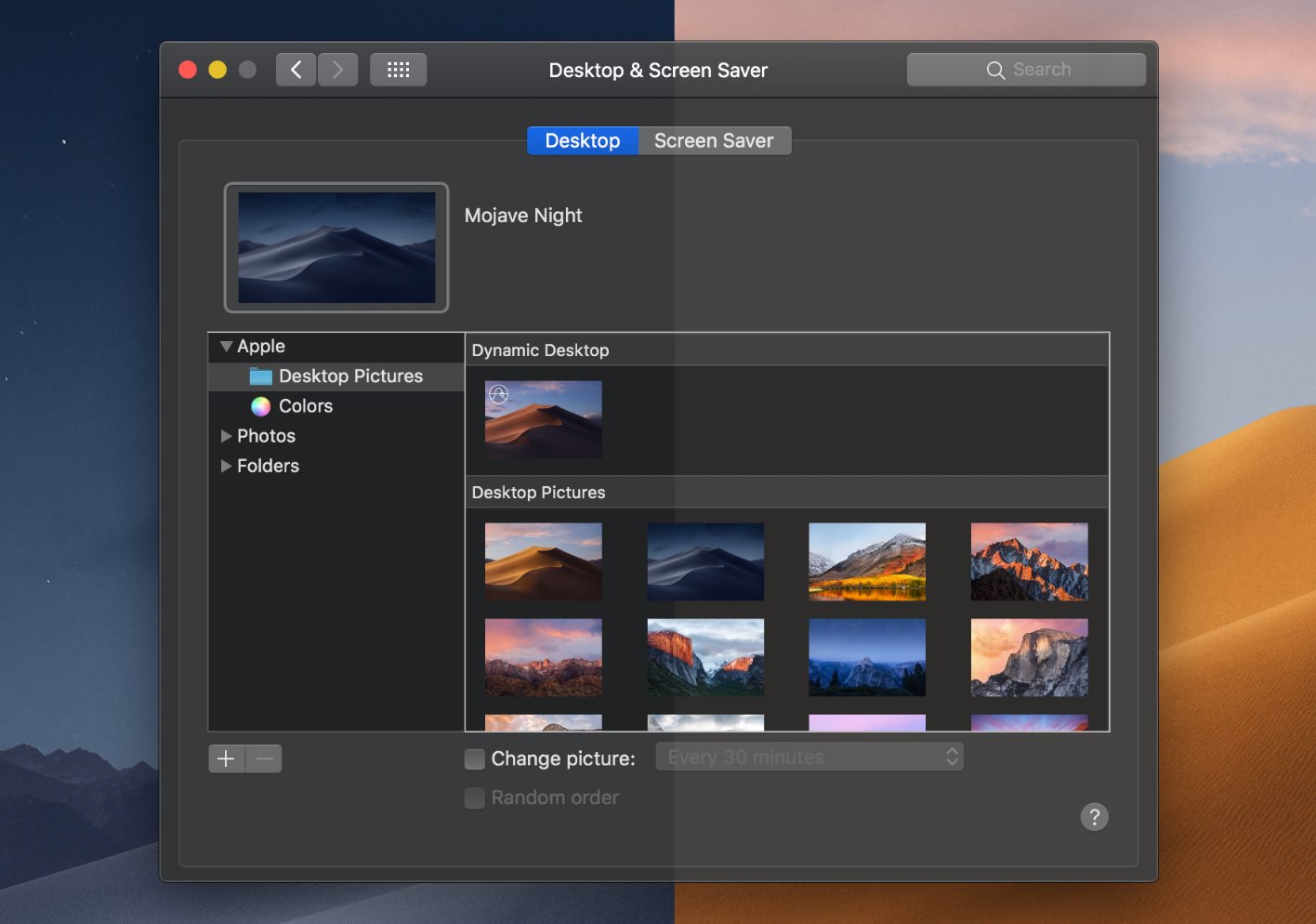
The dramatic Dark Mode look arrived to the Mac with the October 2017 release of the macOS 10.14 Yosemite software update. Fast forward three years and users can now force Dark Mode to become a bit darker thanks to a new setting in macOS 11.0 Big Sur. Follow along with our tutorial for step-by-step instructions for how to to make Dark Mode even darker on your Mac.
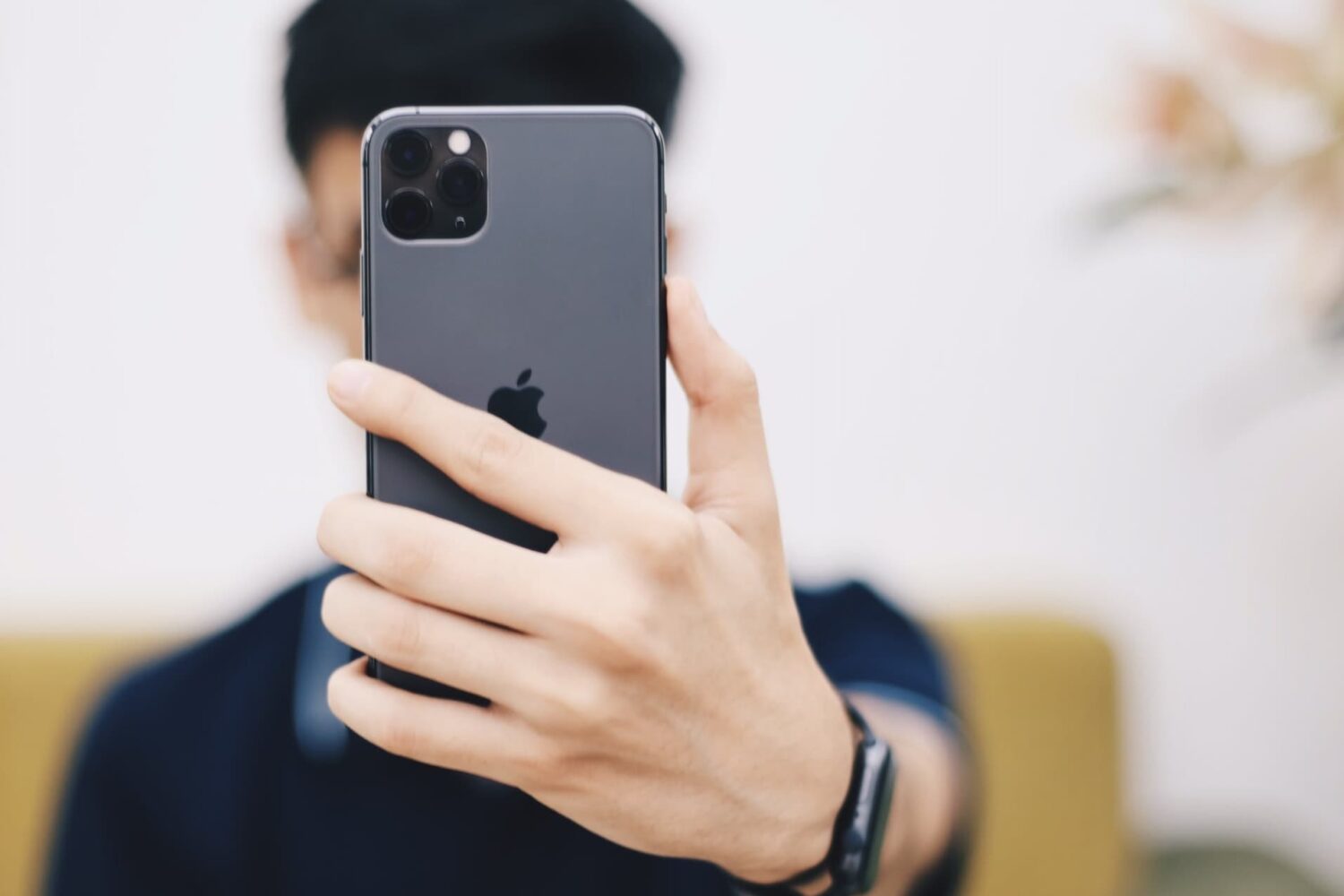
Learn how to stop your iPhone from flipping selfies and instead save un-mirrored originals that match exactly what you see in the Camera app’s viewfinder.
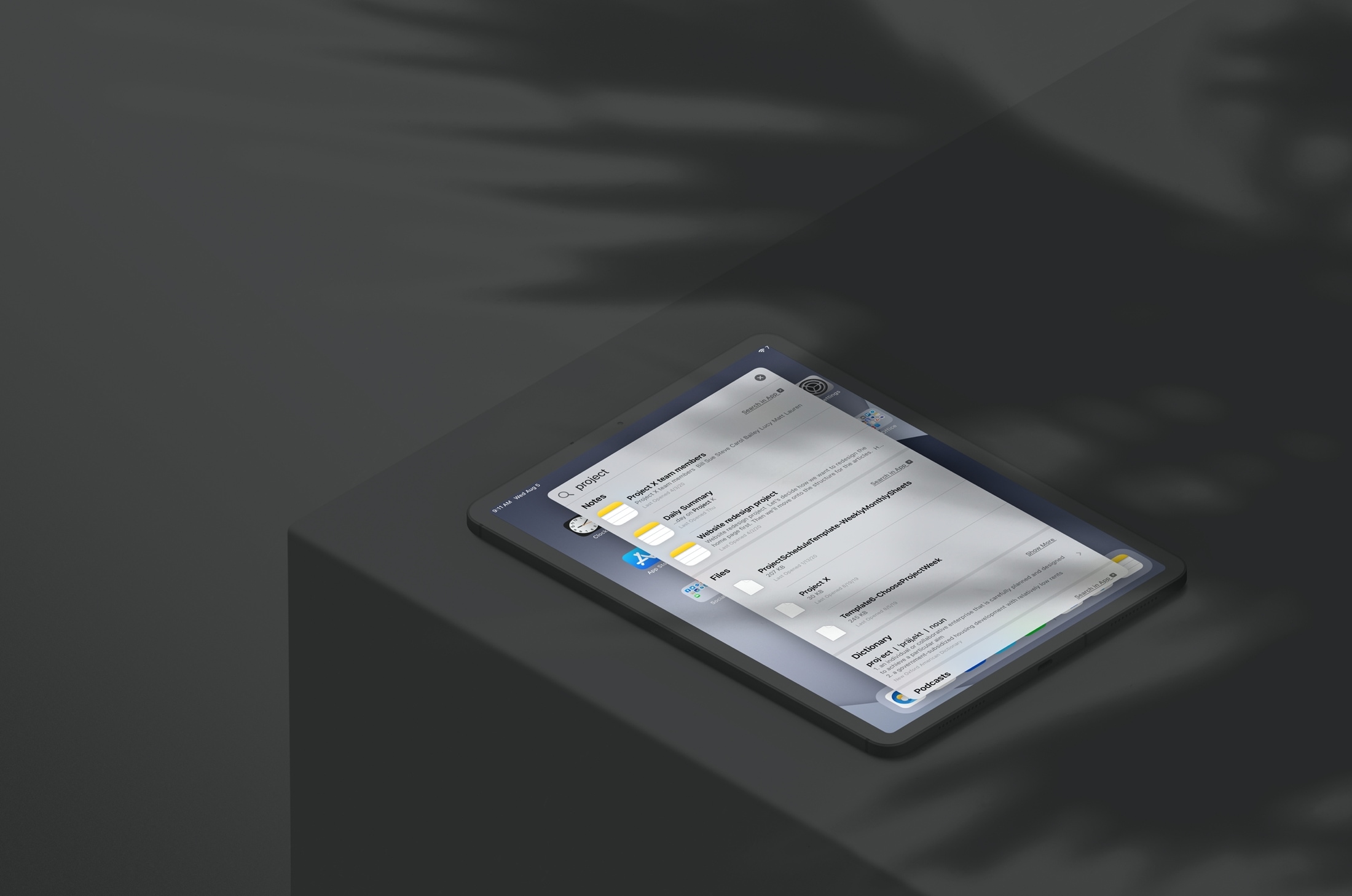
Learn how to save time and effort by searching inside apps on your iPhone or iPad directly using Spotlight Search from your Home Screen.
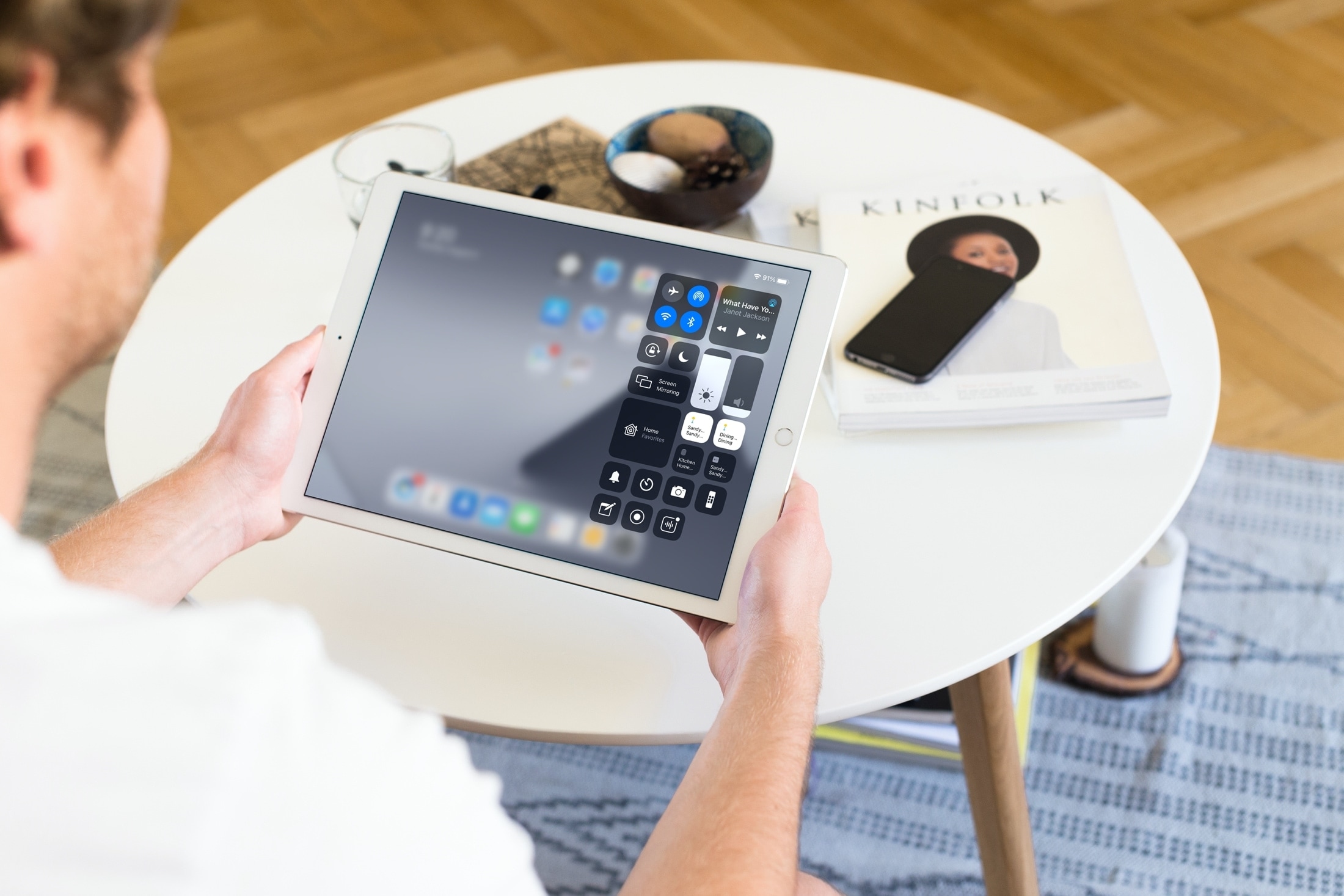
From turning your smart accessories on or off to adjusting their settings, this tutorial shows you how to control and manage HomeKit devices from your iPhone and iPad Control Center.
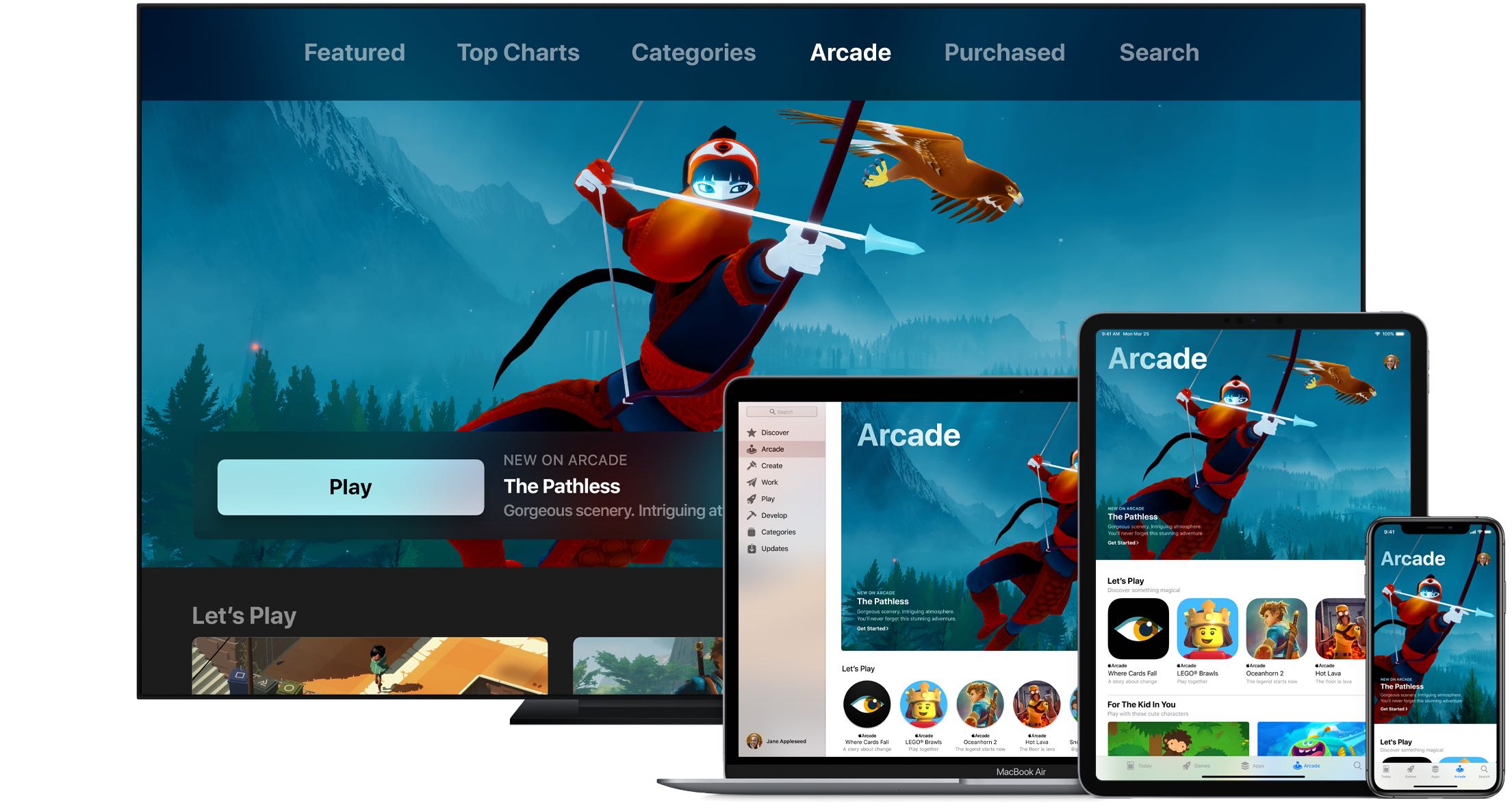
Wouldn't it be great if you could see upcoming games that will launch soon on Apple Arcade, the iPhone maker's game-subscription service? With the new App Store features available on iOS 14, iPadOS 14 and macOS 11 Big Sur, you can do just that. Follow along with our quick tutorial as we show you how to get a sneak peek at upcoming Apple Arcade games.
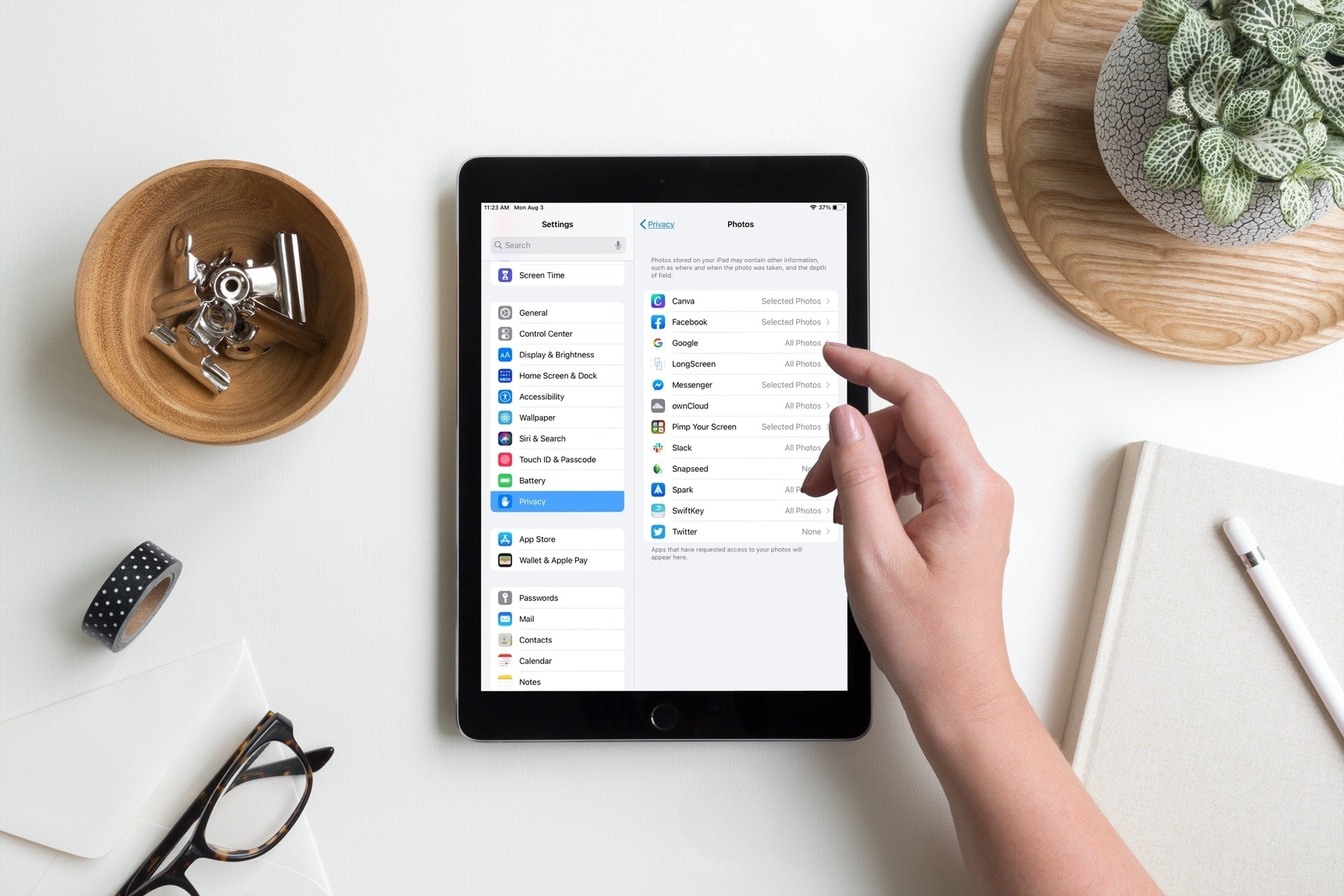
Learn how to restrict apps on your iPhone or iPad from accessing all your images and videos in your photo library, thus enhancing your privacy and security.
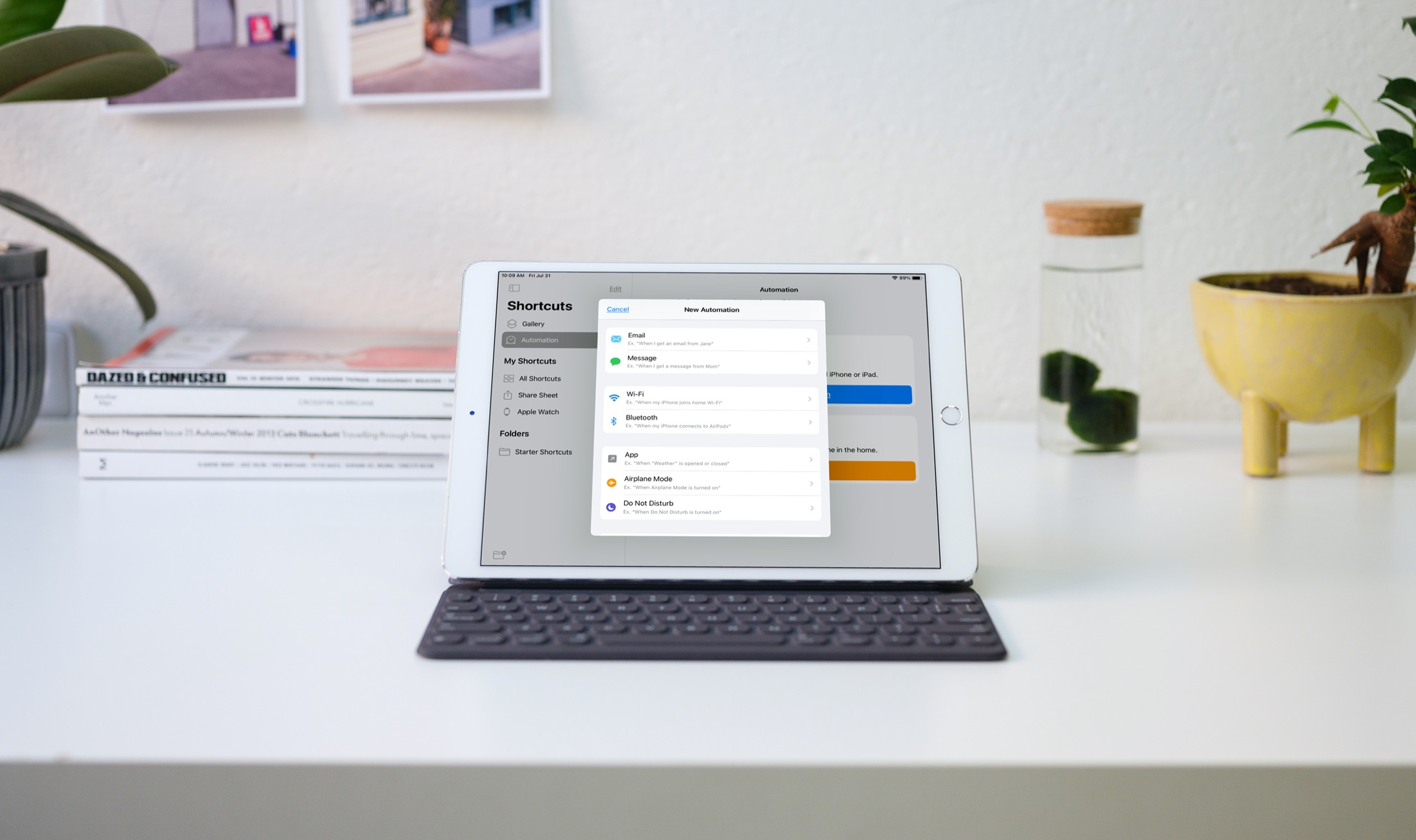
Automations in the Shortcuts app give you awesome ways to make tasks simpler. With automations, you can do things like open an app, play music, or make a phone call, all automatically based on triggers you set up.
The Shortcuts app offers both personal and home automations to make your life a little easier. And with iOS 14 and iPadOS 14, you have even more triggers available. Here, we’ll show you how to use some of these new personal automation triggers in Shortcuts.
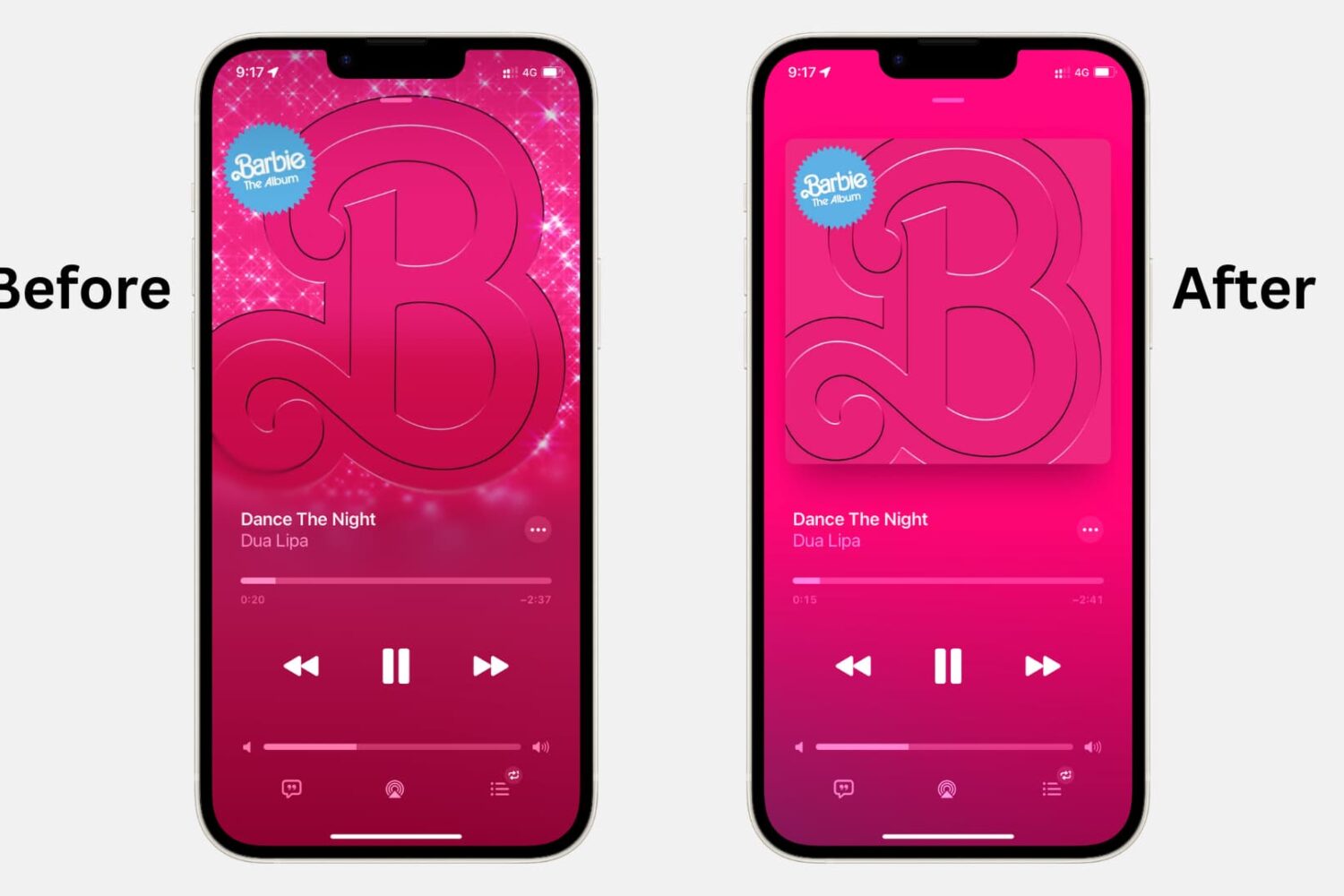
Turn off animated cover art in the Apple Music app on iPhone, iPad, and Android phone to avoid motion sickness and save data and battery.

If anything, the US elections and the coronavirus crisis have reminded us yet again how rapidly misinformation can spread through social media and messaging platforms. To help with that, you now have the ability to fact-check forwarded WhatsApp messages, and we show you how.