How to

How to have iCloud sync your calendar subscriptions across Mac, iPhone, and iPad

I recently wrote a post describing how to add the schedule of the Euro 2016 to your iPhone, Mac, or iPad calendar app in order to keep up with the competition. As described in my post, subscribing to this calendar (or any other calendar) directly from your iPhone or iPad, will only add the calendar locally on the device, but it won't sync across all your other devices like an iCloud calendar would.

iDB reader Kyler emailed us earlier today asking how he can subscribe to a calendar while adding it to his iCloud account to make sure the calendar events sync to his iPhone, iPad, and Mac, without having to manually subscribe to the calendar on each device. This is what we're going to do look at in this post.

How to create PDF files from your Mac’s printer menu

Lots of times you may want to print something, only to find that you have no printer ink or that you aren't near a printer. Your Mac comes with a useful function in the macOS printing menu that lets you save anything you want to print as a PDF file to print or share later. We'll show you how you can make a PDF out of anything you intend to print in this tutorial.

Got files that won’t delete from your Mac’s Trash? Here’s why

Sometimes when emptying the Trash on your Mac, you may get error messages that tell you files you're trying to delete are in use. When you're looking to delete everything that's in your Trash to free up some storage space, error messages are going to be the last thing you want to see.

In this piece, we'll talk about why you're getting these messages and how to get your Mac to free up the file so you can delete it safely.

How to access your Mac remotely from your iPhone or iPad with Screens VNC

There is a ton of VNC software options out there, but Screens by Edovia has by far been my favorite for a number of years because it looks and feels like software Apple could have created themselves.

In this tutorial, I'll show you how you can use the Screens app from your iPhone, iPod touch, or iPad, in combination with Edovia's free Screens Connect software for Mac, to access your Mac remotely.

Math students: how to use your Mac as a graphing calculator

Although your Mac comes with a Calculator app, you will find that it only supports basic, scientific, and programmer modes.

Unfortunately for those who are in advanced math courses in school, be it grade school or college, or for those that just need a hand in tutoring their children, the Calculator app doesn't come with graphing functionality and it leaves you to fend for yourself.

A little known feature of your Mac, directly out of the box, is that it does have graphing functionality built into its default software, and in this tutorial, we'll show you how to unleash it.
Tip: customize the Safari toolbar on your Mac

Last week, we showed you how you could customize the toolbar on your Mac's Finder window to better suit your needs, but there are other apps throughout the macOS operating system that come with toolbar-editing capabilities as well.

In this tutorial, we'll show you how you can customize the toolbar in the Safari web browser to make your web surfing experience the best it can be for your specific needs.

All the ways you can start up your Mac

We've talked quite a lot about Recovery OS, an underestimated feature of OS X that makes it easier to troubleshoot your Mac even if it refuses to start up properly.

But as you'll see for yourself in this post, Recovery OS is but one of the more than dozen different ways to start up your computer, aside from OS X's regular startup mode. In this tutorial, we'll list all the ways you can start up your Mac and detail each one.

Clean up time: how to remove your account name from your Mac Menu Bar

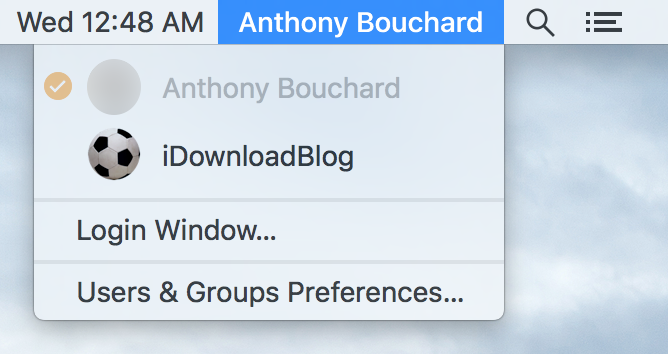
Any time you set up a new Mac, or make a new user account, macOS will automatically display your account name in the Menu Bar so you know what account you're logged into.

But for some people, you probably already know what account you're logged into because you only have one account, or perhaps that text is just cluttering up your Menu Bar and you want it gone.

No matter what the scenario may be, there's an easy way to remove your macOS account name from the Menu Bar and we'll show you how it's done in this simple tutorial.