How to

How to reveal a file’s path in Spotlight for Mac with a simple keystroke

In macOS versions up until Lion, hovering over an item in Spotlight's search results on your Mac would reveal its full file system path. As of macOS Lion, that's no longer the default behavior—the Spotlight overlay gives you some information about the selected file, but not its location. But don't you worry, Apple hasn't ditched this feature entirely as you can reveal a file's path in your Spotlight search results at any time via this practical keyboard shortcut.

How to copy the same parental controls from one user account to another on Mac

If you have one Mac, and multiple users, then you might use the built-in Parental Controls to manage what those users can and cannot do. Doing so can help the security of your system in many ways.

In this tutorial, we'll show you how to you can essentially copy the Parental Control settings from one of your Mac's users over to another user so they're managed in the same way.

How to split PDF files with the Preview app on Mac

PDF files are among one of the most widely-used forms of sharing documents with others across the internet; especially considering that the idea behind this file type is to have something that is universally readable on any platform.

If you do a lot of PDF handling on your Mac, then it might not be a bad idea to become familiar with how to split a PDF file, so we'll show you how you can do that in this tutorial.

Easily delete photos from your iPhone or iPad with Image Capture on Mac

If you have a Mac, then you also have a really useful image importing app called Image Capture lurking in your Applications folder.

To be completely honest, I still use the Image Capture app despite the fact Apple released their new Photos app for OS X last year, and that's because it's a dead simple utility that isn't bloated with extra features I really don't feel like using.

In this tutorial, we'll show you how to use the Image Capture app on your Mac to remove photos or videos from your iPhone or iPad.

How to simulate tetherless ‘Hey Siri’ functionality on macOS Sierra like a pro

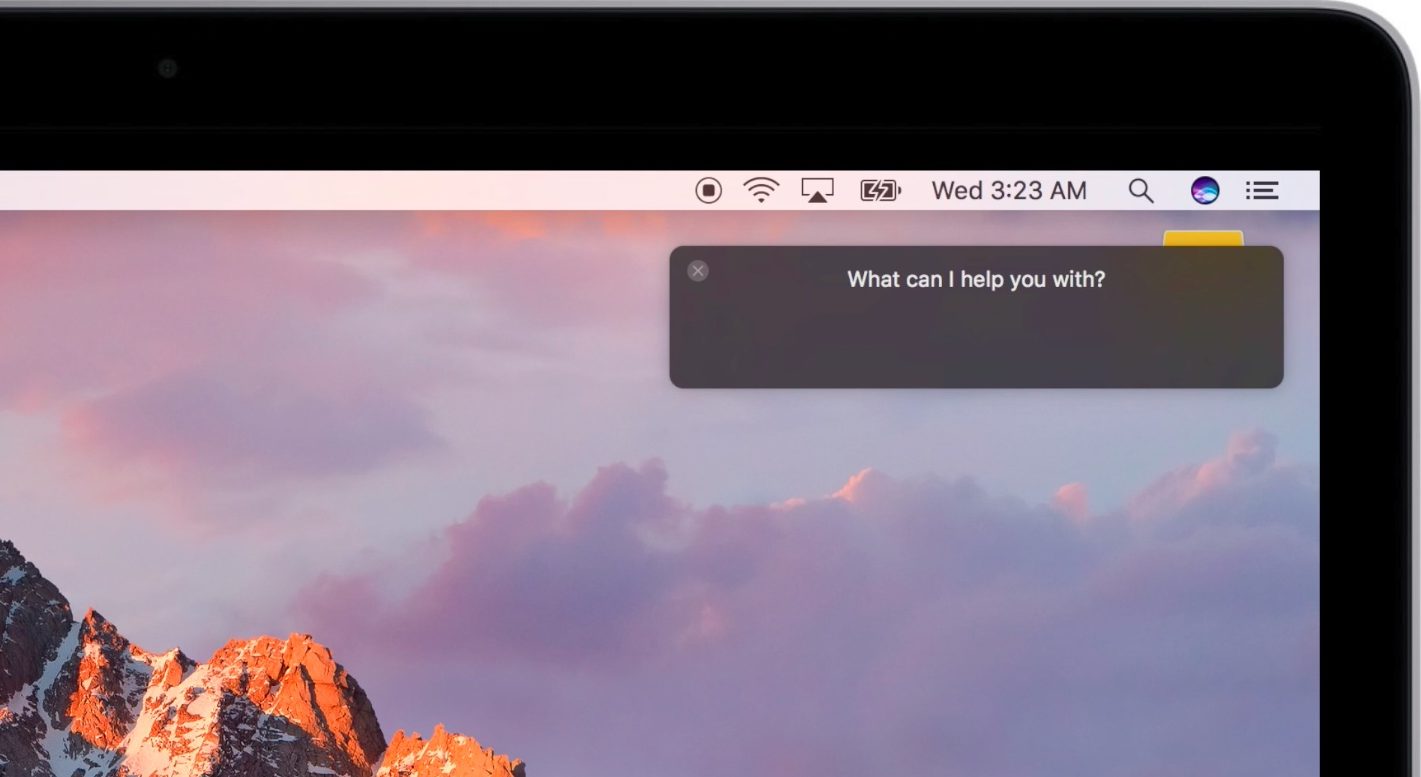
Apple advertises Siri as one of the headlining new features in the forthcoming macOS Sierra software update. Siri on the Mac performs in much the same way as it always has on an iPhone, iPad and iPod touch, except on the Mac tetherless 'Hey Siri' functionality is currently unsupported.

On iOS, tetherless 'Hey Siri' requires Apple's embedded M9 motion coprocessor to monitor microphone input without taxing the battery. Since the battery isn't a major concern with Macs, the decision not to implement 'Hey Siri' on Sierra is eyebrow-raising. As it turns out, you can easily simulate 'Hey Siri' on Sierra without resorting to dark magic, using a simple trickery.

Disable Mac App Store password prompts for 15 minutes after a purchase

Have you ever went on an app downloading spree in the Mac App Store only to find that it was going to ask for your password every time you wanted to download a paid app on your Mac?

If you're the only user on your Mac, then you probably don't want to or need to be bothered with having to enter your password each and every time.

Instead, macOS includes a feature that lets you disable password prompts for additional purchases for up to 15 minutes following your first Mac App Store purchase in a succession. We'll show you how to configure this feature in this tutorial.

Importing data to Safari from another web browser

Love it or hate it, Apple's Safari is a zippy web browser that performs well on the Mac, and it continues to get more and more competitive with other web browser platforms.

Since Apple wants you to use Safari on your Mac, it's a no-brainer they're going to make it easier to migrate your web data from one web browser to another.

In this tutorial, we're going to show you how to import bookmarks to Safari, along with your other web data, from a different web browser.