Learn how to export Safari bookmarks from your iPhone or iPad to save as a backup or import into Google Chrome, Firefox, or Safari on a Mac or Windows PC.
How to export Safari bookmarks from your iPhone or iPad to a Mac or PC
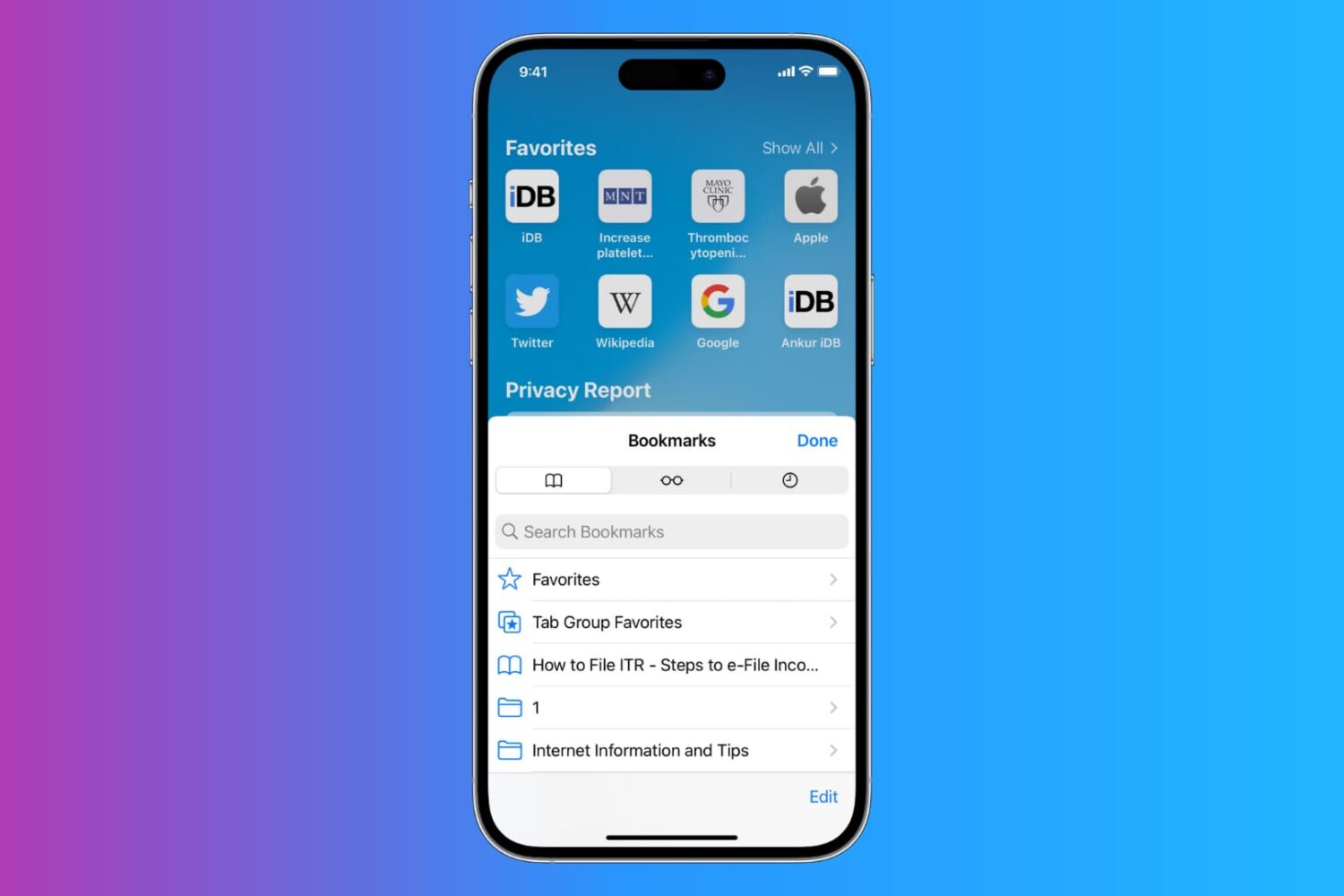
Learn how to export Safari bookmarks from your iPhone or iPad to save as a backup or import into Google Chrome, Firefox, or Safari on a Mac or Windows PC.
Learn how to add the Siri icon to your Mac’s Dock and top menu bar for quick access or remove it from these places if you want to declutter that space.

MacBook equipped with a Force Touch trackpad produces an audible ‘click’ sound in order to simulate the sound you would hear on a Mac without a Force Touch trackpad. It has no down travel and all you’re hearing is an audible sound when you click it. In this tutorial, we’ll talk about how to disable that fake clicking sound.
Learn how to stop your Mac from automatically downloading and installing macOS software updates, security updates, and app updates in the background.

Filter out the contents of your email inbox in the Apple Mail app on your iPhone, iPad, and Mac to quickly find what you’re looking for. This will ensure you no longer have to scroll endlessly through your inbox, which can be a real pain when you receive a ton of emails.
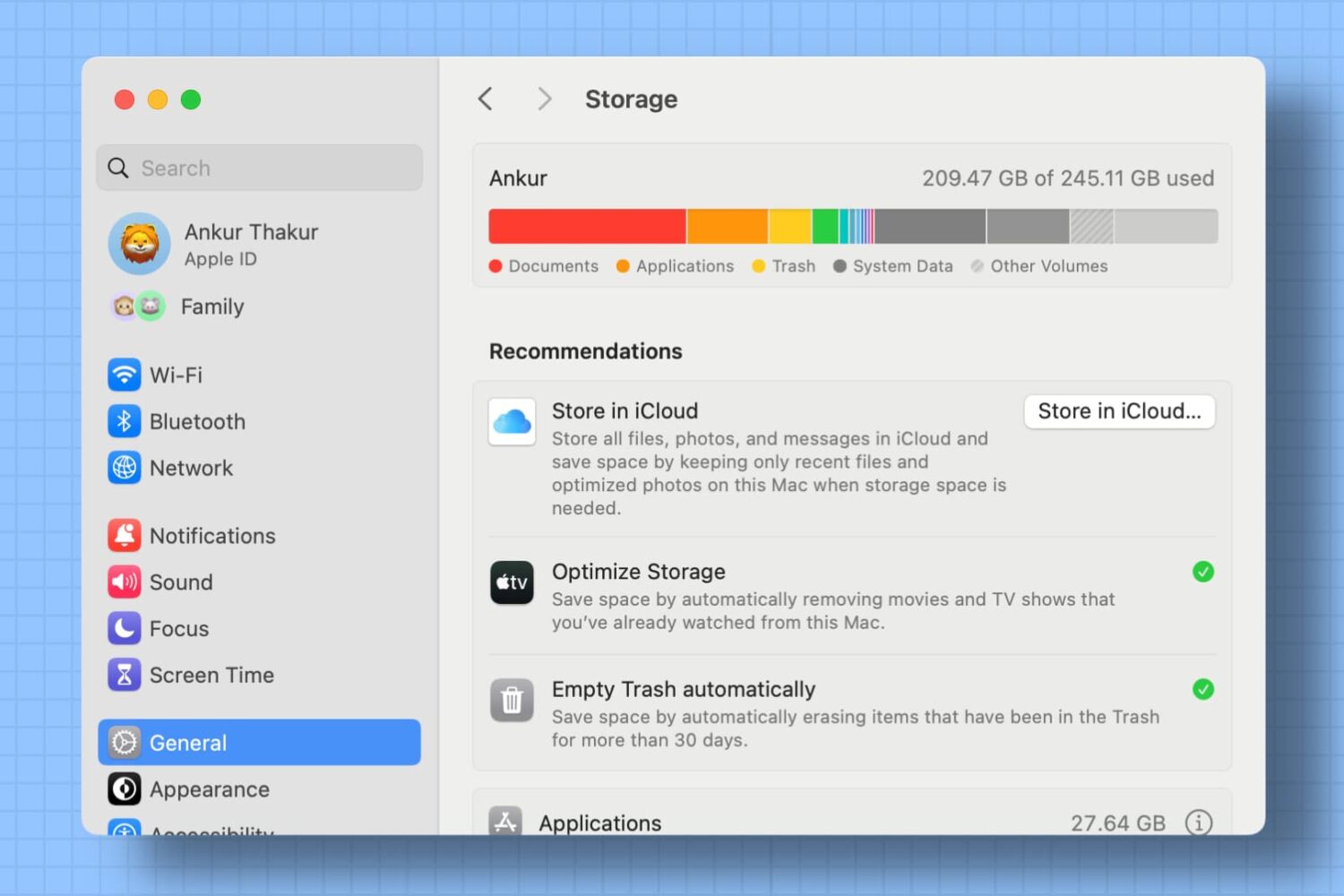
Use the Optimized Storage recommendations on your Mac to free up local space by removing unwanted files or moving infrequently used files to iCloud.

Your favorite assistant finally made its way to the Mac, starting with the macOS Sierra software update.
If you have used Siri on your iPhone or iPad before, then you'll probably feel right at home with the assistant on your Mac since it works in a similar way. However, unlike your iPhone, you don't have the ability to invoke Siri on your Mac by saying "Hey, Siri." Instead, you will have to click on the Siri icon in the Menu Bar, or in the Dock.
Another way to invoke Siri is by using a keyboard shortcut. Admittedly, this is my preferred way of activating the assistant as it feels faster and more efficient than reaching for the mouse or trackpad and clicking on the Siri icon.

Whenever you turn on your Mac, you typically hear a startup tone just before your computer boots up. The tone is there to let you know your computer has passed a pre-boot test and its hardware is working properly.
Some people, however, prefer to boot up their computers in silence. If you're one of those people, we'll show you in this tutorial how you can disable the start-up tone on your Mac.
Learn why your MacBook is reporting the wrong battery percentage and how to fix this problem and have macOS display the correct readings again.
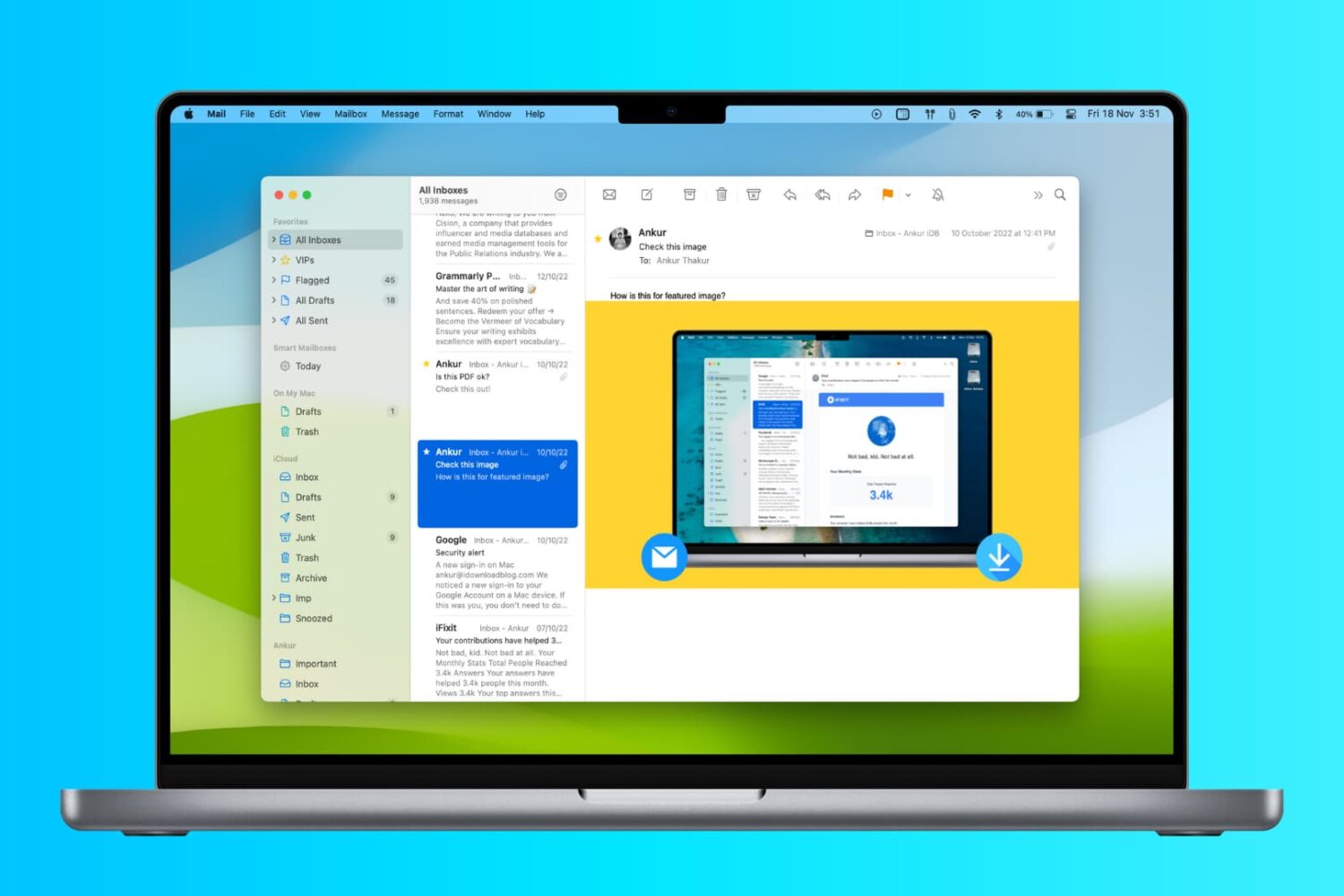
In this tutorial, we’ll show you two ways to display attachments in the Mail app on your Mac as icons to improve readability.

Adding watermarks to photos is an invaluable tool for photographers who want to put a company logo or information on a photograph to share the proper credits that made the photo possible.
It can be done manually in a variety of different kinds of photo-editing software, such as Adobe Photoshop or Pixelmator, but in this tutorial, we'll show you how you can create an applet that automatically watermarks photographs for you.

Slow motion videos are one of the fun aspects of using your iPhone for videogprahy. You can record videos in 120 or 240 frames per second and then watch it play back in a much slower manner than it typically would.
On the other hand, if you don't use your iPhone to capture video, getting the video files from your other devices to transform into slow motion is a little trickier. Fortunately, iMovie for Mac can convert your videos into slow motion, and in this tutorial, we'll show you how.