Here are five quick ways to check how much storage space is available on your Mac’s internal SSD or hard drive.
5 quick ways to see free space available on your Mac
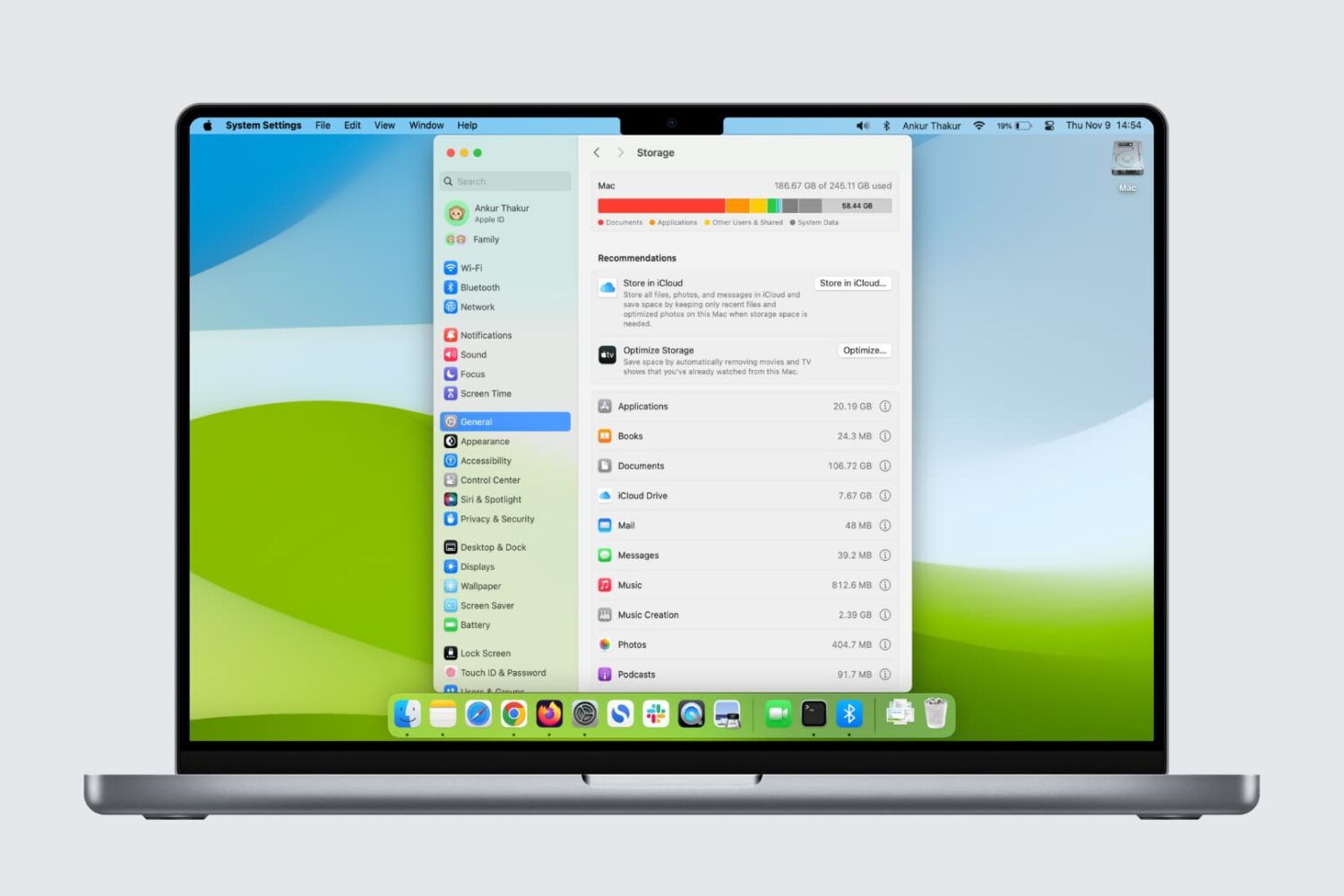
Here are five quick ways to check how much storage space is available on your Mac’s internal SSD or hard drive.

Learn how to fix issues such as no signal, poor color, blurry images, and more on an external display connected to your Mac.
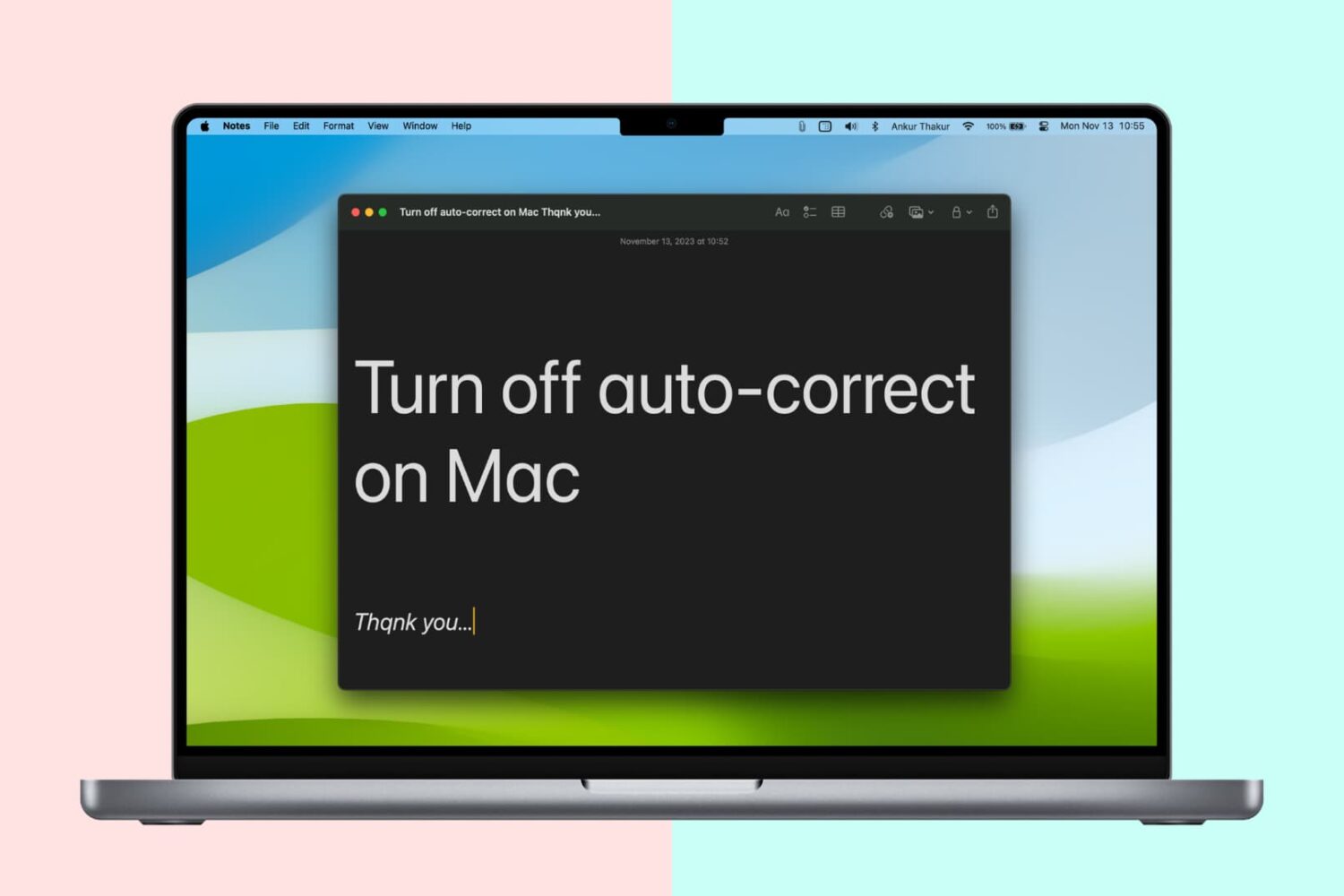
Like your iPhone or iPad, your Mac sports an auto-correction feature that automatically corrects any misspelled words in your chats, documents, emails, and other documents that work with the system-level auto-correction feature.
In many macOS apps, mistakes are automatically corrected as you type. Native speakers who know their way around the grammar and spelling rules may want to reverse this behavior, and we’ll show you how.
One of the questions I hear a lot about storage space on Macs and iOS devices is why when you purchase a 256GB Mac you only get about 230GB of space to play with, or why when you get a 16GB iPhone, you only get about 12.6GB to use for yourself.
The fact of the matter is, your storage space is used by more than just what you put on your own computer or device, and in this piece, we'll explain how Apple calculates all that storage space that you can never seem to claim on your devices.

This tutorial shows you how to change the profile picture of admin, standard, or shared user accounts on your Mac.
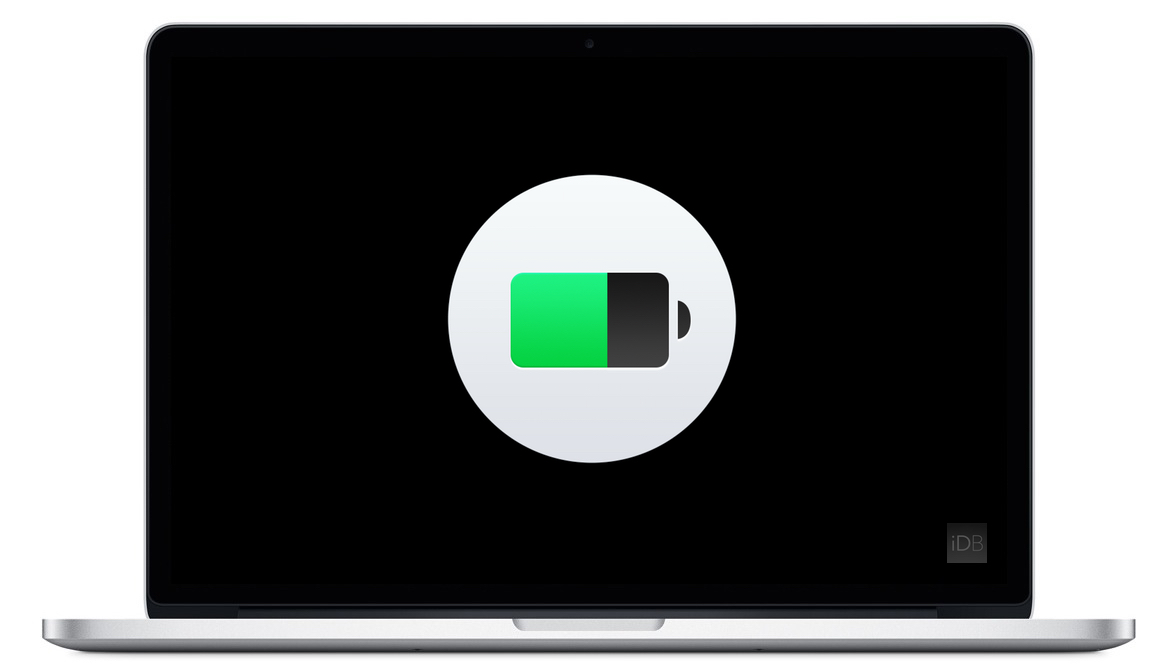
Apple's portable Mac notebooks like the MacBook, MacBook Air, and MacBook Pro are all powered by Lithium-Ion batteries, and these batteries don't last forever. They go through cycles as they're charged up and used over and over. After a number of cycles, batteries tend to lose their effectiveness at storing power, and will eventually need to be replaced.
If you have ever wondered just how close you are to needing a battery replacement in your Mac, then you'll be happy to know that macOS is actively monitoring your Mac's battery and can tell you with a quick keyboard shortcut, which we'll be discussing in this short information piece.
We recently detailed 'Other' iOS storage, an iTunes-reported section that includes various caches and temporary system files on you iPhone, iPod touch and iPad along with device settings, high-quality Siri and Voice Over voices and other system data.
Not many people know that macOS reports 'Other' storage on Macs, too. Unlike its iOS counterpart, the 'Other' Mac storage basically counts non-media files that don't fit any other category.
In addition, files not recognized by Spotlight are classed as 'Other' storage, among other items. Here's precisely what files are included in the 'Other' storage section, how to see its size, why your disk's used space appears as 'Other' storage when you startup up your Mac in Safe Mode and more.

If you have old tech sitting in your closet or attic that you don't use anymore because you've got something better, Apple will gladly make sure that tech is recycled properly free of cost via the Apple Recycling Program. In some instances, the company will even give you an Apple Store gift card as credit towards a new Apple device or accessories.
The Apple Recycling Program has been around for ages, but is often overlooked as an option. Although better deals can often be had elsewhere, the urge to trade in your device can come at inopportune times, and when you want quick money for your old Apple devices, or a quick and easy way to get rid of your junk tech, Apple can come in handy in a pinch.
In this tutorial, we'll show you how you can use the Apple Recycling Program to make better use of your unused tech.

Learn how to display week numbers in your calendar views across iPhone, iPad, and Mac so you can have an additional piece of useful information while working inside this app.
Apple gives you a number of options if you need to troubleshoot software and hardware issues that might be plaguing your Mac. If you cannot determine the root cause of your problem by isolating issues in macOS, your first port of call should be macOS' built-in recovery tools.
But that may not be necessarily enough and Recovery Mode may be unable to help you get your Mac back to working order.
As the last option, you can boot your Mac in a hardware diagnostics mode, which on newer Macs is called Apple Diagnostics or Apple Hardware Test on older models. In this tutorial, we'll show you how to enter Apple Diagnostics or Apple Hardware Test mode to identify the potential source of a hardware issue.
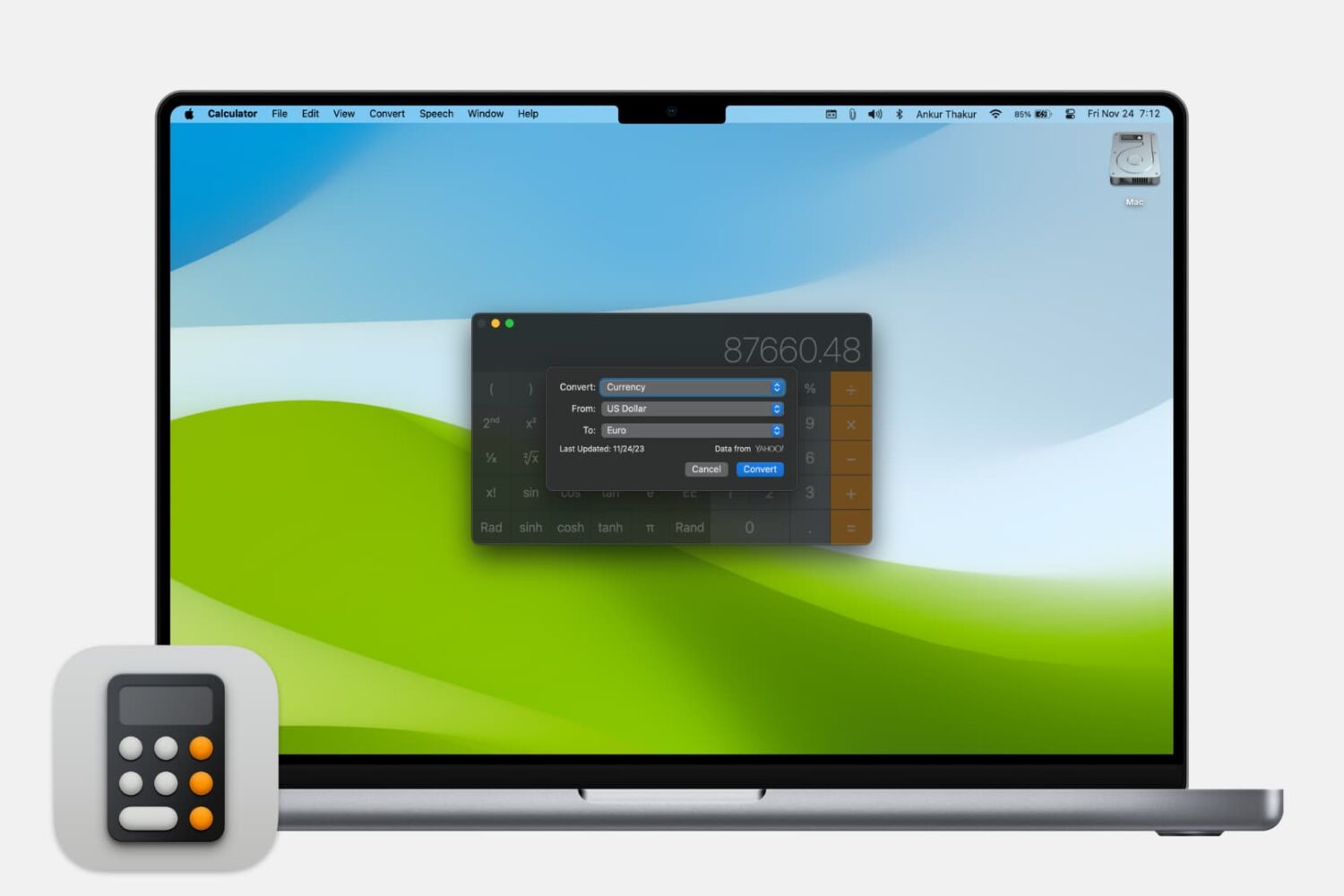
Learn how to use the Calculator app on your Mac to quickly convert a unit of measurement to another.

Learn about a small, easy-to-remember tip that lets you increase or decrease the screen brightness and volume in even smaller, fine-tuned increments than normal.