Learn how to display week numbers in your calendar views across iPhone, iPad, and Mac so you can have an additional piece of useful information while working inside this app.
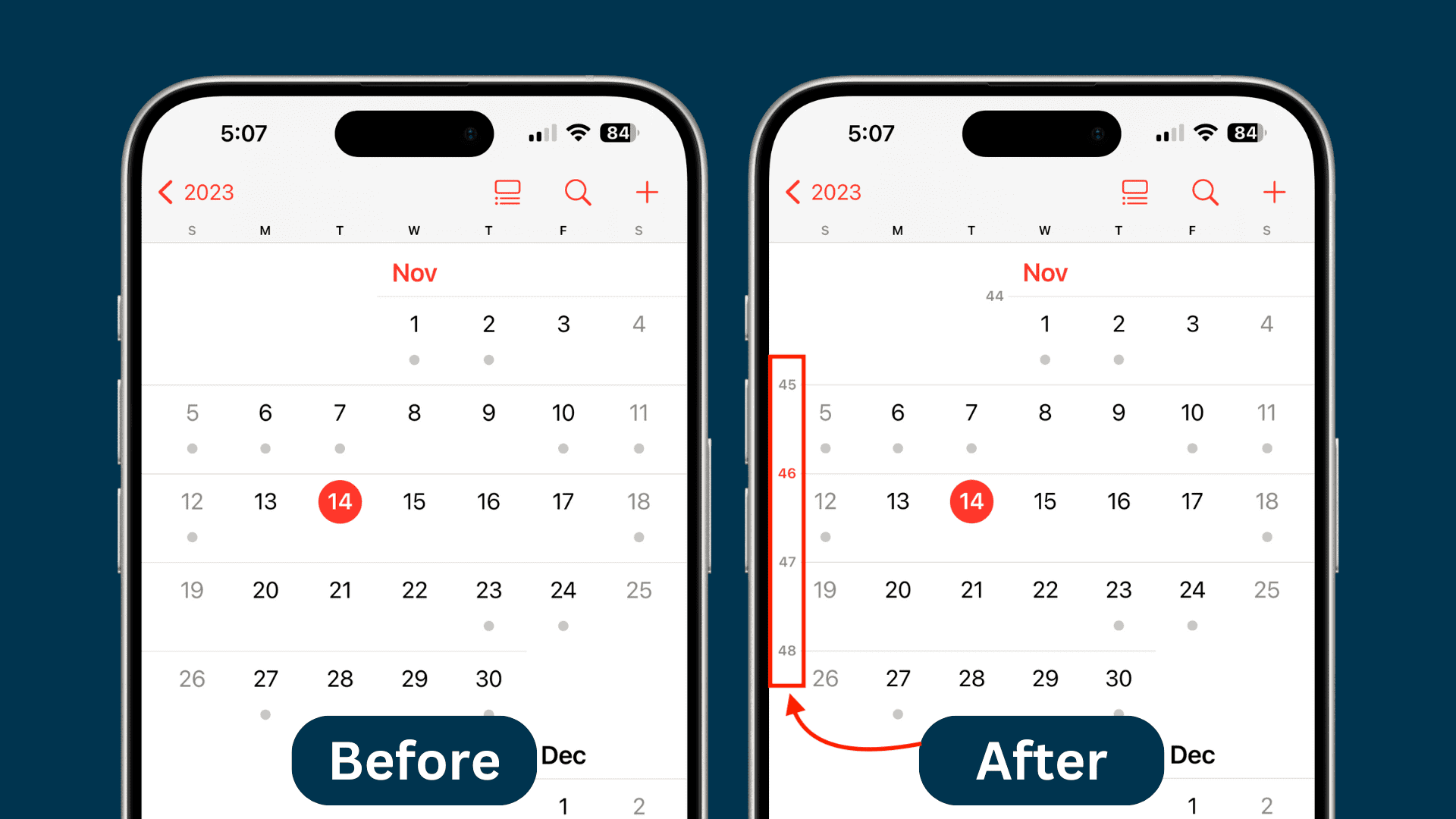
Apple’s Calendar app does a fine job of helping you organize your schedule and increase productivity. Like many others, I prefer to browse my calendars with week numbers enabled, as this allows me to better understand my events and tasks for the month. But it isn’t switched on by default. So, here’s how to do that on iOS and macOS.
On iPhone and iPad
- Open the Settings app.
- Scroll down and tap Apps > Calendar.
- Turn on Week Numbers.

This will enable the display of week numbers in the monthly calendar. Week numbers are not available in Day and Year views on Calendar for iOS.
On Mac
- Launch the macOS Calendar app.
- From the top menu bar, click Calendar > Settings or Preferences.
- Go to the Advanced tab.
- Tick the box next to “Show week numbers.”

This will enable week numbers in the Calendar’s Week, Month, and Year views.
- In Week view:

- In Month view:

- In Year view:

Despite the fact that week numbers are unavailable in the Calendar web app at icloud.com/calendar, I like having that setting enabled on iOS and macOS.
At any rate, it’s far better to visually determine what week number of the year any date falls on than having to count the weeks manually like an animal.
Also, check out: