How to

How to change your Apple ID

Many of us still have the same email address associated with our Apple ID that we made years and years ago when we got our first device. We use it to sign into each and every one of our devices when we buy one new from the store or restore an existing one to factory settings.

On the other hand, times change. Sometimes you may get new email addresses, and sometimes you want to use something new to log in with rather than your high school email address. Perhaps you've made one that is a little more professional looking and seek to use it instead.

Apple provides a way to change your Apple ID email address so you can use something different to sign into everything you use. In this tutorial, we'll show you how that's done.

What to do if iTunes doesn’t recognize your iPhone or iPad

If you ever sync your iPhone, iPod touch, or iPad with iTunes, then more than likely you've experienced hiccups at some point in time where iTunes has been unable to find or recognize your device.

You have it plugged in, but for whatever reason, it just doesn't show up in iTunes. What gives?!

In this piece, we'll go over what to do if iTunes doesn't seem to recognize your iOS device when you plug it in to your computer so that if and when it happens to you, you'll be prepared to tackle the situation.

Common restore errors in iTunes and how to resolve them

Restoring your iPhone, iPod touch, or iPad can resolve a variety of issues, but sometimes you'll experience issues even when you try to restore your device(s) with iTunes.

You may have received a "This device cannot be restored Error XXX" message from iTunes before, and unfortunately, you may have been forced to do some research to even begin to understand why you're getting the error, which can cause tons of frustration.

In this piece, we'll talk about some of the most common iTunes restore errors and how to fix them so you don't have to spend hours researching for solutions by yourself.

How to move your iTunes library to an external drive

You'd be amazed how much of your Mac's storage is wasted on the iTunes library. All those apps and media you have purchased and downloaded over the years pile and clog up your Mac's precious storage.

But with one-terabyte external hard drives retailing for less than $60 on Amazon, there are no excuses not to spring for external storage to move that humongous iTunes library of yours on.

This post takes you step-by-step through the process of consolidating your iTunes library and moving it to an external drive in a way that will preserve your playlists, ratings and other interactions, so you won't miss a beat.

Tip: use half-star ratings in iTunes

If you like to rate songs on Apple Music, including those you have purchased on the iTunes Store, chances are you will at some point want to submit your star-based ratings. Now, iTunes for Mac and Windows PCs used to support half-star ratings out of the box, but recent updates have changed this behavior to using full stars only.

Fortunately, as noted by The Loop's Dave Mark, this can be quite easily reverted back to half-star ratings with a quick Terminal command.

In this post, you will learn how to enable half-star ratings in desktop iTunes and rate music more accurately than before.

How to redeem an Apple TV app promo code

While it's possible to receive promo codes for Apple TV apps, it's not possible to redeem such codes directly from the Apple TV interface itself. Even though the newly released Apple TV is the first iteration of the device capable of running native apps, Apple is keeping the process of promo code redemption limited to iOS or the Mac.

Have you received a promo code for an Apple TV app or game? In this post, we'll show you how to redeem it.

How to set up carrier billing as payment method for App Store, iTunes Store and iBooks Store

In October 2015, Apple began rolling out support for carrier billing on iTunes in select markets, starting with Germany. This feature joins the existing payment methods accepted on the App Store, iTunes Store and iBooks Store and permits customers to have apps and media bought through these content stores charged to their monthly mobile phone bill or deducted from their prepaid amount.

If your carrier supports it, you too can opt-in to pay for your iTunes Store, App Store, and iBooks Store purchases—and your Apple Music membership—through mobile phone billing.

In this tutorial, we're going to cover setting up mobile phone billing as your payment method in the iTunes Store, App Store or iBooks Store.

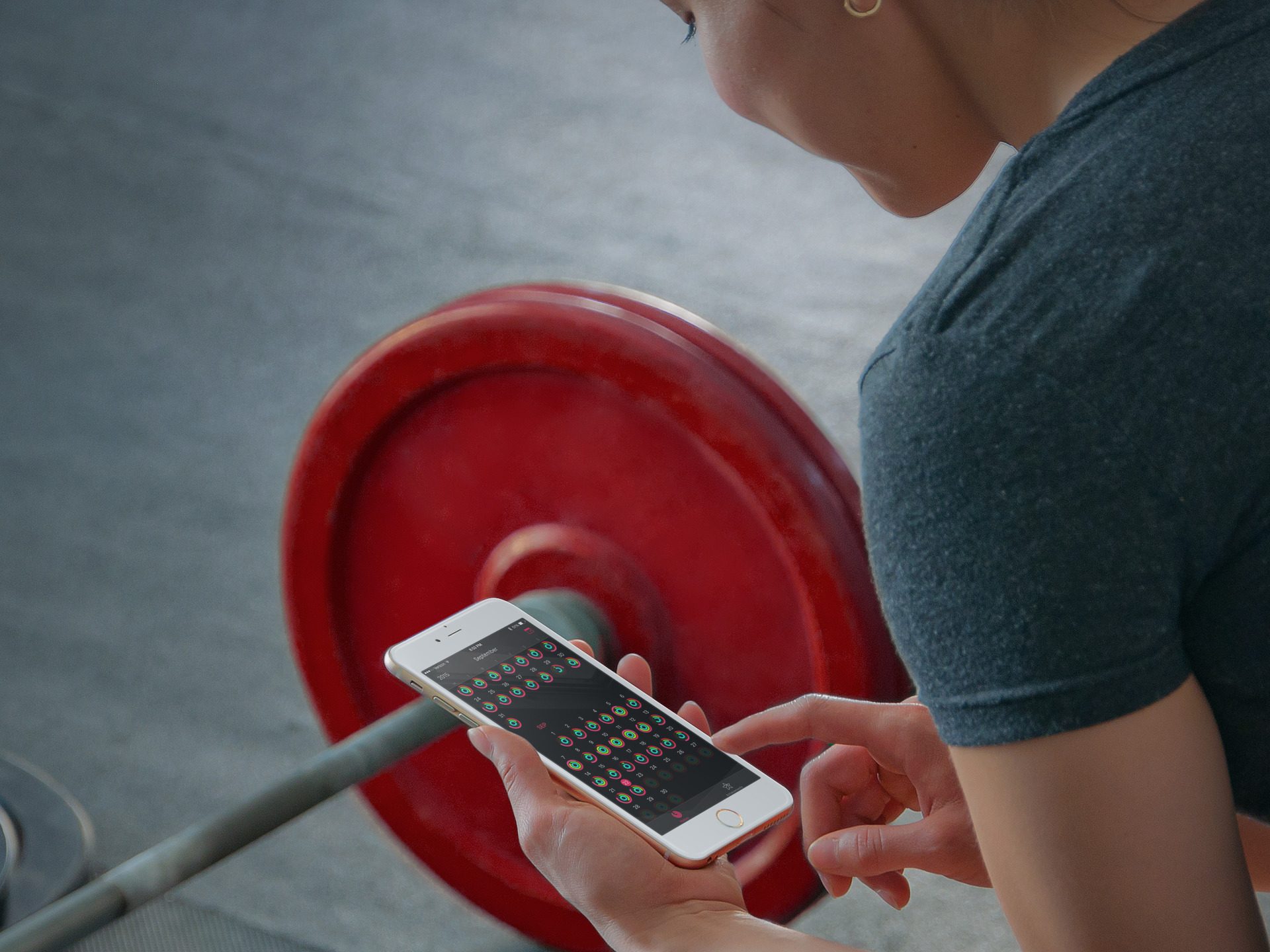
How to only transfer Activity and Health app data to a new iPhone

Transitioning to a new iPhone is made simple by iCloud backups, iTunes, and a few clicks or taps. Apple ensures it is easy to move from a fully loaded and setup device to a completely fresh iPhone with the same information, using their backup options. Most laypeople, almost always choose to restore new iPhones from their backups; however, more technically inclined concerned people tend to start with a fresh iPhone and do not restore from backup to prevent carrying over any unwanted information.

Earlier this week Christian highlighted two methods for upgrading to a new device and retaining your Activity and Health data. Method #1: use a third-party app to import your Health data, but it lacks Activity logs. Method #2: backing up your old device to iCloud or iTunes and restoring from backup, as I've described above.

But, what if you want both your Activity and Health data, but a fresh setup too? Step inside to learn how to install both, yet only, your previous device's Activity and Health data on your new iPhone. 

How to disable Apple Music Connect

If you choose to hide Apple Music on an iPhone, iPod touch or iPad, the Music app gains a new Connect tab.

Described by Apple as a place where “musicians give their fans a closer look at their work, their inspirations, and their world,”Apple Music Connect permits music lovers to view and follow an artist's stream, like and comment on their posts and more.

Apple Music Connect is basically Ping 2.0. The feature is a tad crude in appearance and feels rough around the edges so little wonder that some folks don't view Connect as valuable enough for it to deserve its own tab.

Wouldn't it be great if you could get rid of the Connect tab? Thankfully, there is.

You'd be forgiven for thinking that the Connect feature couldn't be disabled: Apple has made sure to burry and hide it in an obscure place. In this post, I'm going to explain precisely how you can disconnect from Connect in Apple Music on iPhone, iPod touch, iPad or Mac.

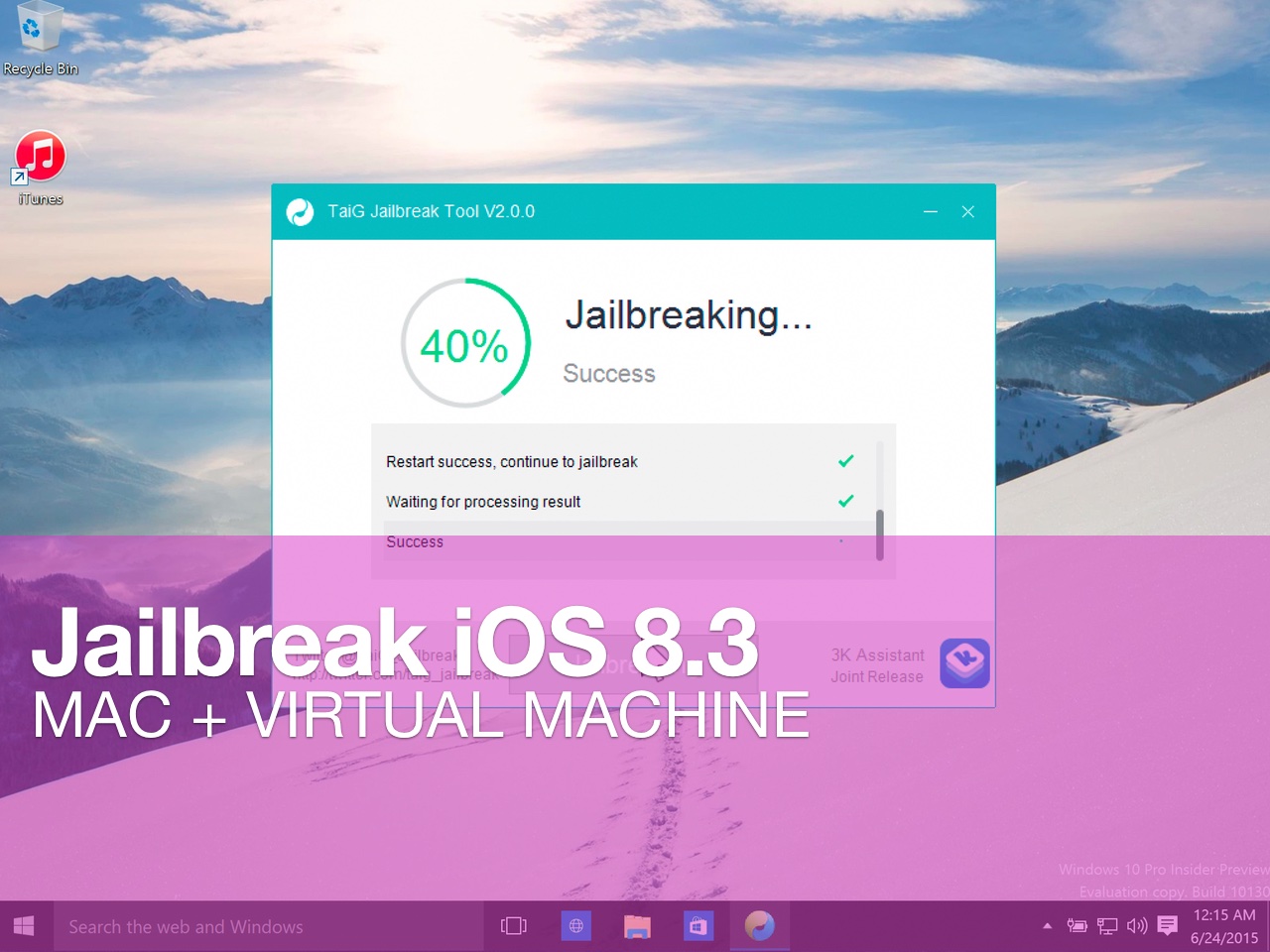
How to jailbreak iOS 8.3 or iOS 8.4 on Mac using a virtual machine

Although the iOS 8.3/iOS 8.4 jailbreak was a surprise, it was no surprise that the release was limited to Windows only. While this can make some Mac users feel bitter, it's actually not a very big deal at all.

Thanks to the awesome virtual machine software that we have on the Mac, it's super-easy to jailbreak an iPhone on our Macs, even if said jailbreak is Windows only.

In this complete tutorial, I'll walk you through the entire process of setting up the virtual machine, installing a valid version of iTunes, and jailbreaking your iPhone.

The most impressive thing about this tutorial is that it can all be done in less than 18 minutes (not including the necessary file downloads), and it's 100% free to do.

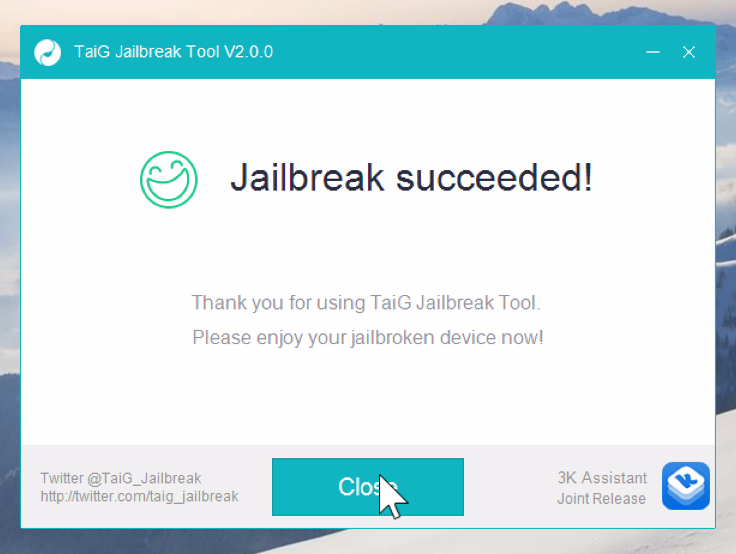
If you're a Mac-only user, there really is no excuse for you not to be jailbroken if you want to be. This method is tried and true, super-reliable, and it just works. In fact, by sticking to this method and following my video, you'll likely be able to avoid many of the pitfalls plaguing those who are experiencing issues with the TaiG tool.