Apple TV

Stay up-to-date on the latest Apple TV news and learn how to get the most out of your device with our comprehensive tutorials and guides. Discover new features, troubleshoot issues, and explore the best apps and games for your Apple TV.

How to control your TV or receiver volume using the Apple TV remote

In addition to using your Siri Remote to navigate the tvOS user interface and play games on the fourth-generation Apple TV, you can program it to control power and adjust volume levels of your television set or home theater receiver.

That's because your Apple TV and the Siri Remote that came with it are compatible with HDMI-CEC and outfitted with a built-in infrared receiver and blaster.

This means owners of the new Apple TV can adjust the volume of their TVs and home theater receivers via the HDMI cable or line of sight, using just their Siri Remote.

In this tutorial, you'll learn how to program your Siri Remote and configure it to work with your home entertainment equipment.

How to use a 4-digit passcode for purchases on Apple TV

Yesterday, on Let's Talk iOS, we discussed how arduous and tedious it is to enter a password on the Apple TV interface. It's a difficult process, because the Apple TV lacks support for Bluetooth keyboards, and features an A-Z text entry setup that makes the process even more difficult that it was on last generation's Apple TV.

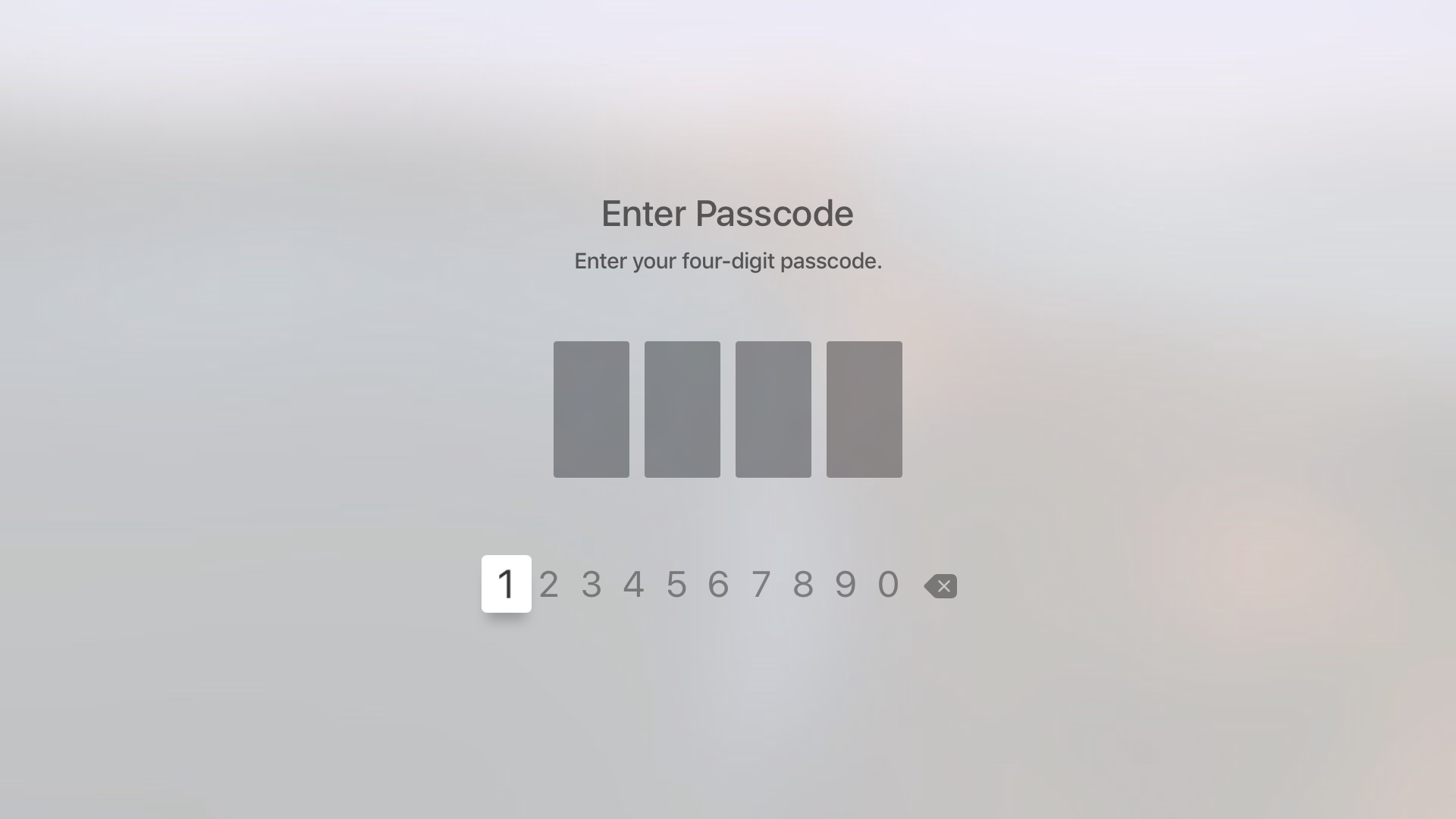
Fortunately, the Apple TV features an option that allows you to never require a password for iTunes & App Store purchases. While using such an option works, it leaves your device open to unauthorized purchases. The good news is that, as we discussed on the podcast, you can easily set up restrictions for App Store and iTunes purchases, which will make it so that purchases only require the entry of a 4-digit passcode.

How to force-quit apps on Apple TV

Apps on Apple TV screen with Apple TV box and remote in front of the screen

Although Apple TV is designed to just work, there are instances when a misbehaving app needs to be purged from the memory. And with the device's ability to download third-party apps and games, more things can now go wrong than ever before.

Like your iPhone, iPod touch, iPad and Mac, your Apple TV also lets you easily close a running app to free up system resources. In this brief tutorial, we show you how you can force quit an app on the Apple TV HD, 4K, or older models using your Siri Remote.

How to restart or put your Apple TV into sleep or standby mode

By now, you have learned how to use the new Apple TV's task switcher, rearrange and delete apps on the set-top box, take screenshots, disable password prompts for free and paid downloads and more.

Our coverage of the device continues with this tutorial which will teach you how to restart your Apple TV or put it into sleep or standby mode using either its remote or by selecting an option in the Settings menu.

How to disable password prompts for both free and paid downloads on Apple TV

You are probably aware that you can disable password prompts altogether for free downloads made on your iPhone, iPod touch, iPad and Mac. As an added layer of protection, iOS and macOS will either require your Apple ID password for each paid download or after fifteen minutes of making your last purchases in the iTunes Store, App Store, Books Store or Mac App Store, depending on your preference.

What you cannot do on iOS and macOS is disable password prompts for both free and paid downloads. On the Apple TV, however, it's possible to turn off password protection for both free and paid items and this tutorial will help you do just that.