Apple TV

Stay up-to-date on the latest Apple TV news and learn how to get the most out of your device with our comprehensive tutorials and guides. Discover new features, troubleshoot issues, and explore the best apps and games for your Apple TV.

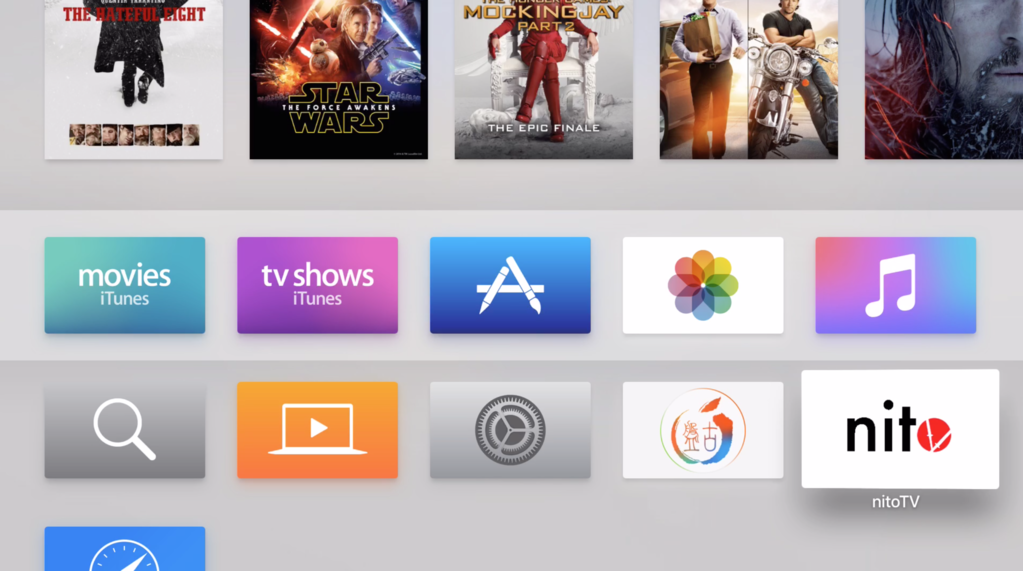
How to install nitoTV on Apple TV 4

If you've been around the jailbreak community for a few years, you are probably familiar with nitoTV for Apple TV, the installer that gained popularity back in the days of the Apple TV 2. Things had become a little uneventful for a few years due to the lack of a jailbreak for Apple TV, but now that things have changed, nitoTV developer Kevin Bradley is back at it with an updated version of the popular installer.

In this post, we'll show you how to install nitoTV on your jailbroken Apple TV.

Tip: adjusting how movies and TV shows are sorted in your Apple TV Wish Lists

Apple TV Siri Remote in hand

Aside from major new features in Apple's new tvOS 9.2 firmware for the fourth-generation Apple TV, which released to the public on Monday, March 21, there're plenty of under-the-hood improvements to be excited about.

Among them are handy sorting options for the movies in your Wish List and TV shows in your Favorites. In this tutorial, we'll demonstrate how you can tell your Apple TV to show recent TV episodes first and change sorting options for movies in your Wish List.

How to jailbreak the new Apple TV using Pangu

Now that the Pangu Team has released their jailbreak for the new Apple TV, we have had some hands-on time with the tool and were successful in jailbreaking our own test device. In this post, we will share detailed step by step instructions on how to jailbreak the new Apple TV using Pangu. Before we get started, we must share a few words of caution.

How to update your Apple TV Siri Remote

Apple TV and Siri Remote on a red yellow gradient background

A tvOS update may include new firmware for the Siri Remote to fix bugs, improve reliability, and add new features. Improve your Apple TV experience by learning how to effortlessly update your Siri Remote, and stay in control with the latest features and improvements.

How to place Apple TV in recovery mode

If your Apple TV won't start up properly, or you are a developer who wants to install a tvOS beta, you must first put your set-top box in recovery (DFU) mode. As is the case with iPhone, iPod touch and iPad devices, entering DFU mode makes a malfunctioning Apple TV discoverable in desktop iTunes so you can restore it to factory settings, downgrade to an earlier version of the software or side-load a beta firmware onto it.

The method to put an Apple TV into DFU mode differs from that for other iOS devices. In this post, you'll learn how to put an Apple TV into recovery mode so you can restore it to factory settings if it's acting up.

How to stop ‘Up Next’ videos from autoplaying on YouTube

One of my pet peeves with YouTube is how after completing a video, the service shoves a new video down your throat with a feature called "Up Next," which gives you a 15-second time frame to click the "X" button at the top right of the video before the next video starts to play.

Sounds familiar? If you feel the same way, then you've stumbled upon the right tutorial, because we're going to be showing you how you can disable this feature right from the YouTube website without installing any plug-ins, hacks, or other crazy stuff.

How to watch Super Bowl 50 on iPhone, iPad, Apple TV, and other devices

On Sunday evening, millions of people will gather around their TV sets to watch Super Bowl 50. The game features the Denver Broncos taking on the Carolina Panthers, and kickoff is scheduled for 6:30 (ET).

For those of you who aren't going to be around a television Sunday night, but still want to follow along with the action, we've put together a list of ways you'll be able to do so using an iPhone, iPad, Mac and other devices.

How to filter mature language for Siri and Dictation

Sometimes when you use the dictation feature on your iPhone, iPod touch or iPad—or just converse with Siri and it misunderstands you—you might be in for a surprise seeing explicit language that you don't really want others to see, especially if you talk to Siri on your new Apple TV and kids are present.

Fortunately, both iOS and tvOS give you all the controls you need to prevent profanities from showing up when you use speech-to-text or Siri. In this post, you'll learn how to disable explicit language for Siri and Dictation on your iPhone, iPod touch or iPad and filter out explicit language for Siri on your Apple TV.