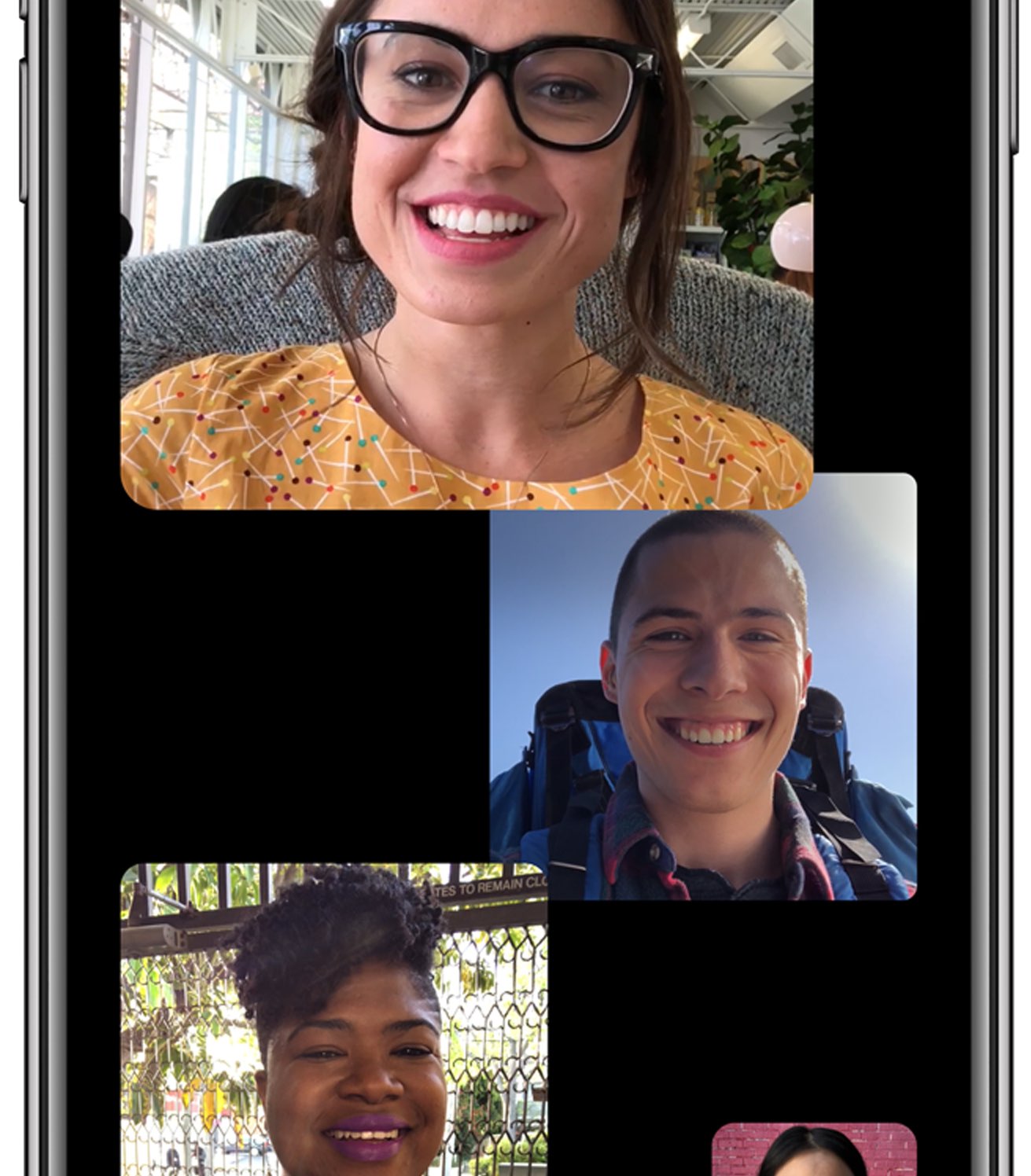
FaceTime

Have more fun in phone calls with VoiceChanger X

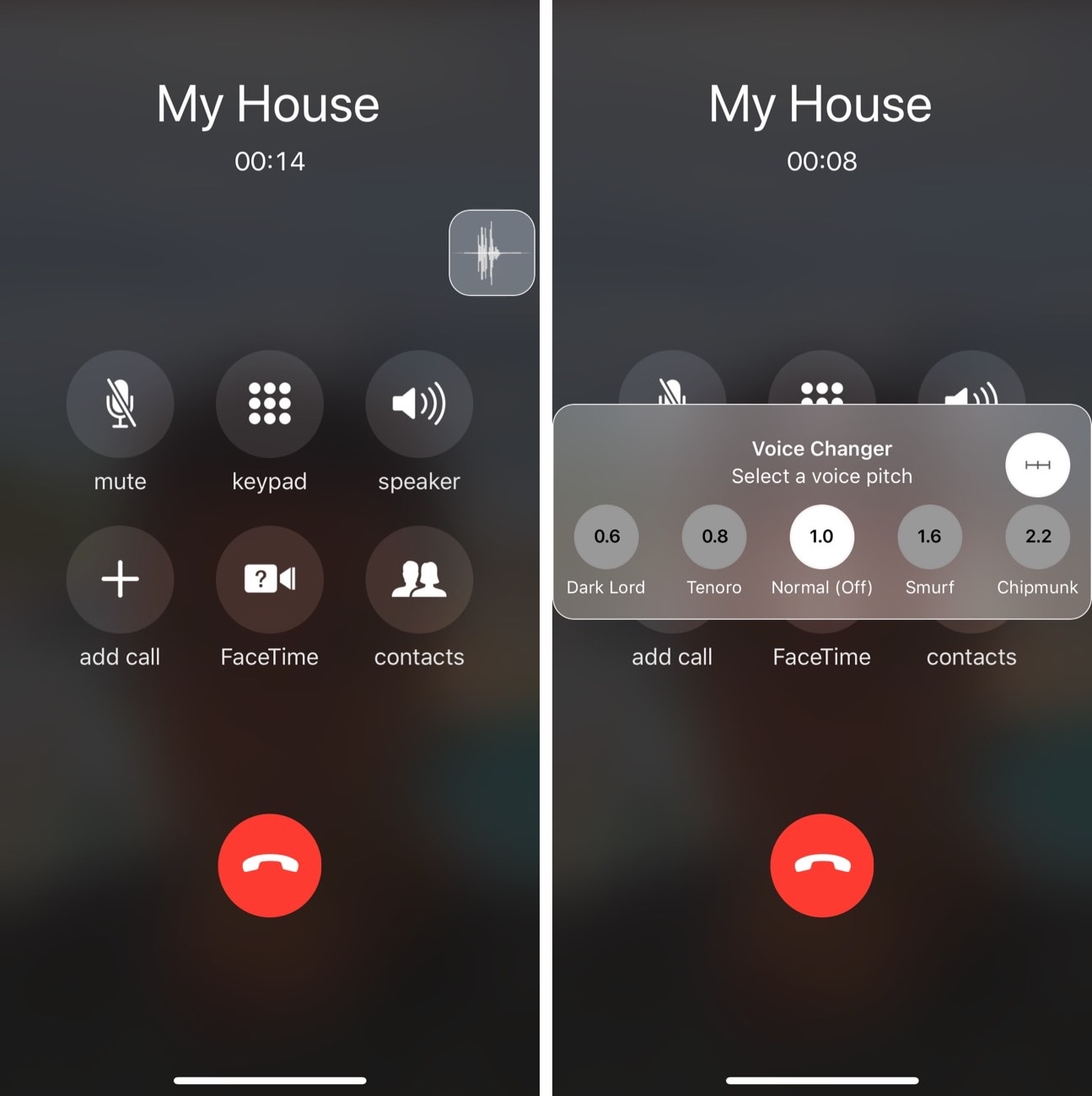
Back in 2013, iOS developer Elias Limneos surprised the jailbreak community when he released one of the world’s first live voice changer jailbreak tweaks for the iPhone. VoiceChanger allowed you to have some fun with your phone calls by adjusting the pitch of your voice in real-time. Unfortunately, it was never updated for iOS 11.

But that all changed this week following the release of VoiceChanger X. Now, you can re-live the same entertainment you may have experienced in 2013 on your pwned iOS 11 handset.

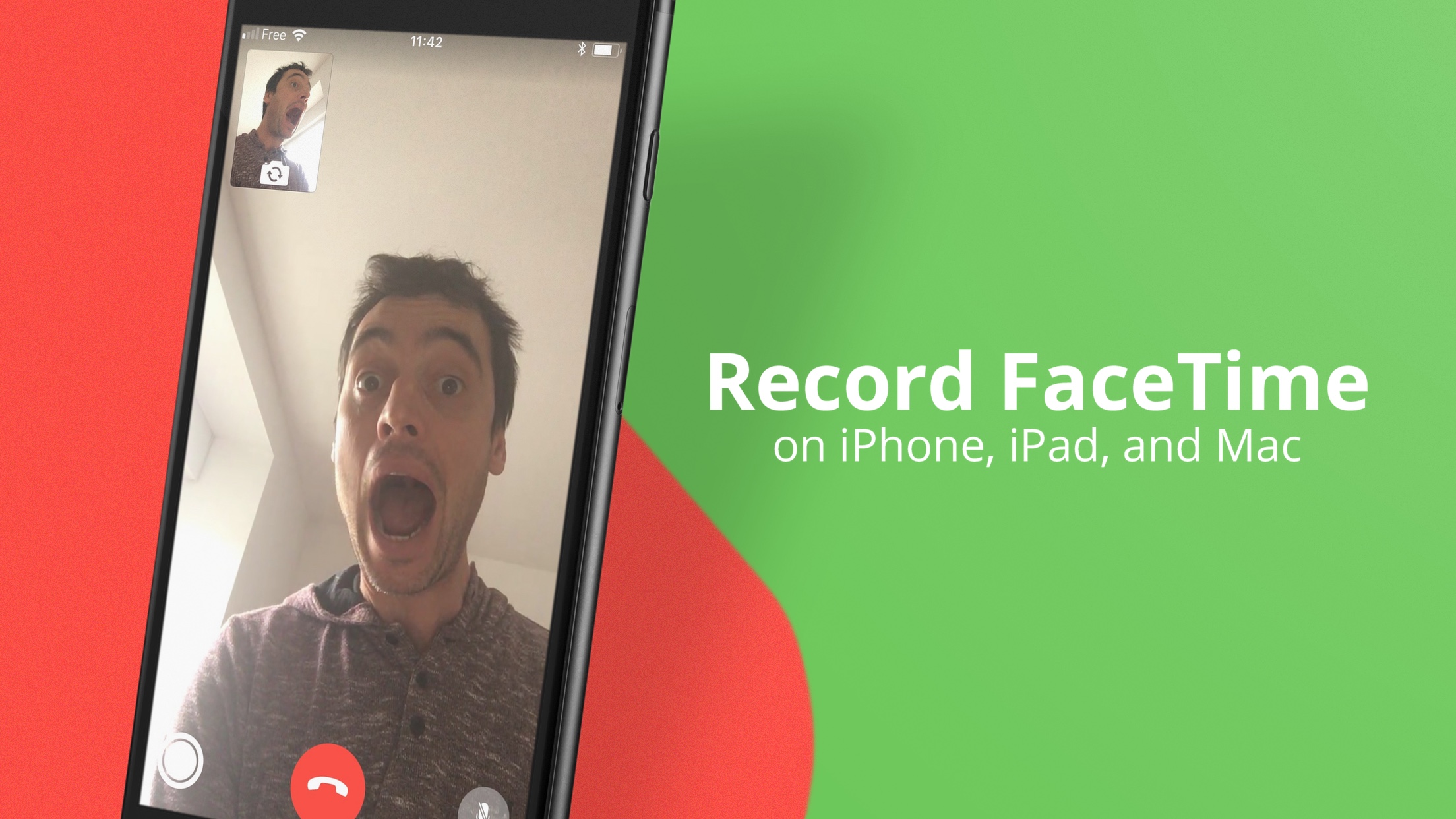
How to record FaceTime video calls

Although there isn’t a built-in option to record FaceTime calls, you can still do that with a simple workaround. In this tutorial, we’ll show you how to record FaceTime calls on your iPhone, iPad, or Mac.

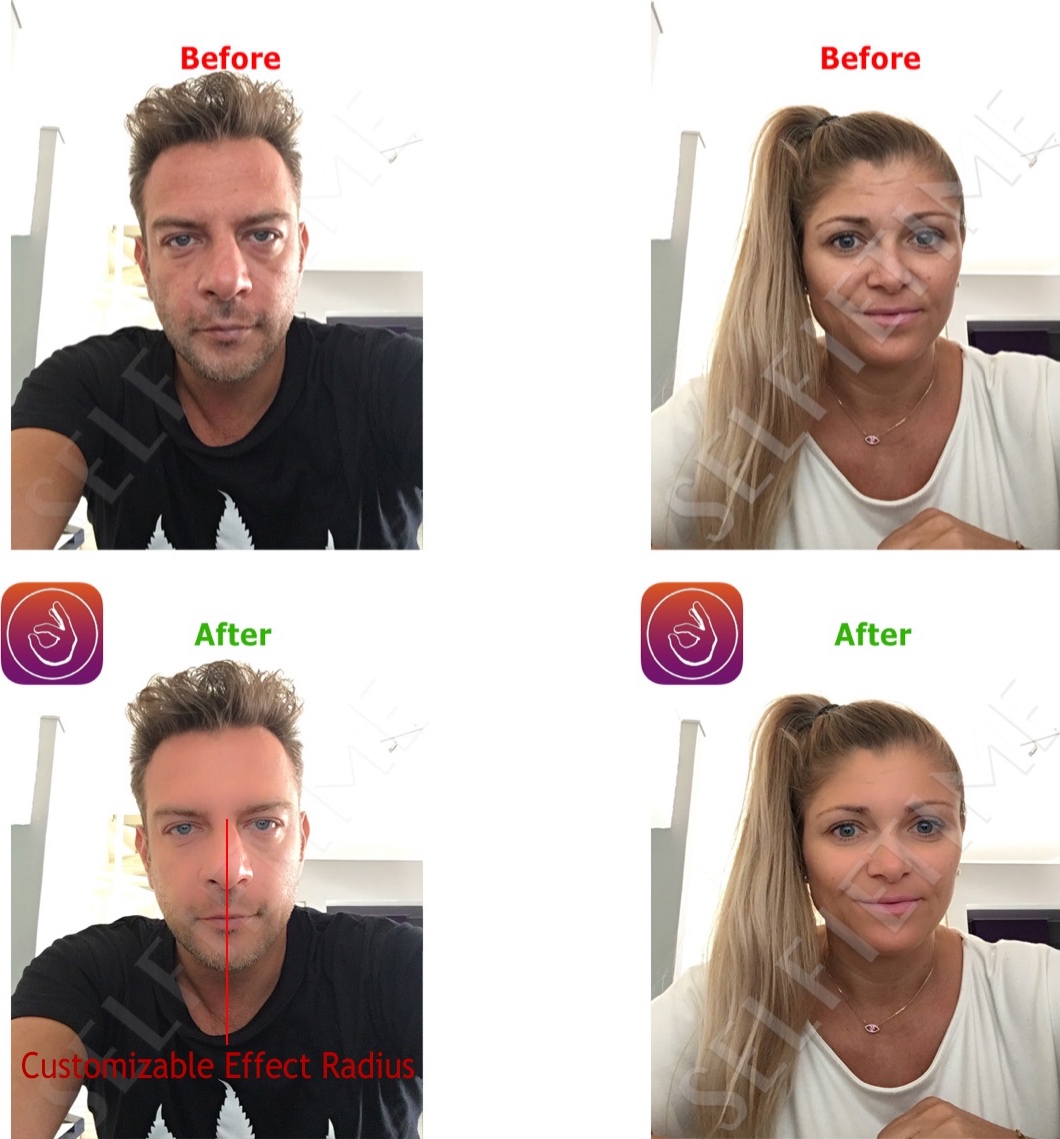
SelfieTime makes you look like a champ in selfie photographs and FaceTime Video chats

Although some people have no problem with snapping selfies and carrying out FaceTime Video calls with their friends or colleagues, some people simply aren't happy with the way they look and are more self-conscious about how folks will judge their character.

SelfieTime is a new jailbreak tweak by veteran iOS developer Elias Limneos that can help people of the latter group look better for their selfies and feel more confident during FaceTime Video calls.

Have iPhone automatically answer incoming calls on your behalf

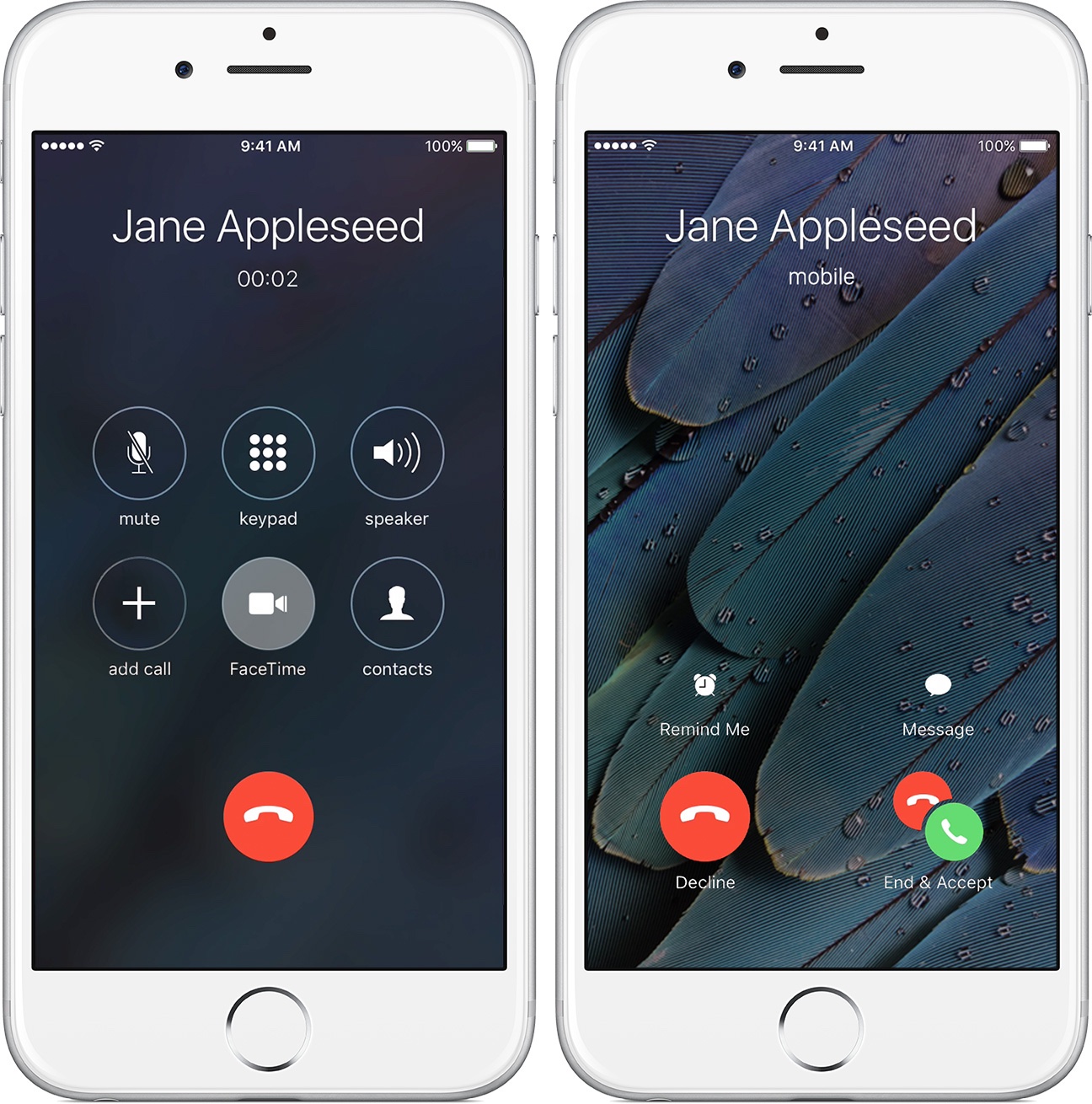
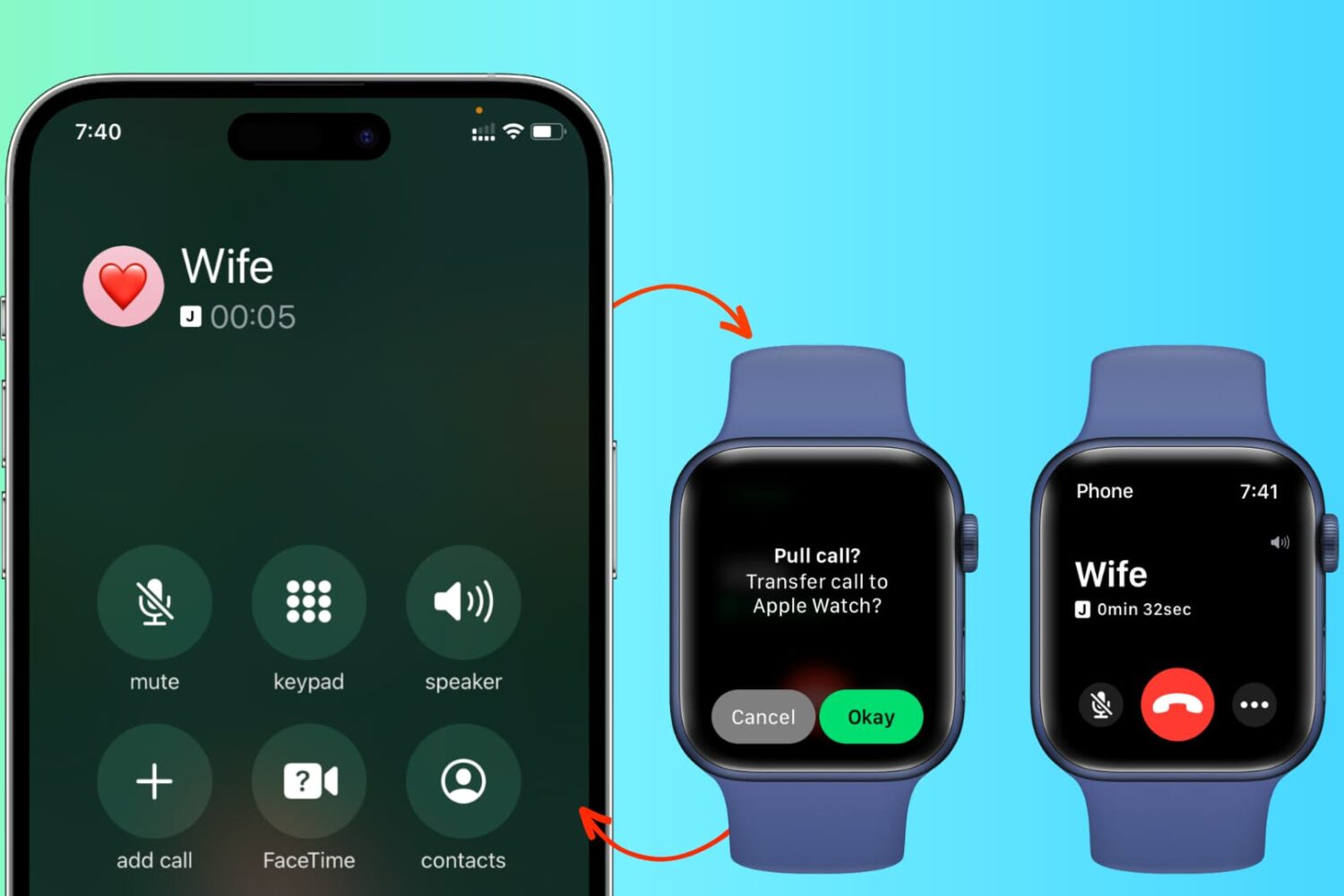
Many iOS 11 features seemed to be inspired by the jailbreak community. Among them, a brand new call audio routing option in accessibility settings that allows you to set your iPhone to automatically answer incoming calls on your behalf, should you wish so.

This optional feature supports regular calls via your carrier's mobile network, as well as Wi-Fi calls, FaceTime audio and video calls and any VoIP calls originating from third-party apps that use Apple's CallKit framework, such as WhatsApp, Skype, Viber and more.

To enable this feature, go to Settings → Accessibility → Touch → Call Audio Routing.

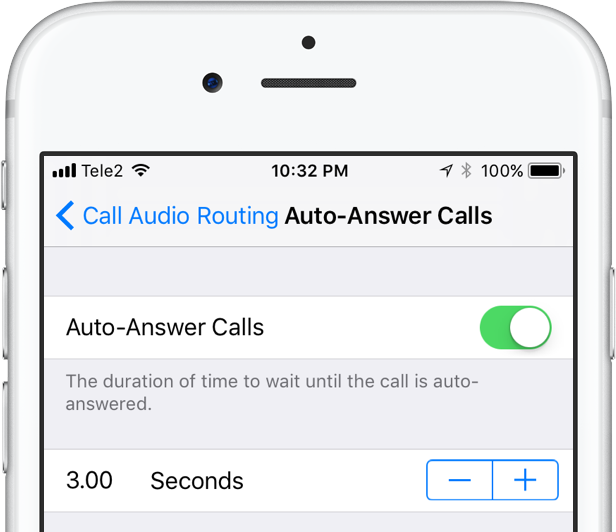
There, you'll see the call routing options which include settings like Bluetooth headsets, the iPhone speaker and more. These options are also available on prior iOS editions. But look at the bottom and you'll see a brand new menu, labeled Auto-Answer Calls.

Tapping it takes you to a new screen where you can enable or disable the feature and set the duration of time your iPhone will wait when a call comes in before it's auto-answered for you.

This handy new option, as I already mentioned, is nowhere to be found in iOS 10 or earlier.

I can see myself using Auto-Answer Calls a lot, not just while jogging with my AirPods or working out with my PowerBeats in my ears but also in other situations when interacting with the phone may be impractical, like driving a car or swimming with my Apple Watch on.

How do you like this nifty feature? Will you be using this auto-answer call setting, and why?

Do let us know by posting a comment below!

TUTORIAL: How to set your iPhone to automatically answer calls
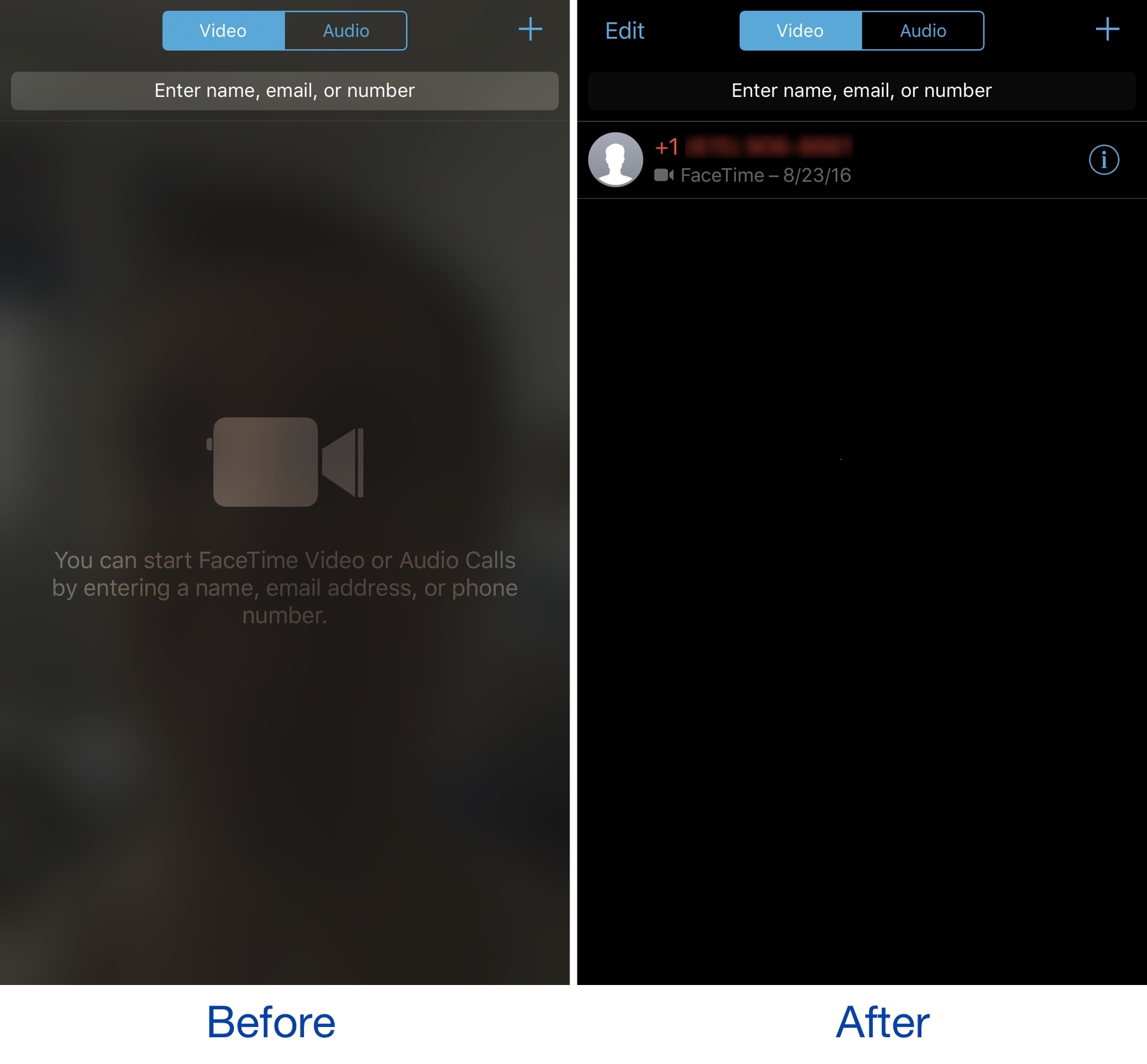
NoBlurFrontCamera disables the blurred camera effect in the FaceTime app

The FaceTime app on your iPhone exhibits a blurred silhouette of yourself via your device's front-facing camera any time you're in the app. It’s an interesting aesthetic effect, but it’s a waste of battery and a deterrent for camera-shy people.

A new free jailbreak tweak called NoBlurFrontCamera by CydiaGeek officially lets you disable this effect, replacing it with a simple dark background.