Learn how to increase the bass and boost the sound when listening to music with AirPods, HomePod, and other headphones and speakers.
How to increase bass in music on your iPhone, iPad, Mac
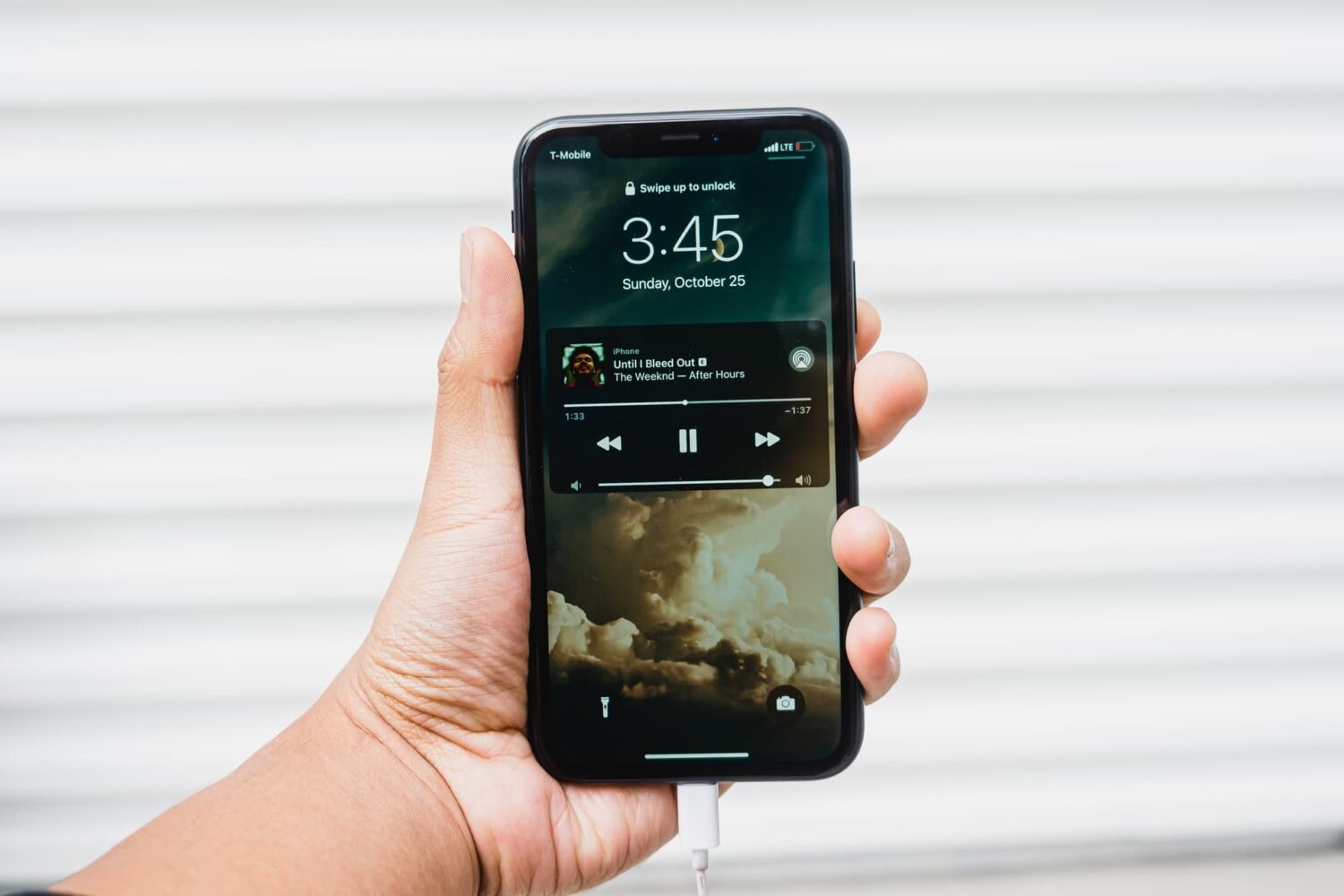
Learn how to increase the bass and boost the sound when listening to music with AirPods, HomePod, and other headphones and speakers.
Not long ago, we showed you how you can delete your Apple Music search history on your iPhone, iPod touch, and iPad to protect your song-searching privacy, but this capability can also be achieved on your Mac.
In this tutorial, we'll show you how you can clear your search history from Apple Music on your Mac directly from the iTunes app itself.
The biggest problem with subscription services like Apple Music, Spotify and others is the unnerving fact that labels make songs available for streaming on a time-limited basis. As a result, some of the tracks you add to Apple Music playlists may no longer be available for streaming, leaving you with no other choice but to purchase them on the iTunes Store.
Starting with iTunes 12.4, there's a new iCloud status of 'No Longer Available' which you can use to create a dynamically updated playlist containing the songs that you added to your Apple Music library that are no longer available for streaming, here's how.
Apple Music, which is Apple's own answer to the music-streaming industry, is a great place to easily search for a song you want to listen to and then play it on demand.
The only problem is, Apple Music keeps a running history of the songs you search for.
So now when you have your co-pilot in the passenger seat of your car choose a new song for you (because we know you don't use your iPhone and drive at the same time!) he's going to laugh at you because of the last time you felt like jamming out to some really embarrassing music.
Well fret not; in this tutorial, we'll show you how you can delete recent searches from the Apple Music app on your iOS device.

This tutorial shows you how to move your songs and playlists from Spotify to Apple Music and vice versa. These steps to transfer music also apply to several other music streaming services mentioned below.

Learn how to block explicit songs and podcast shows with mature language on Apple TV for a clean, kid-friendly media experience in your house.

Curated a fine collection of tunes and want to share it with others? Find out how to share an Apple Music playlist from your iPhone, iPad, Mac, or Android phone with your friends and family or post it to your blog or social media account.
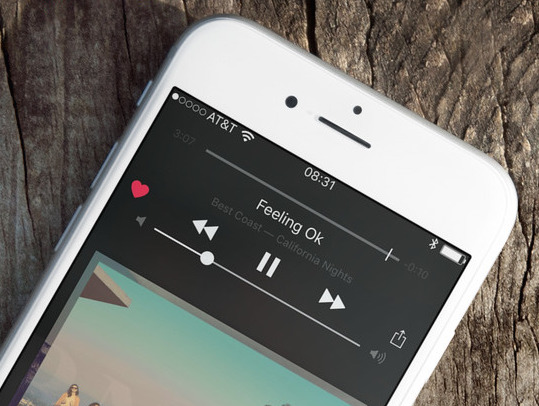
Apple Music on iOS includes an option to stream your music at high bitrates over a mobile data network at all times. As you know, Apple Music defaults to high-quality streams on Wi-Fi.
With this toggle, you can control your cellular data usage by enabling or disabling high bitrates when streaming or downloading music over your carrier's cellular data network.
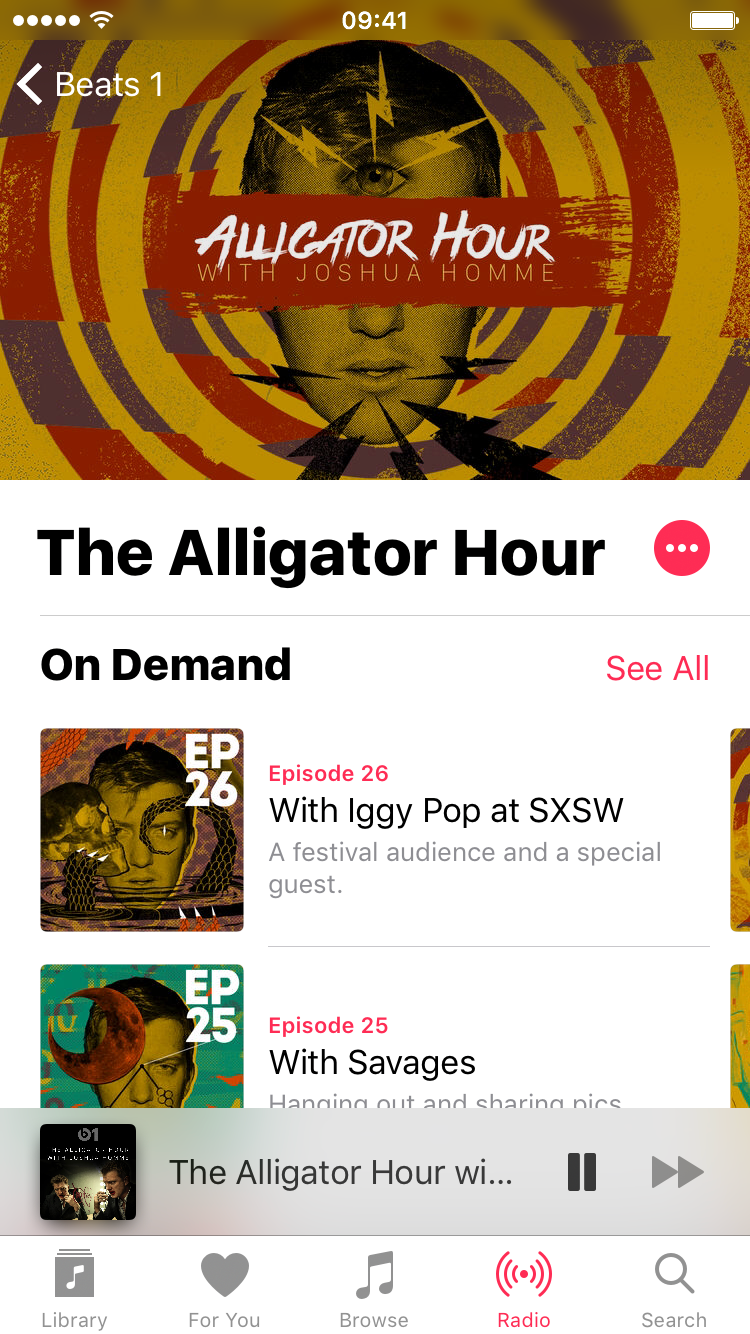
Beats 1 is a great, but what if you're not available to listen to your favorite DJ's show at the time it initially airs? Good news: Beats 1 nowallows users to replay entire shows.
Since Beat 1's inception, it's always been possible to replay a DJ's playlist, but being able to replay an entire show, complete with commentary, wasn't possible. Thanks to the recent change, this is no longer the case.
Users can now easily replay a show from their favorite DJ just by following a few steps. Admittedly, the steps aren't as straightforward as one might expect from a company that prides itself on dead-simple usage, but it seems to be a running theme with iTunes and the Music app to make things more muddled than need be.

Now that you've tried Apple Music thanks to Apple's generous three-month free trial, you may have decided that the service just isn't cut for you.
Though impossible to get rid of it completely, you can temporarily hide most of Apple Music's aspects.
Our previous tutorial has taught you how to disconnect from Apple Music's Connect feature and today's how-to lays out the steps to hide Apple Music on your iPhone, iPod touch, iPad and Mac and go back to the old way of enjoying music.
Apple today released iTunes 12.2.1 which solves a few issue, among them an annoying bug that's been driving more than a few early adopters of Apple Music crazy.
For context, Apple's standalone $25 per year iTunes Match subscription is commonly used to legitimately replace matched songs in your library with DRM-free files from iTunes in the high-quality 256Kbps AAC format. Unfortunately, iTunes Match as part of Apple Music membership contains a flaw.
Even though Apple Music checks songs in your own library against its vast catalog, matched tracks get incorrectly labeled as Apple Music and wrapped inside FairPlay, Apple's proprietary DRM system. As a result, you're prevented from enjoying your own Matched music on non-Apple devices.
More importantly, Apple Music members who cancel their subscription may end up with DRM-protected matched tracks. Making matter worse, deleting a track in your Mac's original library for the purpose of re-downloading it as a 256Kbps AAC file will prompt Apple Music to incorrectly replace the original, non-DRM version with a DRM-laden file.
This was never intended behavior: a flaw causes iTunes to incorrectly label songs from Matched to Apple Music. But worry not, iTunes 12.2.1 comes to the rescue: release notes state that the update resolves an issue “where iTunes incorrectly changed some songs from Matched to Apple Music”.
Here're the steps you must take if your matched songs show up as DRM-protected Apple Music tracks.
If you choose to hide Apple Music on an iPhone, iPod touch or iPad, the Music app gains a new Connect tab.
Described by Apple as a place where “musicians give their fans a closer look at their work, their inspirations, and their world,”Apple Music Connect permits music lovers to view and follow an artist's stream, like and comment on their posts and more.
Apple Music Connect is basically Ping 2.0. The feature is a tad crude in appearance and feels rough around the edges so little wonder that some folks don't view Connect as valuable enough for it to deserve its own tab.
Wouldn't it be great if you could get rid of the Connect tab? Thankfully, there is.
You'd be forgiven for thinking that the Connect feature couldn't be disabled: Apple has made sure to burry and hide it in an obscure place. In this post, I'm going to explain precisely how you can disconnect from Connect in Apple Music on iPhone, iPod touch, iPad or Mac.