Learn how to use tables in the Apple Notes app on your iPhone, iPad, and Mac to present information more clearly in a structured format.
How to easily create and work with tables in Apple Notes

Learn how to master your Apple devices with our comprehensive tutorials. From iPhone and iPad to Mac, Apple Watch, AirPods, and more, our expert guides will help you unlock the full potential of your Apple products. Discover new features, tips, and tricks each day to enhance your user experience.
Learn how to use tables in the Apple Notes app on your iPhone, iPad, and Mac to present information more clearly in a structured format.
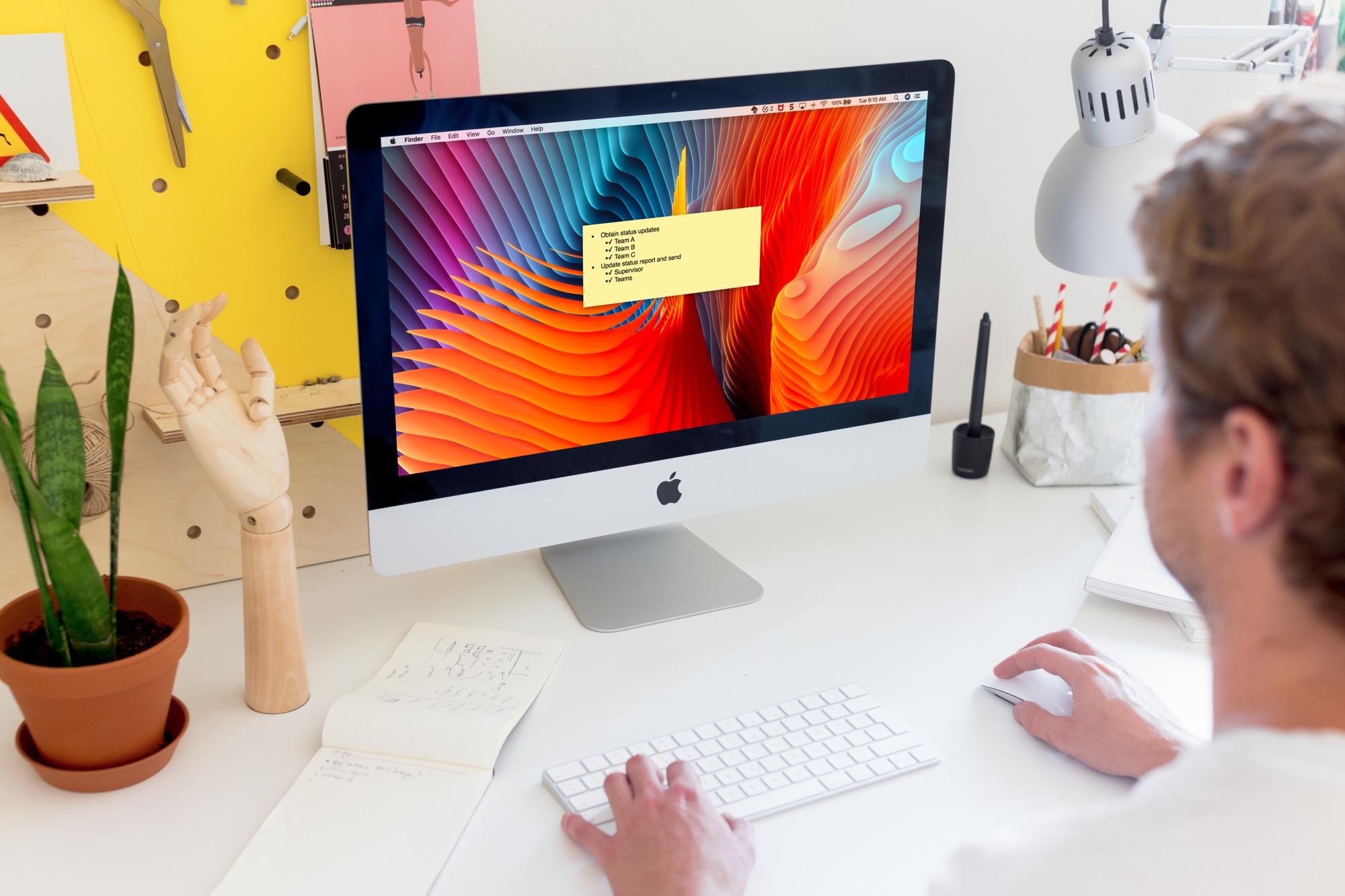
The Stickies app on Mac is a convenient tool for creating digital notes. You can pop Stickies onto your desktop just like you can put physical sticky notes on your desk.
While it’s a really simple app that comes in handy, it does offer a list feature that makes it even more practical. You can make lists for tasks, shopping, ideas, and more. Here’s how to create and format lists in your Stickies.

Learn how to set up and customize subtitles and captions on your iPhone, iPad, Mac, and Apple TV to better enjoy your favorite shows and movies if you’re deaf or cannot hear properly.
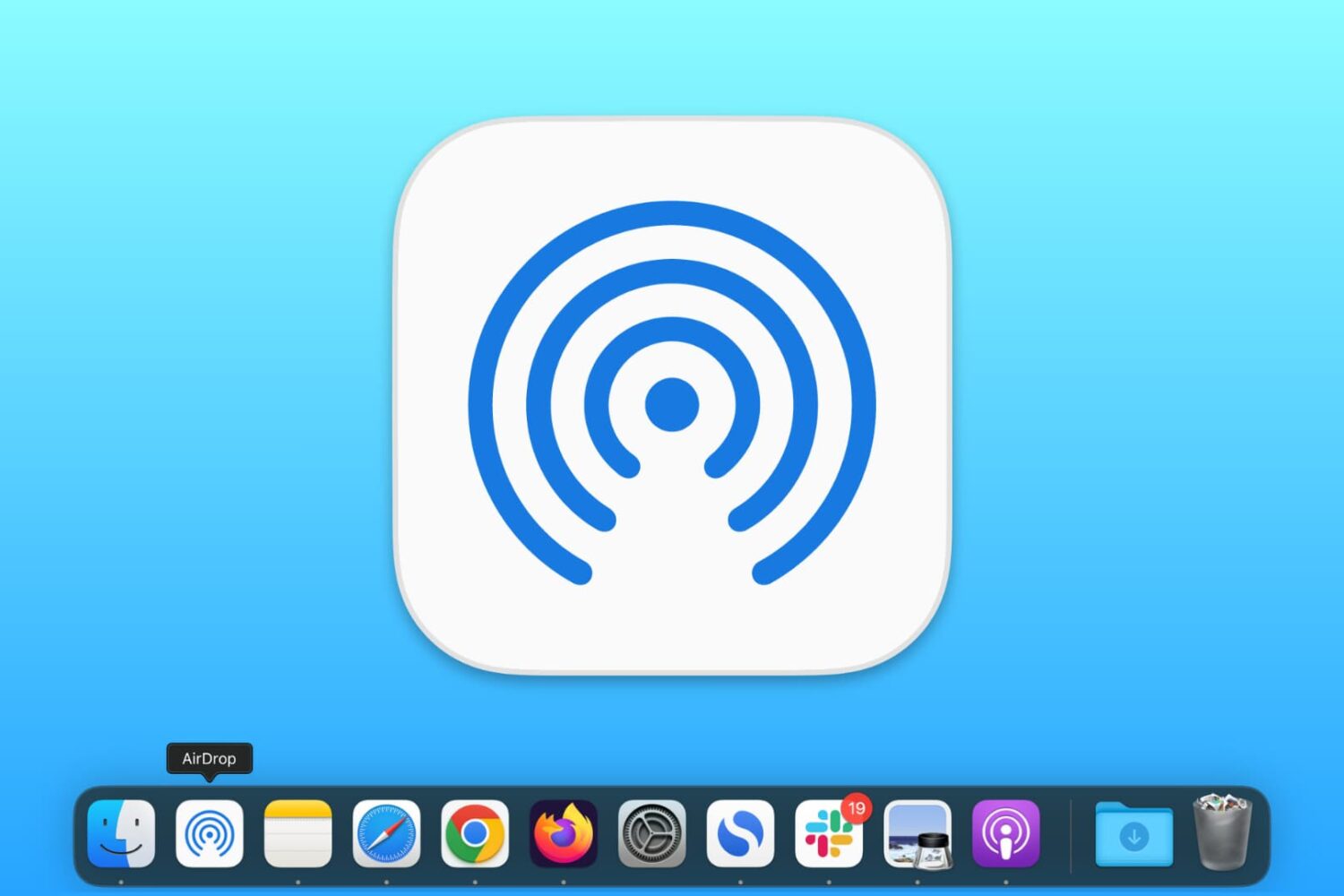
In this brief tutorial, we’ll show you how to add an AirDrop shortcut to your Mac’s Dock so it’s even easier to send files to other Apple devices.

The Apple Music app has a built-in lyrics search feature. With it, you can find songs even if you don’t know the track’s name, who the artist is, or other such details.
All you need to do is remember a small part of the song’s lyrics, and the Music app will find tracks on Apple Music or in your library that match the typed lyrics.

Google Maps for iPhone, iPad and iPod touch makes it easy to customize vehicle icons. You can only spicy up your ride this way when using the app's driving navigation mode.
Learn how to properly use the hands-free “Hey Siri” or “Siri” feature in a multi-device environment so that only the right Apple device responds to the wake-up phrase.
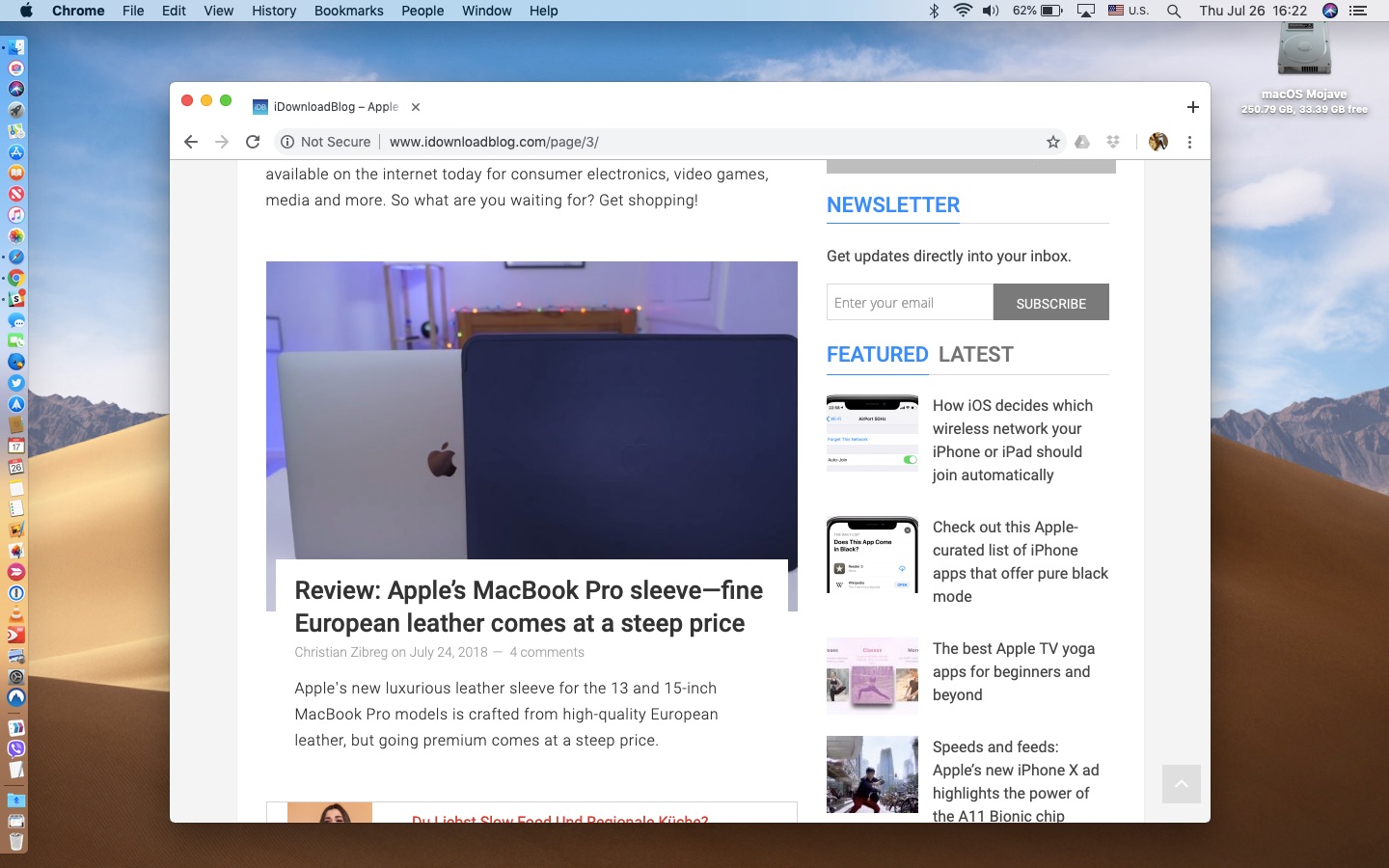
Google Chrome 68 for desktop and mobile includes elements of a Material Design refresh that are disabled by default, but can be activated at will by changing hidden settings, here's how.
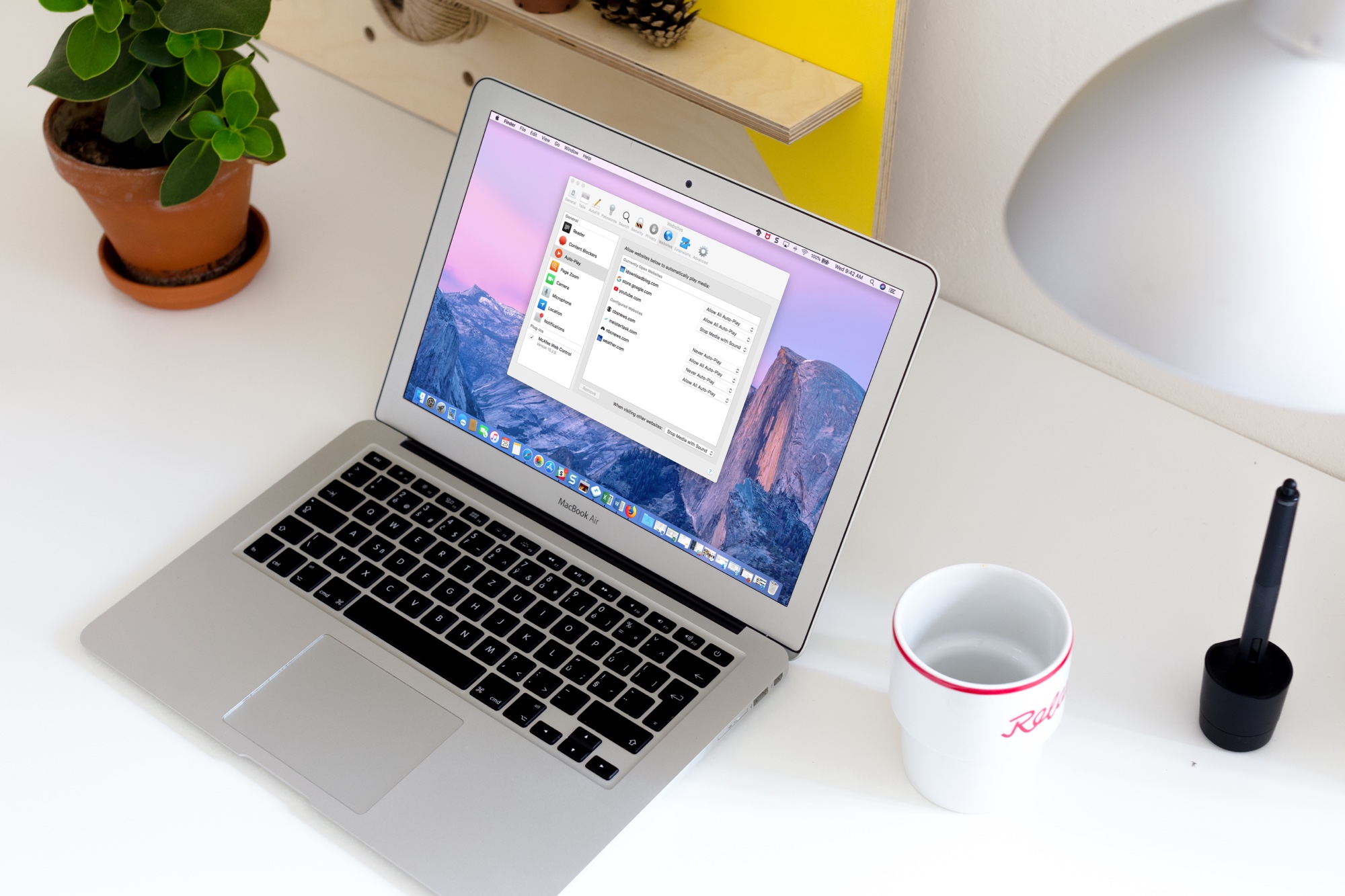
Learn how to disable autoplay in Safari for Mac to stop websites from playing video and audio automatically, creating a calmer, less distracting browsing experience.

Learn some interesting facts about how your iPhone, iPad, or Mac determines the order in which it should automatically join previously saved Wi-Fi networks.

Learn how to always use Outlook in Dark Mode on your iPhone and computer or set it to mimic your device's system-wide Dark and Light Mode settings.

Here's a quick look at how to use the News app in macOS. The app is similiar to the iOS News app for iPhone and iPad.