Learn how to disable autoplay in Safari for Mac to stop websites from playing video and audio automatically, creating a calmer, less distracting browsing experience.
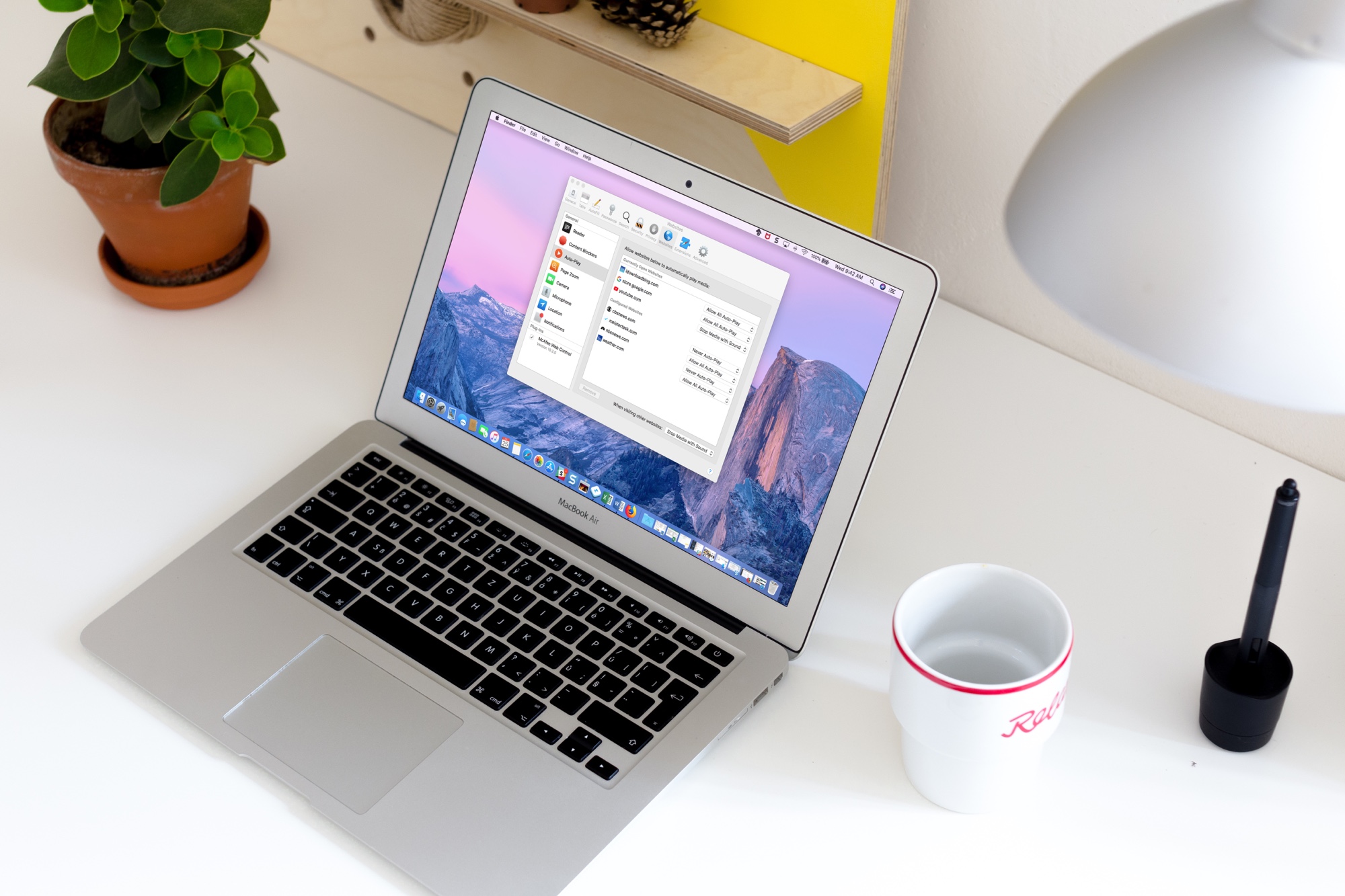
There’s nothing worse than landing on a webpage that automatically plays background audio or video, especially a video advertisement. Not only is this annoying and rude to the user, but it also unnecessarily wastes your bandwidth.
You can stop this madness by changing Safari’s settings to prevent autoplay media on any websites you visit or just specific ones, and we show you how.
Turn off autoplay video in Safari
Follow these steps to disable autoplay video in Safari for currently open websites.
1) Open Safari and click Safari > Settings or Preferences in the top menu bar.
2) Go to the Websites tab and click Auto-Play in the sidebar.
3) You should see the websites you’re currently browsing in the Currently Open Websites section at the top. Websites for which you’ve already managed autoplay settings are listed in the Configured Websites section.

4) Select a website in the Currently Open Websites section, then choose from the following autoplay media settings:
- Allow All Auto-Play: The website will automatically play audio and video, if any.
- Stop Media with Sound: The website won’t be allowed to autoplay videos with no sound.
- Never Auto-Play: The website is prohibited from autoplaying video, whether it has sound or not.
Once you configure these options and close the tab, the website will be listed under Configured Websites.
5) You can also choose autoplay settings for any other websites you visit that are not listed in the Configured Websites section by clicking the “When visiting other websites” menu at the bottom.

Manage autoplay video on the fly
You can also change autoplay media settings for a website without opening the Safari settings. To do so, open a website and click the Safari menu, then choose Settings for the website name. In the pop-up that appears, click the Auto-Play menu and select an appropriate autoplay option.

Once you change these settings, the website will be automatically listed in the Configured Websites section in Safari settings, as discussed above.
Clear website settings
If you change your mind, you can easily clear a website’s autoplay settings and other per-website preferences you’ve changed. First, select a website in the Configured Websites section. Then, hit the Remove button at the bottom.

Settings for this website will be cleared immediately, and the website will be removed from the Configured Websites list. If there are no websites listed under Configured Websites, then the “When visiting other websites” setting will apply to all those you visit.
Also, check out: