Learn how to add or update your Slack username or display name from your iPhone, iPad, Mac, or web browser.
How to change your Slack username or display name

Learn how to master your Apple devices with our comprehensive tutorials. From iPhone and iPad to Mac, Apple Watch, AirPods, and more, our expert guides will help you unlock the full potential of your Apple products. Discover new features, tips, and tricks each day to enhance your user experience.
Learn how to add or update your Slack username or display name from your iPhone, iPad, Mac, or web browser.

Try these troubleshooting tips to fix Bluetooth issues on your iPhone or iPad running iOS 27 or iOS 26 and resolve connection problems with wireless accessories.

In this brief tutorial, we will show you how to copy and paste handwritten notes as typed text so that the notes you took on your iPad with Apple Pencil appear as actual text ready to be used in other apps.

Did you know you can manage your account in the App Store on Apple Watch? Find out how to view purchased apps and manage subscriptions from your wrist.

Learn how to change calendar colors on your iPhone, iPad, and Mac to make events easier to spot in the Apple Calendar app.
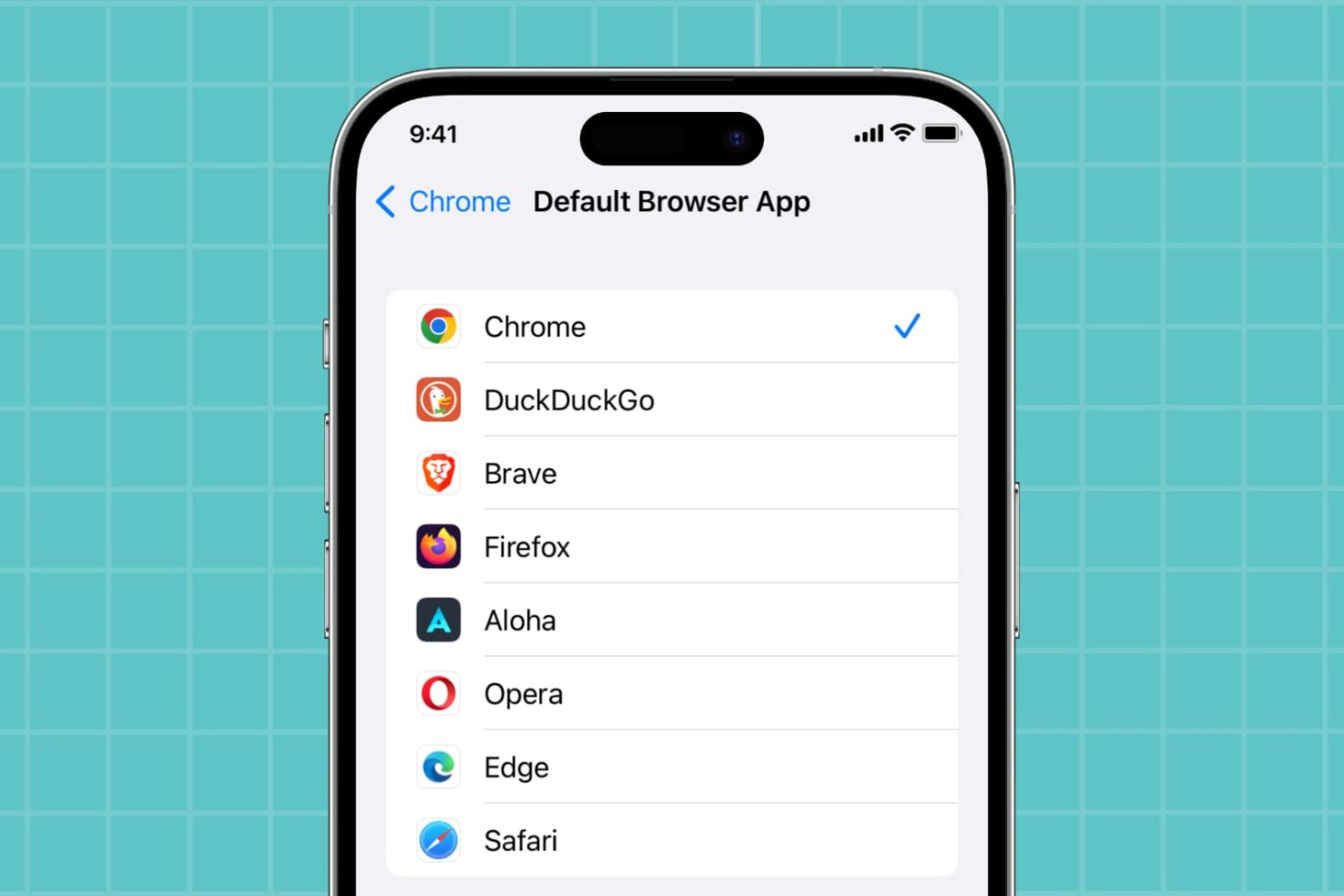
Learn how to use Google Chrome, Microsoft Edge, Mozilla Firefox, Brave, or another compatible app as the default web browser on your iPhone or iPad instead of Apple’s Safari.

Wondering how to change your Skype name? We’ll show you how to do this on iPhone, iPad, Mac, and web browser.

Have you ever tried to make a purchase on your iPhone or iPad for a new app or in-app upgrade and received an error message that your purchase could not be completed in the App Store app? This guide lists several possible reasons and solutions to fix this problem.

Learn how to change the quality of content streamed or downloaded in the TV app on your iPhone, iPad, Mac, Apple TV, and Apple Vision Pro.
Learn how to use the Tab Groups feature in Google Chrome on Mac to keep your open browser tabs organized and increase your productivity.

Do you use Microsoft Excel on your Mac instead of or in addition to Apple Numbers? If so, knowing some keyboard shortcuts for Excel on Mac can save you time when performing basic tasks in your spreadsheets and workbooks.
As Microsoft products, Excel, Word, and PowerPoint have some of the same shortcuts. But most below are specific to using Microsoft Excel and will make managing your data a breeze.

In this tutorial, we will show you how to view your Google Maps Timeline on your iPhone, iPad, and computer to go through your past travels. We will also explain how this information can be useful to you.