Whether it’s for identifying your Apple TV or getting help from Apple Support, this tutorial shows you where to find the serial number of your Apple TV and its Siri Remote.
How to find serial numbers of your Apple TV and Remote
Learn how to master your Apple devices with our comprehensive tutorials. From iPhone and iPad to Mac, Apple Watch, AirPods, and more, our expert guides will help you unlock the full potential of your Apple products. Discover new features, tips, and tricks each day to enhance your user experience.
Whether it’s for identifying your Apple TV or getting help from Apple Support, this tutorial shows you where to find the serial number of your Apple TV and its Siri Remote.
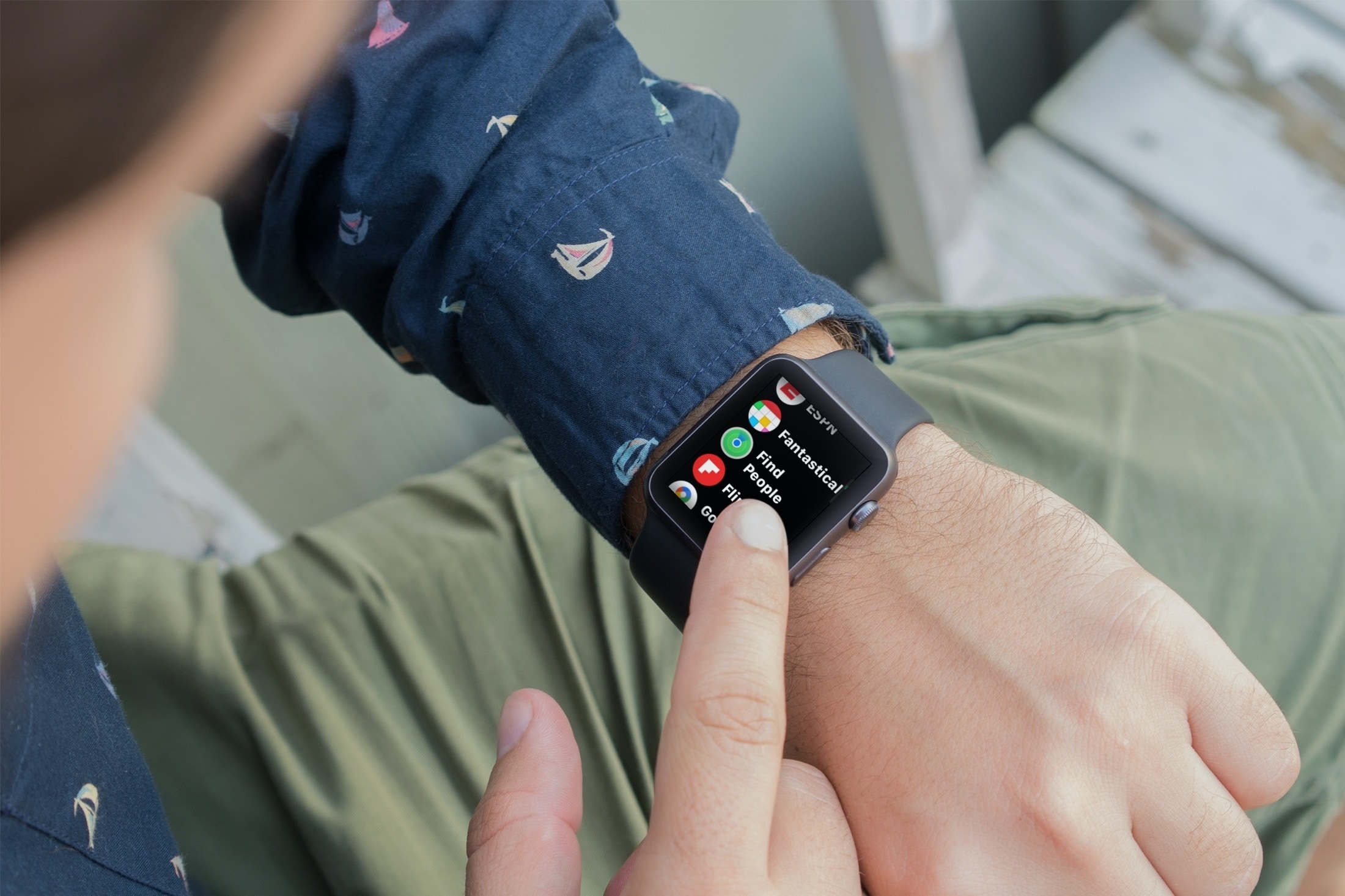
Learn how to use the Find People app on Apple Watch to see your friends and family members’ locations and share your location with them.
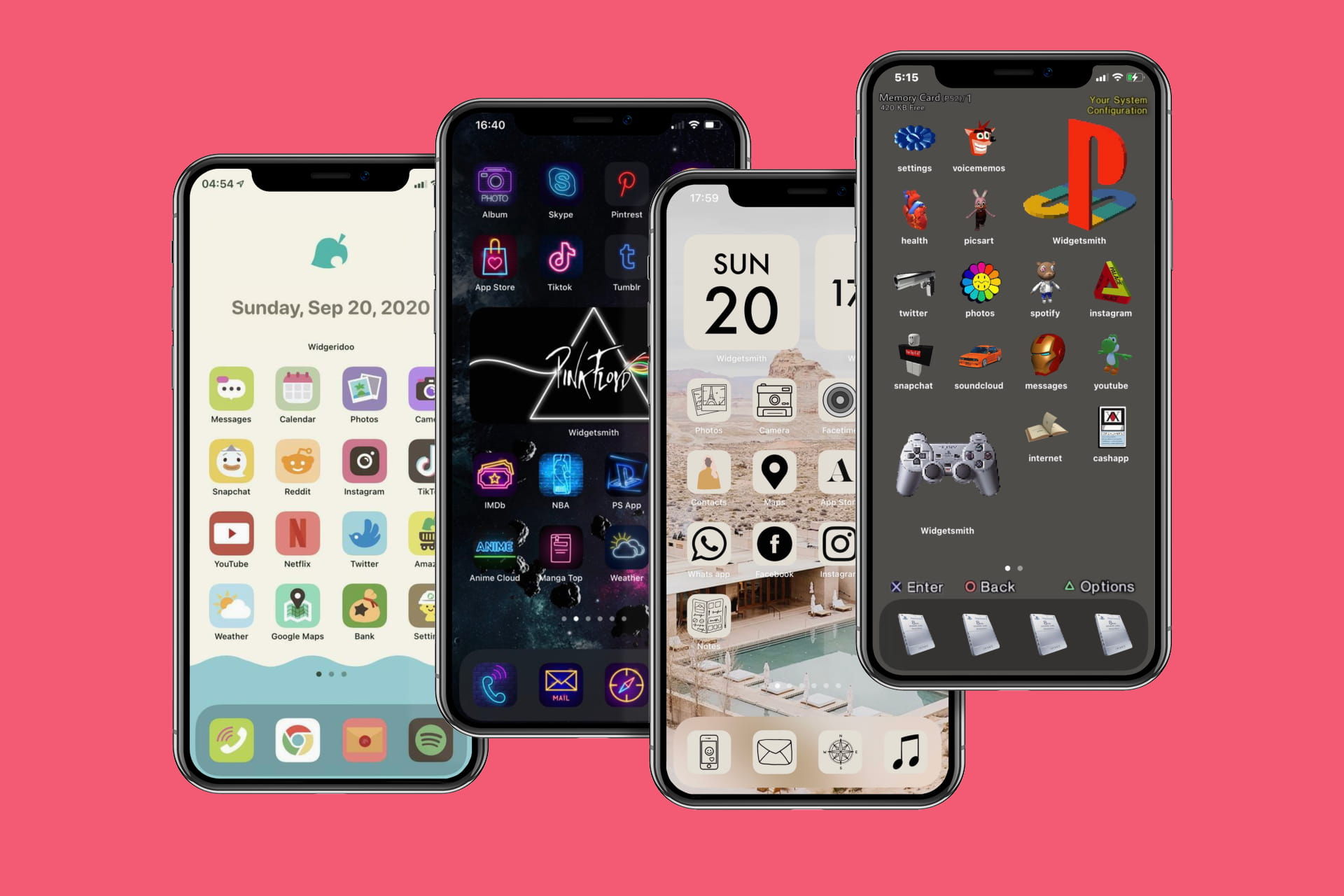
In this step-by-step tutorial, we show you how to use the built-in Apple Shortcuts app to personalize your iPhone or iPad Home Screen with custom app icons and add some pop to your digital space.
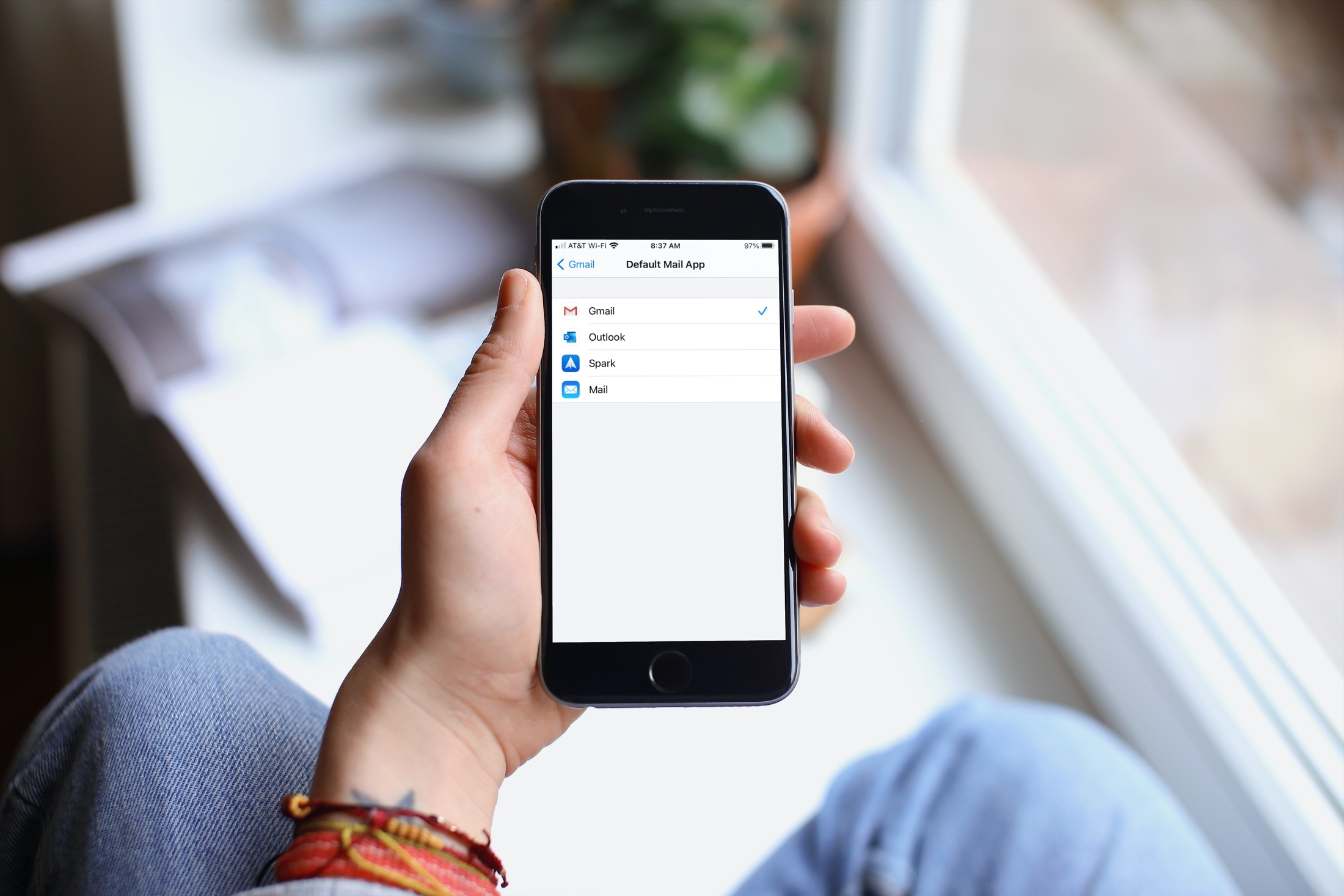
Learn how to change the default email app on your iPhone and iPad to Gmail, Outlook, Spark, HEY, or something other than the default Apple Mail app.

Learn how to use Spatial Audio with your AirPods to enjoy an immersive sound experience when listening to songs, watching movies, and making FaceTime calls on your iPhone, iPad, Mac, Apple TV, and Apple Vision Pro.
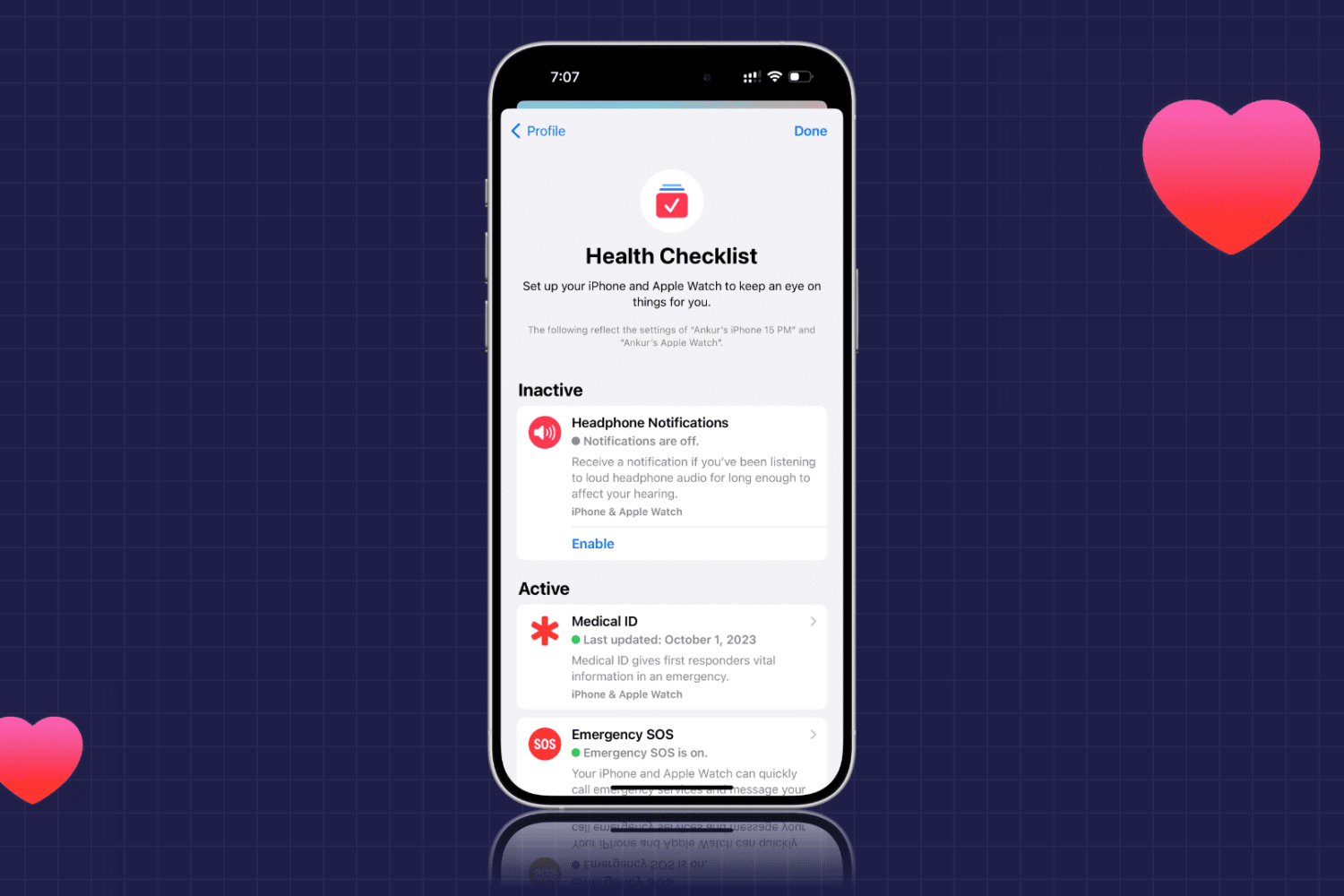
Learn how to use the Health Checklist option for iPhone and Apple Watch to make sure that you’re using the health features you really need.
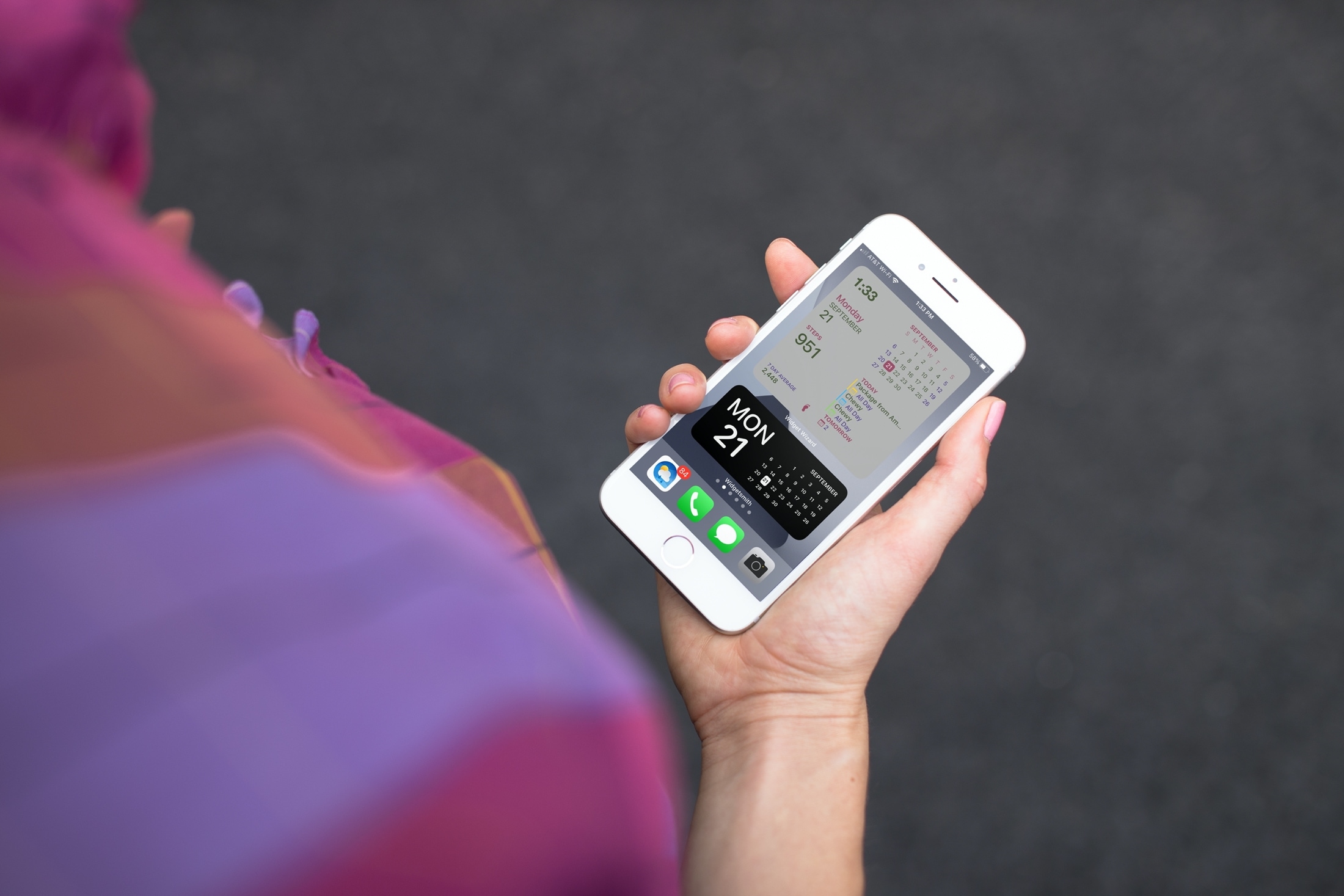
If you’ve been enjoying the iOS 14 and iPadOS 14 feature for adding widgets to your Home Screen, then maybe you want to take that a step further. Among apps with Home Screen widgets are apps that let you customize your own widgets!
You can create your own Home Screen widgets and have them look exactly as you like. This gives you even more flexibility than you probably expected for personalizing your device. Here’s how to create custom Home Screen widgets on iPhone and iPad and tools you can use.
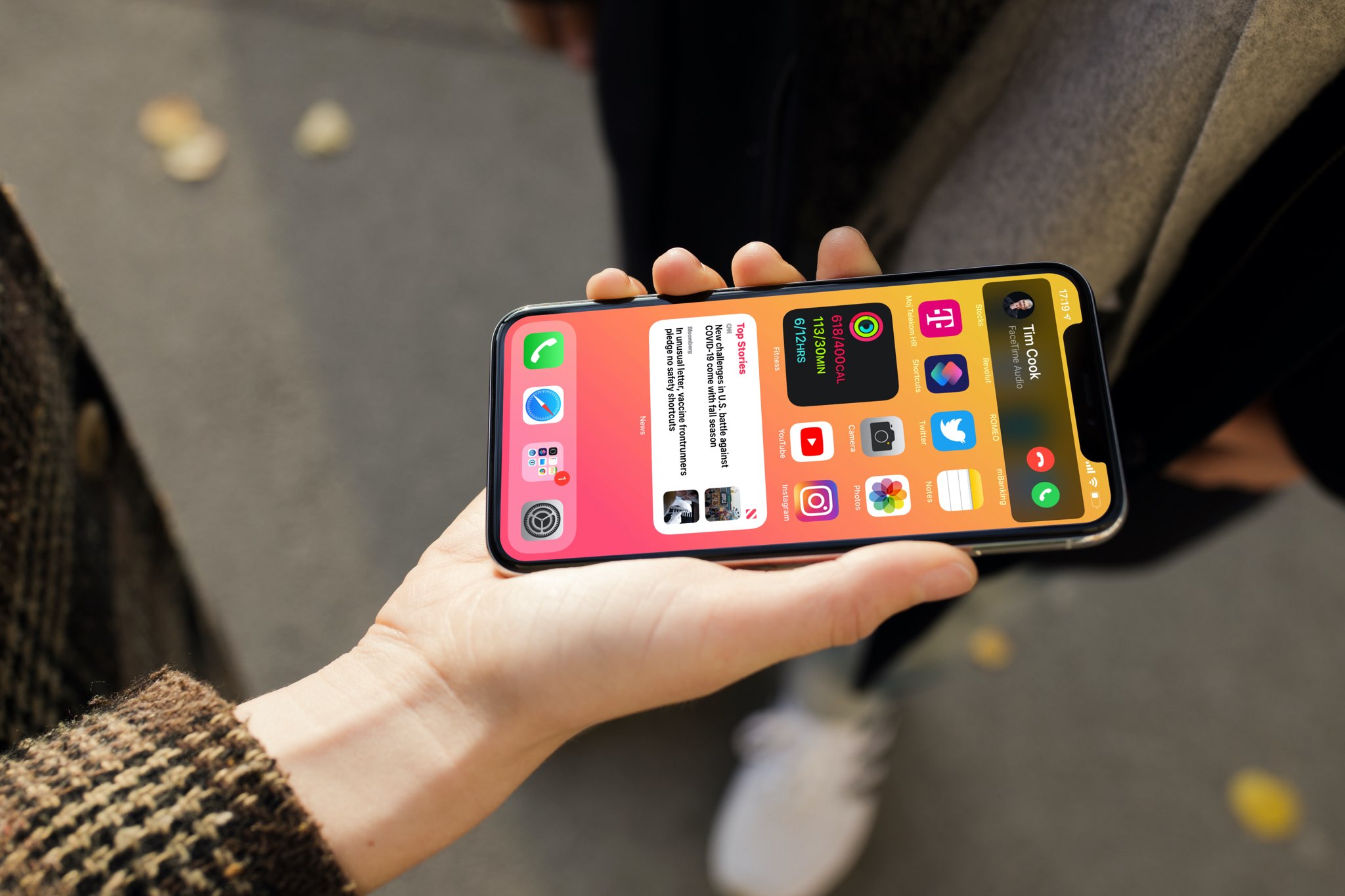
By default, incoming phone and FaceTime calls appear as a compact banner at the top of the screen of your unlocked iPhone. It doesn't take up the whole screen.
However, if you or someone with access to your iPhone switched it back to a full-screen interface, then you can easily revert to the default, compact style. In this tutorial, we'll show you how.
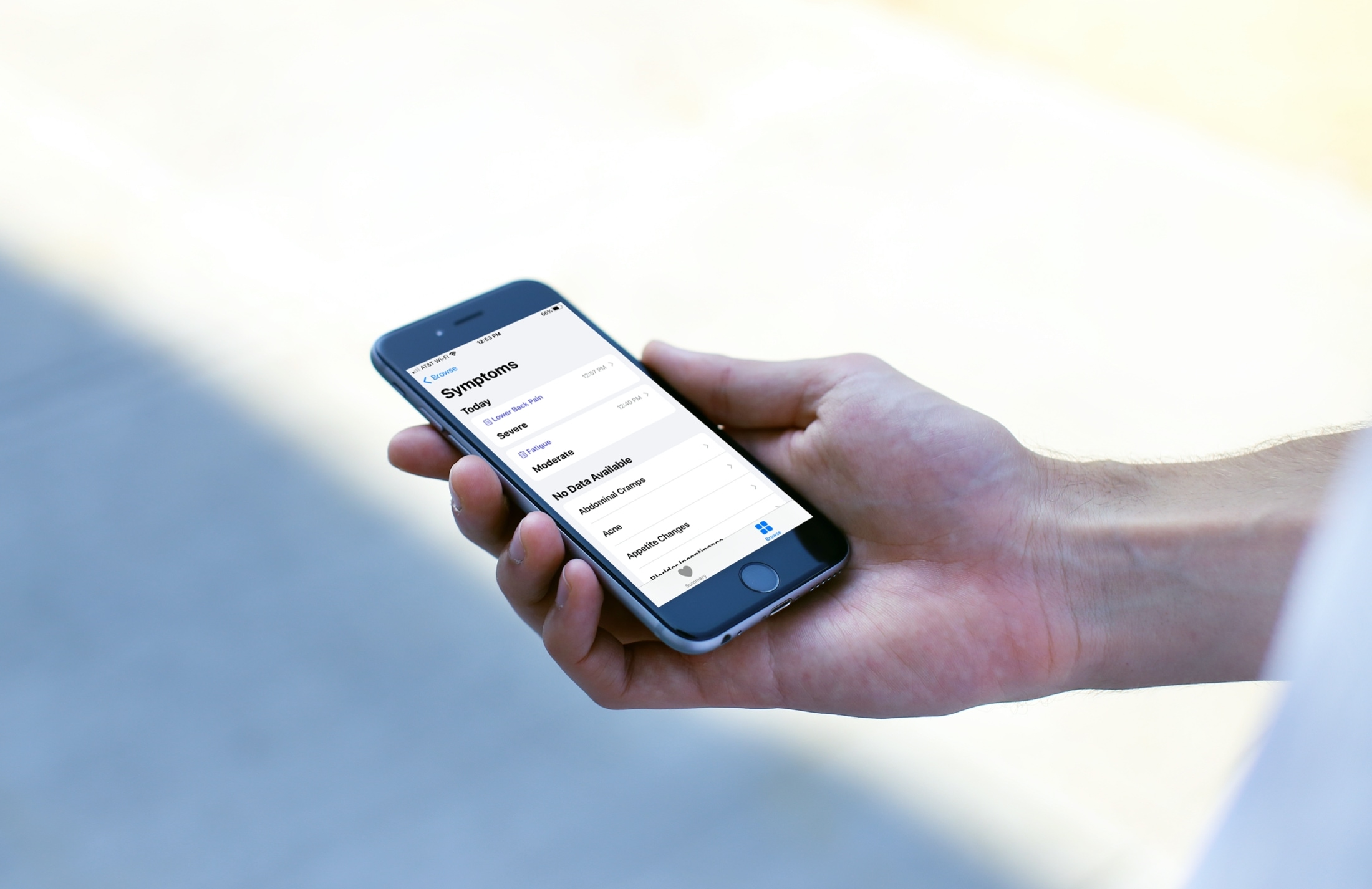
Note symptoms in the iPhone or iPad Health app so you can keep track and use them when diagnosing the problem.
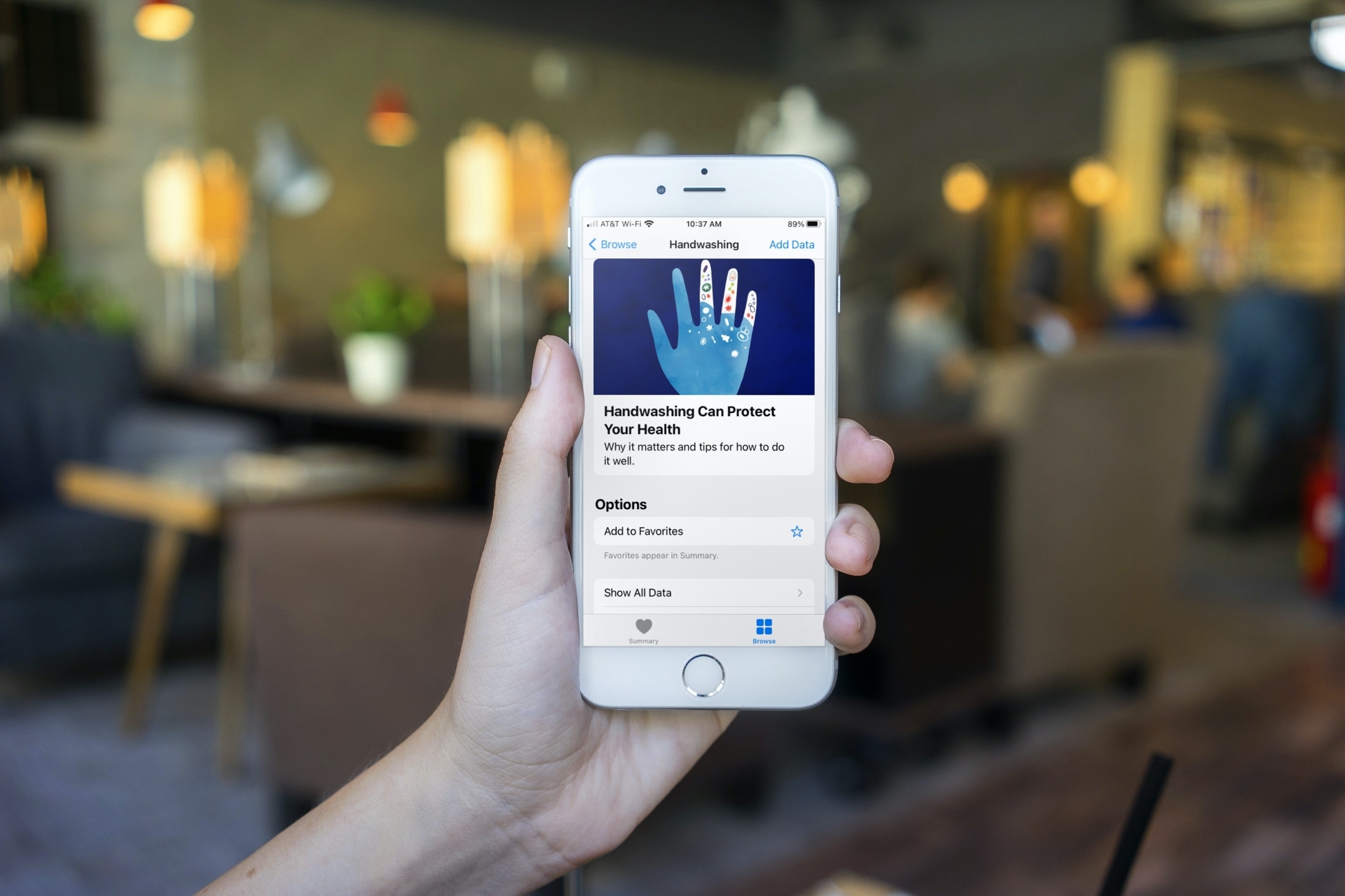
Learn how to get reminded to wash your hands at the right time and for the correct amount of time with the automatic Handwashing Detection feature on Apple Watch.
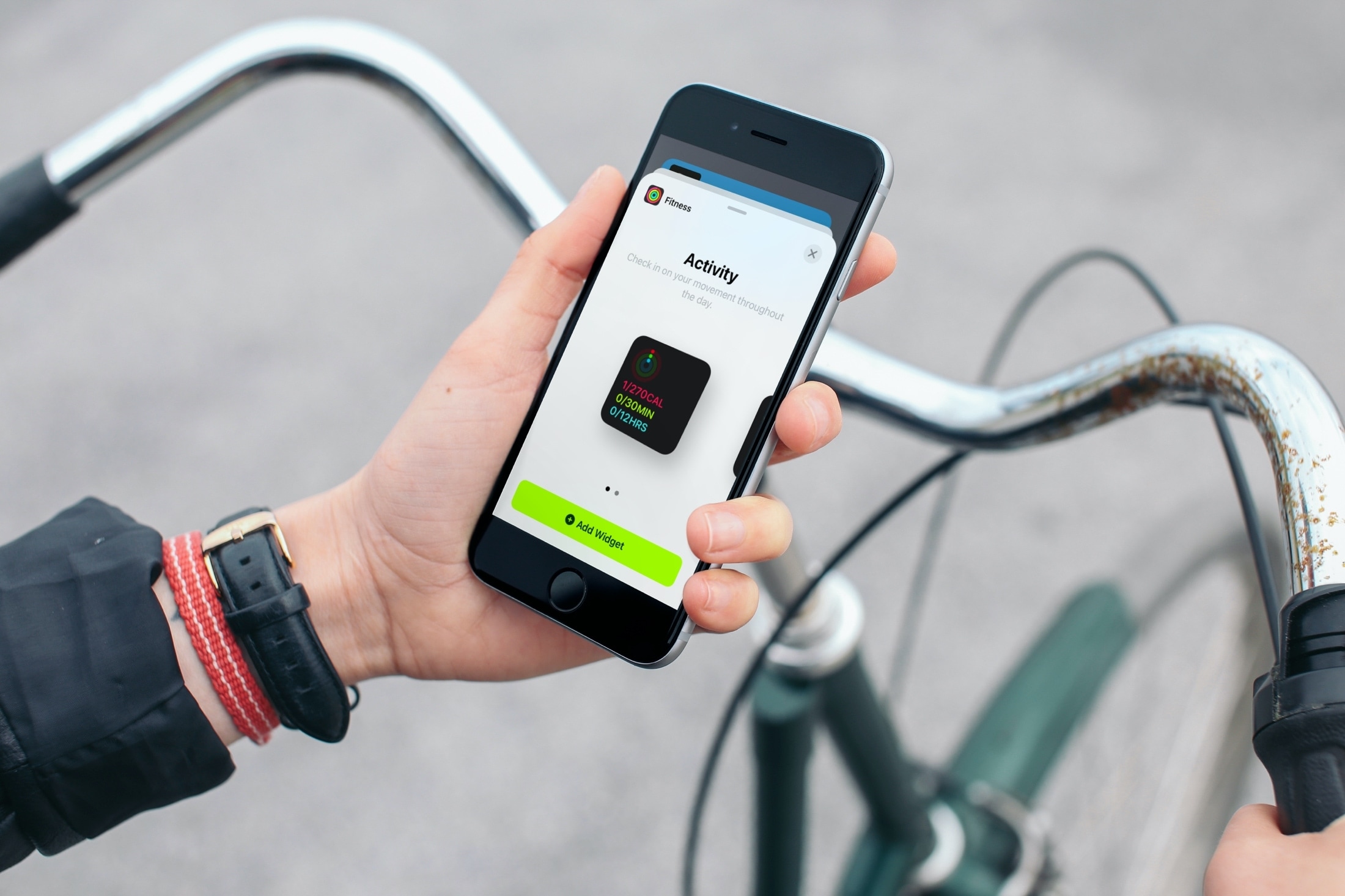
Don’t limit your Home Screen to just app icons! Learn how to add and remove widgets on your iPhone or iPad Home Screen so you can see things at a glance without having to open the app.